
How to view the details of AI employee conversations?
I. Function Introduction
The AI Employee Analytics page is used to view the conversation handling status of individual AI employees. On the analytics page, you can view conversations, messages, transfers to human agents, and conversation resolution status, and use filters to find conversations or messages you want to focus on.
After entering the message details, you can also view the AI employee's answer basis and reasoning process, and use the "Troubleshooting Assistant" to analyze the answer effect and the cause of the problem.
This article's link: "How to view the details of AI employee conversations?"
II. Viewing Method
1. Access the AI Employee Analytics page
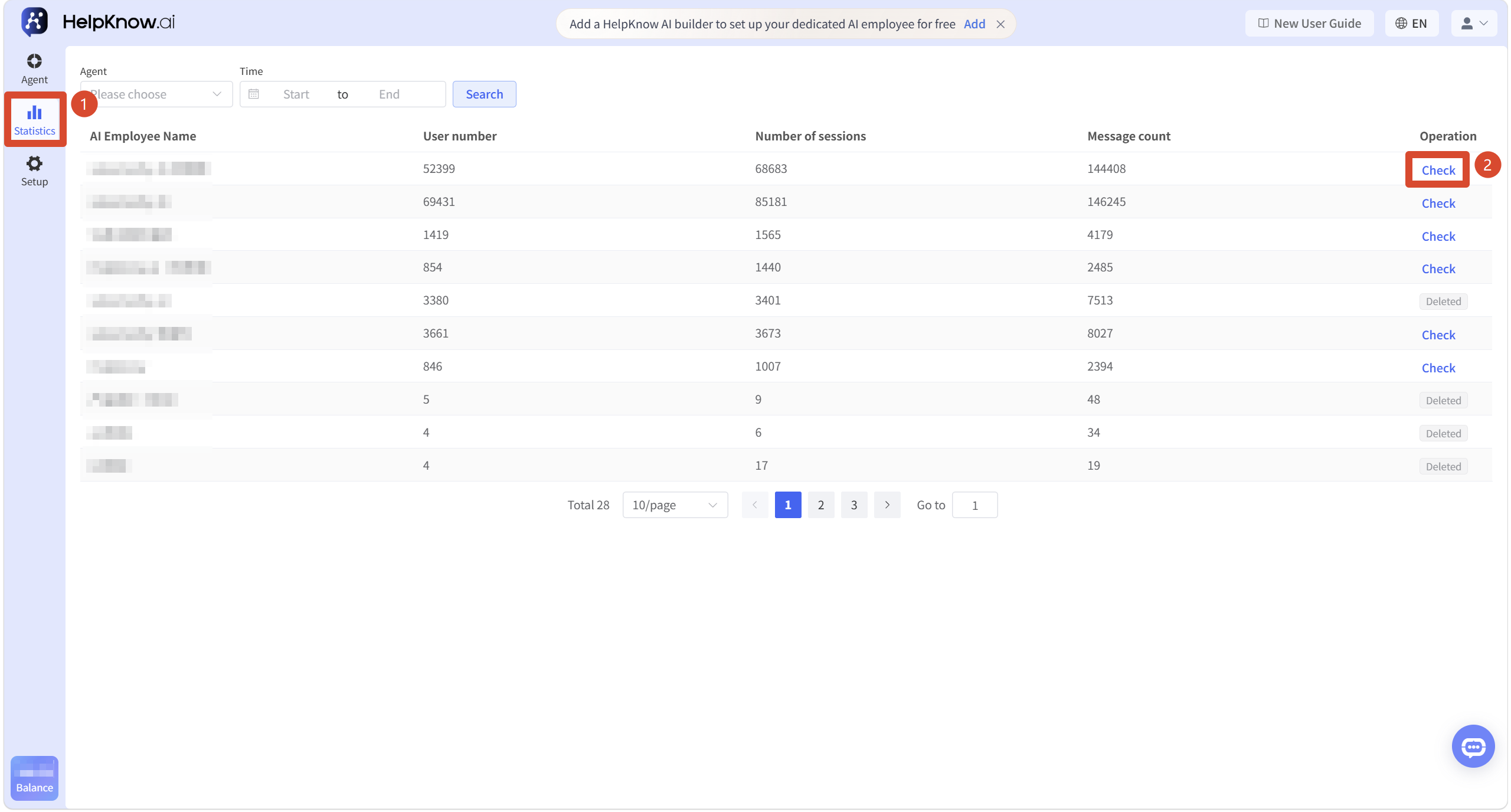
- In the left-hand menu, click "Statistics".
- In the statistics list, find the AI employee you want to view.
- Click "View" on the right side of the AI employee.
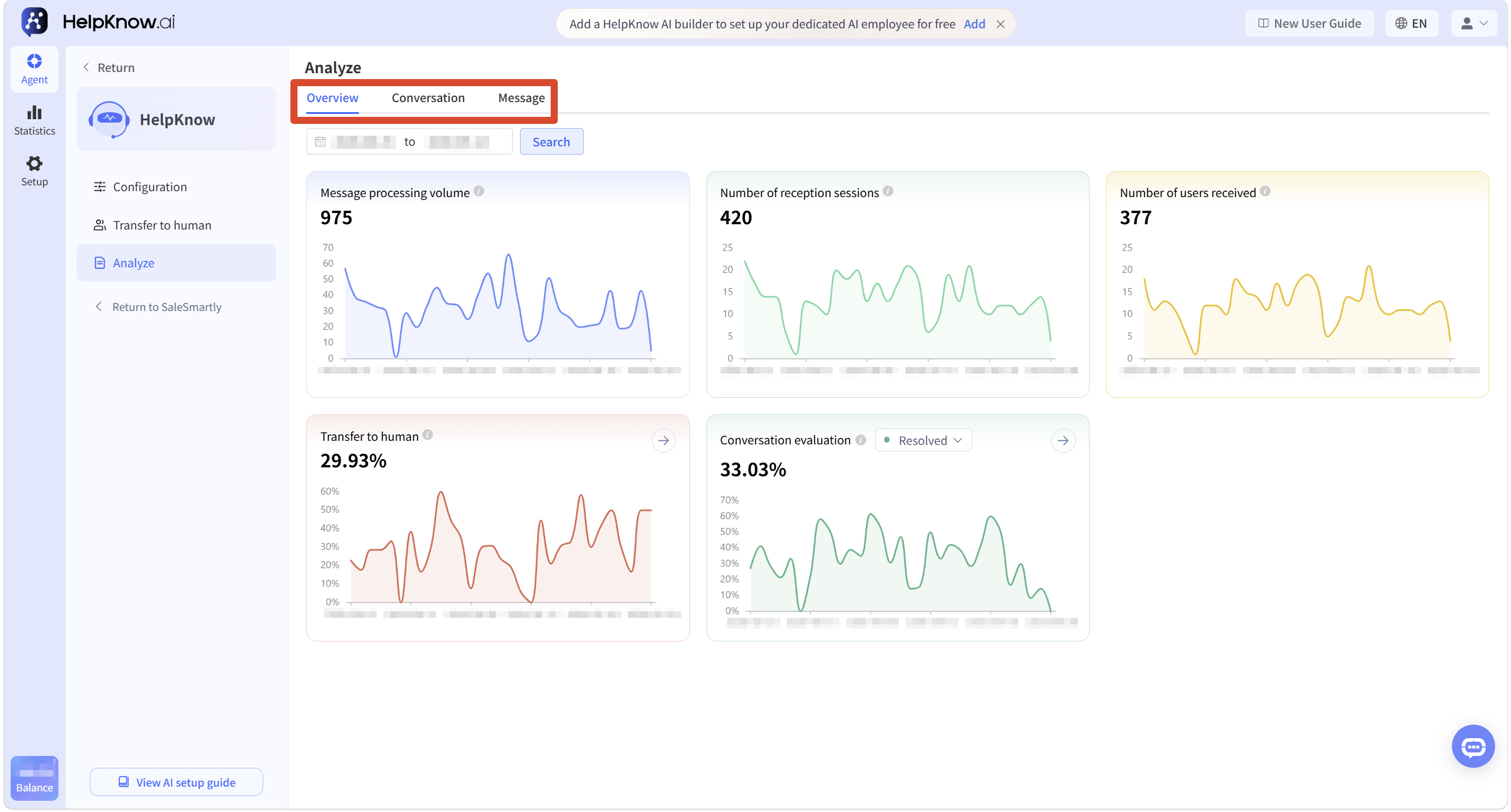
After entering the AI Employee Analytics page, you can switch between the "Overview," "Conversations," and "Messages" tabs.
2. View session data
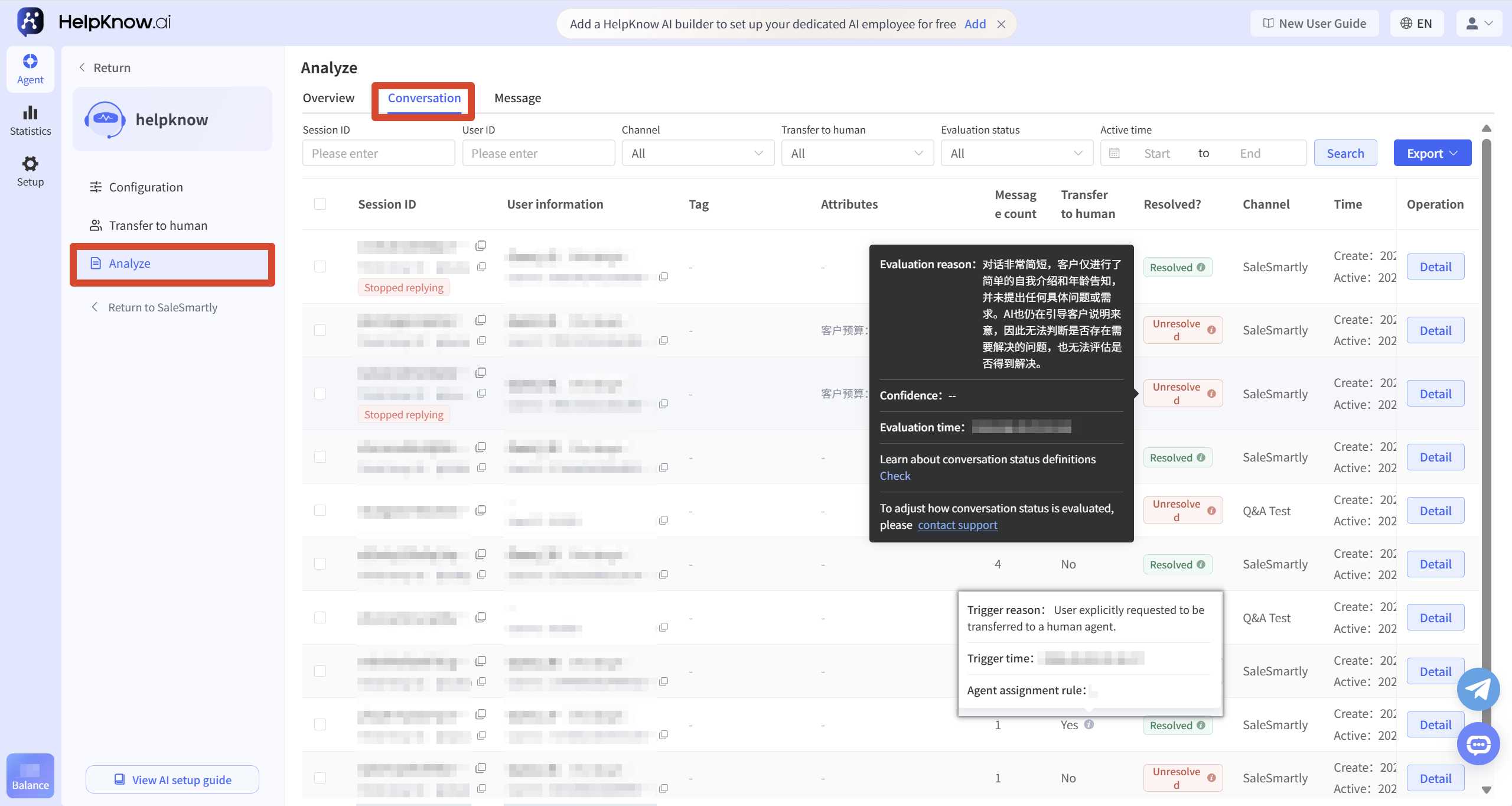
In "Analysis > Conversations", you can view the conversation records generated by AI staff, including information such as conversation ID, customer, third-party conversation ID, number of messages, channel, whether it was transferred to human agent, conversation resolution status, and conversation time.
Some conversations that trigger the "Stop Responding" option will also display a "Stop Responding" marker for easy identification. For information on triggering the "Stop Responding" option and configuration methods, please refer to "How to Set Up AI Employees to Automatically Stop Responding?" .
2.1 Filtering Sessions
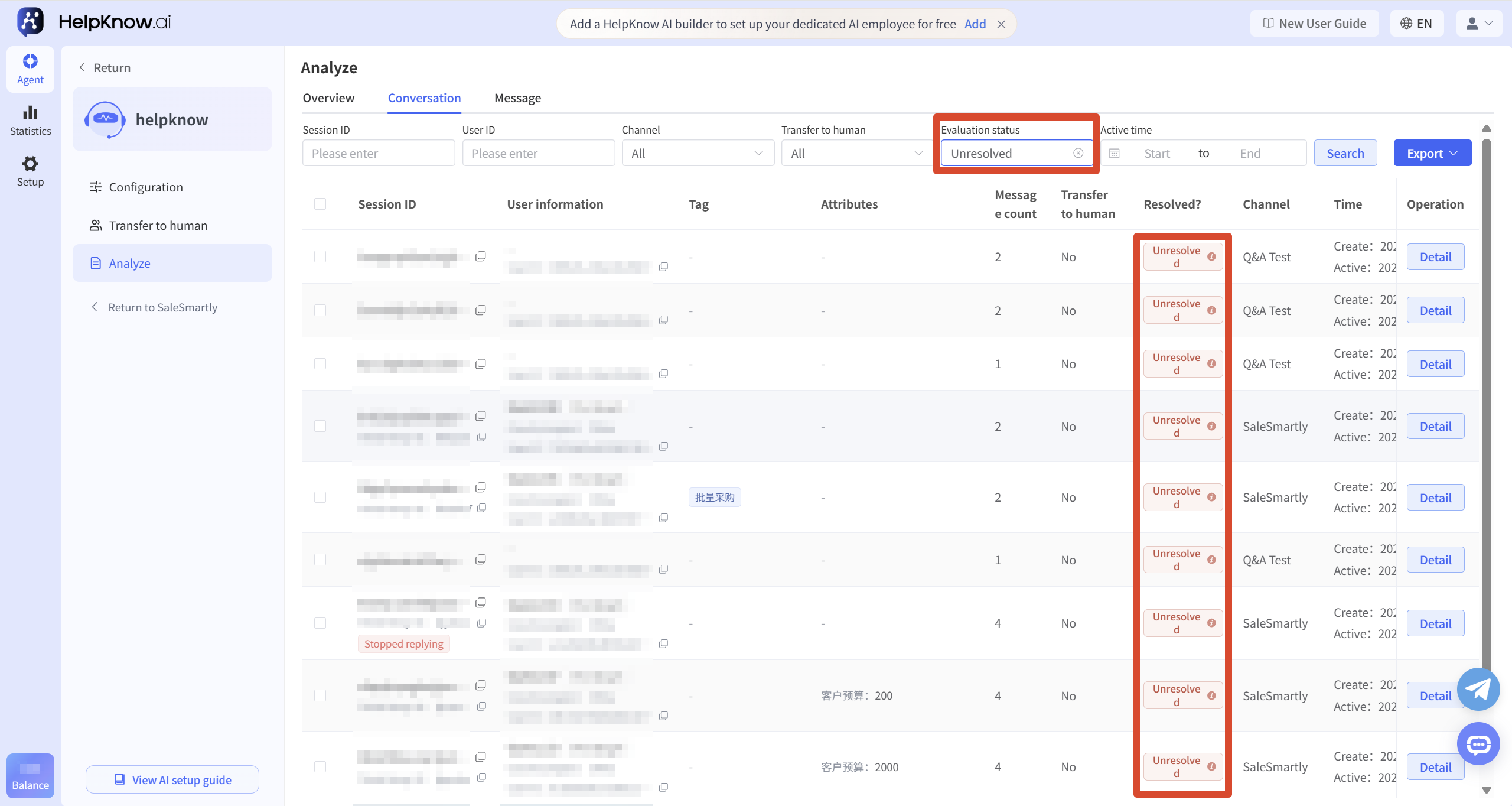
You can use the top filters to filter conversations by conversation ID, third-party conversation ID, channel, whether to transfer to human agent, evaluation status, active time, and other criteria.
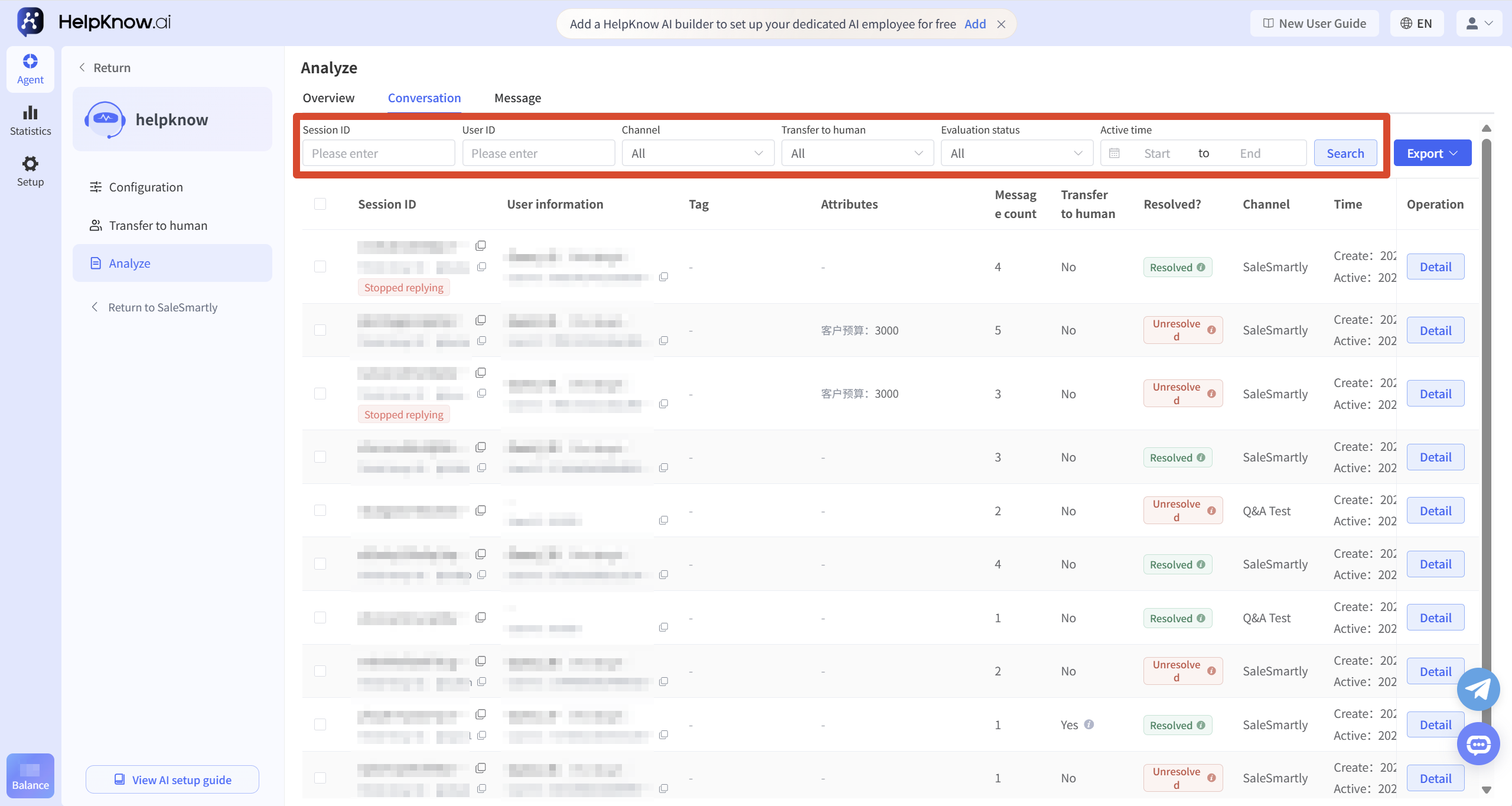
If you want to focus on identifying issues that AI has not resolved, you can filter for "Unresolved" in the "Assessment Status".
2.2 Viewing Session Details
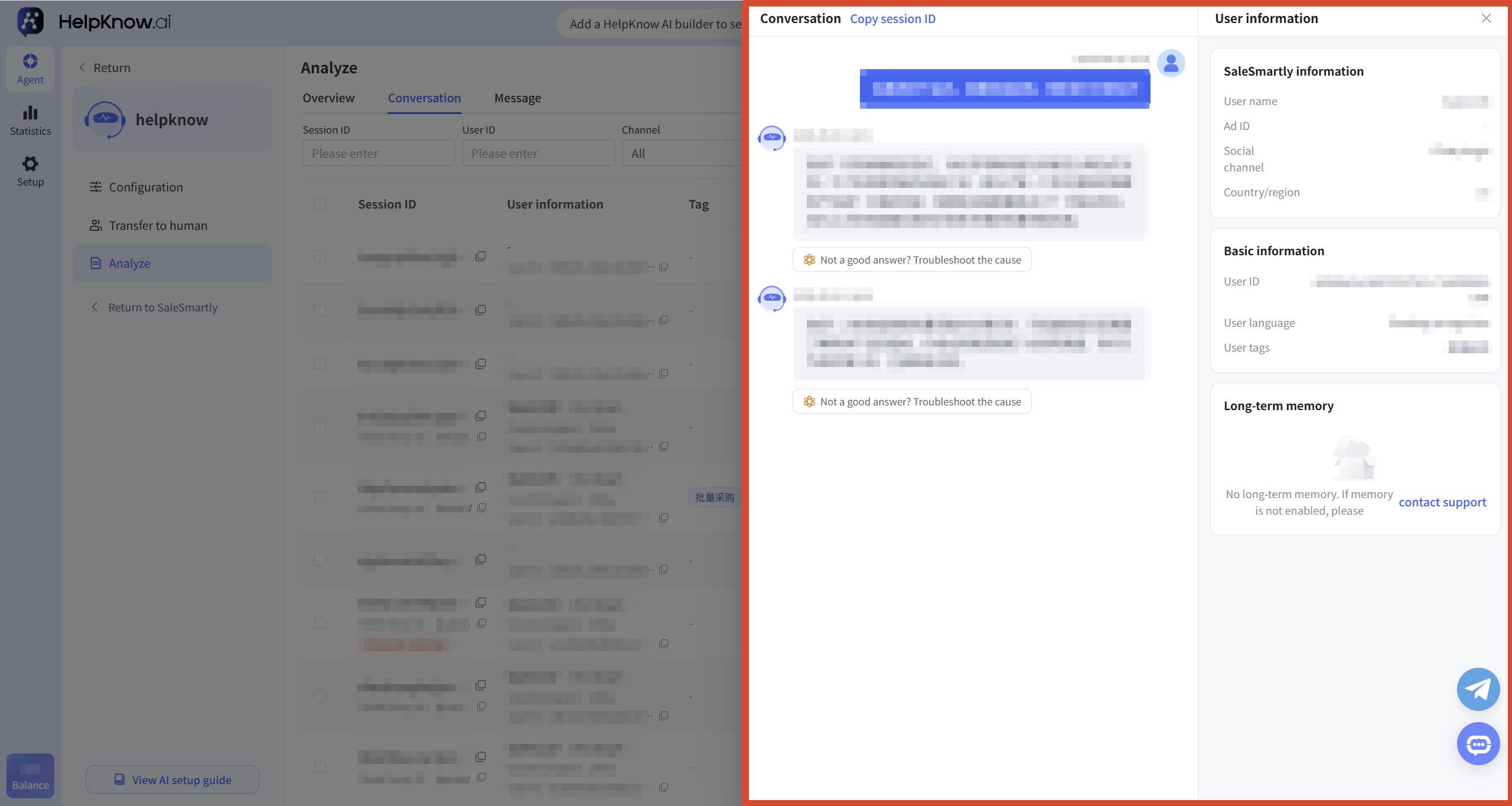
Click "Details" on the right side of the conversation to view the complete chat history and related conversation information between the user and the AI employee.
In the conversation details, you can also view the current user's SaleSmartly information, basic information, and other content, making it easier to understand the actual reception situation in conjunction with the user's background.
If the current AI employee has enabled "AI Memory", you can also view the user's accumulated long-term memories and understand the historical information that the AI can refer to in subsequent receptions.
2.3 View conversations related to transferring to a human operator
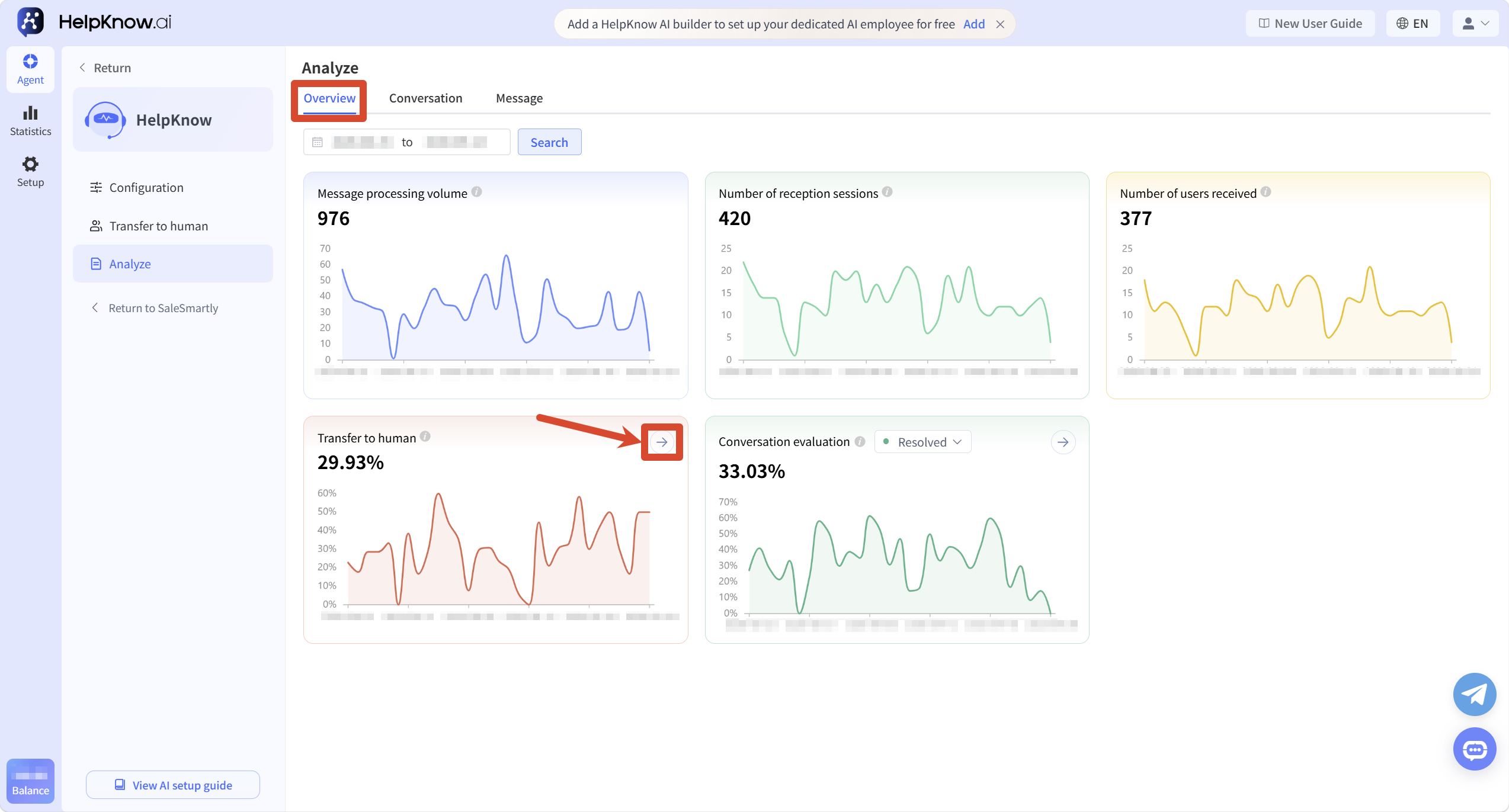
On the "Overview" page, click the arrow to the right of the "Transfer to Human Agent" chart to view the conversations that were transferred to human agents during that time period.
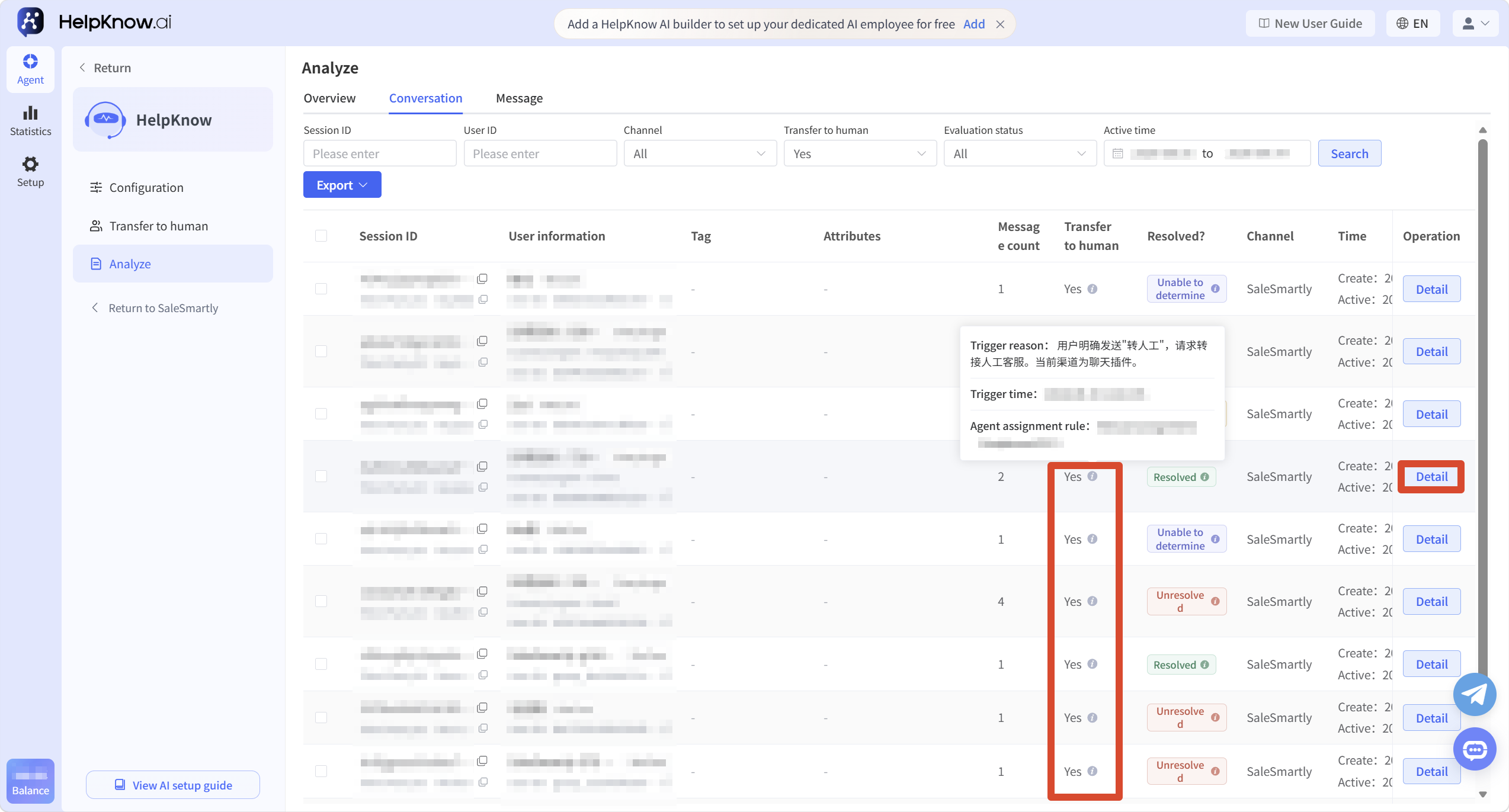
After entering the conversation list, the system will display conversations that have triggered a transfer to a human agent according to the corresponding conditions. Hovering the mouse over the tooltip icon next to "Transfer to Human Agent" will allow you to view the actual trigger reason for the conversation and the corresponding customer service assignment rules.
To view the full conversation, click "Details" on the right to see the chat history before and after being transferred to a human operator.
2.4 Viewing sessions in different evaluation states
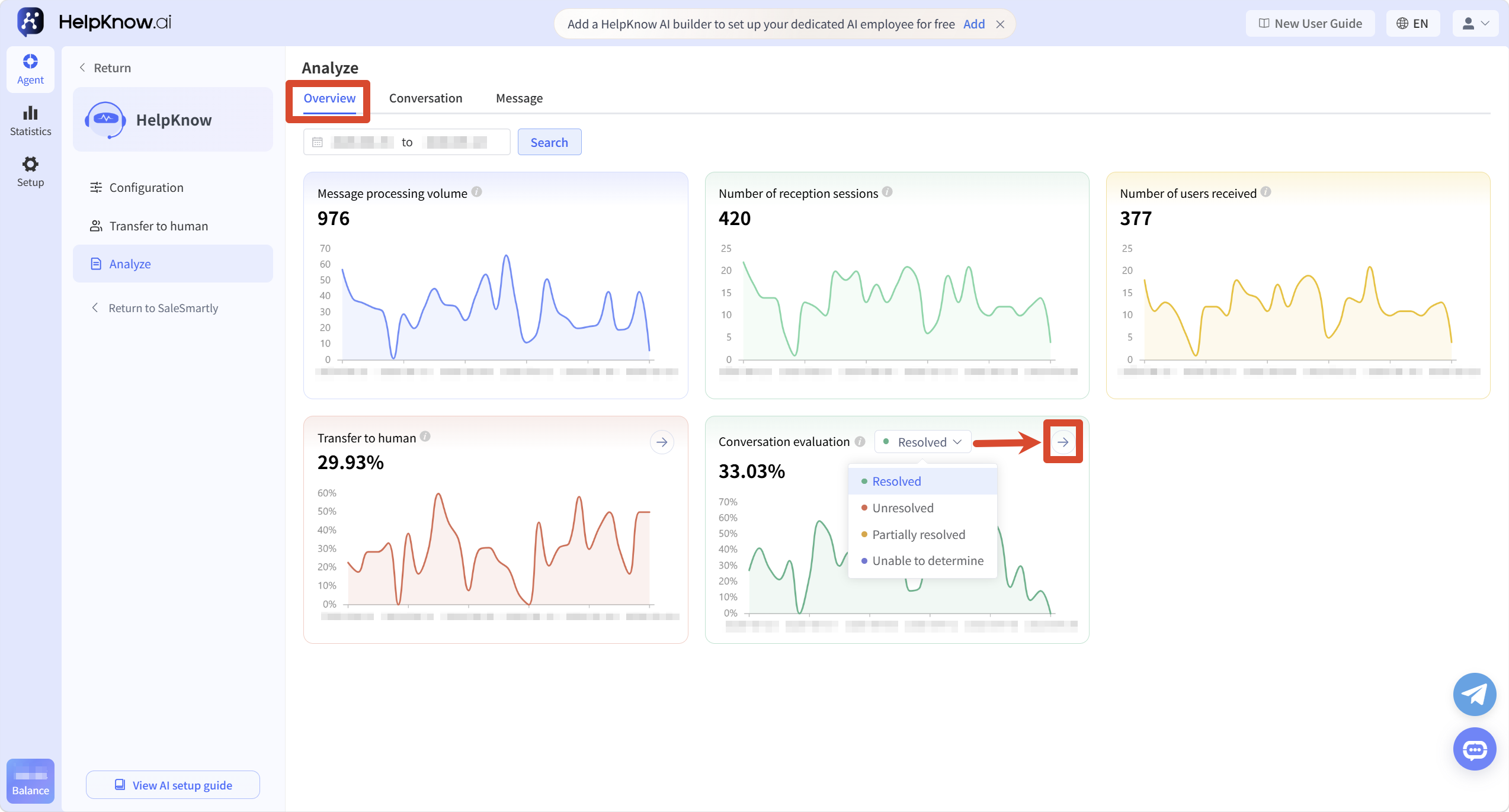
On the "Overview" page, in the "Conversation Assessment" chart, you can select the assessment status you want to view and click the arrow on the right to enter the corresponding conversation list.
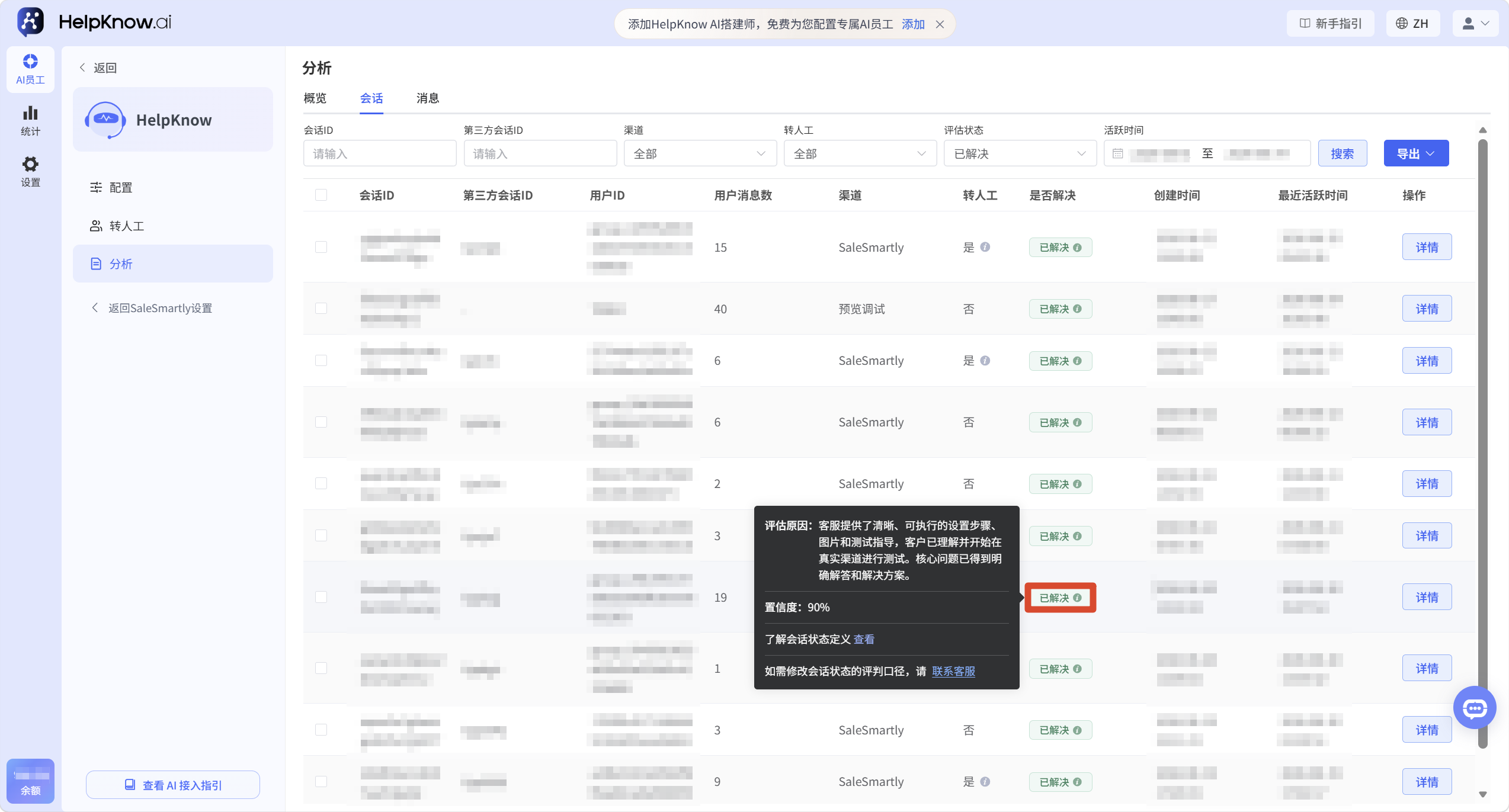
In the session list, hovering the mouse over the tooltip icon next to the resolved status will display information such as the evaluation reason and confidence level for that status.
For details on the specific meanings and evaluation rules of each status, please refer to the "Session Resolution Status Description" .
3. View message data
Click "Analysis > Messages" to view the AI employee's reception records for each individual message.
The message list displays information such as session ID, third-party session ID, message ID, user ID, question, answer, basis for answer, channel, and time.
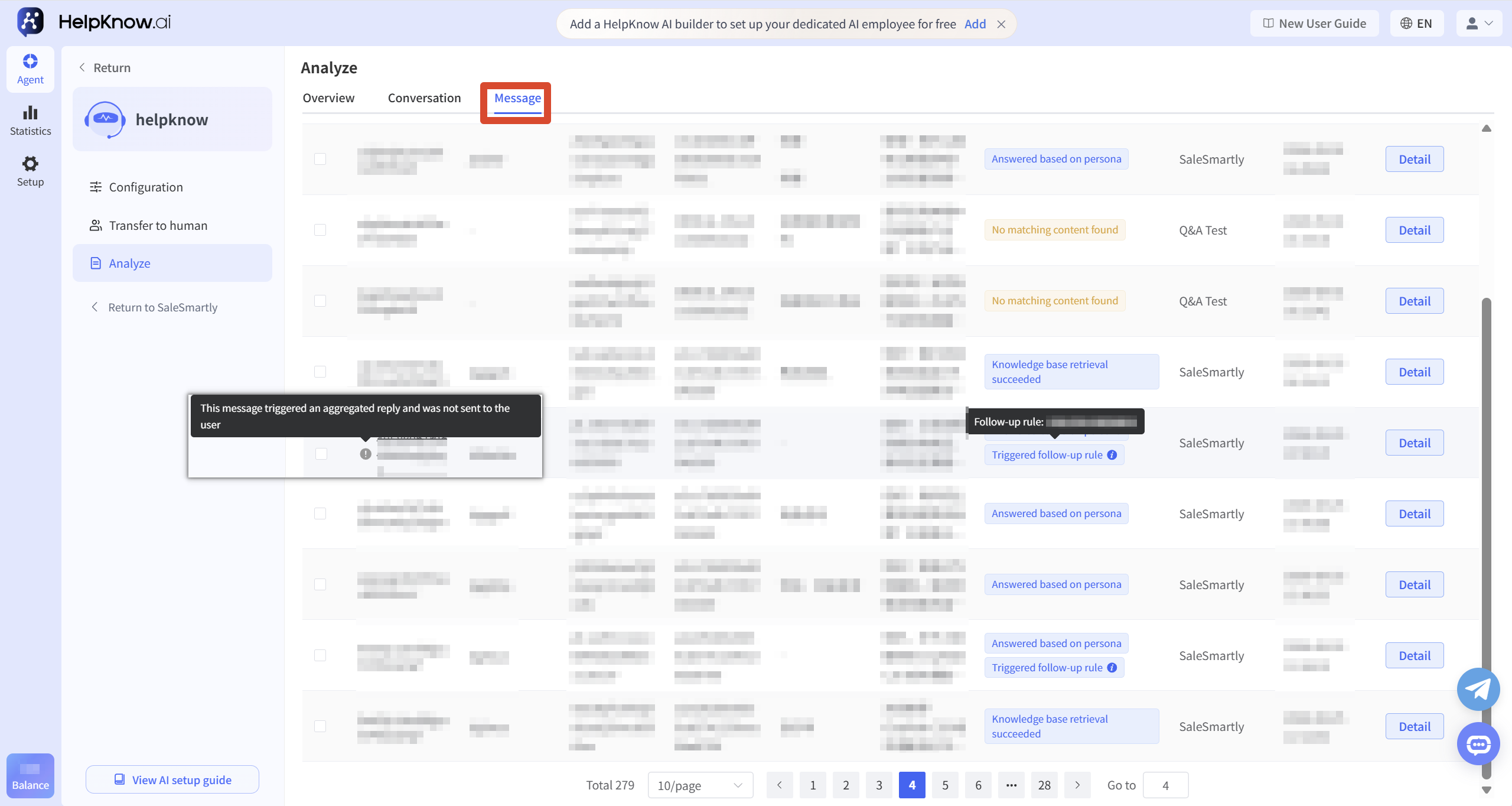
In the message list, some messages will also display tags related to the actual reception process. For example, messages generated by proactive follow-up will display "Triggered Follow-up Rule," and a floating icon can be used to view the specific follow-up rule that was triggered (related tutorial: "How to Set Up AI Employees to Proactively Follow Up with Customers?" ); some messages that triggered aggregated replies but were not sent to users individually will also display corresponding prompts.
3.1 Message Filtering
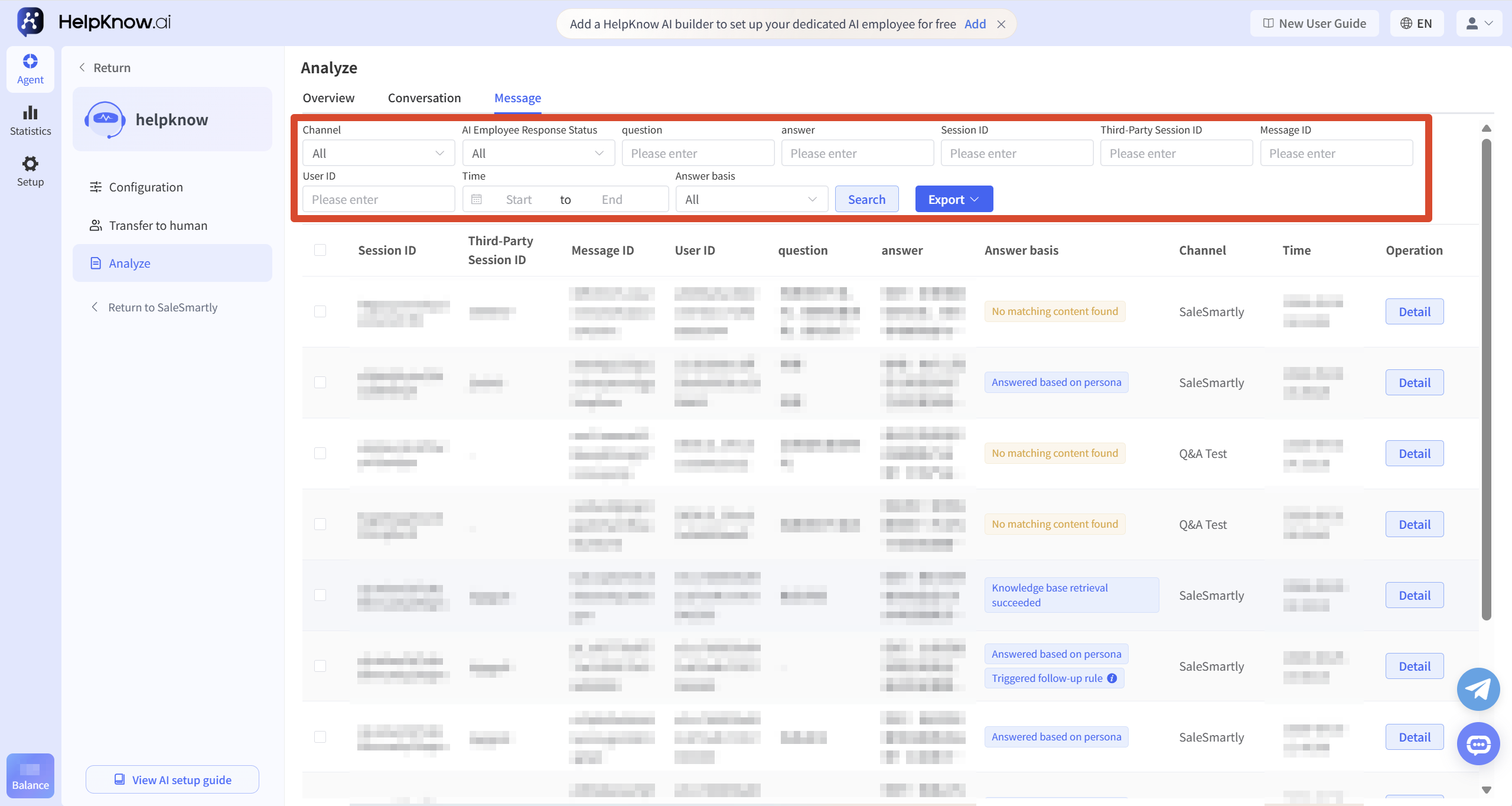
You can use the top filters to filter messages by channel, AI employee response status, question, answer, session ID, third-party session ID, message ID, user ID, time, and basis for the answer.
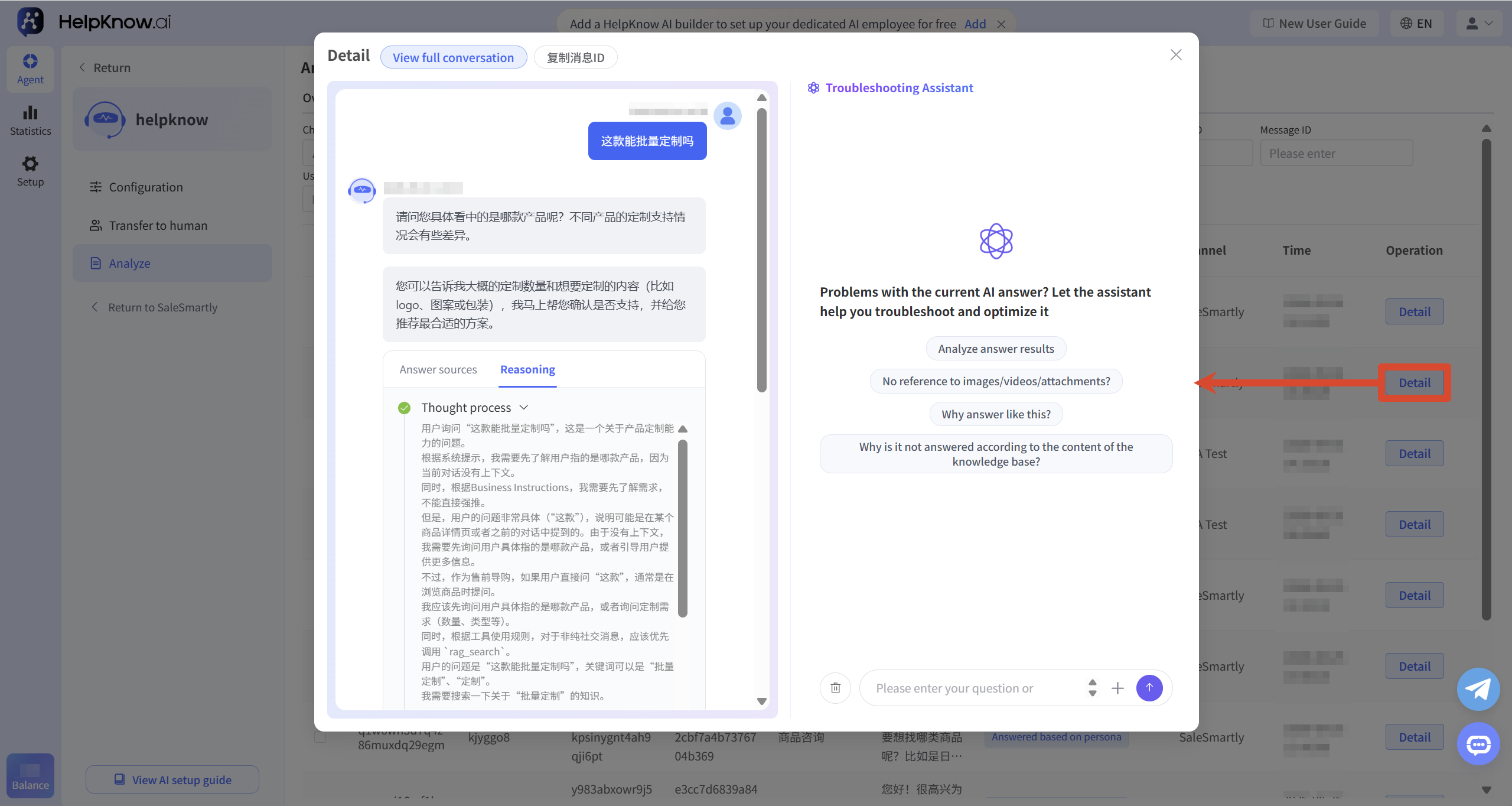
3.2 View message details
To view the details of a message, click "Details" on the right side of the message.
In the message details, you can view the conversation content, the basis for the answer, and the reasoning process.
The top is also okay:
- Click "View Full Conversation" to jump to the conversation to which the message belongs and view the full chat history and context;
- Click "Copy Message ID" to quickly copy the ID corresponding to the current message, making it easier to locate the specific message when troubleshooting or providing feedback.
3.3 Use the screening assistant to analyze the effectiveness of responses
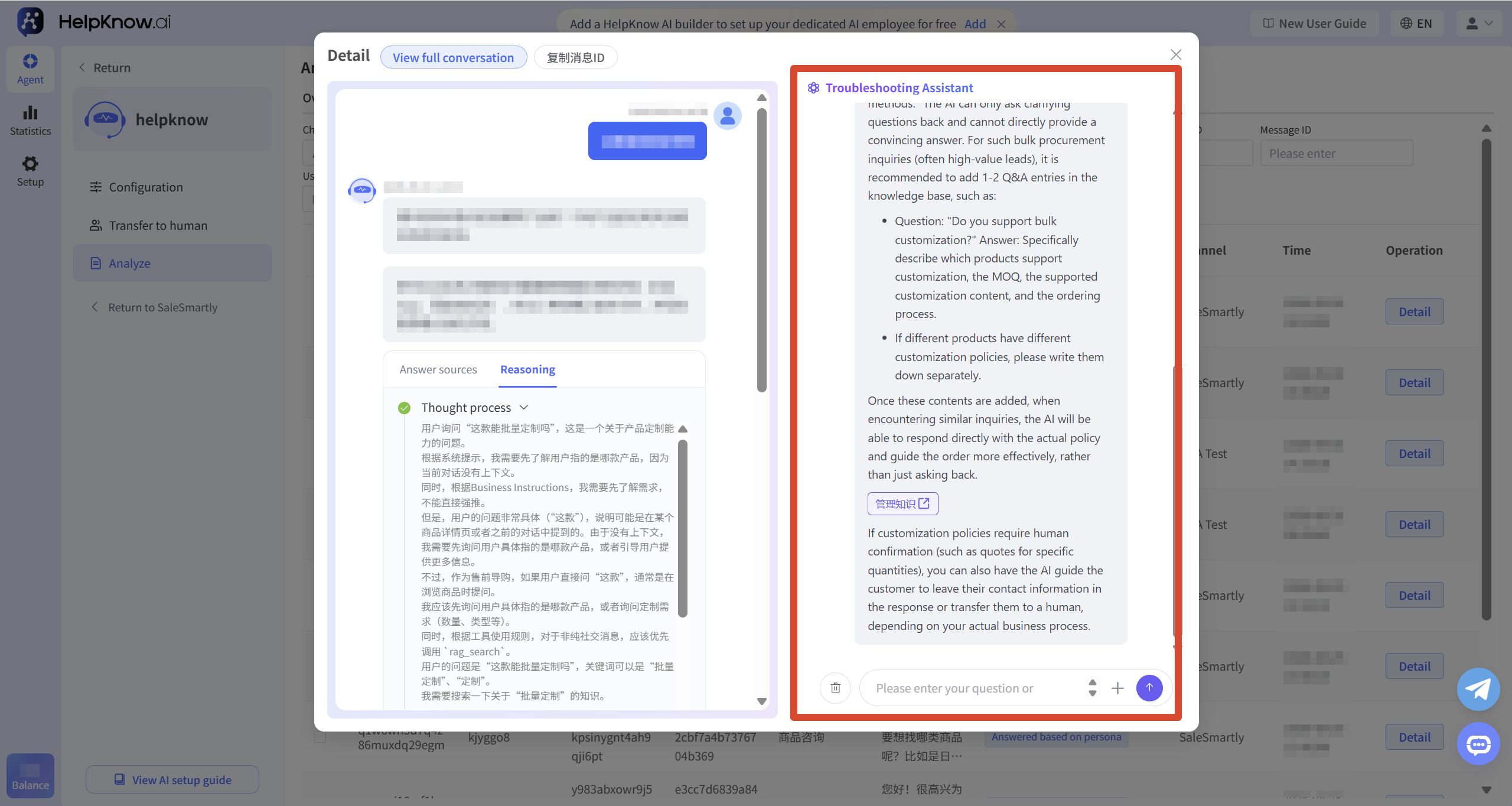
On the right side of the message details, you can use the "Troubleshooting Assistant" to further analyze the effectiveness of the response and the cause of the problem.
If the AI's response does not meet expectations, you can first review the reasoning and justification in the message details, and then use the troubleshooting assistant for further investigation. After the investigation is complete, you can directly apply the supported solutions based on the results; if further configuration adjustments are needed, you can also directly access the corresponding configuration page via the guide button.
III. The difference between conversations and messages
On the AI employee analytics page, "Conversations" and "Messages" are two different data dimensions.
- Conversation: A complete dialogue between a user and an AI employee.
- Message: A single line of dialogue content within a session. A session can contain multiple messages.
If you want to see the overall picture of a complete conversation, you can view the conversation data; if you want to analyze a specific question or reply, you can view the message data.
IV. Applicable Scenarios
When you need to view the AI employee's reception process or check the effectiveness of their responses, you can view the dialogue reception details.
Common scenarios include:
- See which user conversations the AI employee handled.
- Check which sessions triggered a transfer to human assistance and which sessions remained unresolved.
- To see the basis and reasoning behind the response to a particular message.
- Investigate why the AI employee's answers did not meet expectations.
V. Precautions
- If you need to analyze data offline, you can use the "Export" function in the conversation or message list. After selecting specific data, you can export the selected data; if you need to export the entire list, you can select "Export All".
VI. Frequently Asked Questions
1. How can I view the conversations that triggered a transfer to a human operator?
You can click the arrow to the right of the "Transfer to Human Agent" chart on the "Overview" page, or you can use the "Transfer to Human Agent" filter in the "Conversations" list to view the options.
2. How do I view unresolved sessions?
You can go to the "Conversations" list, select "Unresolved" in the "Assessment Status" filter, and view the conversations that need to be investigated in detail.
3. Why are some sessions displayed as pending evaluation?
"Pending Evaluation" indicates that the current session has not yet completed its status evaluation. The system will periodically evaluate sessions that meet the criteria, and update the status to reflect the resolution status once the evaluation is complete.
For information on assessment time, the meaning of each status, and the judgment method, please refer to the "Session Resolution Status Explanation" .
4. How to troubleshoot AI employees giving unexpected answers to questions?
You can first go to the "Messages" list, click "Details" on the right side of the corresponding message to view the basis and reasoning process of the answer. You can also use the "Troubleshooting Assistant" on the right to analyze the effectiveness of the answer and the cause of the problem.
;}.cls-2{fill:%230868f7;}.cls-3{fill:url(%23未命名的渐变_44);}.cls-4{fill:%23333;}%3c/style%3e%3clinearGradient%20id='未命名的渐变_8'%20x1='33.73'%20y1='100.61'%20x2='-0.03'%20y2='-1.06'%20gradientUnits='userSpaceOnUse'%3e%3cstop%20offset='0'%20stop-color='%237ae9fb'/%3e%3cstop%20offset='0.67'%20stop-color='%232b90f8'/%3e%3cstop%20offset='1'%20stop-color='%230868f7'/%3e%3c/linearGradient%3e%3clinearGradient%20id='未命名的渐变_44'%20x1='27.86'%20y1='18.67'%20x2='68.36'%20y2='22.22'%20gradientUnits='userSpaceOnUse'%3e%3cstop%20offset='0'%20stop-color='%235ac7f2'/%3e%3cstop%20offset='1'%20stop-color='%230868f7'/%3e%3c/linearGradient%3e%3c/defs%3e%3cpath%20class='cls-1'%20d='M29,28.74V81.91l-9.51-3.68v0L8.52,74A7.17,7.17,0,0,1,4,67.32V24.54A3.76,3.76,0,0,1,9.08,21Z'/%3e%3cpath%20class='cls-2'%20d='M68.09,78.07a13.15,13.15,0,0,1-17.9,12.06L29,81.91h0V28.74L50.19,37A13.17,13.17,0,0,0,68.08,25.3h0Z'/%3e%3cpath%20class='cls-3'%20d='M68.08,25.3a13.19,13.19,0,0,1-6.73,10.87A13.09,13.09,0,0,1,50.19,37L29,28.74V6A3.76,3.76,0,0,1,34.1,2.52l25.59,9.91A13.22,13.22,0,0,1,68.08,25.3Z'/%3e%3cpath%20class='cls-4'%20d='M129.06,81.76a4.33,4.33,0,0,1-3.19-1.31,4.4,4.4,0,0,1-1.31-3.24V56.86H97.65V77.21a4.36,4.36,0,0,1-1.35,3.2A4.68,4.68,0,0,1,93,81.76a4.32,4.32,0,0,1-3.19-1.31,4.37,4.37,0,0,1-1.32-3.24V27.27A4.58,4.58,0,0,1,89.83,24a4.59,4.59,0,0,1,7.82,3.27V48.15h26.91V27.27A4.58,4.58,0,0,1,125.91,24a4.59,4.59,0,0,1,7.82,3.27V77.21a4.37,4.37,0,0,1-1.36,3.2A4.65,4.65,0,0,1,129.06,81.76Z'/%3e%3cpath%20class='cls-4'%20d='M163.77,81.66c-6.57,0-11.76-1.92-15.44-5.7s-5.54-9.07-5.54-15.74a26.76,26.76,0,0,1,2.09-10.43,17.72,17.72,0,0,1,6.67-8.06,19.15,19.15,0,0,1,10.68-2.95,19,19,0,0,1,10.46,2.8,18.7,18.7,0,0,1,6.55,7.36,22.53,22.53,0,0,1,2.36,10.28A4.51,4.51,0,0,1,177,63.77H152.23a10.8,10.8,0,0,0,3.49,6.65c2,1.68,4.88,2.52,8.66,2.52a22.25,22.25,0,0,0,7.54-1.21c.74-.3,1.55-.67,2.37-1.07a3.75,3.75,0,0,1,1.84-.4,4.09,4.09,0,0,1,3,1.15,4,4,0,0,1,1.12,3,4.38,4.38,0,0,1-2.58,3.82,32.34,32.34,0,0,1-6.36,2.61A28.67,28.67,0,0,1,163.77,81.66ZM172.4,55.9a9.72,9.72,0,0,0-1.63-4.56A9.9,9.9,0,0,0,167,48a10.38,10.38,0,0,0-4.64-1.14,12,12,0,0,0-4.77,1.06,9.54,9.54,0,0,0-4.89,5.66,11.78,11.78,0,0,0-.51,2.3Z'/%3e%3cpath%20class='cls-4'%20d='M193,81.64a4.49,4.49,0,0,1-4.51-4.55V27.28A4.58,4.58,0,0,1,189.84,24a4.48,4.48,0,0,1,3.28-1.36A4.36,4.36,0,0,1,196.35,24a4.46,4.46,0,0,1,1.31,3.31V77.09a4.34,4.34,0,0,1-1.35,3.2A4.67,4.67,0,0,1,193,81.64Z'/%3e%3cpath%20class='cls-4'%20d='M263.79,81.71a5.7,5.7,0,0,1-4.2-1.74,5.76,5.76,0,0,1-1.73-4.19V27.37a4.58,4.58,0,0,1,1.35-3.27A4.59,4.59,0,0,1,267,27.37V72.53h24a4.58,4.58,0,0,1,3.27,7.82A4.66,4.66,0,0,1,291,81.71Z'/%3e%3cpath%20class='cls-4'%20d='M424.48,81.74a4.71,4.71,0,0,1-2.71-.88,5.43,5.43,0,0,1-1-1l-.07-.09-12.41-17-5.41,5v9.44a4.31,4.31,0,0,1-1.36,3.19,4.66,4.66,0,0,1-3.3,1.36A4.29,4.29,0,0,1,395,80.42a4.36,4.36,0,0,1-1.32-3.23V27.37A4.58,4.58,0,0,1,395,24.1a4.52,4.52,0,0,1,6.58.12,4.54,4.54,0,0,1,1.24,3.15V56.31l17.72-16.38.05,0a4.8,4.8,0,0,1,2.94-1.11,4.4,4.4,0,0,1,3.27,1.2,4.57,4.57,0,0,1,1.2,3.27,4.44,4.44,0,0,1-.77,2.33,7.45,7.45,0,0,1-1.43,1.65l-11,9.64,13.34,17.68a5,5,0,0,1,1,2.71,4.12,4.12,0,0,1-1.36,3.24A4.64,4.64,0,0,1,424.48,81.74Z'/%3e%3cpath%20class='cls-4'%20d='M317.93,81.76a21.5,21.5,0,1,1,21.17-21.5A21.37,21.37,0,0,1,317.93,81.76Zm0-34.1a12.61,12.61,0,1,0,12.42,12.6A12.52,12.52,0,0,0,317.93,47.66Z'/%3e%3cpath%20class='cls-4'%20d='M212.18,101.22a4.12,4.12,0,0,1-3.05-1.26,4.17,4.17,0,0,1-1.26-3.1V43.34a4.37,4.37,0,0,1,1.3-3.14,4.26,4.26,0,0,1,3.13-1.3,4.19,4.19,0,0,1,3.1,1.26,4.32,4.32,0,0,1,1.26,3.16,20.77,20.77,0,0,1,13-4.54,21.51,21.51,0,0,1,0,43,20.51,20.51,0,0,1-13-4.57V96.86a4.15,4.15,0,0,1-1.3,3.06A4.5,4.5,0,0,1,212.18,101.22Zm17.43-53.63c-6.23,0-12.93,4.11-12.93,12.72a12.73,12.73,0,0,0,25.46,0A12.71,12.71,0,0,0,229.61,47.59Z'/%3e%3cpath%20class='cls-4'%20d='M365.76,81.76a21.5,21.5,0,1,1,21.18-21.5A21.37,21.37,0,0,1,365.76,81.76Zm0-34.1a12.61,12.61,0,1,0,12.42,12.6A12.52,12.52,0,0,0,365.76,47.66Z'/%3e%3c/svg%3e)