
How to Set Up AI Employees to Collect Customer Information?
I. Function Introduction
"Collecting customer information" allows AI employees to automatically identify and record information provided by customers during conversations, such as company name, contact information, purchase quantity, customer identity, and level of intent.
To use this feature, you first need to create the attributes to be collected and fill in the recognition rules. The AI employee will then identify the corresponding information based on the customer's conversation and record it in the attributes.
The collected attributes are stored in HelpKnow by default. For attributes that support mapping, you can also select the corresponding SaleSmartly field to synchronize the attribute values to customer data.
This article's link: "How to Set Up AI Employees to Collect Customer Information?"
II. Configuring Customer Attributes
1. Access the settings page
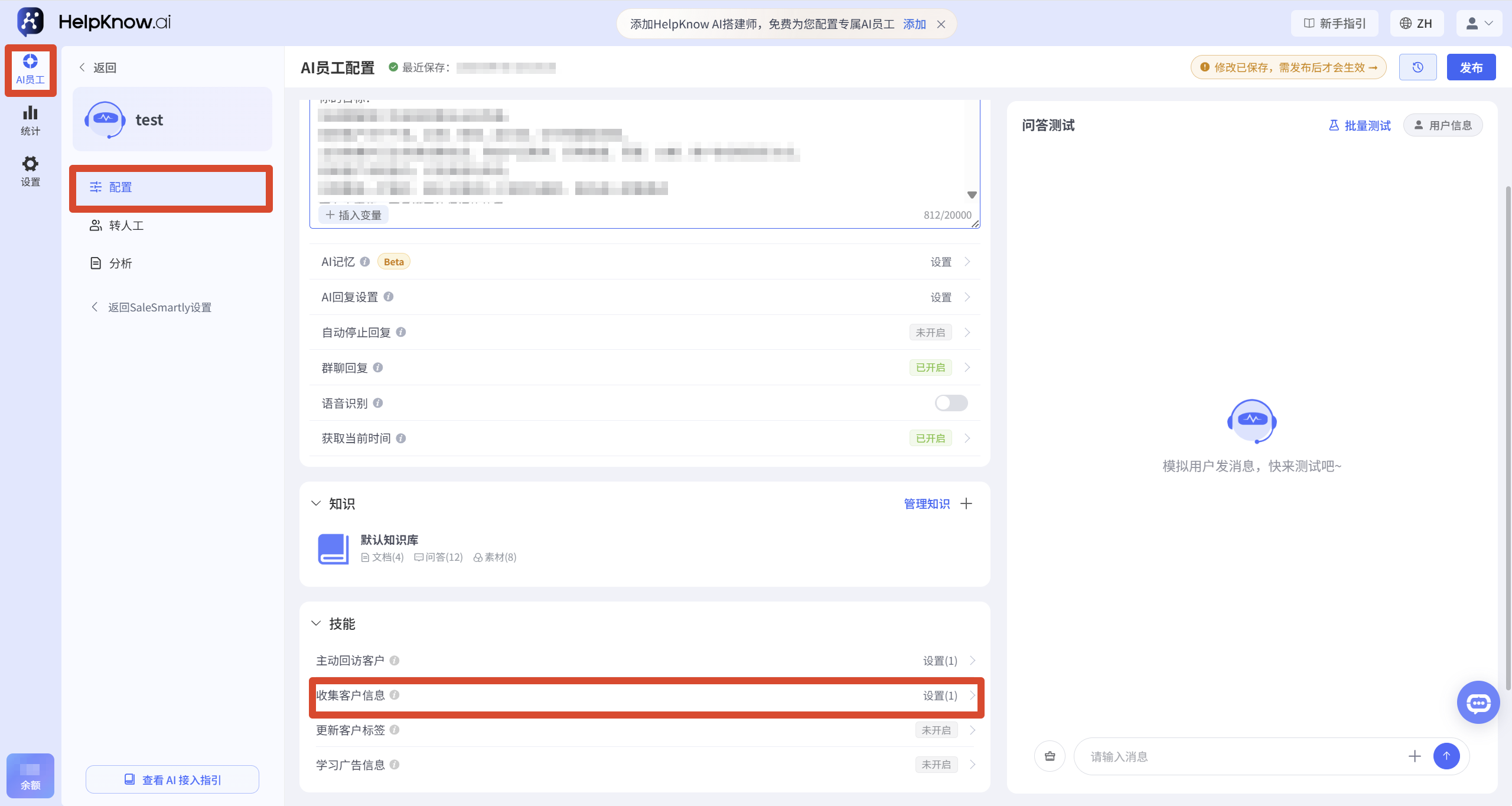
Enter the AI employee that needs to be configured, click "Configuration" in the left menu, find the "Skills" area, and click "Collect Customer Information" to enter the settings page.
2. Select the creation method
2.1 Using Attribute Templates
The system provides the following templates: customer mood, customer budget, and customer name.
After selecting a template, check the name, description, type, options, and attribute level. The system template defaults to "User Level." Before saving, please confirm that this level meets your business needs, and then click "Save."
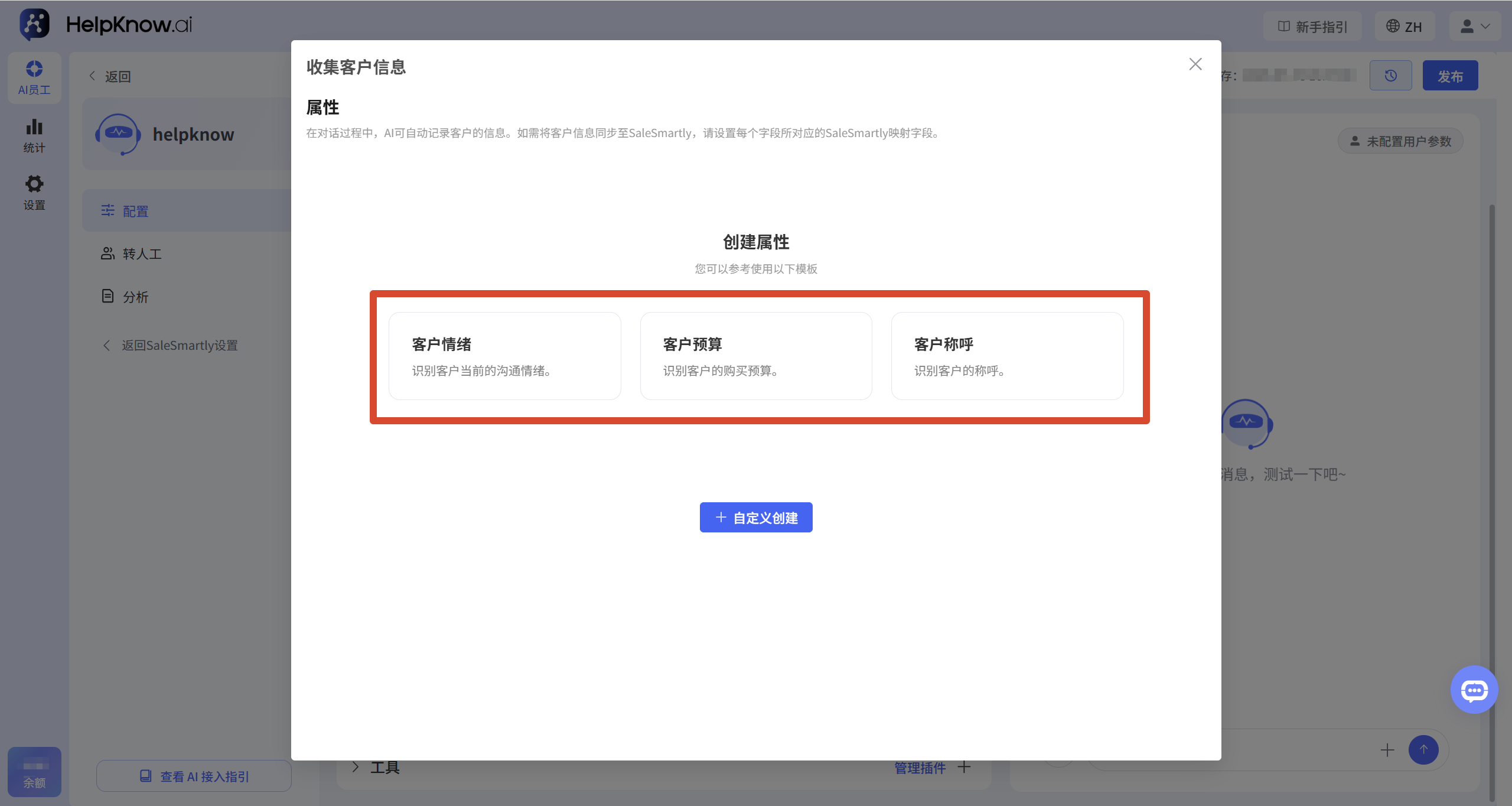
Taking "customer sentiment" as an example, the system will record customer sentiment as positive, neutral, or negative based on the option description.
2.2 Custom Attribute Creation
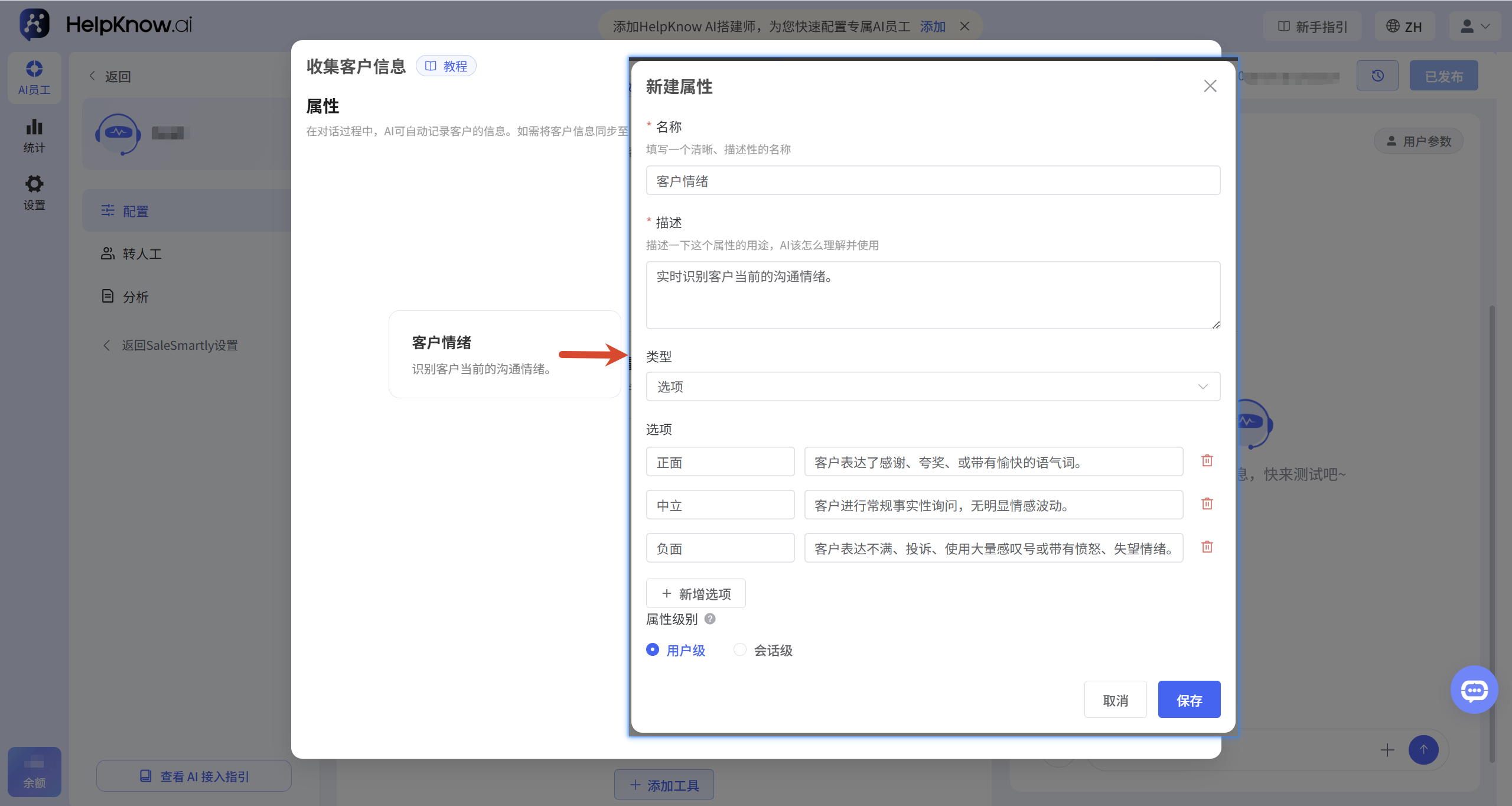
If the template does not meet your needs, click "Create Custom".
When creating an attribute, you need to fill in the attribute name and description, and set the attribute type and attribute level.
Attribute type
- Custom text: Used to record content that does not have fixed options, such as company name or specific requirements.
- Options: Used to select from preset results, such as customer identity or level of intent.
- Numbers: Used to record numerical information such as budgets and procurement quantities.
Attribute Level
- User level: Used to record long-term customer information, such as company name, contact information, and customer identity.
- Session level: Used to record information related to specific inquiries or business processes, such as purchase quantity, inquired products, and after-sales processing status.
Once an attribute is created, its level cannot be modified . If you need to change the level, you must recreate the attribute.
Attribute Description
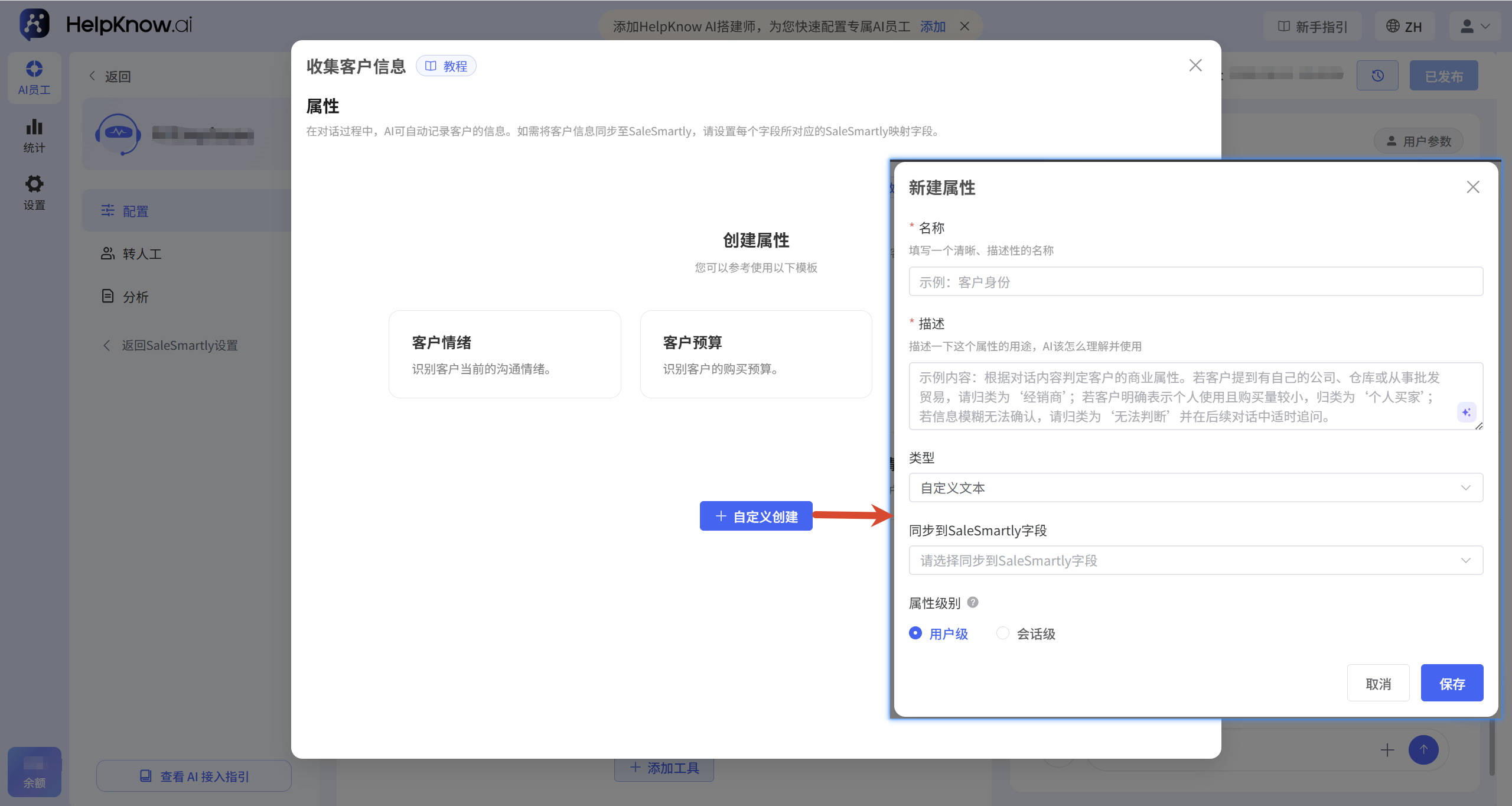
Attribute descriptions help AI employees determine what information needs to be identified and recorded. It is recommended to clearly specify what information needs to be identified, under what circumstances it needs to be recorded, and how to handle unclear information, avoiding vague statements such as "record purchase quantity" or "collect customer information".
When filling in the information, you can click the AI icon on the right side of the input box to generate a description based on the attribute name, and then adjust it according to the actual business needs.
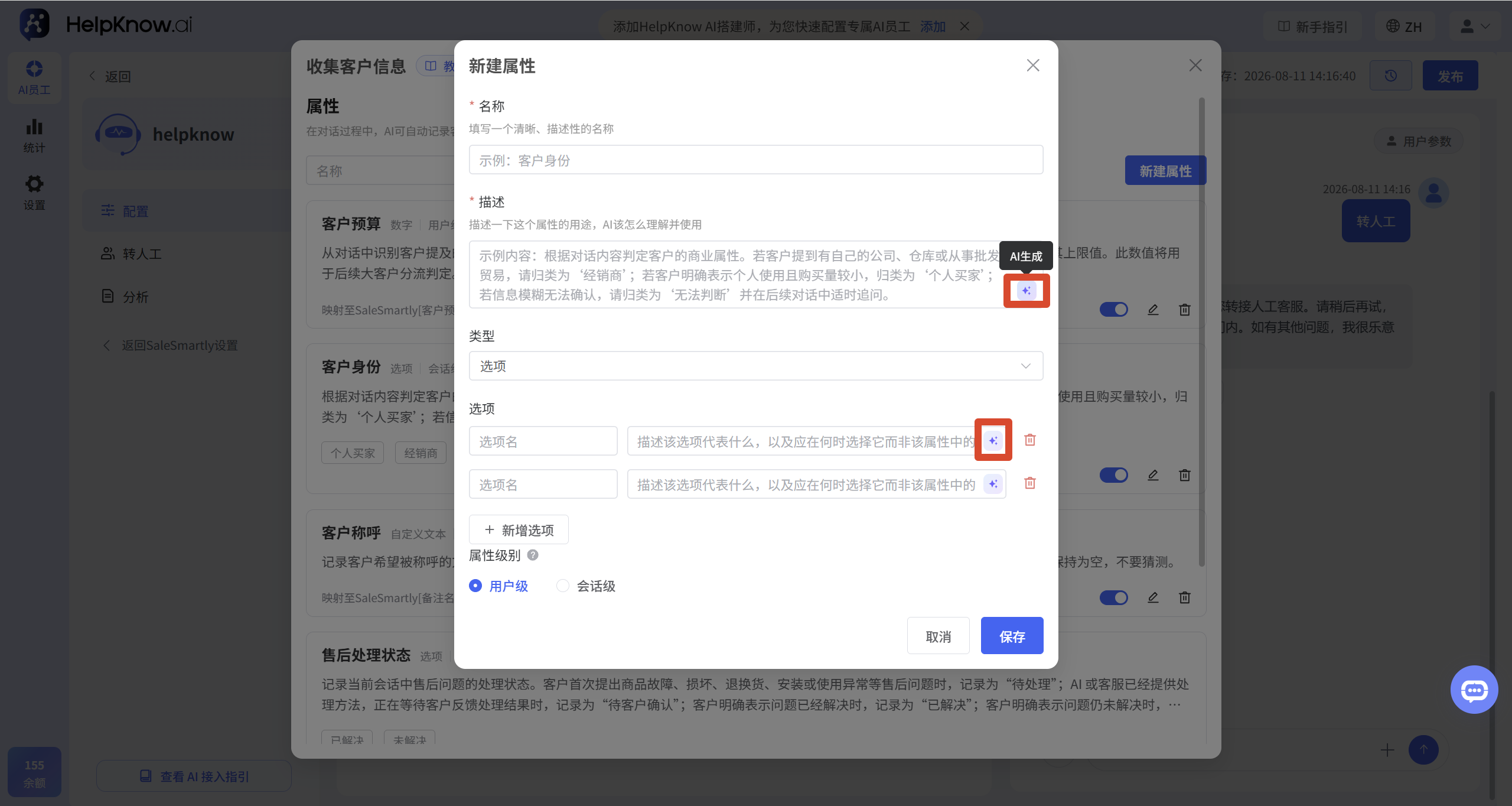
Here are some examples of descriptions for commonly used attributes:
Company Name (Custom Text, User-Level)
Identify and record the company, store, or organization name explicitly provided by the customer. Do not infer names based on email address, region, or other information unless explicitly stated by the customer.
Purchase quantity (numerical, session-level)
Record only the quantities explicitly mentioned by the customer. If the customer only indicates "needs a batch" or "a large quantity," without providing a specific quantity, do not record it.
Customer identity (options, user level)
Determine the customer's business nature based on the content of the conversation. If the customer mentions having their own company, warehouse, or engaging in wholesale trade, classify them as a 'distributor'; if the customer explicitly states that it is for personal use and the purchase volume is small, classify them as an 'individual buyer'; if the information is vague and cannot be confirmed, classify them as 'cannot be determined' and ask follow-up questions as appropriate in subsequent conversations.
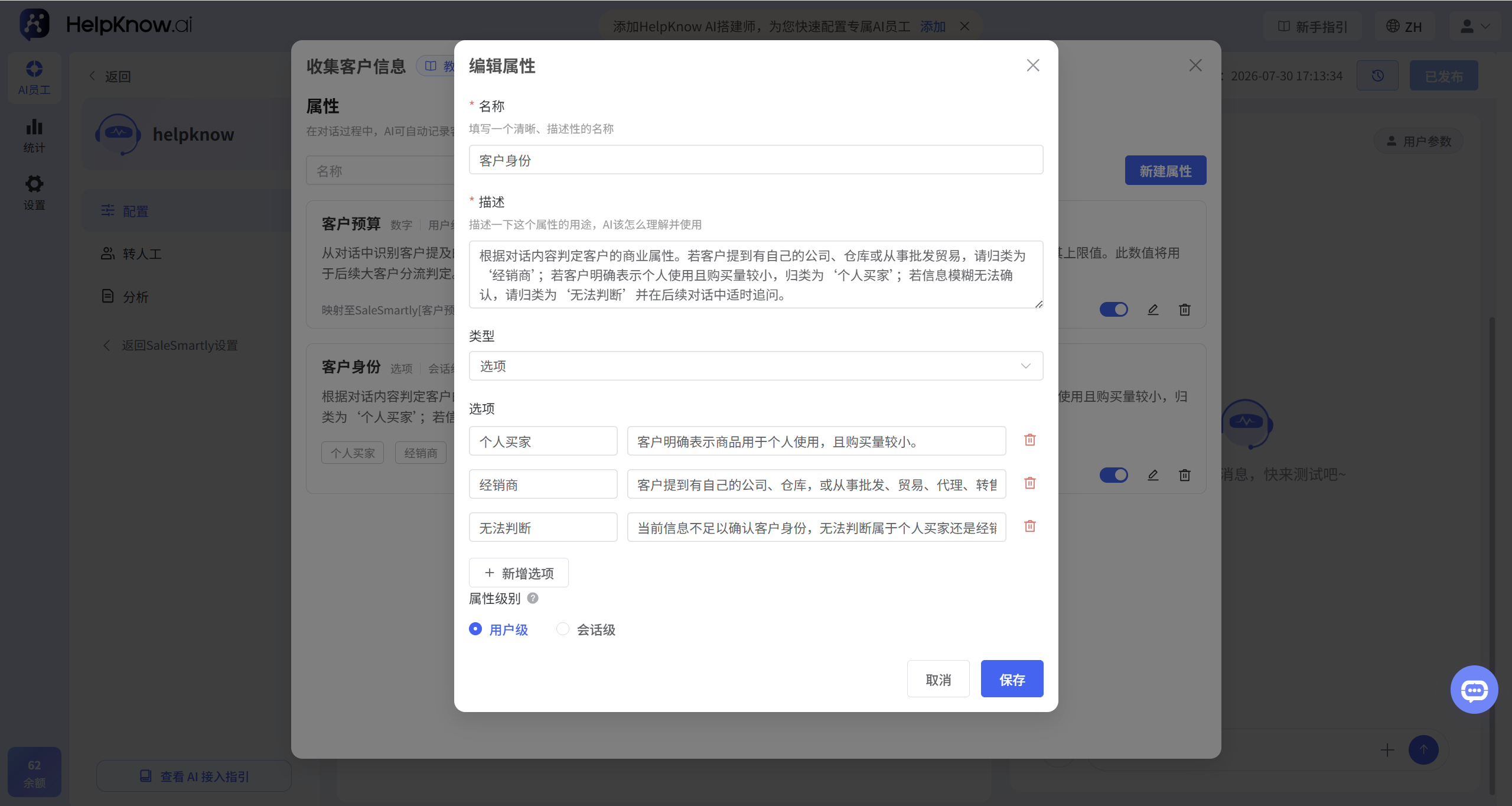
If you use the "Options" type, you also need to fill in a judgment description for each option, explaining under what circumstances the option should be selected, and try to avoid overlapping judgment conditions between different options.
For example, "Customer Identity" can be set to individual buyer, distributor, or cannot be determined, and the corresponding judgment criteria can be filled in for each.
3. Synchronize to SaleSmartly (optional)
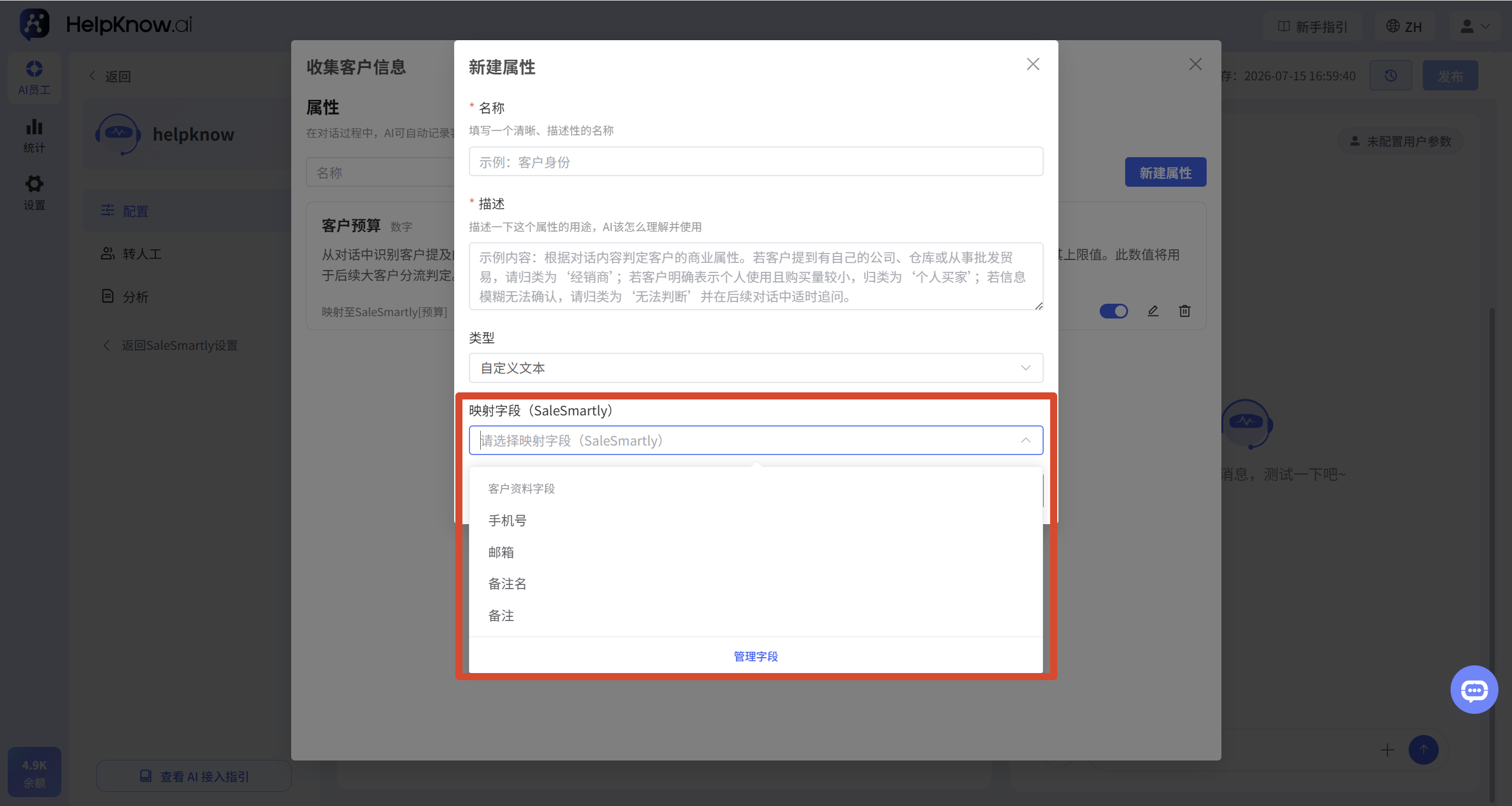
When creating or editing properties, you can set synchronization relationships through "Mapping Fields (SaleSmartly)".
For properties that support mapping:
- If you do not select a mapping field: the attribute value is only stored in HelpKnow.
- Select mapping fields: Attribute values are stored in HelpKnow and simultaneously synchronized to the corresponding SaleSmartly customer information fields.
If using an "Options" type attribute, setting SaleSmartly mapped fields is currently not supported. Open the "Mapped Fields (SaleSmartly)" drop-down list and select the customer data fields you want to synchronize, such as phone number, email, nickname, or notes.
If the field you need is not in the drop-down list, you can click "Manage Fields" to go to the SaleSmartly custom fields page to create or enable the field.
(For detailed instructions on setting up custom fields in SaleSmartly, please refer to: Custom Field Usage Guide )
4. Manage existing attributes
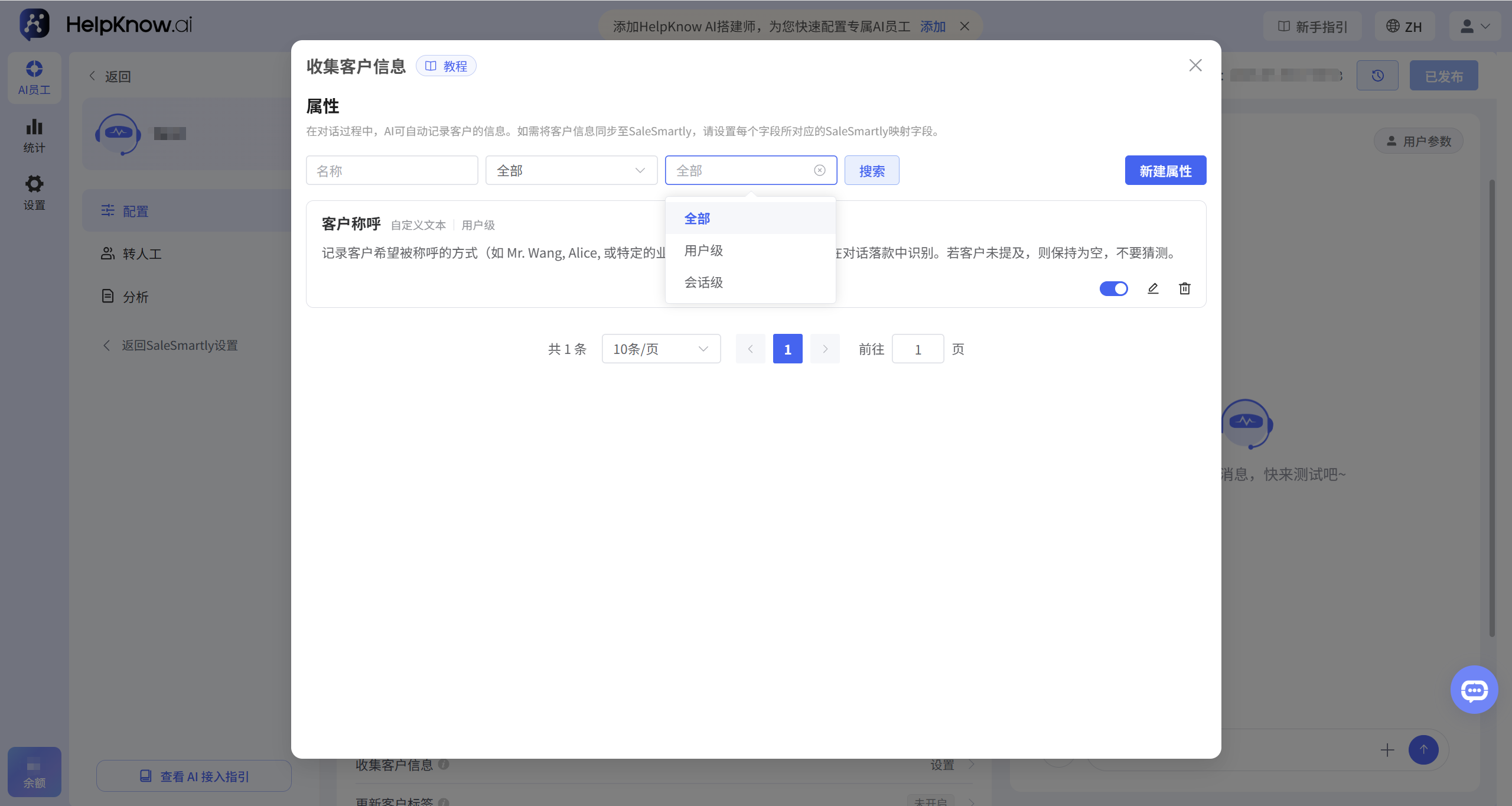
On the "Collect Customer Information" settings page, you can search by name or filter existing attributes by attribute type or attribute level. Each attribute will display its corresponding type and level, and you can also turn attributes on, off, edit, or delete them.
After saving the properties, please make sure that the property switch you need to use is turned on.
III. Test and view the results
1. Test and view the attribute record results.
Send a message containing your target information in the "Q&A Test" area on the right. For example, when testing the "Customer Budget" attribute, you can send:
My budget is 3000 yuan.
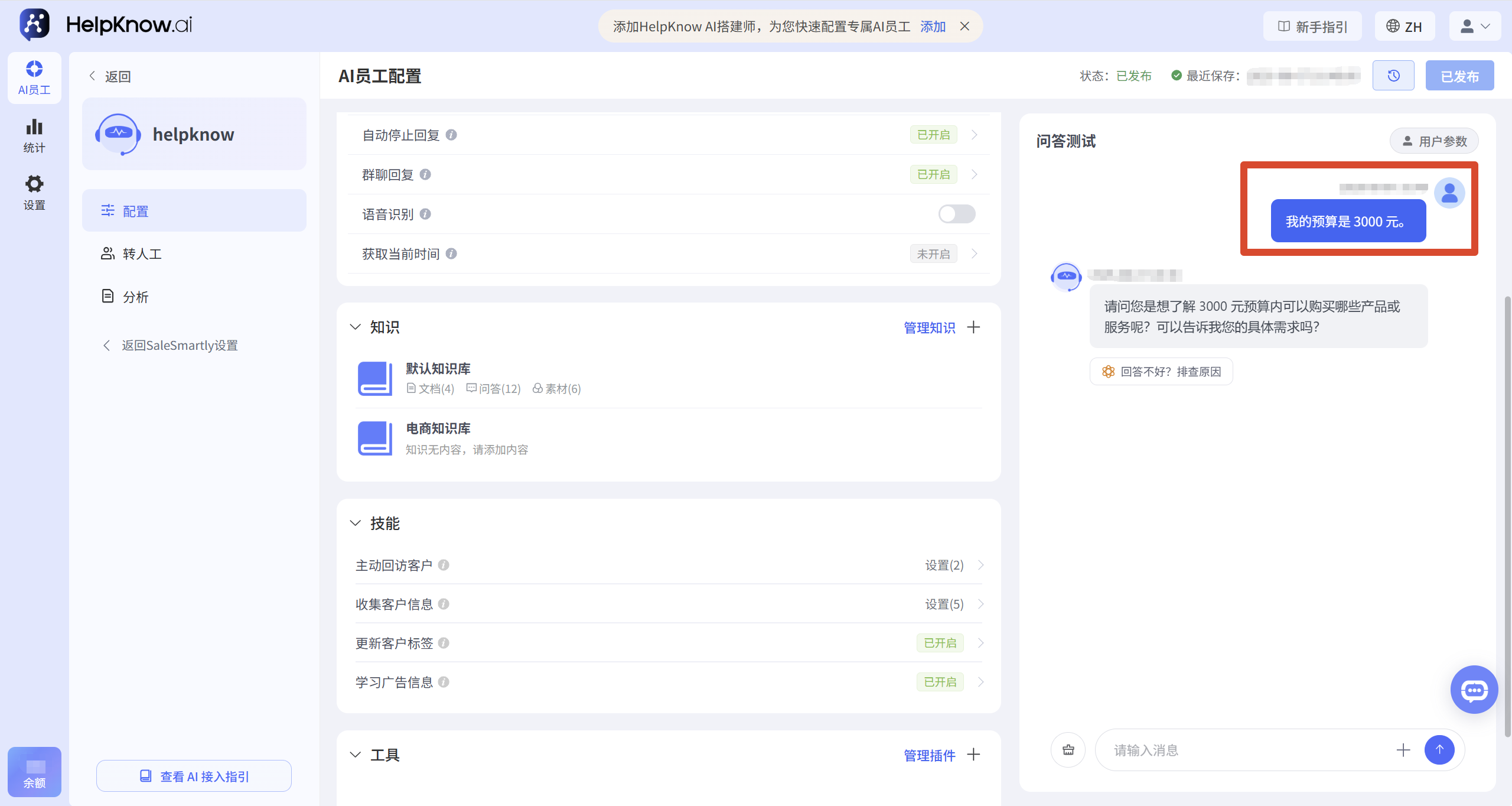
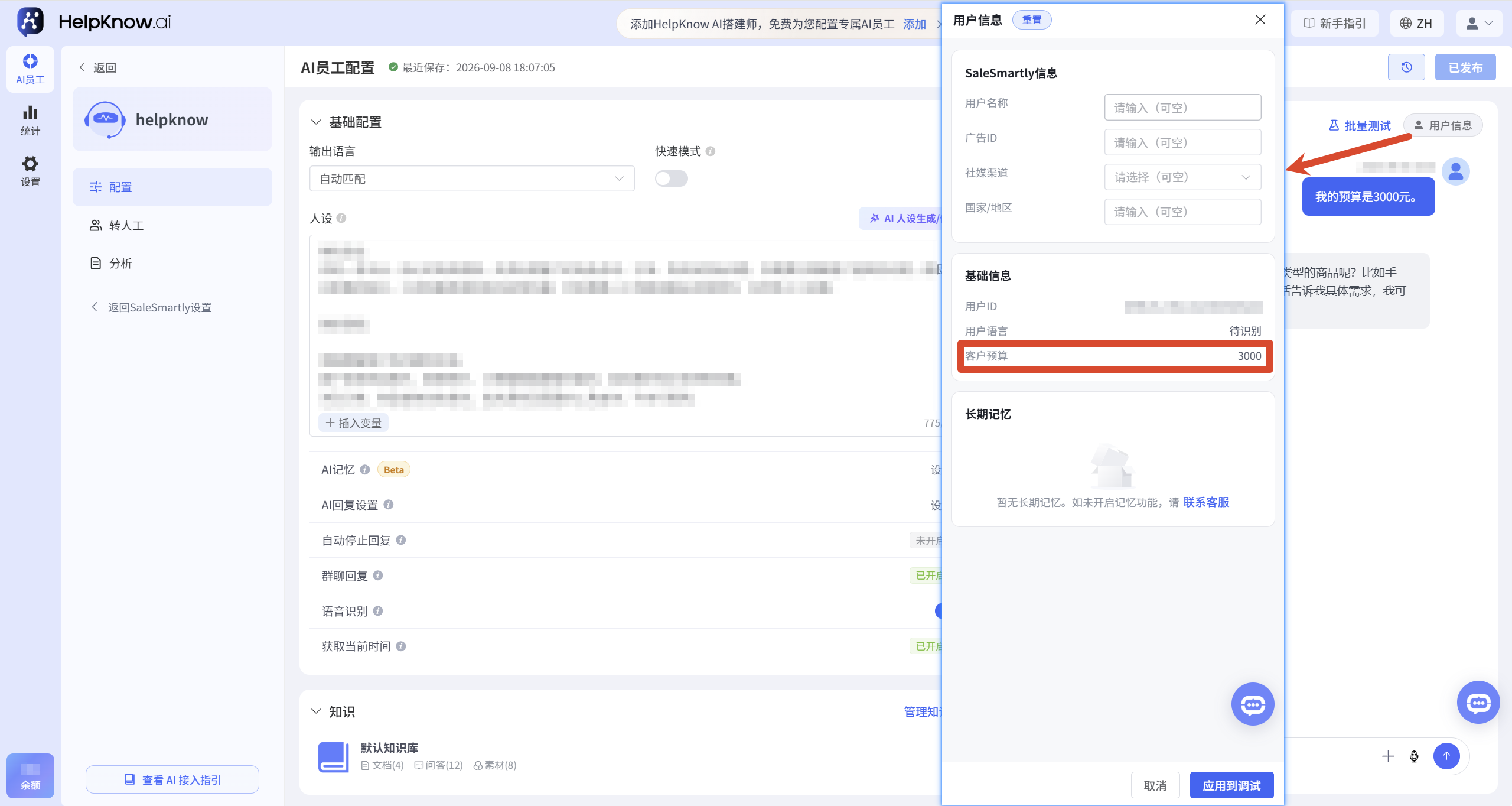
After sending the message, open "User Information" in "Q&A Test" to check if the corresponding attributes have been recorded correctly.
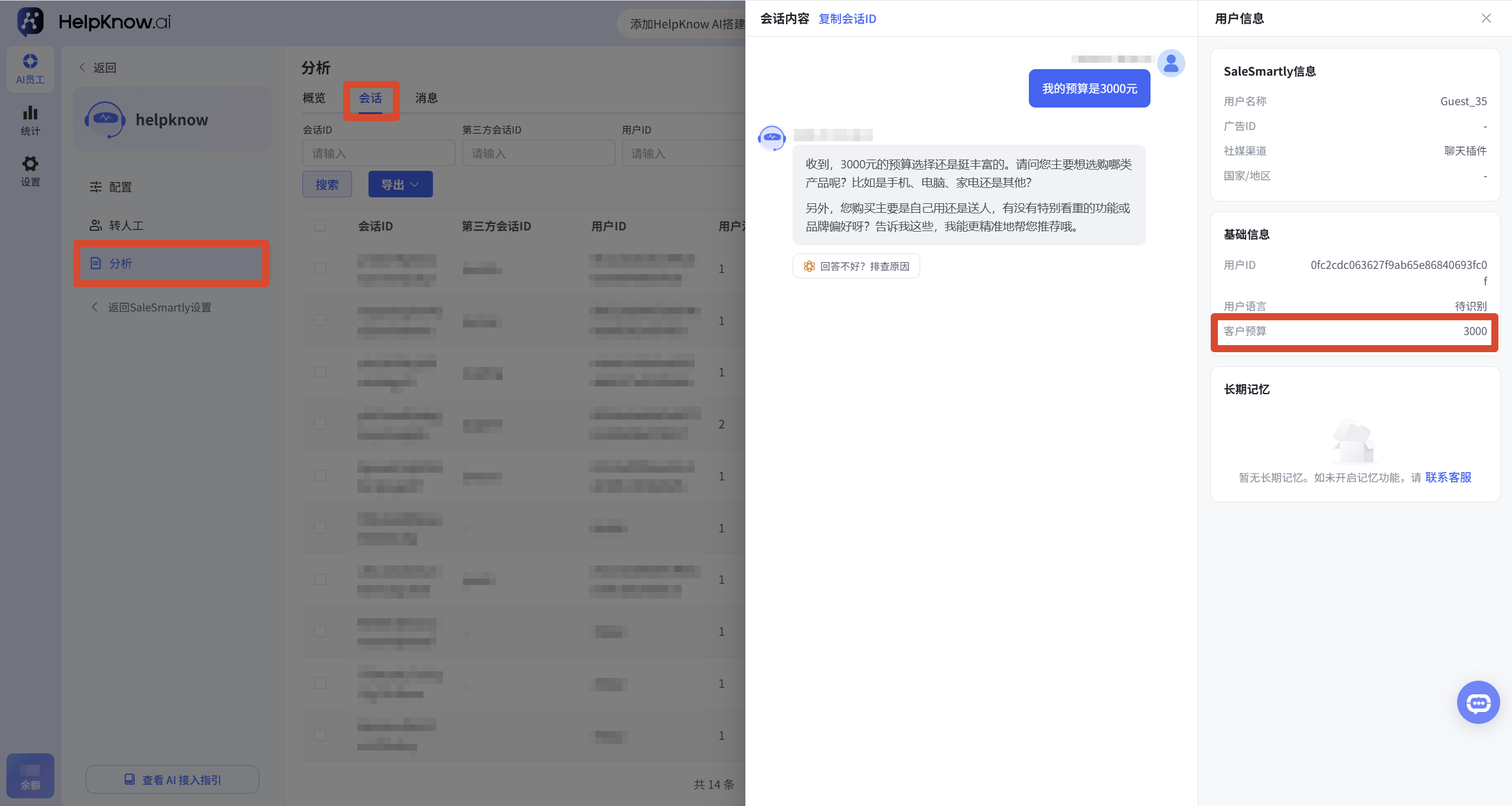
After the AI employee actually serves a customer, you can go to "Analysis > Conversation" to open the corresponding conversation and view the recorded attributes in "User Information" on the right.
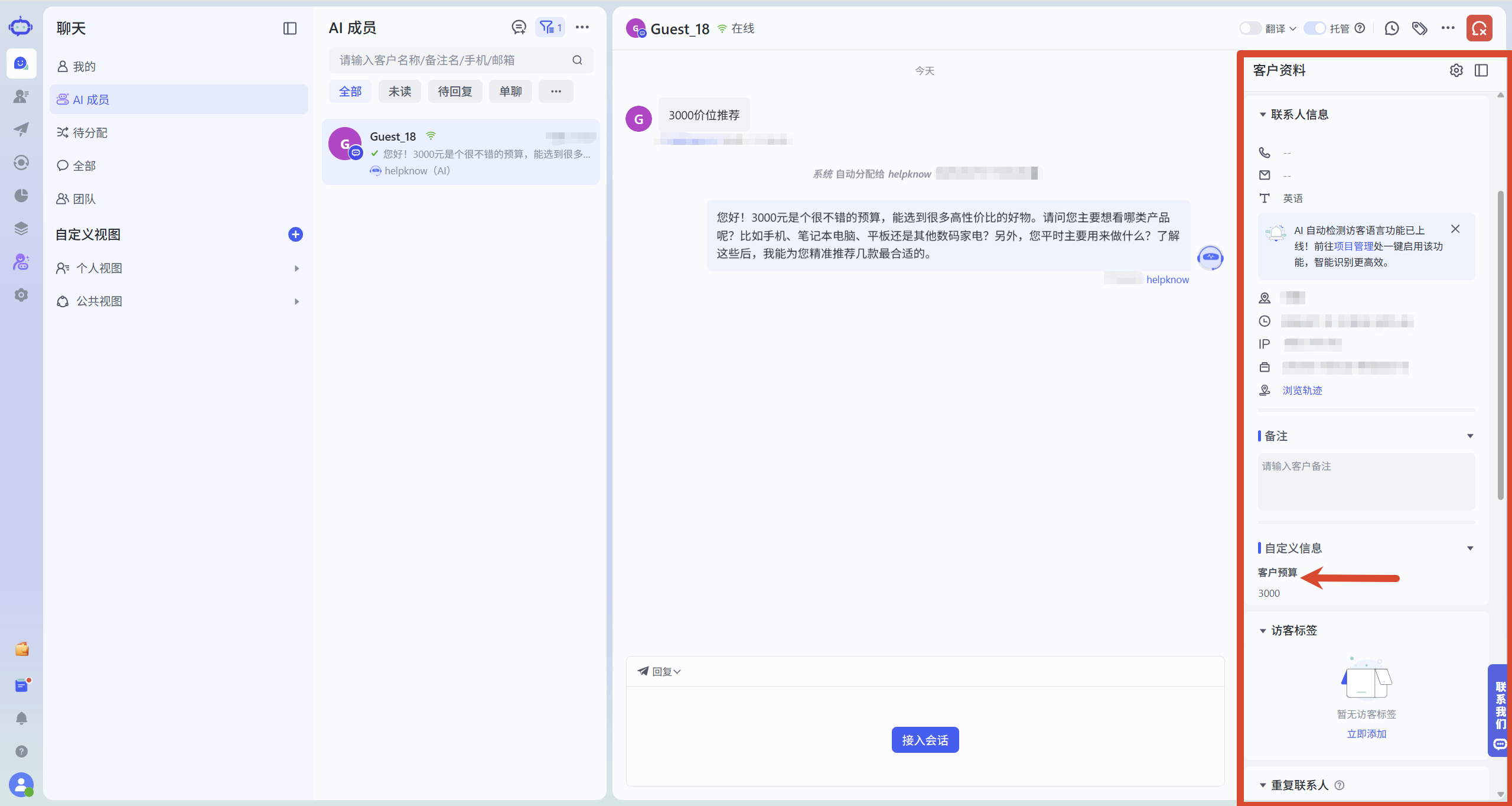
2. Verify SaleSmartly synchronization results (optional)
If SaleSmartly mapping fields are configured, you can initiate a test session through the actual channels that have been connected, and then check in SaleSmartly whether the corresponding customer's information fields have been updated.
The "Question and Answer Test" is mainly used to check whether HelpKnow records attributes correctly; the field synchronization results of SaleSmartly need to be verified through actual channels.
IV. Applicable Scenarios
- Pre-sales screening: AI employees collect customer budgets, purchasing needs, or purchase quantities, allowing sales staff to understand the customer's situation before taking over the conversation.
- High-risk conversation handling: Record customer emotions and use attributes such as "negative" as conditions for transferring to human intervention, so that human members can intervene in a timely manner.
- Customer follow-up: Collect contact information such as mobile phone numbers and email addresses, and map them to SaleSmartly customer data for easy follow-up.
V. Precautions
- For the same user, a new session can still read previously recorded attribute values. Once a new value is detected, it will be updated to the latest value, but historical sessions will retain the attribute values recorded at that time.
- Once an attribute is created, its level cannot be modified. If you need to change the level, you must recreate the attribute.
VI. Frequently Asked Questions
1. Why were the attributes not recorded after the test?
Please check the following:
- Has the attribute been saved and enabled?
- Does the test message contain information that can determine the attribute value?
- Are the attribute names and descriptions clear?
- If the "Options" type is used, each option should have a clear judgment description provided.
- Whether to view in the correct location in the session details: User-level attributes are displayed in "User Attributes", and session-level attributes are displayed in "Session Attributes".
2. Why are the attributes not synced to SaleSmartly?
Please check the following:
- Has the corresponding SaleSmartly mapping field been selected for this attribute?
- Whether to initiate testing through existing, connected channels, rather than just testing in "Q&A testing".
- Check if the corresponding SaleSmartly customer profile field has been created and enabled.
- Does the current property type support setting a mapping field?
If the field you need is not in the Mapped Fields dropdown list, you can click "Manage Fields" to go to SaleSmartly to create or enable a custom field.
Related tutorial: SaleSmartly Custom Field Usage Guide .
3. If I modify the customer field in SaleSmartly, will the information collected by AI be updated synchronously?
Currently, customer information collected by AI is recorded and stored separately, and is not bidirectionally synchronized with SaleSmartly's custom fields. Manually modifying fields in SaleSmartly will not synchronously update the information already recorded by AI.
4. How to test the attribute performance of the same customer in a new session?
To test the attribute behavior of the same customer in a new session, you can first end the current session in SaleSmartly, and then have the customer resend the message. HelpKnow will generate a new session record for that customer.
Go to "Analysis > Conversation" to open a new conversation. You can check whether the previously recorded attributes are still displayed and verify through actual conversation whether the AI employee can continue to use the corresponding attribute information.
It should be noted that messages from the same customer in the SaleSmartly chat window may still be displayed continuously. Therefore, to determine whether a new HelpKnow session has been generated, please refer to the session records in "Analysis > Sessions".
VII. Related Recommendations
;}.cls-2{fill:%230868f7;}.cls-3{fill:url(%23未命名的渐变_44);}.cls-4{fill:%23333;}%3c/style%3e%3clinearGradient%20id='未命名的渐变_8'%20x1='33.73'%20y1='100.61'%20x2='-0.03'%20y2='-1.06'%20gradientUnits='userSpaceOnUse'%3e%3cstop%20offset='0'%20stop-color='%237ae9fb'/%3e%3cstop%20offset='0.67'%20stop-color='%232b90f8'/%3e%3cstop%20offset='1'%20stop-color='%230868f7'/%3e%3c/linearGradient%3e%3clinearGradient%20id='未命名的渐变_44'%20x1='27.86'%20y1='18.67'%20x2='68.36'%20y2='22.22'%20gradientUnits='userSpaceOnUse'%3e%3cstop%20offset='0'%20stop-color='%235ac7f2'/%3e%3cstop%20offset='1'%20stop-color='%230868f7'/%3e%3c/linearGradient%3e%3c/defs%3e%3cpath%20class='cls-1'%20d='M29,28.74V81.91l-9.51-3.68v0L8.52,74A7.17,7.17,0,0,1,4,67.32V24.54A3.76,3.76,0,0,1,9.08,21Z'/%3e%3cpath%20class='cls-2'%20d='M68.09,78.07a13.15,13.15,0,0,1-17.9,12.06L29,81.91h0V28.74L50.19,37A13.17,13.17,0,0,0,68.08,25.3h0Z'/%3e%3cpath%20class='cls-3'%20d='M68.08,25.3a13.19,13.19,0,0,1-6.73,10.87A13.09,13.09,0,0,1,50.19,37L29,28.74V6A3.76,3.76,0,0,1,34.1,2.52l25.59,9.91A13.22,13.22,0,0,1,68.08,25.3Z'/%3e%3cpath%20class='cls-4'%20d='M129.06,81.76a4.33,4.33,0,0,1-3.19-1.31,4.4,4.4,0,0,1-1.31-3.24V56.86H97.65V77.21a4.36,4.36,0,0,1-1.35,3.2A4.68,4.68,0,0,1,93,81.76a4.32,4.32,0,0,1-3.19-1.31,4.37,4.37,0,0,1-1.32-3.24V27.27A4.58,4.58,0,0,1,89.83,24a4.59,4.59,0,0,1,7.82,3.27V48.15h26.91V27.27A4.58,4.58,0,0,1,125.91,24a4.59,4.59,0,0,1,7.82,3.27V77.21a4.37,4.37,0,0,1-1.36,3.2A4.65,4.65,0,0,1,129.06,81.76Z'/%3e%3cpath%20class='cls-4'%20d='M163.77,81.66c-6.57,0-11.76-1.92-15.44-5.7s-5.54-9.07-5.54-15.74a26.76,26.76,0,0,1,2.09-10.43,17.72,17.72,0,0,1,6.67-8.06,19.15,19.15,0,0,1,10.68-2.95,19,19,0,0,1,10.46,2.8,18.7,18.7,0,0,1,6.55,7.36,22.53,22.53,0,0,1,2.36,10.28A4.51,4.51,0,0,1,177,63.77H152.23a10.8,10.8,0,0,0,3.49,6.65c2,1.68,4.88,2.52,8.66,2.52a22.25,22.25,0,0,0,7.54-1.21c.74-.3,1.55-.67,2.37-1.07a3.75,3.75,0,0,1,1.84-.4,4.09,4.09,0,0,1,3,1.15,4,4,0,0,1,1.12,3,4.38,4.38,0,0,1-2.58,3.82,32.34,32.34,0,0,1-6.36,2.61A28.67,28.67,0,0,1,163.77,81.66ZM172.4,55.9a9.72,9.72,0,0,0-1.63-4.56A9.9,9.9,0,0,0,167,48a10.38,10.38,0,0,0-4.64-1.14,12,12,0,0,0-4.77,1.06,9.54,9.54,0,0,0-4.89,5.66,11.78,11.78,0,0,0-.51,2.3Z'/%3e%3cpath%20class='cls-4'%20d='M193,81.64a4.49,4.49,0,0,1-4.51-4.55V27.28A4.58,4.58,0,0,1,189.84,24a4.48,4.48,0,0,1,3.28-1.36A4.36,4.36,0,0,1,196.35,24a4.46,4.46,0,0,1,1.31,3.31V77.09a4.34,4.34,0,0,1-1.35,3.2A4.67,4.67,0,0,1,193,81.64Z'/%3e%3cpath%20class='cls-4'%20d='M263.79,81.71a5.7,5.7,0,0,1-4.2-1.74,5.76,5.76,0,0,1-1.73-4.19V27.37a4.58,4.58,0,0,1,1.35-3.27A4.59,4.59,0,0,1,267,27.37V72.53h24a4.58,4.58,0,0,1,3.27,7.82A4.66,4.66,0,0,1,291,81.71Z'/%3e%3cpath%20class='cls-4'%20d='M424.48,81.74a4.71,4.71,0,0,1-2.71-.88,5.43,5.43,0,0,1-1-1l-.07-.09-12.41-17-5.41,5v9.44a4.31,4.31,0,0,1-1.36,3.19,4.66,4.66,0,0,1-3.3,1.36A4.29,4.29,0,0,1,395,80.42a4.36,4.36,0,0,1-1.32-3.23V27.37A4.58,4.58,0,0,1,395,24.1a4.52,4.52,0,0,1,6.58.12,4.54,4.54,0,0,1,1.24,3.15V56.31l17.72-16.38.05,0a4.8,4.8,0,0,1,2.94-1.11,4.4,4.4,0,0,1,3.27,1.2,4.57,4.57,0,0,1,1.2,3.27,4.44,4.44,0,0,1-.77,2.33,7.45,7.45,0,0,1-1.43,1.65l-11,9.64,13.34,17.68a5,5,0,0,1,1,2.71,4.12,4.12,0,0,1-1.36,3.24A4.64,4.64,0,0,1,424.48,81.74Z'/%3e%3cpath%20class='cls-4'%20d='M317.93,81.76a21.5,21.5,0,1,1,21.17-21.5A21.37,21.37,0,0,1,317.93,81.76Zm0-34.1a12.61,12.61,0,1,0,12.42,12.6A12.52,12.52,0,0,0,317.93,47.66Z'/%3e%3cpath%20class='cls-4'%20d='M212.18,101.22a4.12,4.12,0,0,1-3.05-1.26,4.17,4.17,0,0,1-1.26-3.1V43.34a4.37,4.37,0,0,1,1.3-3.14,4.26,4.26,0,0,1,3.13-1.3,4.19,4.19,0,0,1,3.1,1.26,4.32,4.32,0,0,1,1.26,3.16,20.77,20.77,0,0,1,13-4.54,21.51,21.51,0,0,1,0,43,20.51,20.51,0,0,1-13-4.57V96.86a4.15,4.15,0,0,1-1.3,3.06A4.5,4.5,0,0,1,212.18,101.22Zm17.43-53.63c-6.23,0-12.93,4.11-12.93,12.72a12.73,12.73,0,0,0,25.46,0A12.71,12.71,0,0,0,229.61,47.59Z'/%3e%3cpath%20class='cls-4'%20d='M365.76,81.76a21.5,21.5,0,1,1,21.18-21.5A21.37,21.37,0,0,1,365.76,81.76Zm0-34.1a12.61,12.61,0,1,0,12.42,12.6A12.52,12.52,0,0,0,365.76,47.66Z'/%3e%3c/svg%3e)