
Why doesn't the AI employee reply after the customer sends a message?
When a customer sends a message and the AI employee does not reply, first check if the current session has been assigned to an AI employee, and then check the reception settings, AI employee status, message limit, automatic stop reply, channel connection, and message type, etc., depending on the situation.
If the AI employee has responded, but the answer is incorrect, incomplete, irrelevant, or does not meet expected knowledge criteria, please use the "Troubleshooting Assistant" to analyze the specific reasons. For details, please refer to "How to Troubleshoot When AI Employee Responses Do Not Meet Expectations?"
This article's link: "Why doesn't the AI employee reply after the customer sends a message?"
I. Confirm whether the session has been assigned to an AI employee.
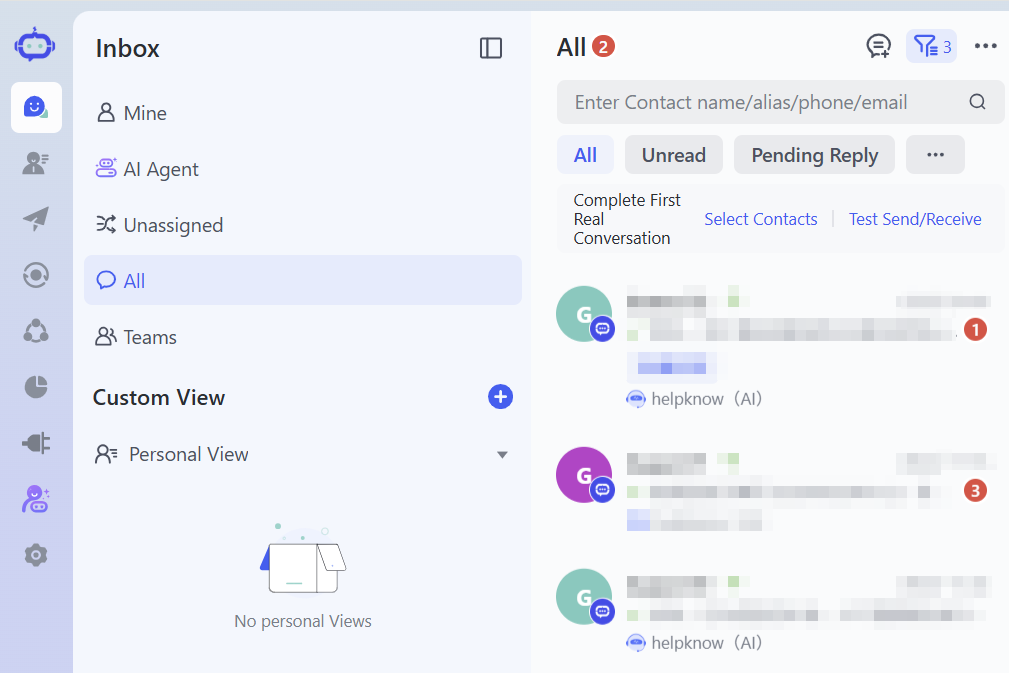
Go to the SaleSmartly "Chat" page , find the corresponding customer conversation, and view the currently receiving members.
- The session is in a "pending assignment" state : This means that it has not yet been assigned to an AI employee. Please check according to Part 2.
- The session has been assigned to a human member : the AI employee will not continue to respond to the current session. If the session was previously handled by an AI employee, please check if a human intervention, human takeover, or reassignment to another member has been triggered. To reassign the session to an AI employee, you can manually assign the session to the AI employee, or end the current session and let the new session be reassigned according to the automatic assignment rules. For details, please refer to "How do I set up an AI employee to transfer conversations to a human agent?"
- The session has been assigned to an AI employee : Please continue the investigation according to Part 3.
II. Investigate why sessions were not assigned to AI employees.
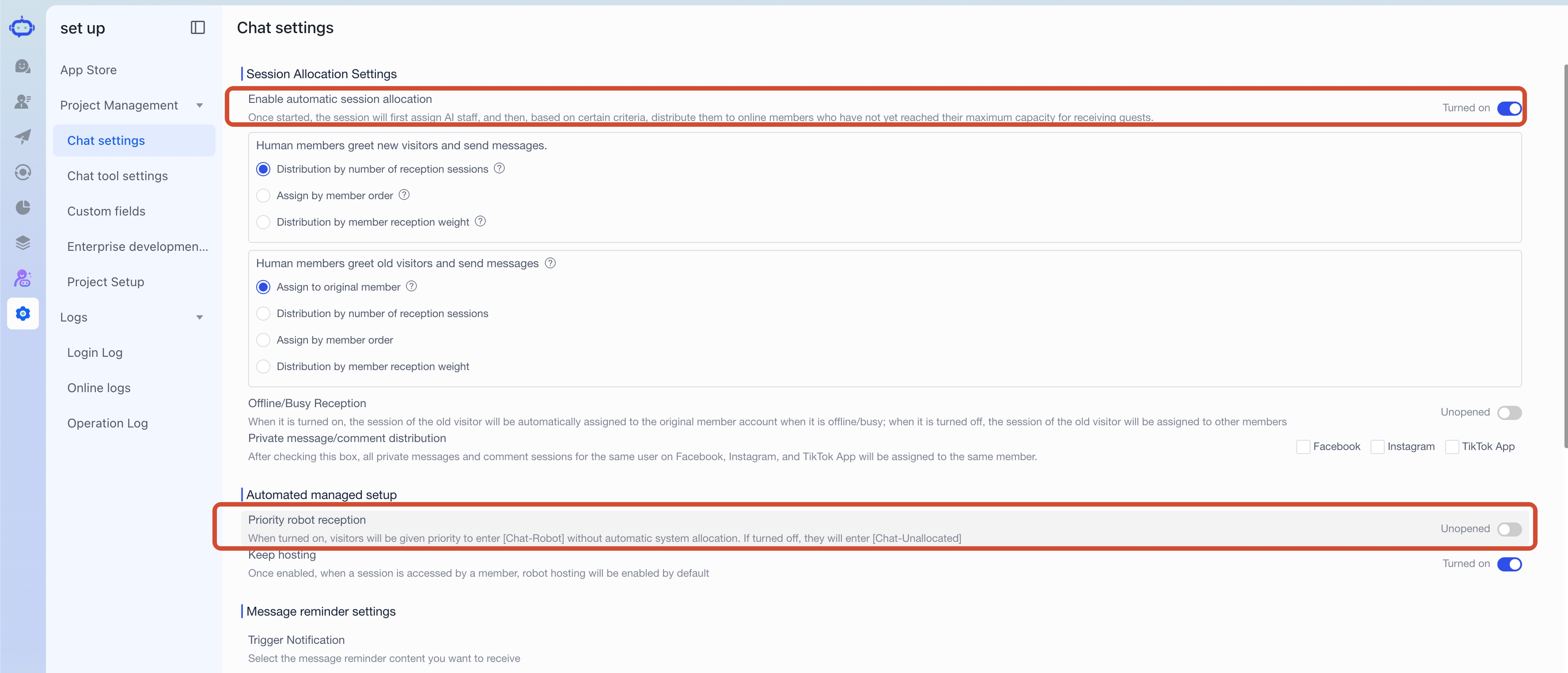
1. Check session auto-assignment settings.
Go to SaleSmartly "Settings > Chat & Reception > Conversation Settings" and check the following settings:
- Is "Automatic Session Assignment" enabled?
- If this is a historical project with a "Priority Robot Reception" setting, has that setting been disabled? Newly registered projects do not have this option, so you can ignore it.
- Have you clicked "Save" after modifying the settings?
If automatic session assignment is not enabled, new sessions may remain in a "pending assignment" state indefinitely.
2. Check the AI employee reception settings.
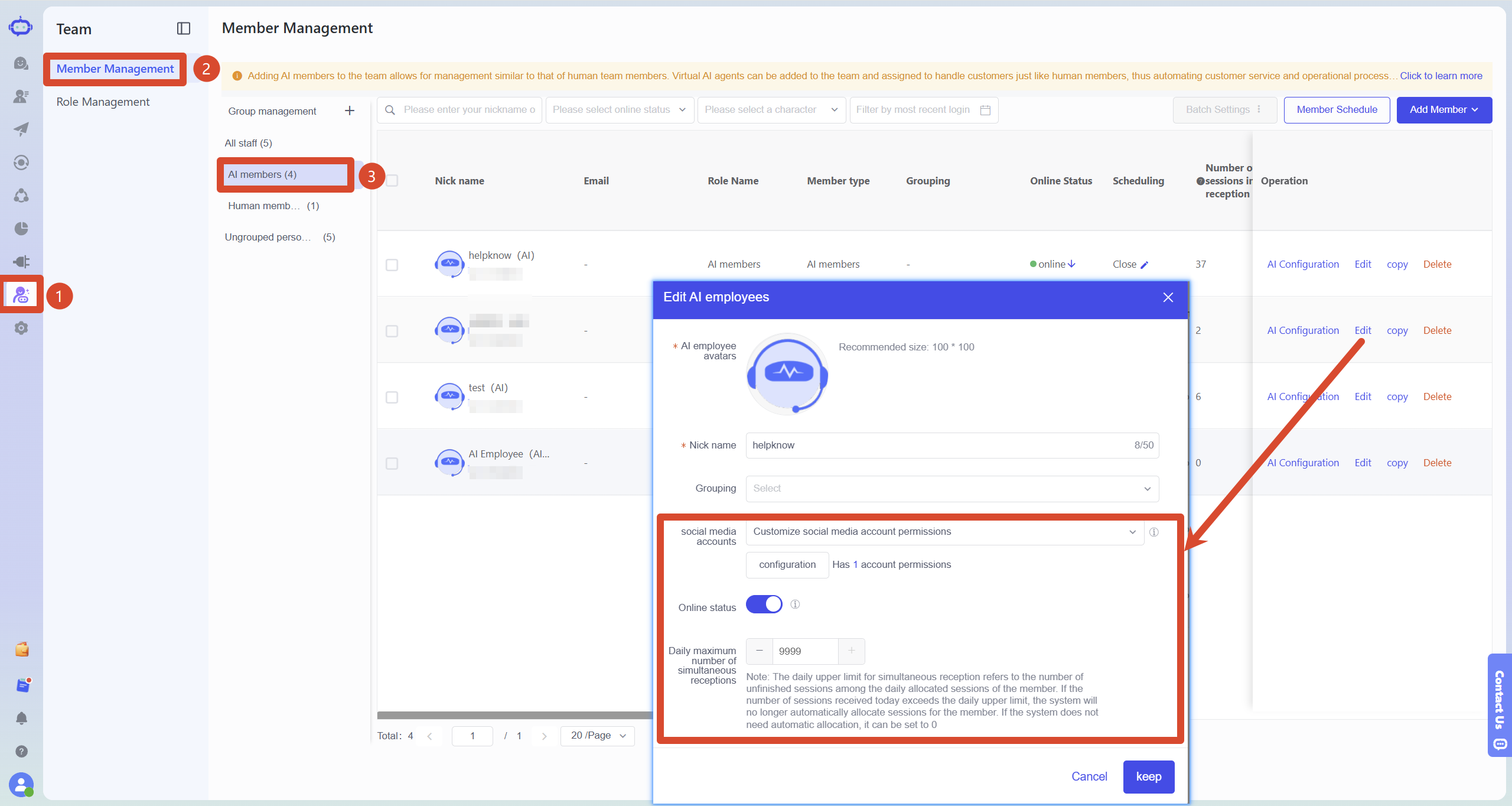
Go to SaleSmartly's "Team > Member Management" , find the corresponding AI employee and click "Edit", then check the following settings:
- Online status : Confirmed to be enabled. When the AI employee is offline, the system will not automatically assign a new session to it.
- Social Media Accounts : Click "Configure" to confirm that the AI employee has account permissions for the customer's current consultation channel. If the corresponding channel is not configured, conversations generated through that channel will not be assigned to the AI employee.
- Daily simultaneous session limit : Confirm that the limit is not set to 0 and the number of sessions currently being handled has not reached the limit. Once the limit is reached, the system will no longer automatically assign new sessions to this AI employee.
After making the changes, click "Save".
III. Investigate sessions that have been assigned but the AI has not responded.
1. Check if AI employees have been deployed.
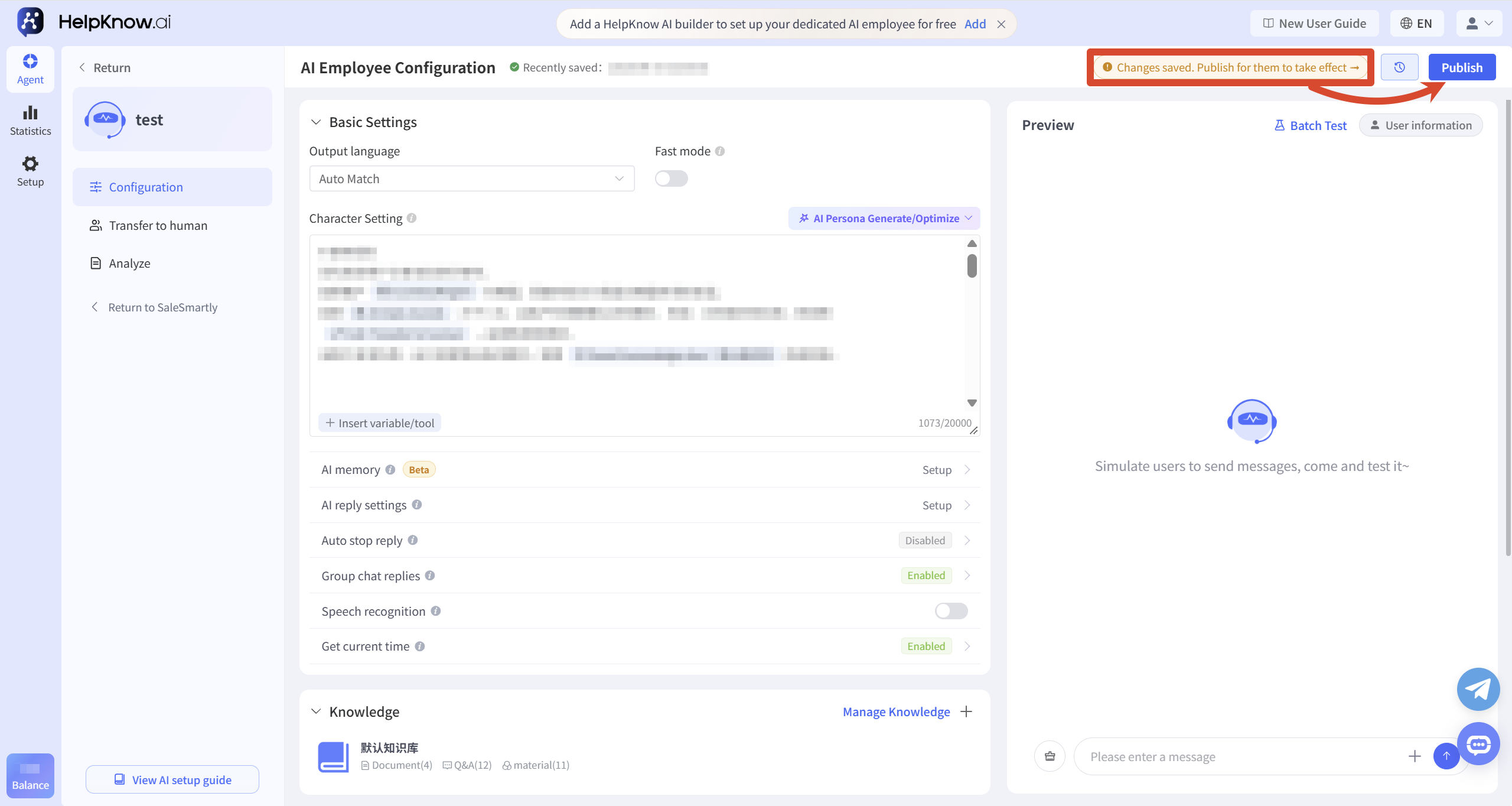
Go to the AI employee's "Configuration" page and check the status in the upper right corner.
If "Draft" is displayed, it means there is an unpublished configuration. Please click "Publish". Only after successful publication will the latest configuration be applied to real-world scenarios such as websites and social media.
2. Check message limit
Check if there are any available HelpKnow message quotas for the current project.
If your messaging quota has been used up, please purchase additional quota and test again. For details on messaging quota deduction, inquiry, and purchase rules, please refer to "Message Quota and Pricing" .
If the project still uses a points system, please check if you have enough points available.
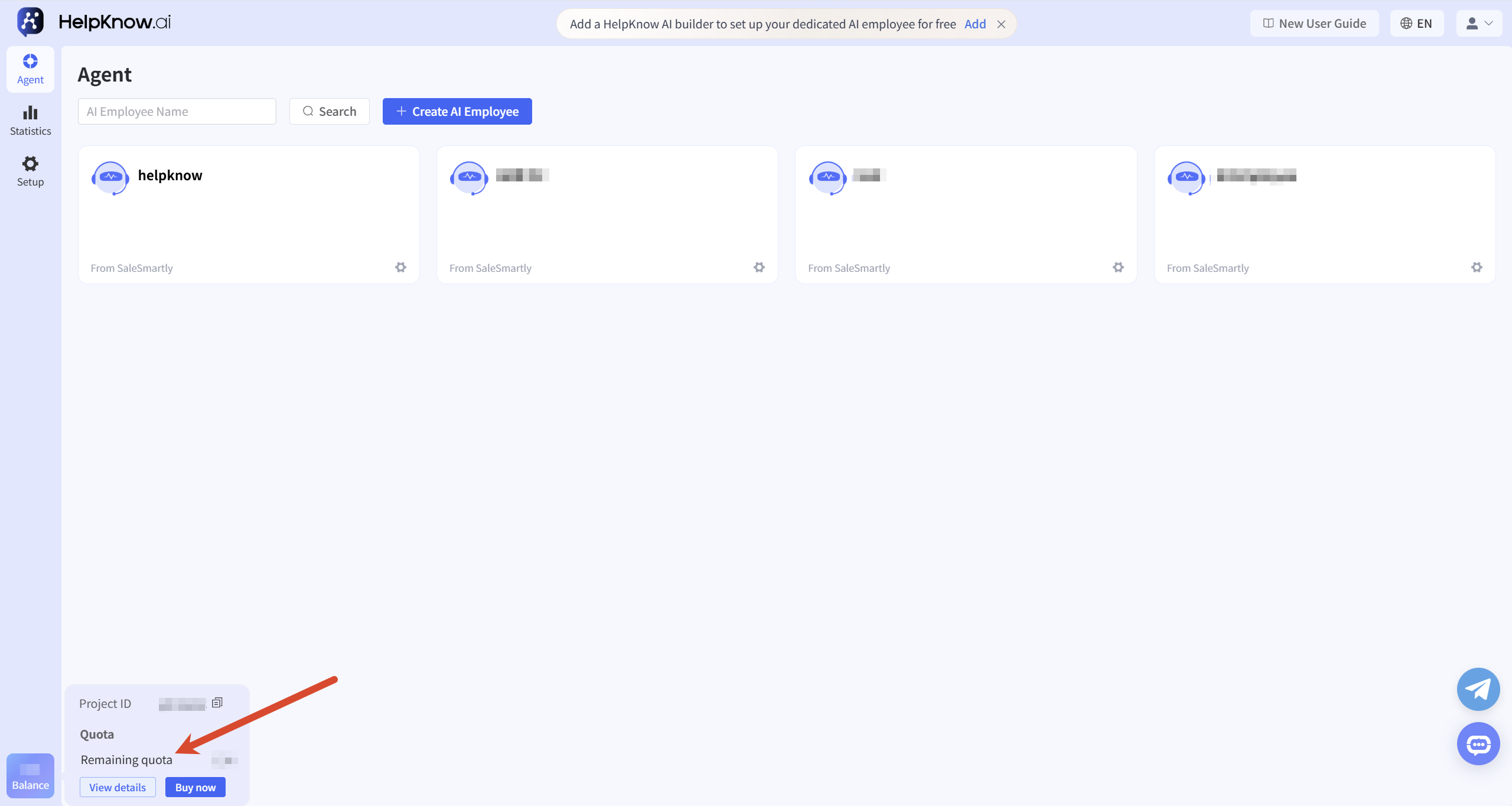
3. Check if automatic stop reply has been triggered.
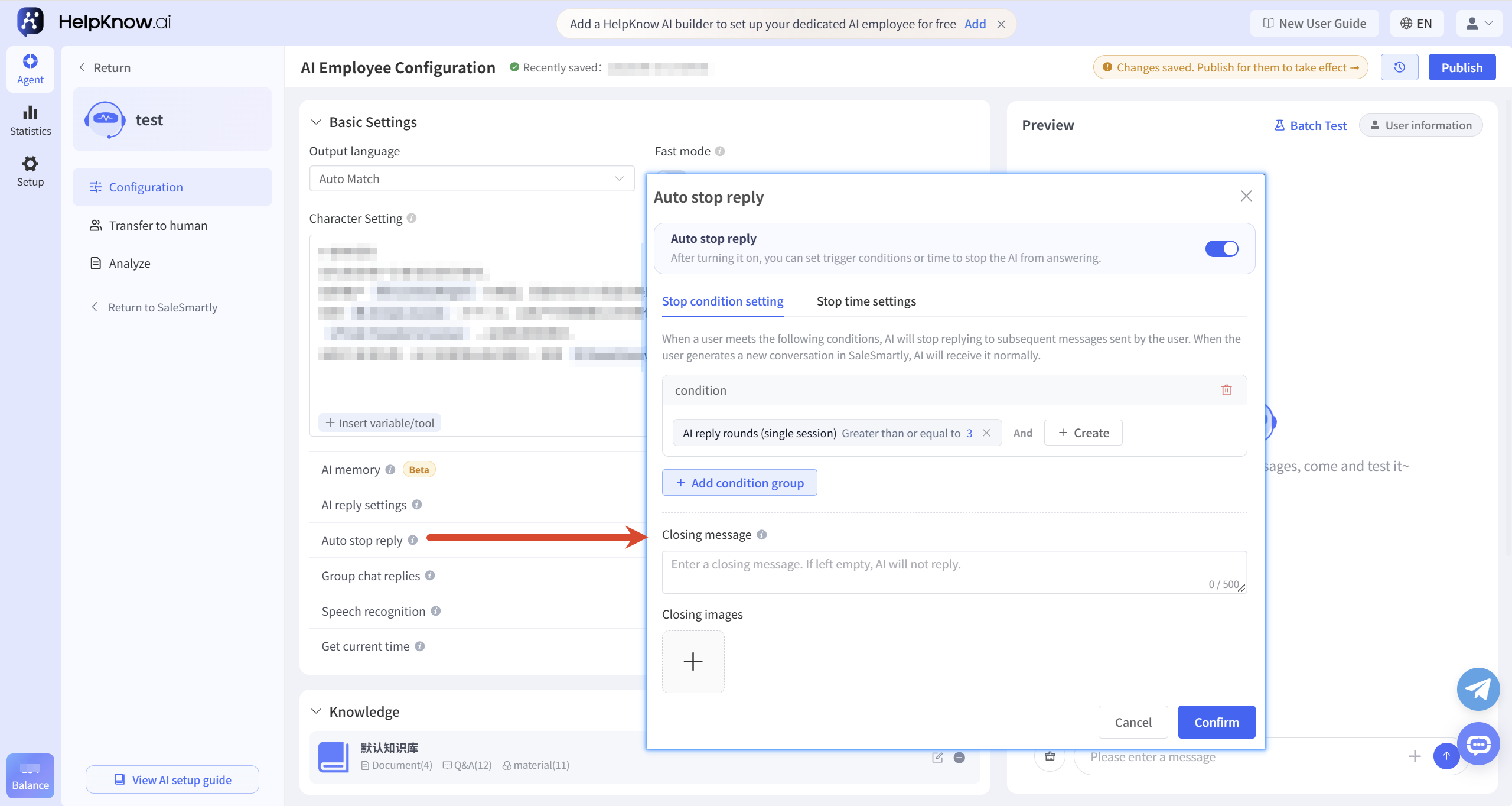
If you have already configured "automatically stop replying" for the AI employee, please check according to the following two situations:
- During the stop period : AI staff will not reply to messages sent by customers during the stop period. These customer messages will not appear in HelpKnow's "Analysis > Messages" section, nor can they be viewed in the corresponding conversation details. In this case, you need to check the message sending time against the set stop period.
- Triggering a Stop Condition : Customer messages that trigger a stop condition will be saved in HelpKnow. The corresponding conversation will display "Stop Responding" on the "Analysis > Conversations" page; on the "Analysis > Messages" page, the basis for responding to the message will be displayed as "Stop Responding," and you can also filter and view related messages by "Responding Basis."
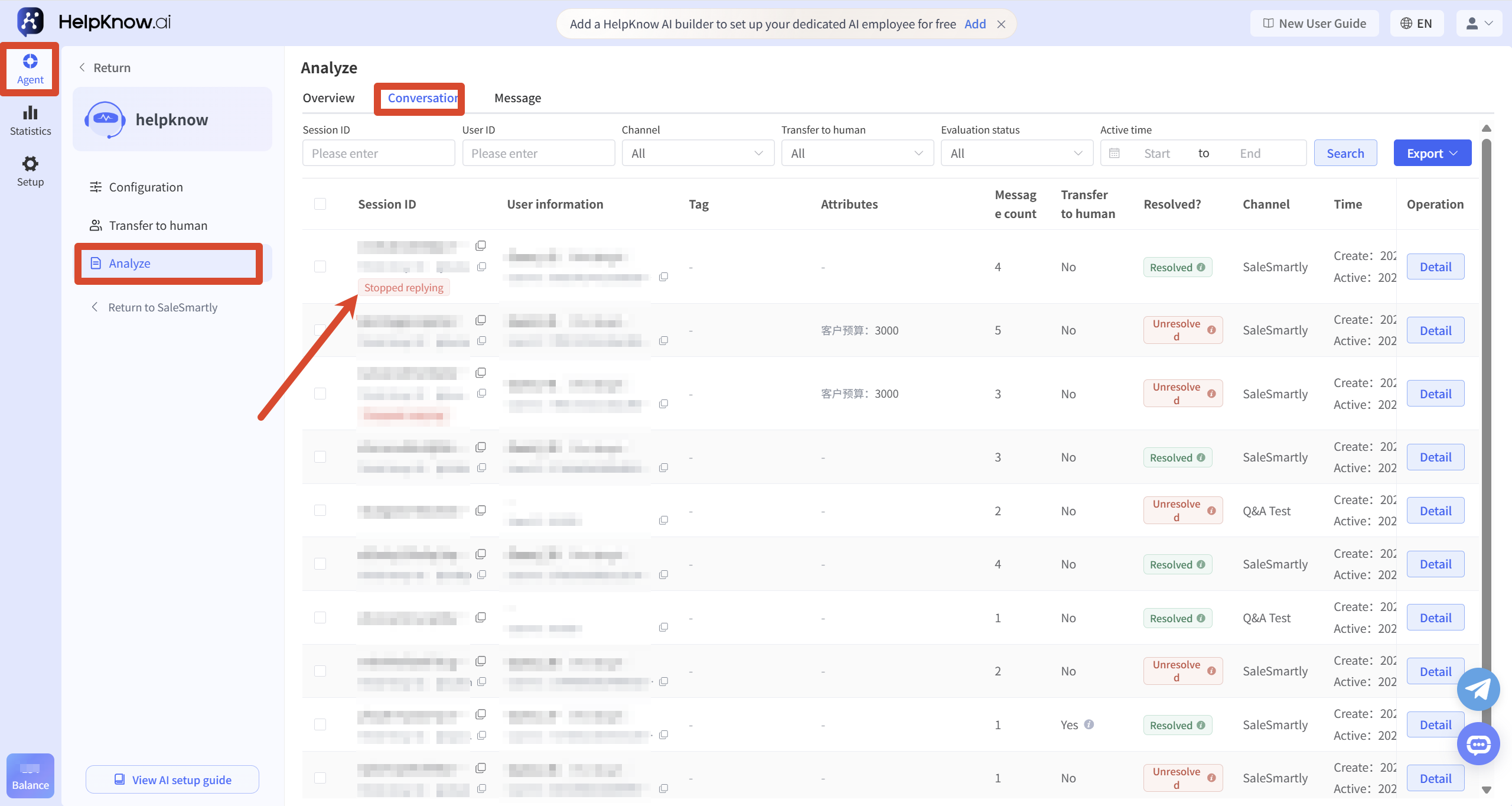
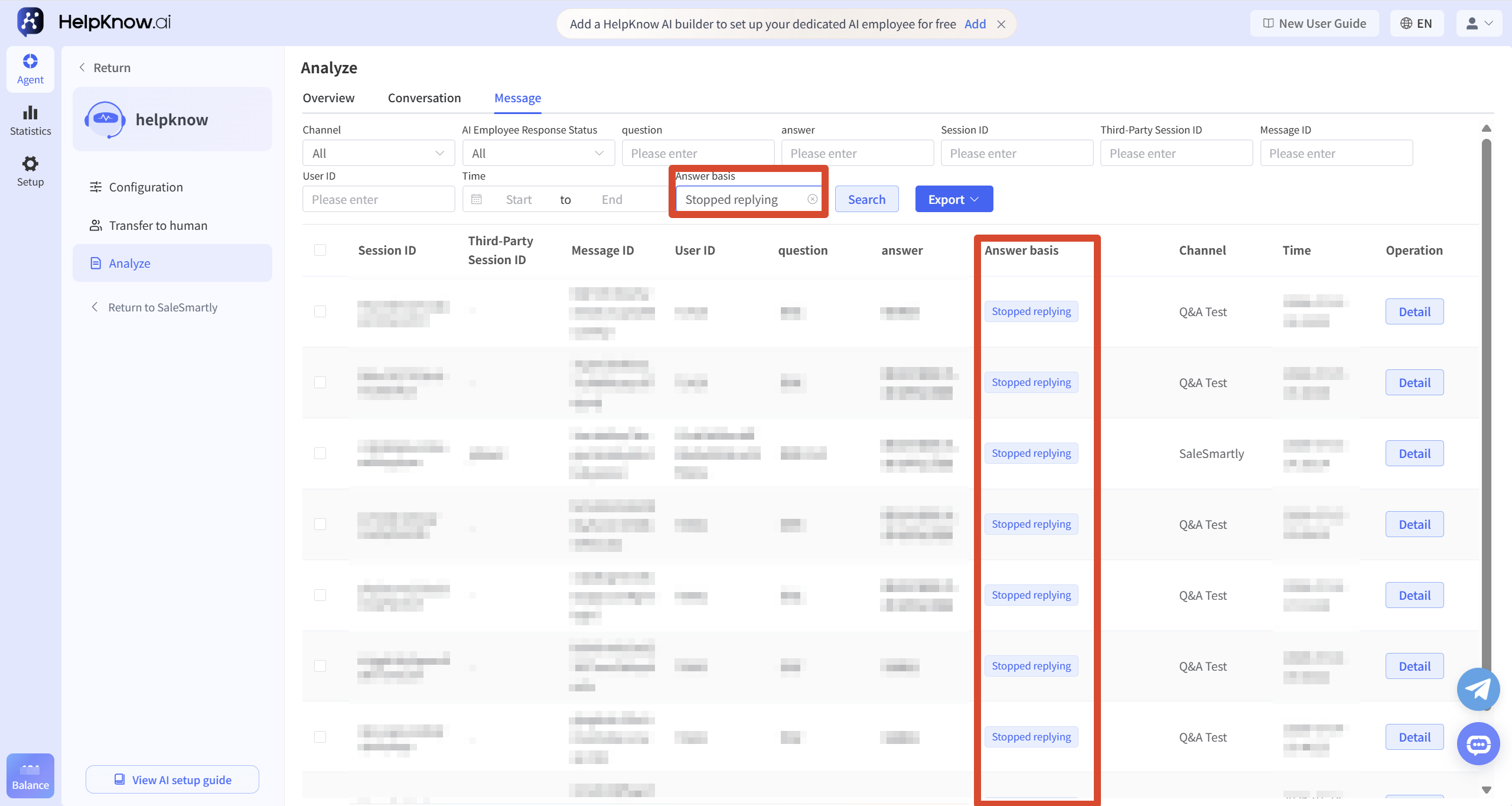
To resume AI-assisted customer service, you can wait for the suspension period to end, adjust the automatic stop reply settings, or start a new customer session, depending on the actual situation.
4. Check if the channel authorization is normal.
If the AI employee already has the corresponding social media account's reception permissions but still hasn't responded, please check if the authorization status of the current channel in SaleSmartly is normal.
If the authorization for the corresponding social media channel has expired, please re-authorize the corresponding channel in SaleSmartly and then test again.
5. Check the types of messages sent by the customer.
If an unanswered customer message has entered HelpKnow and has not triggered an automatic stop to reply, please check if the message belongs to a type that AI staff cannot currently recognize or process.
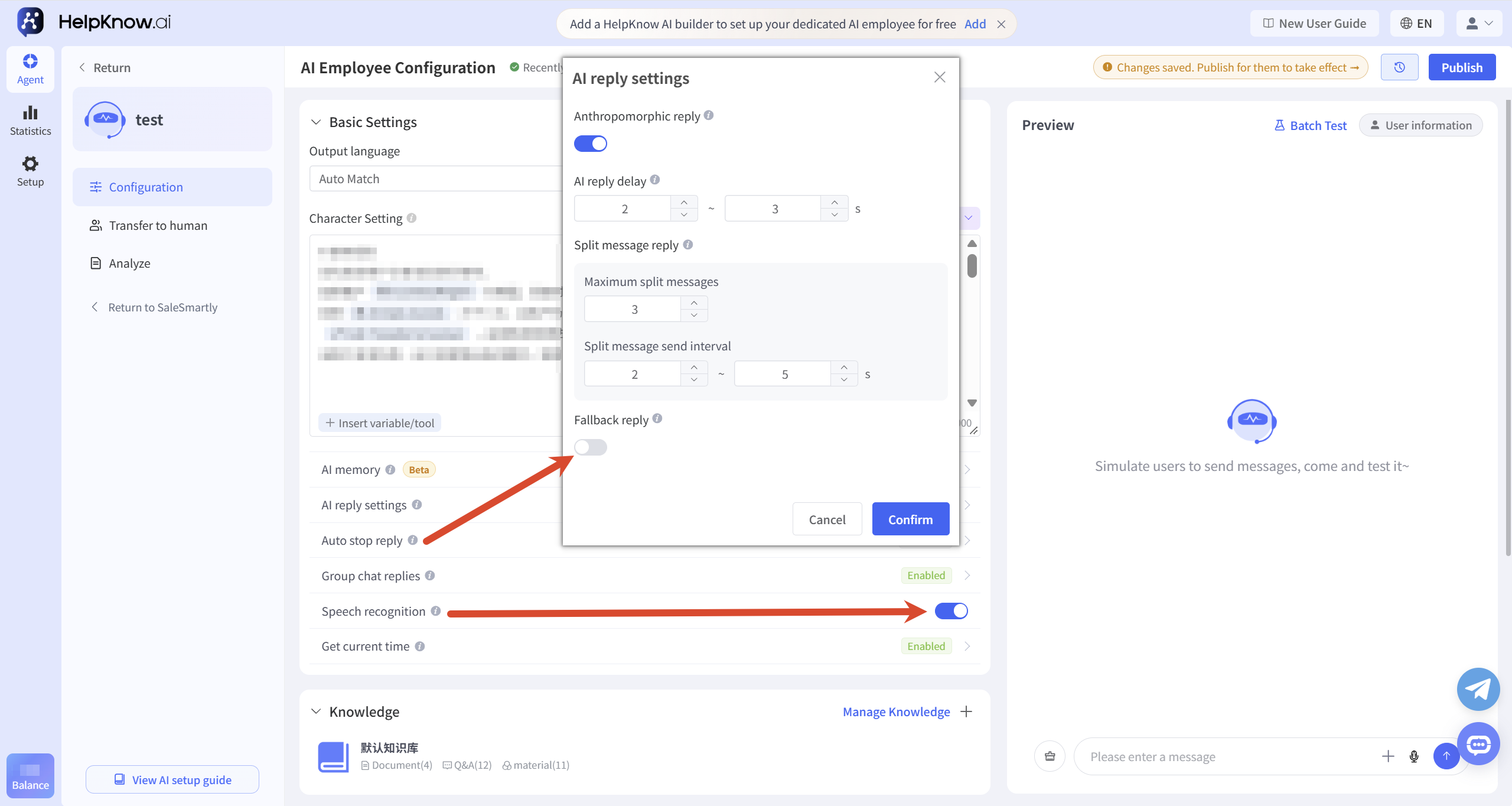
If the customer sends a voice message, please check if the AI employee has enabled "voice recognition". Once enabled, the AI employee can recognize the content of the customer's voice message and respond accordingly.
If a customer sends a video, file, map location, or other unusual message, the AI employee may not be able to process it properly; if no backup response is set up, it may not respond at all.
IV. Resend the message for testing.
After making the necessary adjustments, have the customer send another plain text message to confirm whether the AI employee has resumed responding.
If the current session already displays "Stop replying" due to the stopping condition, please follow the settings for automatically stopping replies.
V. If the problem persists, contact HelpKnow customer service.
If the AI employee still does not respond after completing the above checks, please contact HelpKnow customer service for assistance. "Contact Us (Dedicated Customer Service)"
;}.cls-2{fill:%230868f7;}.cls-3{fill:url(%23未命名的渐变_44);}.cls-4{fill:%23333;}%3c/style%3e%3clinearGradient%20id='未命名的渐变_8'%20x1='33.73'%20y1='100.61'%20x2='-0.03'%20y2='-1.06'%20gradientUnits='userSpaceOnUse'%3e%3cstop%20offset='0'%20stop-color='%237ae9fb'/%3e%3cstop%20offset='0.67'%20stop-color='%232b90f8'/%3e%3cstop%20offset='1'%20stop-color='%230868f7'/%3e%3c/linearGradient%3e%3clinearGradient%20id='未命名的渐变_44'%20x1='27.86'%20y1='18.67'%20x2='68.36'%20y2='22.22'%20gradientUnits='userSpaceOnUse'%3e%3cstop%20offset='0'%20stop-color='%235ac7f2'/%3e%3cstop%20offset='1'%20stop-color='%230868f7'/%3e%3c/linearGradient%3e%3c/defs%3e%3cpath%20class='cls-1'%20d='M29,28.74V81.91l-9.51-3.68v0L8.52,74A7.17,7.17,0,0,1,4,67.32V24.54A3.76,3.76,0,0,1,9.08,21Z'/%3e%3cpath%20class='cls-2'%20d='M68.09,78.07a13.15,13.15,0,0,1-17.9,12.06L29,81.91h0V28.74L50.19,37A13.17,13.17,0,0,0,68.08,25.3h0Z'/%3e%3cpath%20class='cls-3'%20d='M68.08,25.3a13.19,13.19,0,0,1-6.73,10.87A13.09,13.09,0,0,1,50.19,37L29,28.74V6A3.76,3.76,0,0,1,34.1,2.52l25.59,9.91A13.22,13.22,0,0,1,68.08,25.3Z'/%3e%3cpath%20class='cls-4'%20d='M129.06,81.76a4.33,4.33,0,0,1-3.19-1.31,4.4,4.4,0,0,1-1.31-3.24V56.86H97.65V77.21a4.36,4.36,0,0,1-1.35,3.2A4.68,4.68,0,0,1,93,81.76a4.32,4.32,0,0,1-3.19-1.31,4.37,4.37,0,0,1-1.32-3.24V27.27A4.58,4.58,0,0,1,89.83,24a4.59,4.59,0,0,1,7.82,3.27V48.15h26.91V27.27A4.58,4.58,0,0,1,125.91,24a4.59,4.59,0,0,1,7.82,3.27V77.21a4.37,4.37,0,0,1-1.36,3.2A4.65,4.65,0,0,1,129.06,81.76Z'/%3e%3cpath%20class='cls-4'%20d='M163.77,81.66c-6.57,0-11.76-1.92-15.44-5.7s-5.54-9.07-5.54-15.74a26.76,26.76,0,0,1,2.09-10.43,17.72,17.72,0,0,1,6.67-8.06,19.15,19.15,0,0,1,10.68-2.95,19,19,0,0,1,10.46,2.8,18.7,18.7,0,0,1,6.55,7.36,22.53,22.53,0,0,1,2.36,10.28A4.51,4.51,0,0,1,177,63.77H152.23a10.8,10.8,0,0,0,3.49,6.65c2,1.68,4.88,2.52,8.66,2.52a22.25,22.25,0,0,0,7.54-1.21c.74-.3,1.55-.67,2.37-1.07a3.75,3.75,0,0,1,1.84-.4,4.09,4.09,0,0,1,3,1.15,4,4,0,0,1,1.12,3,4.38,4.38,0,0,1-2.58,3.82,32.34,32.34,0,0,1-6.36,2.61A28.67,28.67,0,0,1,163.77,81.66ZM172.4,55.9a9.72,9.72,0,0,0-1.63-4.56A9.9,9.9,0,0,0,167,48a10.38,10.38,0,0,0-4.64-1.14,12,12,0,0,0-4.77,1.06,9.54,9.54,0,0,0-4.89,5.66,11.78,11.78,0,0,0-.51,2.3Z'/%3e%3cpath%20class='cls-4'%20d='M193,81.64a4.49,4.49,0,0,1-4.51-4.55V27.28A4.58,4.58,0,0,1,189.84,24a4.48,4.48,0,0,1,3.28-1.36A4.36,4.36,0,0,1,196.35,24a4.46,4.46,0,0,1,1.31,3.31V77.09a4.34,4.34,0,0,1-1.35,3.2A4.67,4.67,0,0,1,193,81.64Z'/%3e%3cpath%20class='cls-4'%20d='M263.79,81.71a5.7,5.7,0,0,1-4.2-1.74,5.76,5.76,0,0,1-1.73-4.19V27.37a4.58,4.58,0,0,1,1.35-3.27A4.59,4.59,0,0,1,267,27.37V72.53h24a4.58,4.58,0,0,1,3.27,7.82A4.66,4.66,0,0,1,291,81.71Z'/%3e%3cpath%20class='cls-4'%20d='M424.48,81.74a4.71,4.71,0,0,1-2.71-.88,5.43,5.43,0,0,1-1-1l-.07-.09-12.41-17-5.41,5v9.44a4.31,4.31,0,0,1-1.36,3.19,4.66,4.66,0,0,1-3.3,1.36A4.29,4.29,0,0,1,395,80.42a4.36,4.36,0,0,1-1.32-3.23V27.37A4.58,4.58,0,0,1,395,24.1a4.52,4.52,0,0,1,6.58.12,4.54,4.54,0,0,1,1.24,3.15V56.31l17.72-16.38.05,0a4.8,4.8,0,0,1,2.94-1.11,4.4,4.4,0,0,1,3.27,1.2,4.57,4.57,0,0,1,1.2,3.27,4.44,4.44,0,0,1-.77,2.33,7.45,7.45,0,0,1-1.43,1.65l-11,9.64,13.34,17.68a5,5,0,0,1,1,2.71,4.12,4.12,0,0,1-1.36,3.24A4.64,4.64,0,0,1,424.48,81.74Z'/%3e%3cpath%20class='cls-4'%20d='M317.93,81.76a21.5,21.5,0,1,1,21.17-21.5A21.37,21.37,0,0,1,317.93,81.76Zm0-34.1a12.61,12.61,0,1,0,12.42,12.6A12.52,12.52,0,0,0,317.93,47.66Z'/%3e%3cpath%20class='cls-4'%20d='M212.18,101.22a4.12,4.12,0,0,1-3.05-1.26,4.17,4.17,0,0,1-1.26-3.1V43.34a4.37,4.37,0,0,1,1.3-3.14,4.26,4.26,0,0,1,3.13-1.3,4.19,4.19,0,0,1,3.1,1.26,4.32,4.32,0,0,1,1.26,3.16,20.77,20.77,0,0,1,13-4.54,21.51,21.51,0,0,1,0,43,20.51,20.51,0,0,1-13-4.57V96.86a4.15,4.15,0,0,1-1.3,3.06A4.5,4.5,0,0,1,212.18,101.22Zm17.43-53.63c-6.23,0-12.93,4.11-12.93,12.72a12.73,12.73,0,0,0,25.46,0A12.71,12.71,0,0,0,229.61,47.59Z'/%3e%3cpath%20class='cls-4'%20d='M365.76,81.76a21.5,21.5,0,1,1,21.18-21.5A21.37,21.37,0,0,1,365.76,81.76Zm0-34.1a12.61,12.61,0,1,0,12.42,12.6A12.52,12.52,0,0,0,365.76,47.66Z'/%3e%3c/svg%3e)