
How do I set up an AI employee to transfer conversations to a human agent?
I. Function Introduction
The AI employee to human agent transfer function is used to hand over the conversation from the AI employee to a human member when a visitor needs human assistance.
II. Preparations before use
Before configuring AI employees to switch to human employees, please confirm the following:
1. Enable automatic session allocation
When automatic session assignment is enabled, new sessions will be preferentially assigned to AI employees according to the assignment rules in the SaleSmartly chat settings.
Once a conversation meets the conditions for being transferred to a human, the system will hand it over to a human member for processing. AI staff and human members will not respond to the same conversation at the same time.
(For specific settings, please refer to "Enable automatic session allocation" ).
2. Check the reception status of human members.
If you choose "Automatic Assignment" after switching to manual assignment, please ensure that at least one human member meets the following conditions:
- Currently online.
- The current number of sessions being hosted has not reached the daily limit for simultaneous hosting.
- The daily limit for simultaneous reception is not 0.
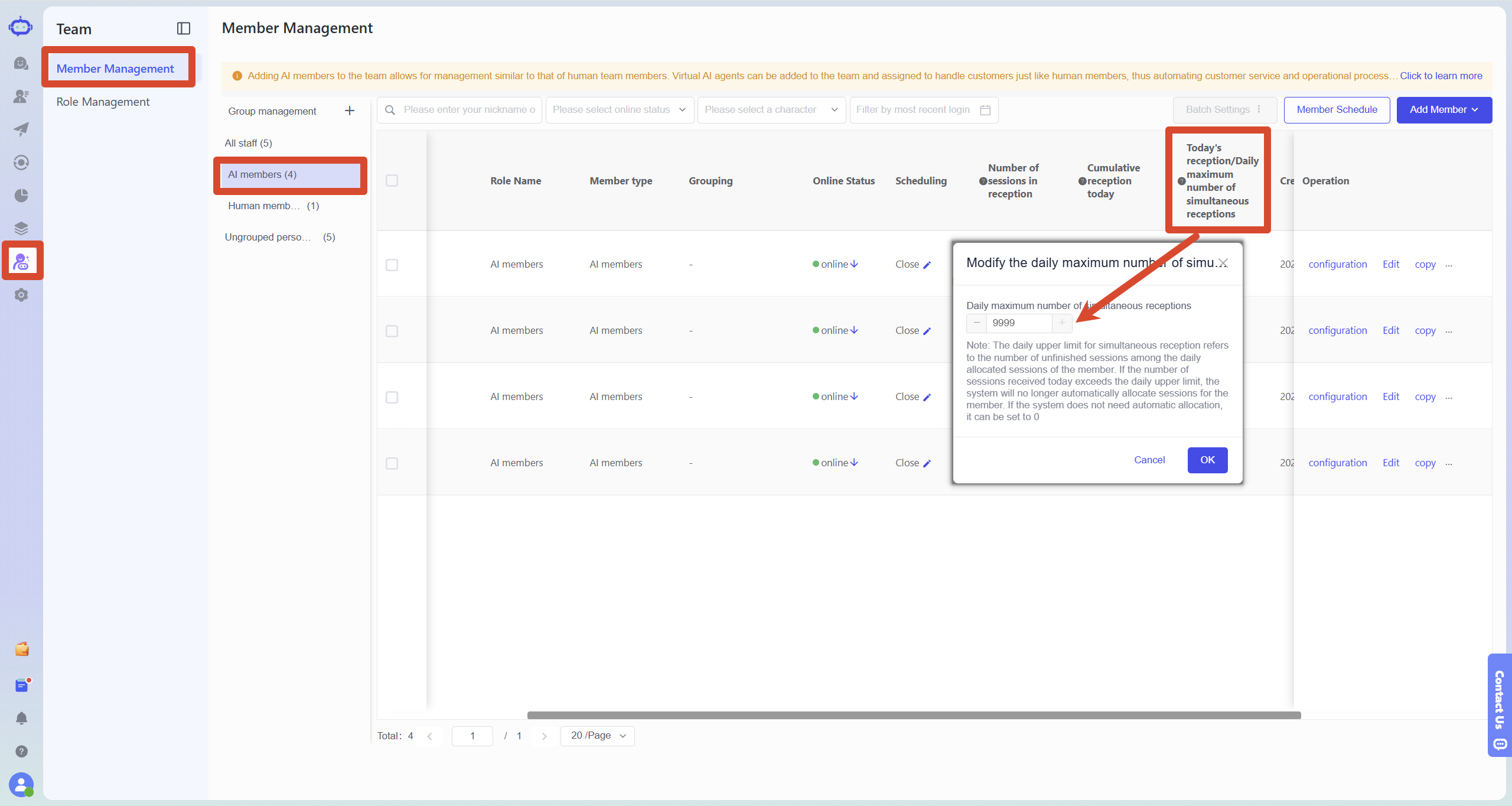
Go to SaleSmartly > Team > Member Management, select Human Members, and you can view member status and reception limit.
Find the human members who need to host the session, and click the edit button next to "Hosting today / Daily simultaneous hosting limit" to modify the daily simultaneous hosting limit.
If you select "Specify Assignment" later, the system will force the session to be assigned to the specified human member, regardless of whether the member is online or has reached the reception limit.
III. Activating AI to Transform Employees into Humans
1. Access the manual transfer settings page
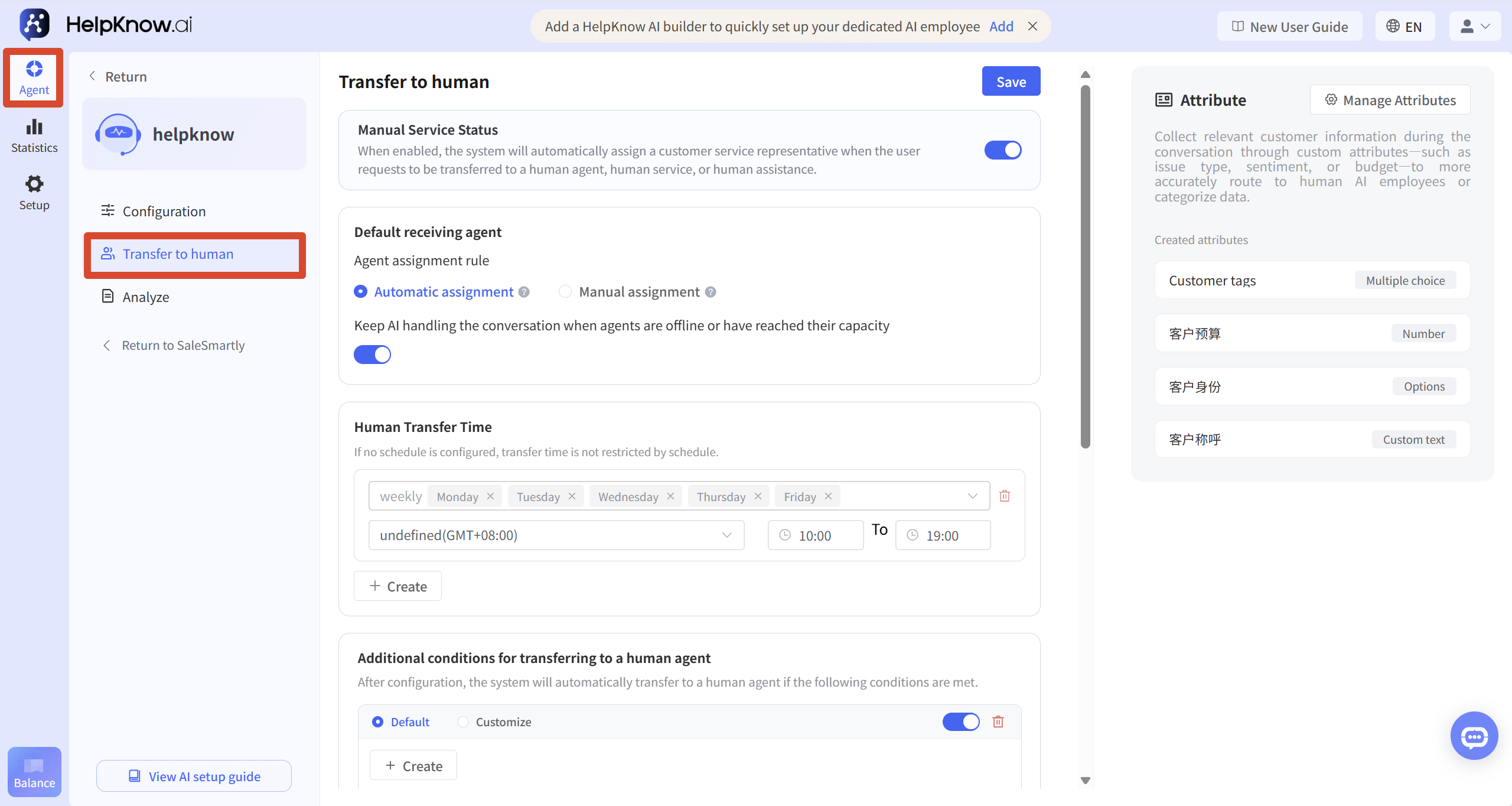
Go to the HelpKnow backend and select the AI employee you want to configure.
Click "Configuration" in the left-hand menu, then click "Transfer to Human Assistant".
2. Enable human assistance.
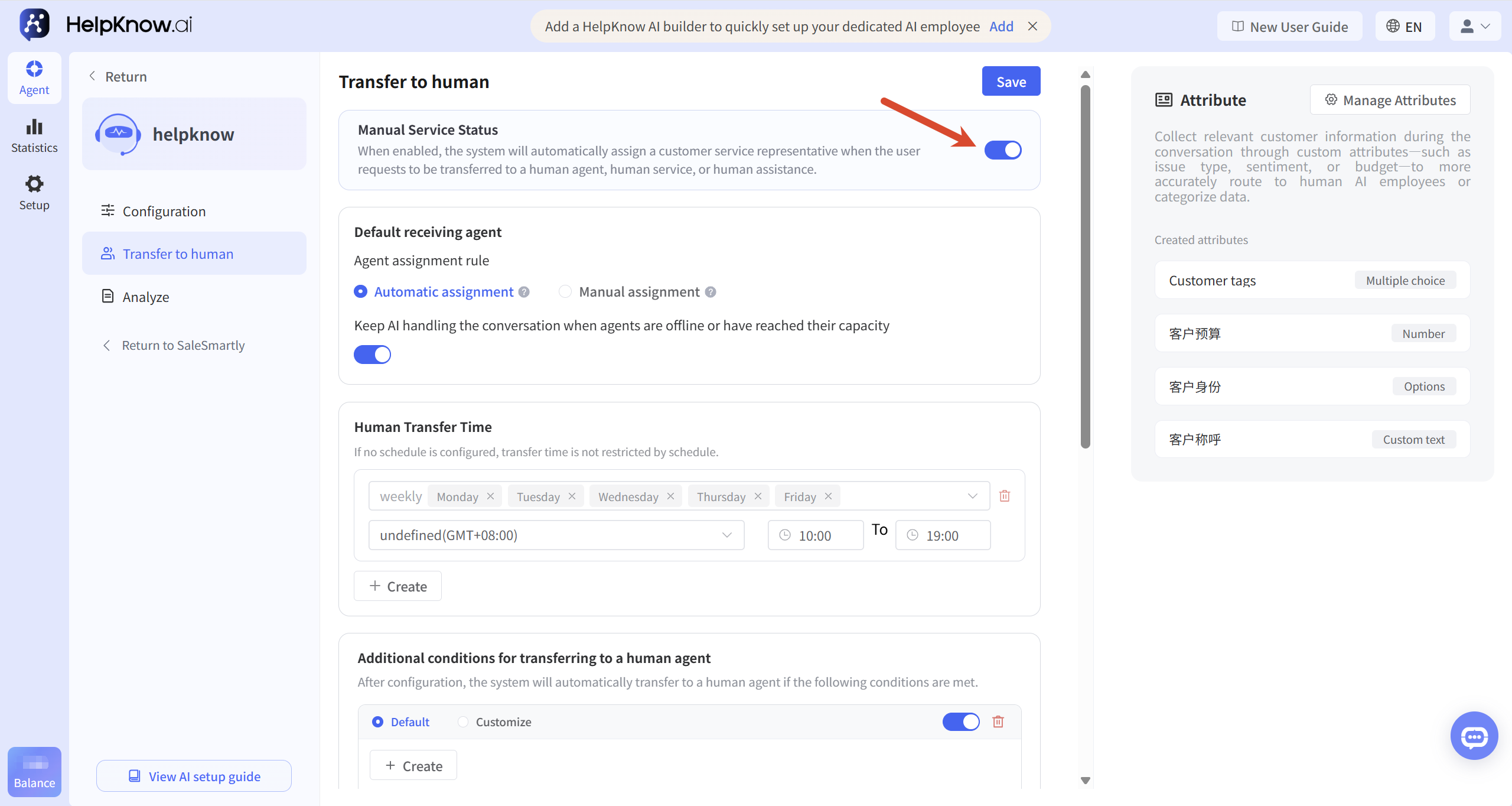
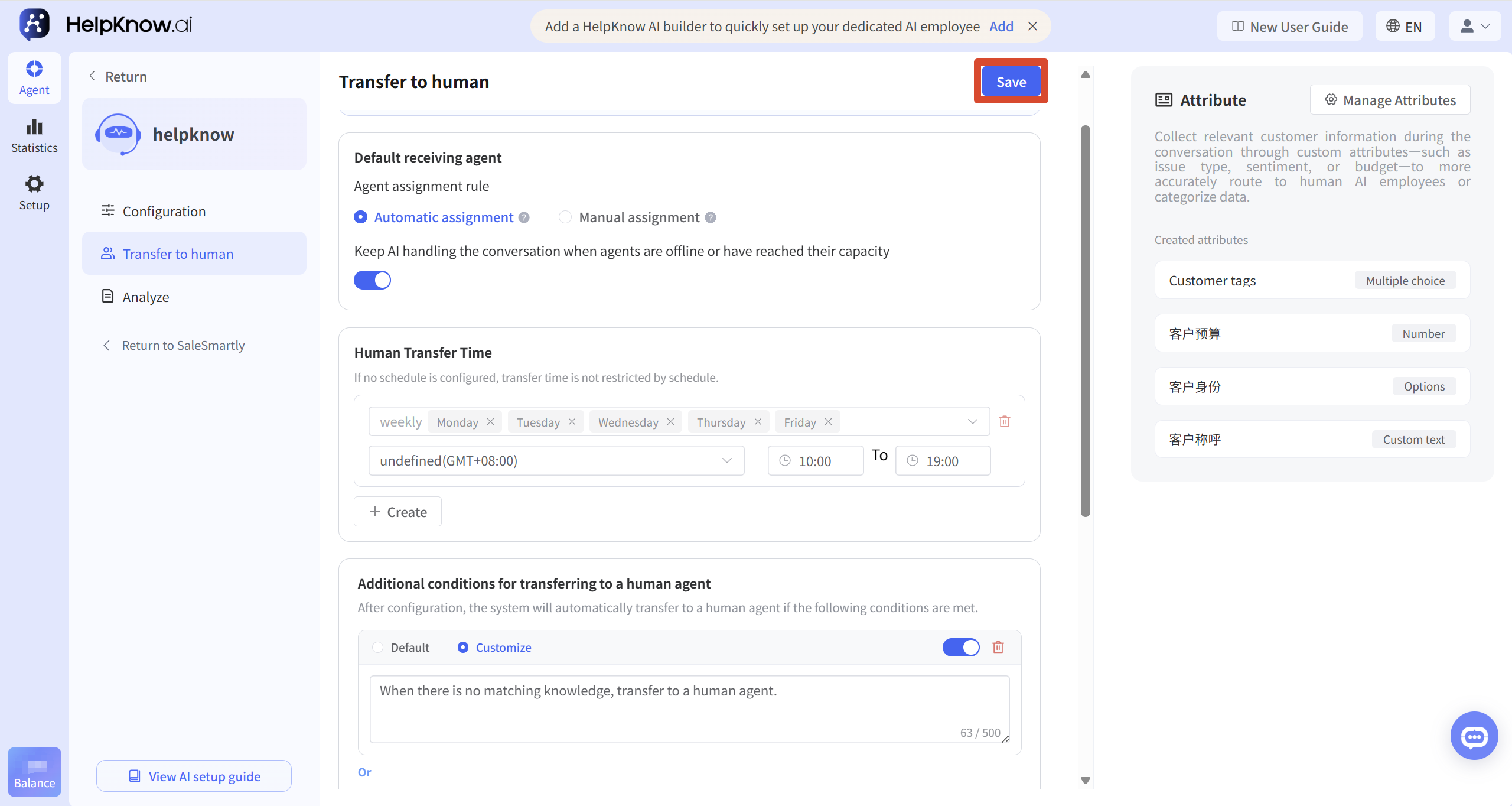
On the "Transfer to Human Agent" page, enable "Human Agent Service Status".
Once enabled, when a session meets the configured conditions for transferring to a human host, the system will transfer the session to a human host.
3. Set default allocation rules
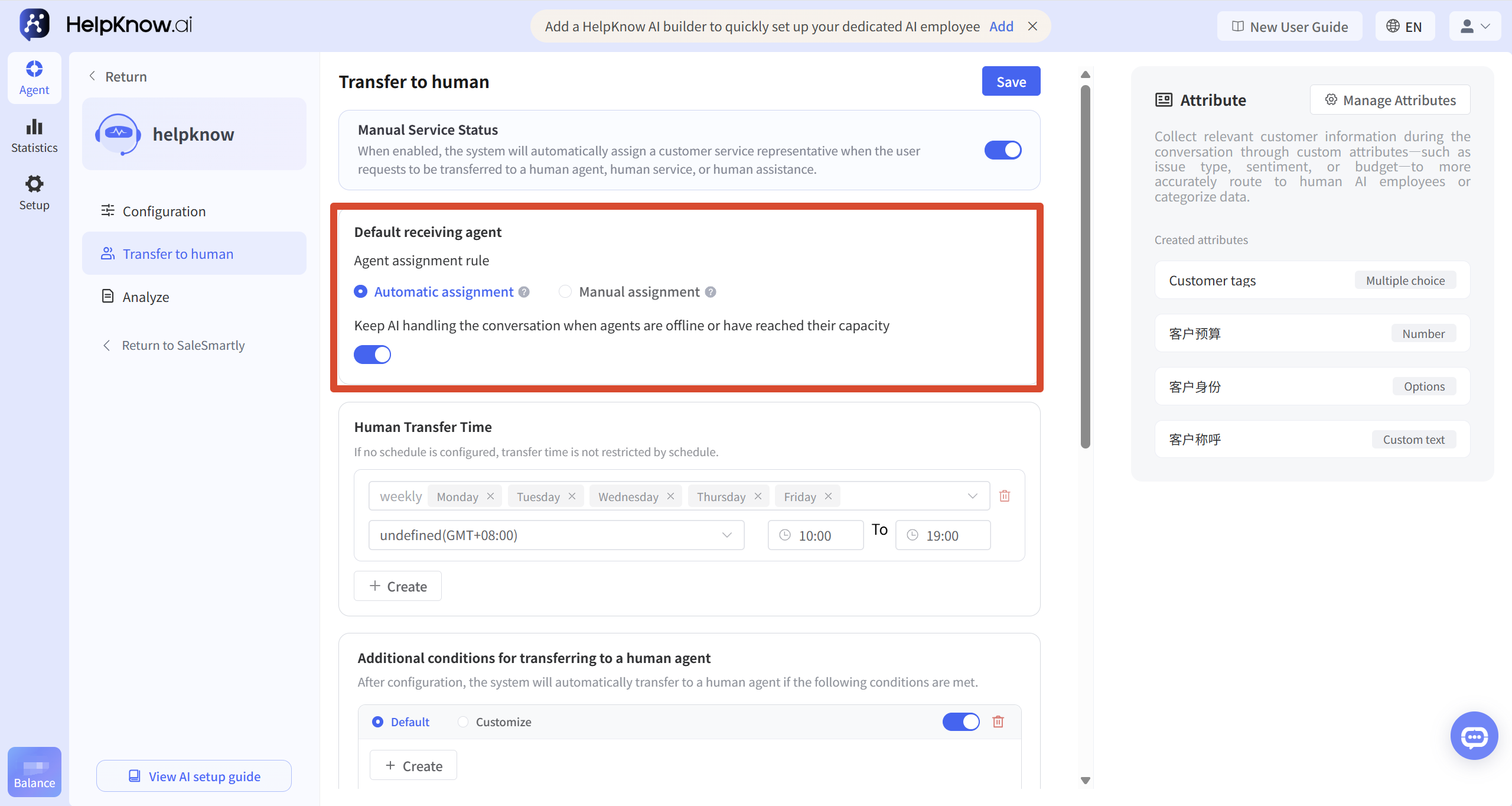
Choose the customer service assignment method after transferring to a human agent in "Default Customer Service".
You can choose:
- Automatic Assignment: The system assigns sessions to available human members according to the automatic assignment rules in the SaleSmartly chat settings. If the customer service representative is offline, or the daily simultaneous session limit has been reached, the attempt to connect to a human may fail.
- Specify Assignment: Forces a session to be assigned to a specified human member. The session will still be assigned to that member even if they are offline or the daily simultaneous session limit has been reached.
IV. Configuration Requirements for Switching to Manual Operation
1. Set the time that can be converted to manual time.
Set the time periods that can be transferred to human assistant in "Available Time for Human Assistant".
If no time is configured, the system will not restrict the switching to manual shifts by default.
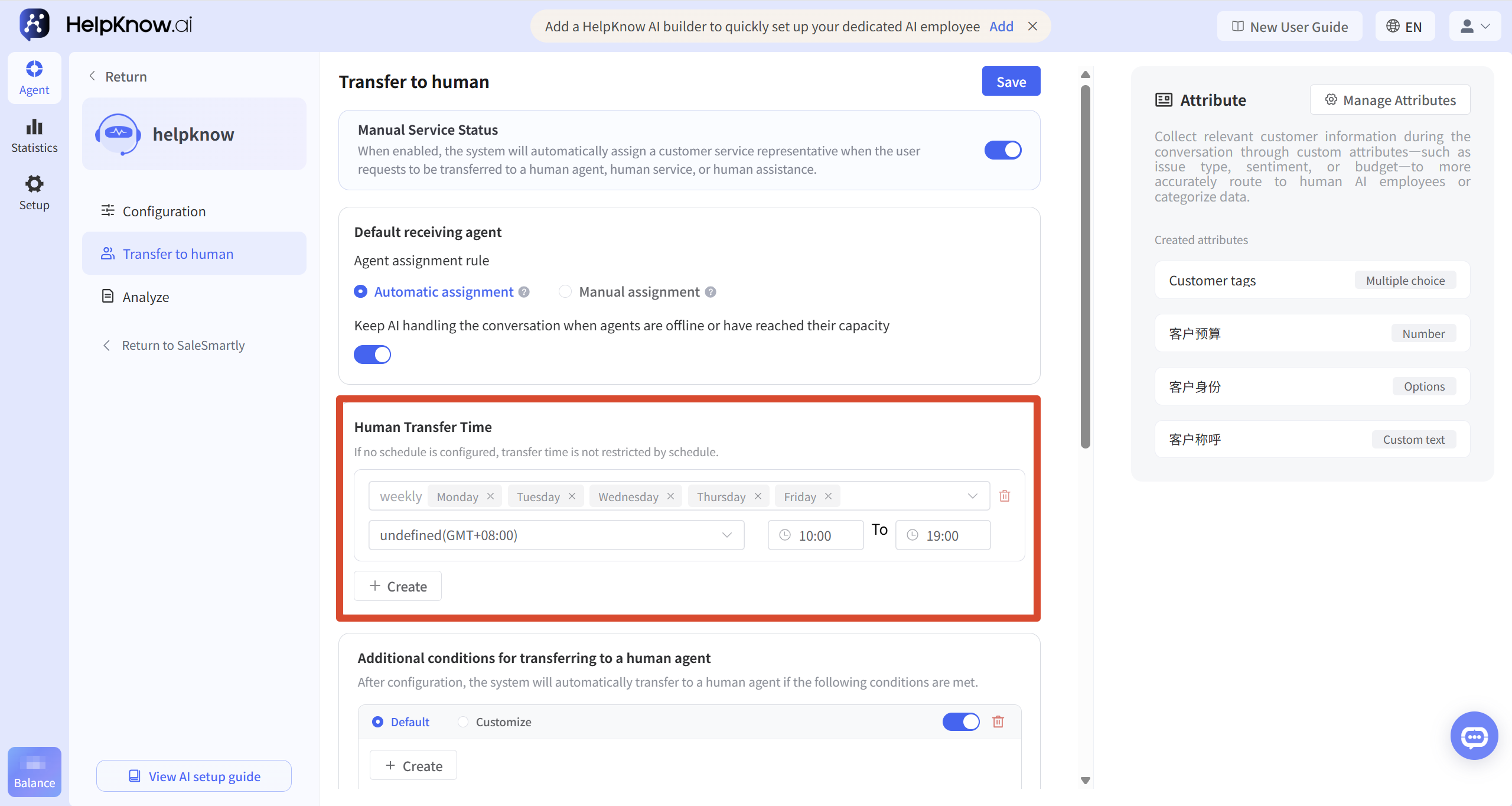
2. Add a group for conditions to switch to manual processing.
In "More conditions for manual intervention", click "Add condition group".
Each condition group can have its own trigger conditions and customer service assignment rules set.
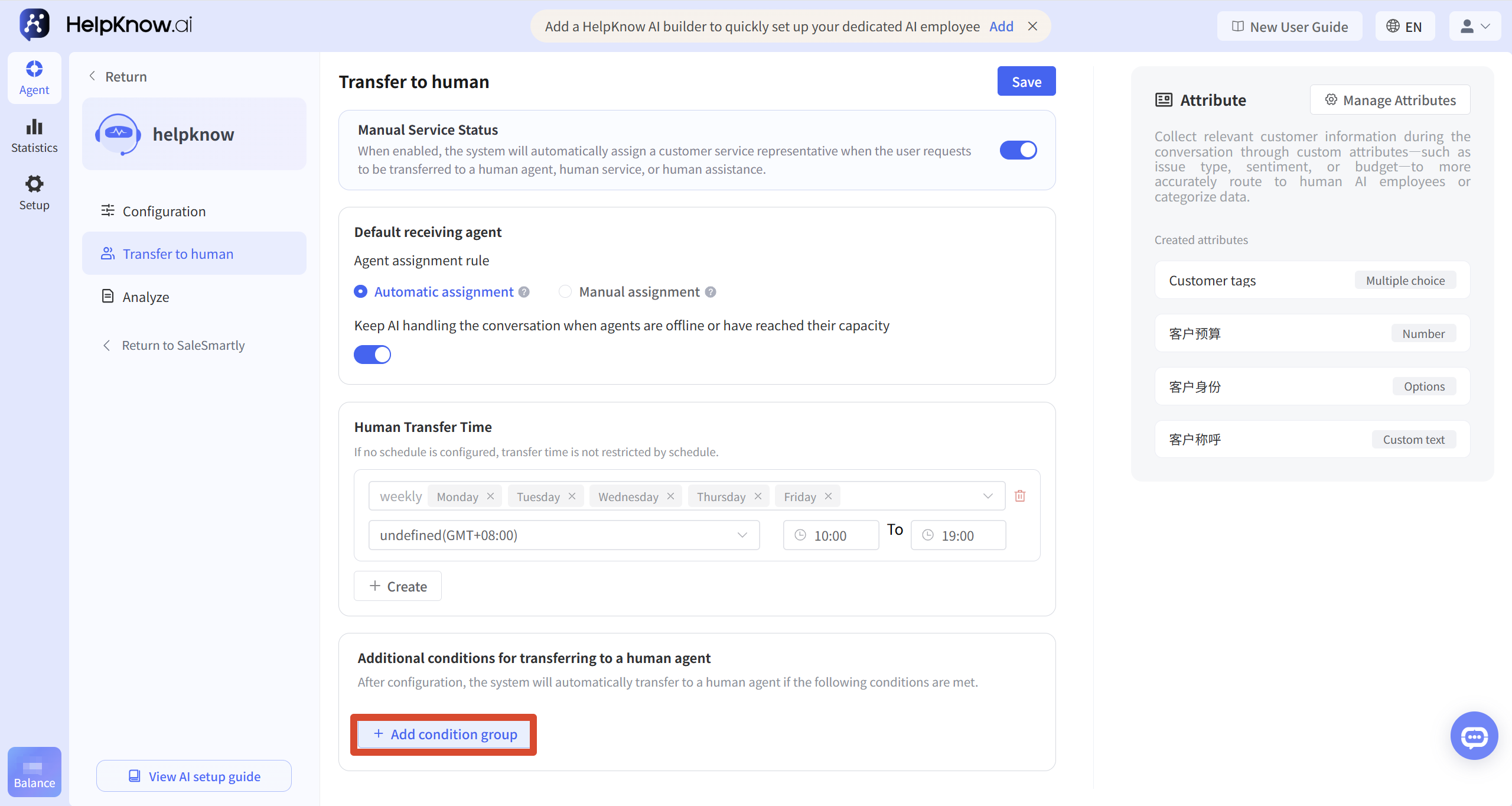
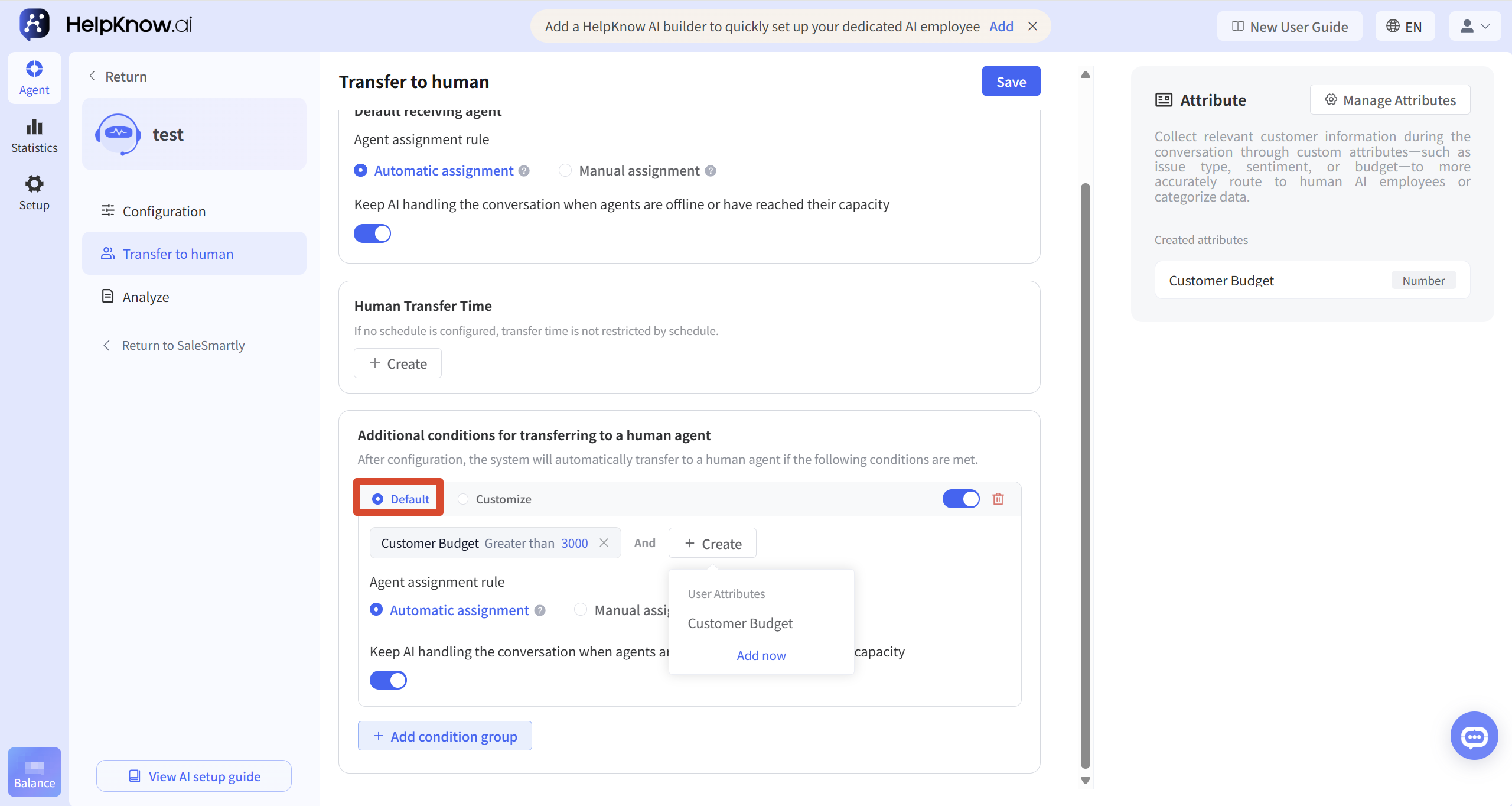
2.1 Using preset conditions
If you select "Preset", you can set the conditions for transferring to human assistance based on the customer attributes that have already been created.
If you haven't created customer attributes yet, you can click "Go to Add" on this page.
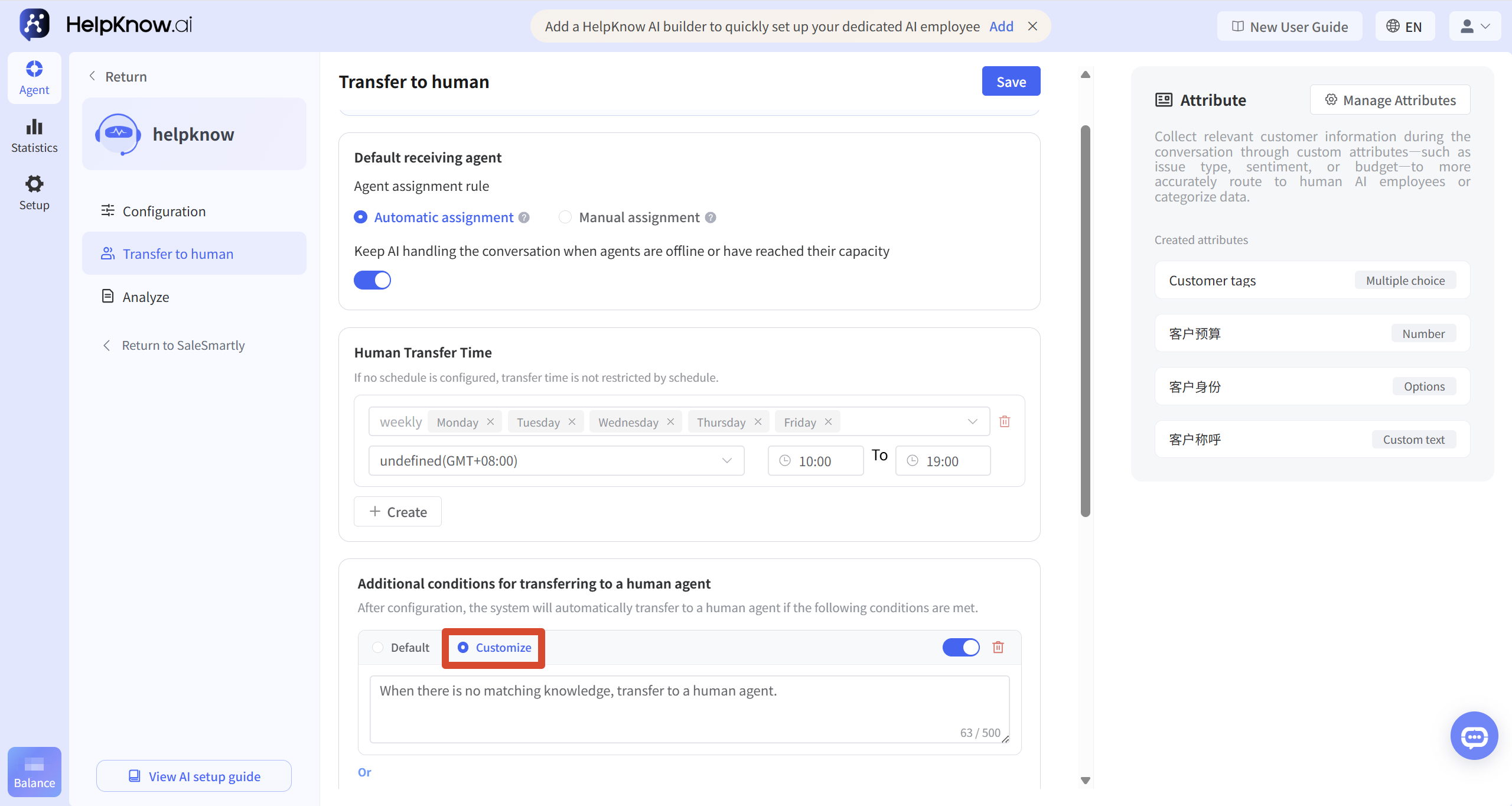
2.2 Using Custom Conditions
If you choose "Custom", you can directly describe the circumstances under which a human should take over the user session.
For example:
When a user requests human assistance, they are transferred to a human agent.
When there is no matching knowledge, transfer to a human agent.
When a user expresses an intention to pay, the call is transferred to a human agent.
Custom conditions allow you to set human handoff rules based on customer needs and conversation context. If you need to use customer information to determine when to transfer a conversation, click "Insert Variable" in the input field and select the relevant customer or conversation variable.
For detailed instructions, see How to Insert Variables and Tools in AI Employee Settings.
3. Save settings
After completing the configuration, click "Save".
V. Check the effect of transferring to human intervention
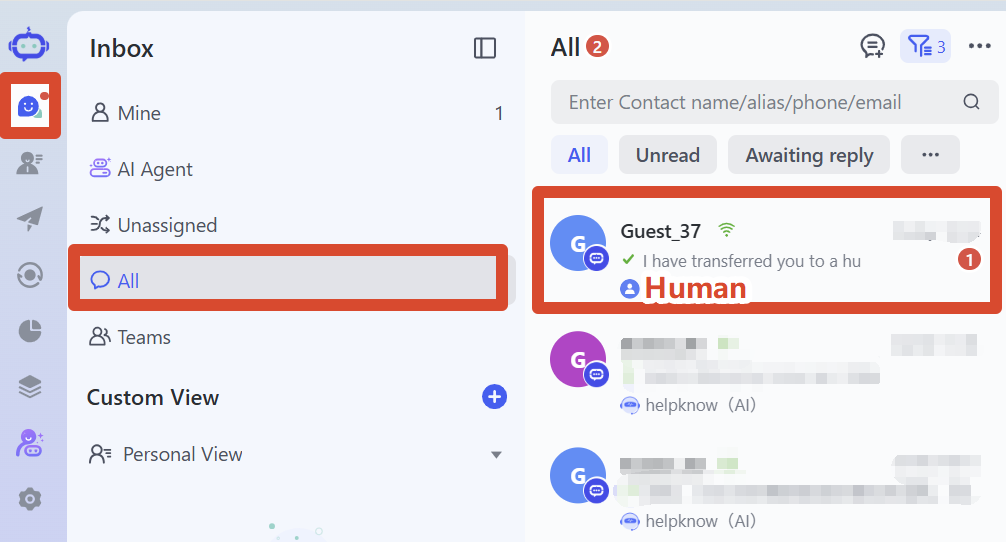
Once a visitor triggers the conditions for switching to human assistance, the conversation will switch to human assistance and be assigned to a corresponding human member according to the pre-set customer service allocation rules. The AI employee will no longer continue to respond to the conversation.
Note: The sessions in "Preview & Debug" are simulated sessions and do not support triggering a human operator. To test the human operator functionality, you need to initiate the session as a real visitor through a website chat plugin or social media channel that is integrated with SaleSmartly.
For specific testing methods, please refer to "How to Test the Actual Reception Effectiveness of AI Employees?"
VI. Precautions
- The daily simultaneous reception limit for human members cannot be 0; otherwise, it may be impossible to receive and transfer to a human agent.
- "No matching knowledge" will not automatically trigger a switch to human intervention. If you want to "switch to human intervention when there is no matching knowledge", you need to configure it explicitly in the custom conditions.
VII. Frequently Asked Questions
1. Why wasn't the visitor assigned to a human member after triggering the request to switch to a human?
Please check according to the currently set customer service assignment method:
- Automatic Session Assignment: Confirm that automatic session assignment is enabled, at least one human member is online, and the current number of sessions being handled has not reached the daily simultaneous handling limit. If there are no qualified human members, the attempt to transfer to a human may fail.
- Assigned Session: Confirms that the correct human member has been selected. Assigned session is not affected by whether the member is online or whether the guest limit has been reached; the system will automatically assign the session to that member.
- Confirm that "human service status" is enabled and that the session meets the set conditions for transferring to a human agent and the available time for transferring to a human agent.
- The simulated sessions in "Preview & Debug" do not support triggering a human operator. Please test them through a website chat plugin or social media channel that is integrated with SaleSmartly.
For complete configuration and troubleshooting methods for switching AI employees to human agents, please refer to: "How do I set up an AI employee to transfer conversations to a human agent?" For the method of setting up automatic session allocation, please refer to "Enable automatic session allocation" .
2. Who will the data be assigned to after it's transferred to manual processing?
If automatic session assignment is enabled, the system will assign sessions to human members according to the assignment rules.
If a specific assignment is selected in the condition group, the assignment will be made to the specified human member.
For detailed instructions on setting up default allocation rules, please refer to: "Set default allocation rules" .
3. Why is the manual transfer not triggered in "Preview & Debug"?
"Preview and Debug" is only used to simulate the question-and-answer effect of AI employees and does not support triggering a human response.
To test the transfer to a human operator, please initiate a conversation as a real visitor through the website chat plugin or social media channel that is integrated with SaleSmartly, and confirm that the conversation meets the set conditions for transferring to a human operator.
For specific testing methods, please refer to "How to Test the Actual Reception Effectiveness of AI Employees?" for methods on configuring AI employees to switch to human staff, please refer to "How do I set up an AI employee to transfer conversations to a human agent?" .
;}.cls-2{fill:%230868f7;}.cls-3{fill:url(%23未命名的渐变_44);}.cls-4{fill:%23333;}%3c/style%3e%3clinearGradient%20id='未命名的渐变_8'%20x1='33.73'%20y1='100.61'%20x2='-0.03'%20y2='-1.06'%20gradientUnits='userSpaceOnUse'%3e%3cstop%20offset='0'%20stop-color='%237ae9fb'/%3e%3cstop%20offset='0.67'%20stop-color='%232b90f8'/%3e%3cstop%20offset='1'%20stop-color='%230868f7'/%3e%3c/linearGradient%3e%3clinearGradient%20id='未命名的渐变_44'%20x1='27.86'%20y1='18.67'%20x2='68.36'%20y2='22.22'%20gradientUnits='userSpaceOnUse'%3e%3cstop%20offset='0'%20stop-color='%235ac7f2'/%3e%3cstop%20offset='1'%20stop-color='%230868f7'/%3e%3c/linearGradient%3e%3c/defs%3e%3cpath%20class='cls-1'%20d='M29,28.74V81.91l-9.51-3.68v0L8.52,74A7.17,7.17,0,0,1,4,67.32V24.54A3.76,3.76,0,0,1,9.08,21Z'/%3e%3cpath%20class='cls-2'%20d='M68.09,78.07a13.15,13.15,0,0,1-17.9,12.06L29,81.91h0V28.74L50.19,37A13.17,13.17,0,0,0,68.08,25.3h0Z'/%3e%3cpath%20class='cls-3'%20d='M68.08,25.3a13.19,13.19,0,0,1-6.73,10.87A13.09,13.09,0,0,1,50.19,37L29,28.74V6A3.76,3.76,0,0,1,34.1,2.52l25.59,9.91A13.22,13.22,0,0,1,68.08,25.3Z'/%3e%3cpath%20class='cls-4'%20d='M129.06,81.76a4.33,4.33,0,0,1-3.19-1.31,4.4,4.4,0,0,1-1.31-3.24V56.86H97.65V77.21a4.36,4.36,0,0,1-1.35,3.2A4.68,4.68,0,0,1,93,81.76a4.32,4.32,0,0,1-3.19-1.31,4.37,4.37,0,0,1-1.32-3.24V27.27A4.58,4.58,0,0,1,89.83,24a4.59,4.59,0,0,1,7.82,3.27V48.15h26.91V27.27A4.58,4.58,0,0,1,125.91,24a4.59,4.59,0,0,1,7.82,3.27V77.21a4.37,4.37,0,0,1-1.36,3.2A4.65,4.65,0,0,1,129.06,81.76Z'/%3e%3cpath%20class='cls-4'%20d='M163.77,81.66c-6.57,0-11.76-1.92-15.44-5.7s-5.54-9.07-5.54-15.74a26.76,26.76,0,0,1,2.09-10.43,17.72,17.72,0,0,1,6.67-8.06,19.15,19.15,0,0,1,10.68-2.95,19,19,0,0,1,10.46,2.8,18.7,18.7,0,0,1,6.55,7.36,22.53,22.53,0,0,1,2.36,10.28A4.51,4.51,0,0,1,177,63.77H152.23a10.8,10.8,0,0,0,3.49,6.65c2,1.68,4.88,2.52,8.66,2.52a22.25,22.25,0,0,0,7.54-1.21c.74-.3,1.55-.67,2.37-1.07a3.75,3.75,0,0,1,1.84-.4,4.09,4.09,0,0,1,3,1.15,4,4,0,0,1,1.12,3,4.38,4.38,0,0,1-2.58,3.82,32.34,32.34,0,0,1-6.36,2.61A28.67,28.67,0,0,1,163.77,81.66ZM172.4,55.9a9.72,9.72,0,0,0-1.63-4.56A9.9,9.9,0,0,0,167,48a10.38,10.38,0,0,0-4.64-1.14,12,12,0,0,0-4.77,1.06,9.54,9.54,0,0,0-4.89,5.66,11.78,11.78,0,0,0-.51,2.3Z'/%3e%3cpath%20class='cls-4'%20d='M193,81.64a4.49,4.49,0,0,1-4.51-4.55V27.28A4.58,4.58,0,0,1,189.84,24a4.48,4.48,0,0,1,3.28-1.36A4.36,4.36,0,0,1,196.35,24a4.46,4.46,0,0,1,1.31,3.31V77.09a4.34,4.34,0,0,1-1.35,3.2A4.67,4.67,0,0,1,193,81.64Z'/%3e%3cpath%20class='cls-4'%20d='M263.79,81.71a5.7,5.7,0,0,1-4.2-1.74,5.76,5.76,0,0,1-1.73-4.19V27.37a4.58,4.58,0,0,1,1.35-3.27A4.59,4.59,0,0,1,267,27.37V72.53h24a4.58,4.58,0,0,1,3.27,7.82A4.66,4.66,0,0,1,291,81.71Z'/%3e%3cpath%20class='cls-4'%20d='M424.48,81.74a4.71,4.71,0,0,1-2.71-.88,5.43,5.43,0,0,1-1-1l-.07-.09-12.41-17-5.41,5v9.44a4.31,4.31,0,0,1-1.36,3.19,4.66,4.66,0,0,1-3.3,1.36A4.29,4.29,0,0,1,395,80.42a4.36,4.36,0,0,1-1.32-3.23V27.37A4.58,4.58,0,0,1,395,24.1a4.52,4.52,0,0,1,6.58.12,4.54,4.54,0,0,1,1.24,3.15V56.31l17.72-16.38.05,0a4.8,4.8,0,0,1,2.94-1.11,4.4,4.4,0,0,1,3.27,1.2,4.57,4.57,0,0,1,1.2,3.27,4.44,4.44,0,0,1-.77,2.33,7.45,7.45,0,0,1-1.43,1.65l-11,9.64,13.34,17.68a5,5,0,0,1,1,2.71,4.12,4.12,0,0,1-1.36,3.24A4.64,4.64,0,0,1,424.48,81.74Z'/%3e%3cpath%20class='cls-4'%20d='M317.93,81.76a21.5,21.5,0,1,1,21.17-21.5A21.37,21.37,0,0,1,317.93,81.76Zm0-34.1a12.61,12.61,0,1,0,12.42,12.6A12.52,12.52,0,0,0,317.93,47.66Z'/%3e%3cpath%20class='cls-4'%20d='M212.18,101.22a4.12,4.12,0,0,1-3.05-1.26,4.17,4.17,0,0,1-1.26-3.1V43.34a4.37,4.37,0,0,1,1.3-3.14,4.26,4.26,0,0,1,3.13-1.3,4.19,4.19,0,0,1,3.1,1.26,4.32,4.32,0,0,1,1.26,3.16,20.77,20.77,0,0,1,13-4.54,21.51,21.51,0,0,1,0,43,20.51,20.51,0,0,1-13-4.57V96.86a4.15,4.15,0,0,1-1.3,3.06A4.5,4.5,0,0,1,212.18,101.22Zm17.43-53.63c-6.23,0-12.93,4.11-12.93,12.72a12.73,12.73,0,0,0,25.46,0A12.71,12.71,0,0,0,229.61,47.59Z'/%3e%3cpath%20class='cls-4'%20d='M365.76,81.76a21.5,21.5,0,1,1,21.18-21.5A21.37,21.37,0,0,1,365.76,81.76Zm0-34.1a12.61,12.61,0,1,0,12.42,12.6A12.52,12.52,0,0,0,365.76,47.66Z'/%3e%3c/svg%3e)