
How to Set Up AI Employees to Update Customer Tags?
I. Function Introduction
"Update Customer Tags" allows AI employees to determine customer characteristics based on conversation content and record the results as HelpKnow customer tags.
Before use, you need to set the tag values and judgment descriptions in advance. The AI employee will determine which tags need to be added from the pre-set tag rules and will not generate new tag values on the spot based on the conversation content.
Customer tags are added append-only, meaning a single customer can have multiple tags simultaneously. New tags do not automatically overwrite or remove existing tags. To synchronize the results to SaleSmartly, you can select the corresponding "Map Tag (SaleSmartly)" for the tag rules.
This article's link: "How to Set Up AI Employees to Update Customer Tags?"
II. Configure customer tags
1. Access Customer Tag Settings
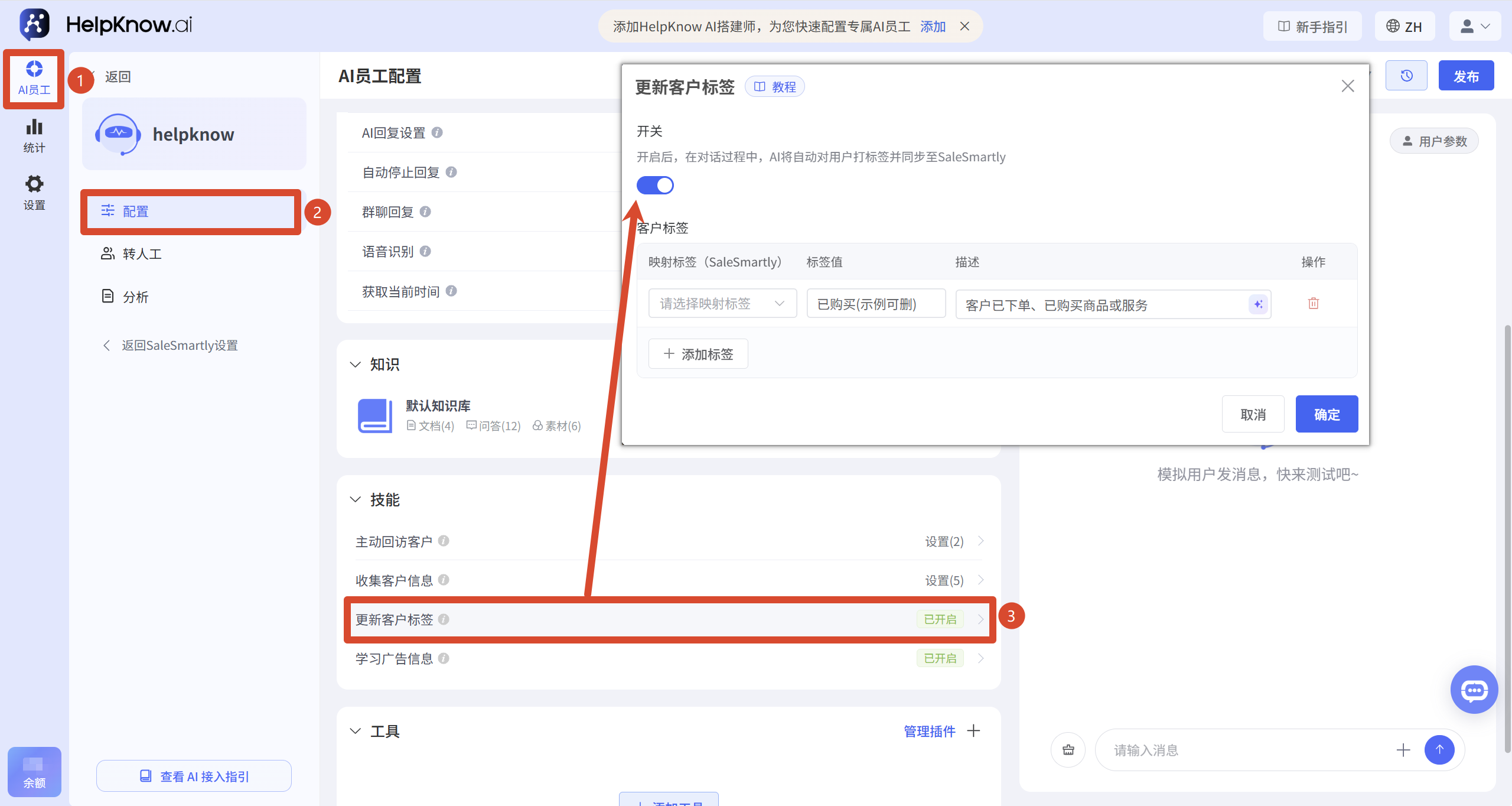
Enter the AI employee you want to configure, and click "Configure" in the left-hand menu. Locate the "Skills" section, and then click "Update Customer Tags".
After entering the settings pop-up window, turn on the function switch.
2. Add tag rules
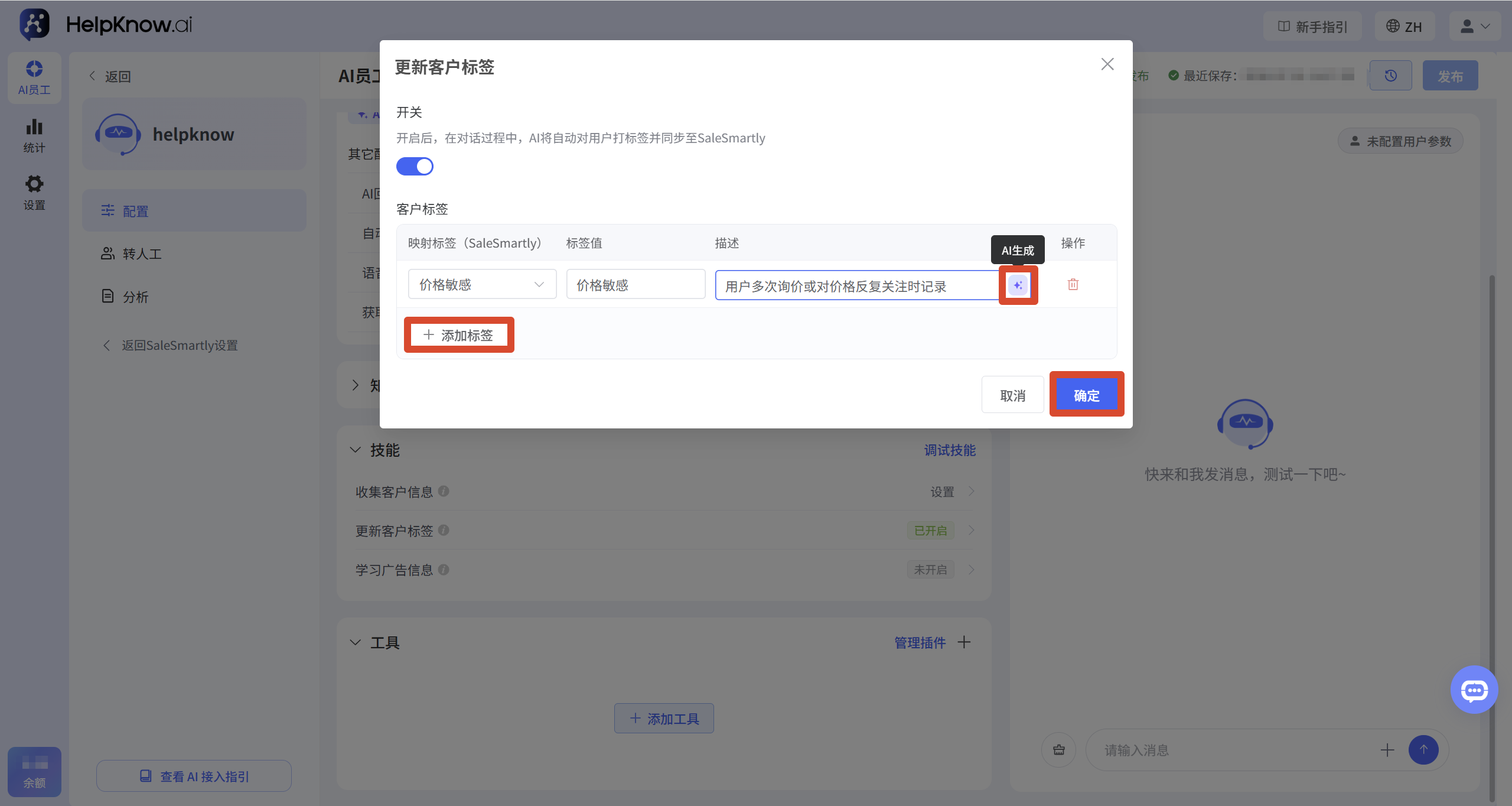
Click "Add Tag" to configure the customer tags that you want the AI to recognize.
Each rule contains the following:
- Mapping Tags (SaleSmartly): Visitor tags are added to the SaleSmartly customer profile after the AI determines that the conditions are met. This option is optional.
- Tag value: Once the AI's judgment condition is met, it is recorded as the name of the HelpKnow customer tag. It can be the same as or different from the SaleSmartly mapped tag.
- Description: Tell the AI under what circumstances to record the tag.
The description should clearly state the criteria used for judgment. You can also click the AI icon to the right of the description to automatically generate a description.
To identify more customer characteristics, click "Add Tags". Click "OK" when finished.
3. Map SaleSmartly visitor tags (optional)
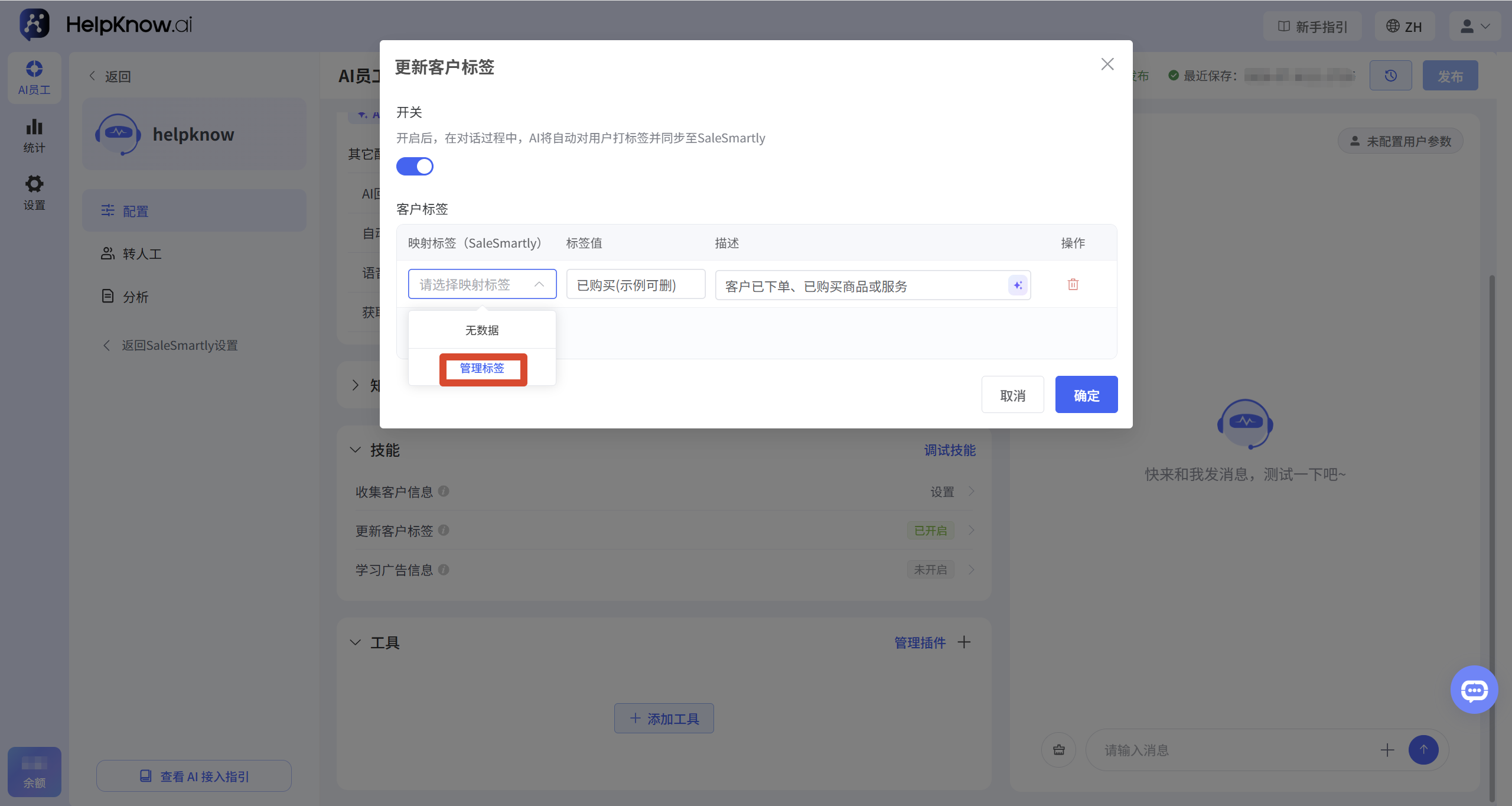
If you need to use visitor tags in SaleSmartly to filter customers, send mass messages, or trigger automated processes, you can select "Map Tags (SaleSmartly)" for the tag rules.
The dropdown list displays visitor tags that have already been created in SaleSmartly. HelpKnow cannot create new SaleSmartly tags temporarily during the recognition process.
If the desired tag is not found in the dropdown list, click "Manage Tags" to create or maintain a visitor tag in SaleSmartly. After creation, return to HelpKnow and select the corresponding tag. (For detailed setup instructions, please refer to: SaleSmartly Tag Management )
4. Apply the configuration.
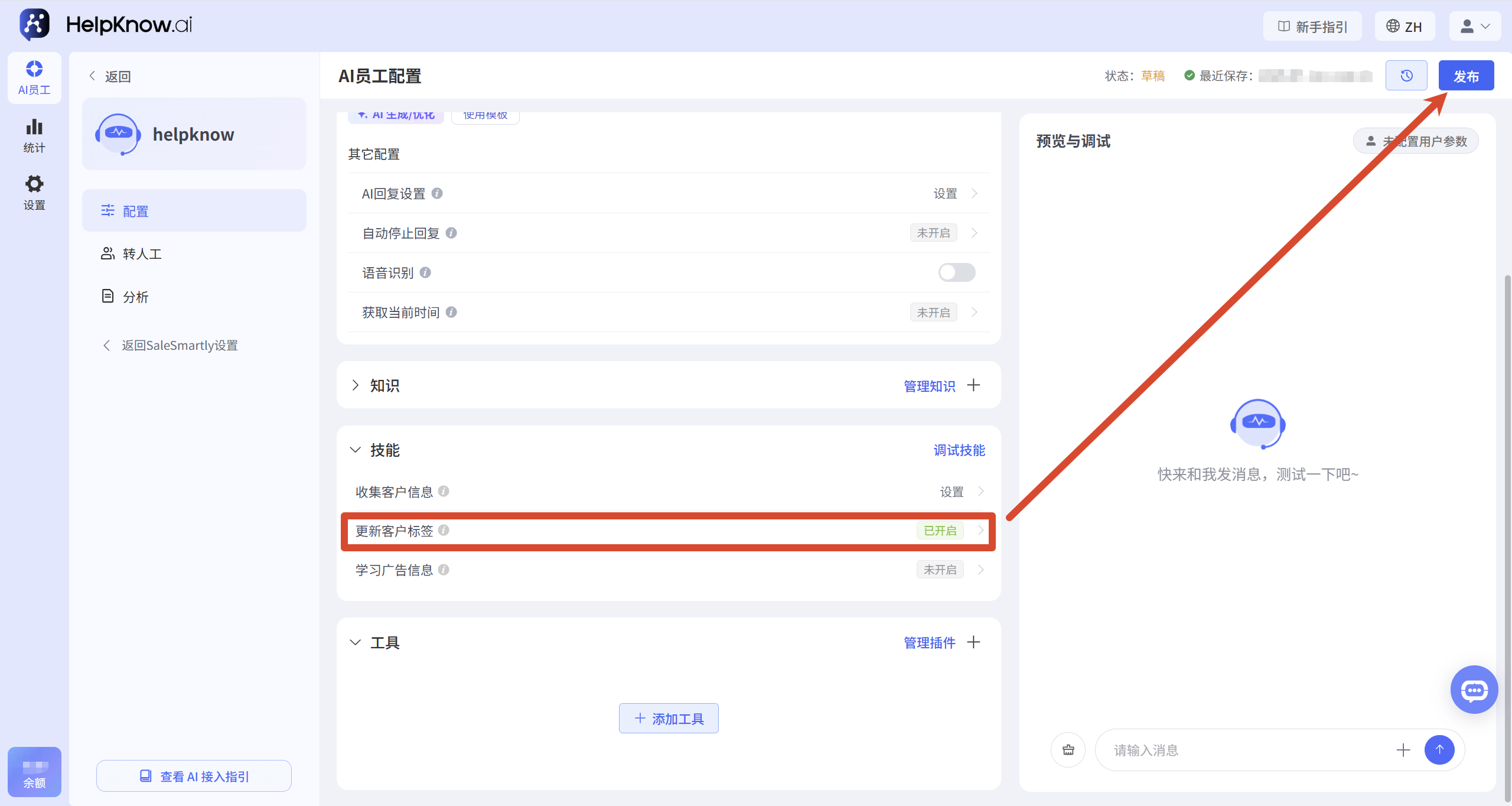
The on/off status and label rules take effect differently:
- After enabling or disabling "Update Customer Tags", you need to click "Publish" in the upper right corner of the page to activate the switch.
- After adding, editing, or deleting tag rules, click "OK" in the pop-up window for the changes to take effect; no further publishing is required.
III. Test Configuration Results
1. Validate the HelpKnow tag in a question-and-answer test.
Send messages that match the tag description in the "Question and Answer Test".
For example, when testing the "price sensitive" tag, you can send:
How much is it? Can you give me a discount?
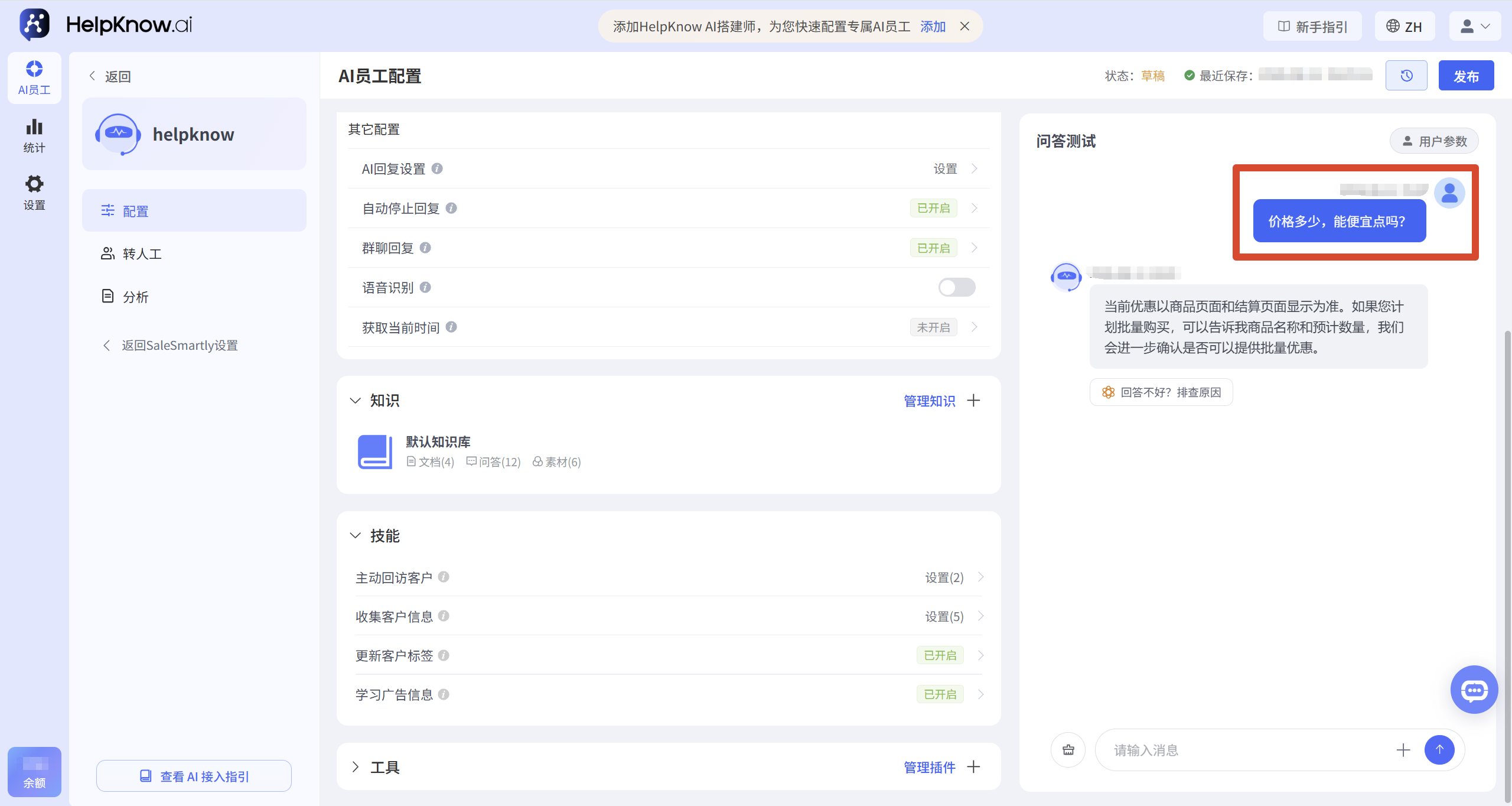
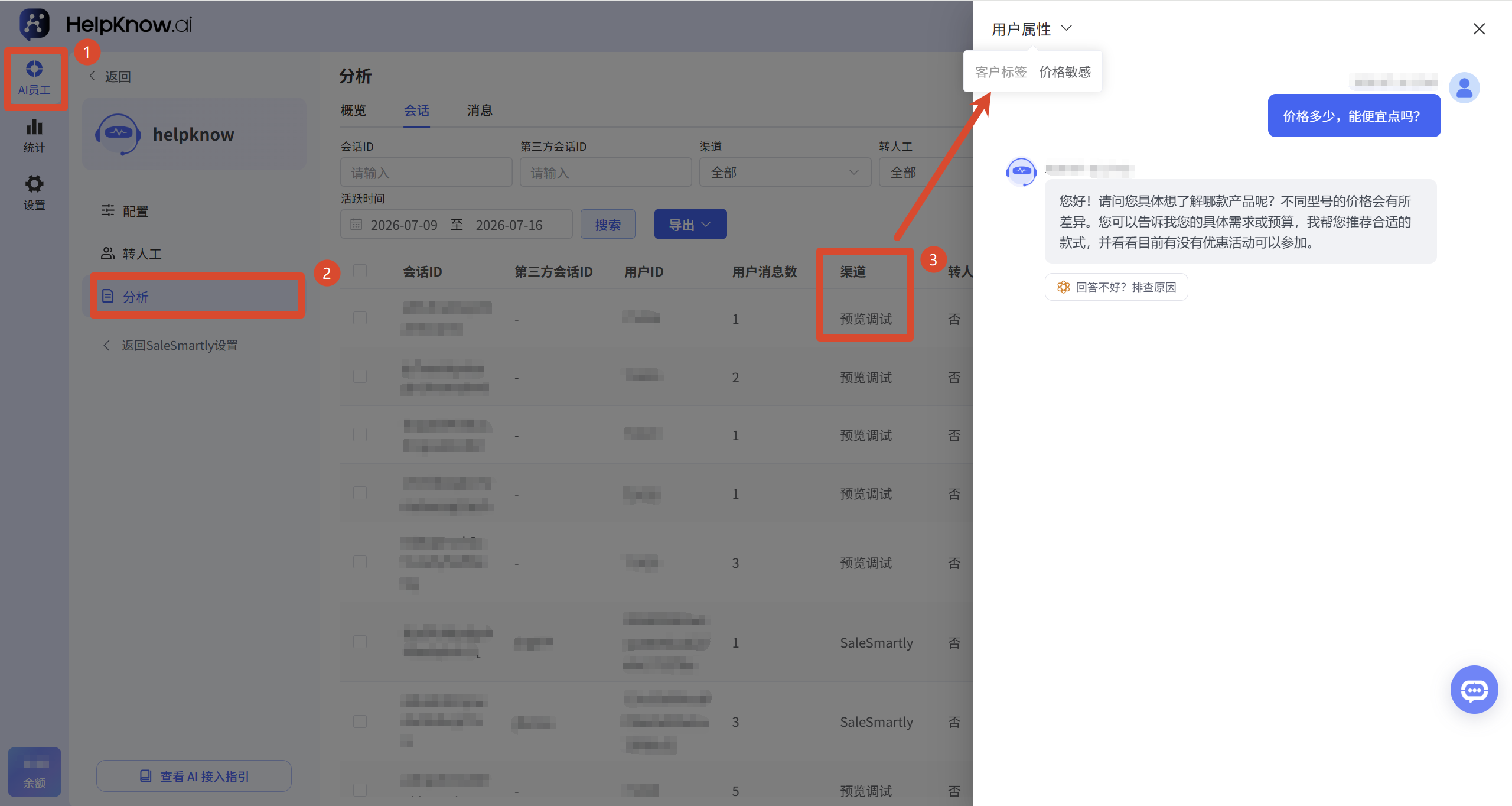
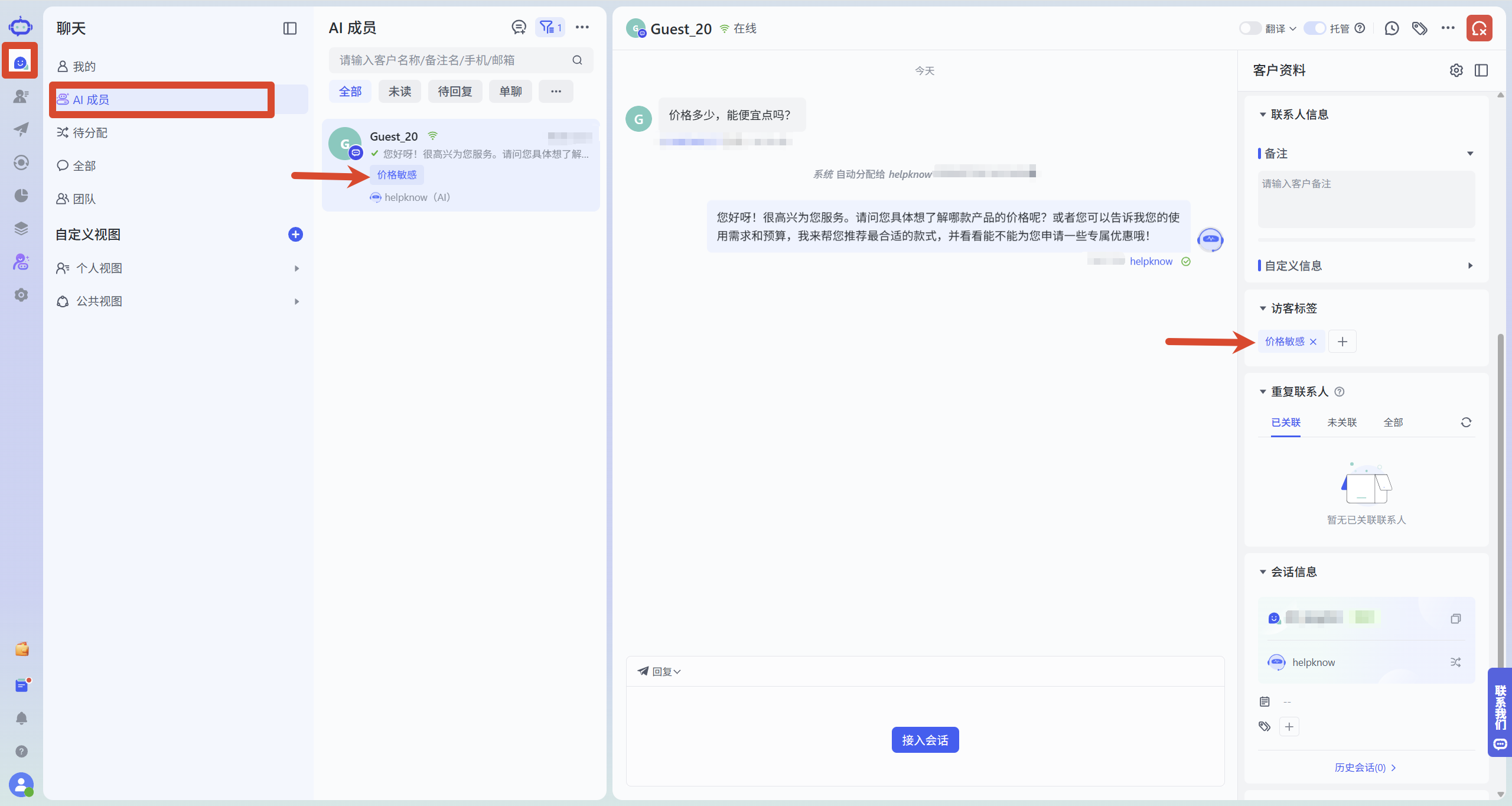
After sending, go to "Analysis > Sessions", find the corresponding preview/debugging session, and click "Details".
Expand "User Attributes" and check if the expected tag values appear in "Customer Tags".
The question-and-answer test can verify HelpKnow customer tags, but it cannot verify the synchronization results of SaleSmartly visitor tags.
2. Verify the mapping results via the SaleSmartly channel (optional)
If the rule selects "Mapping Labels (SaleSmartly)", please initiate a test session through the real SaleSmartly channel that your AI employee has already connected to.
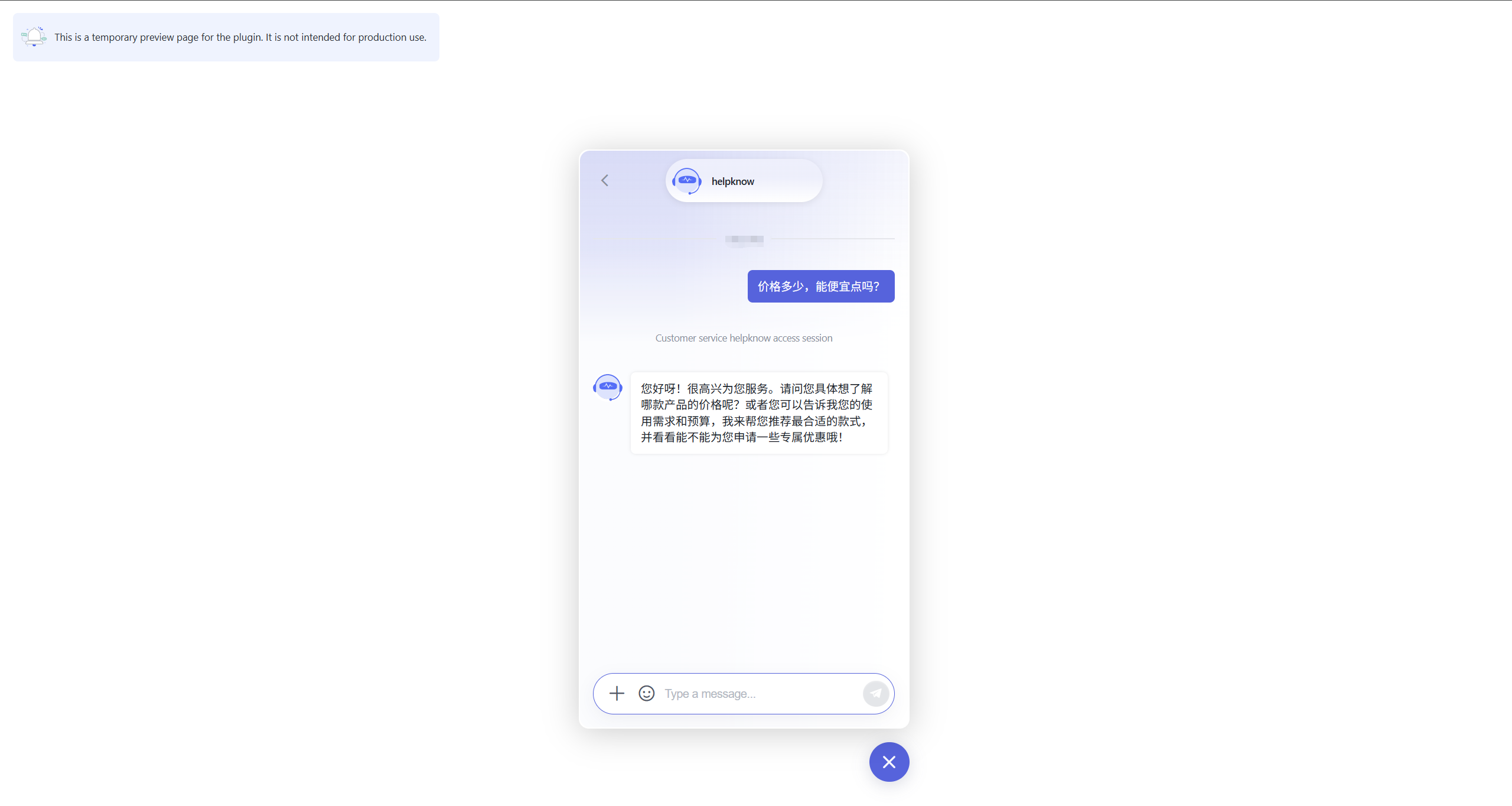
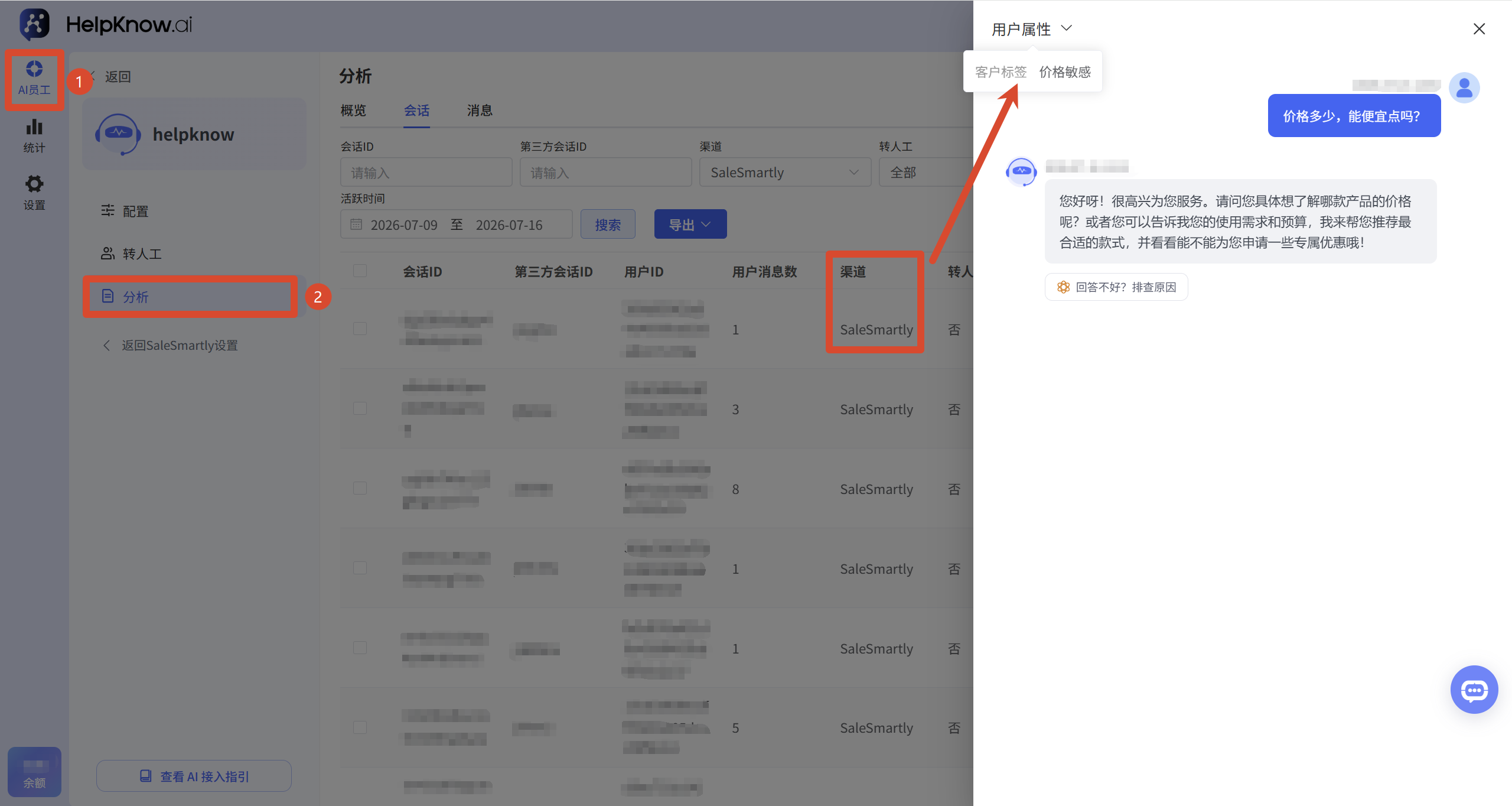
When the tag rule is triggered, the following checks are performed:
- Does HelpKnow record the correct customer tags in the session analysis?
- Has the corresponding visitor tag been added to the SaleSmartly customer profile?
IV. Applicable Scenarios
- Sales lead segmentation: Simultaneously record characteristics such as "high intent" and "price sensitive" to help sales personnel determine the key areas for follow-up.
- Follow-up screening: Customers can be filtered based on visitor tags in SaleSmartly for subsequent follow-up visits or operations.
V. Precautions
- Tag values and descriptions need to be configured in advance; the AI will only judge and add tags from existing rules.
- "Mapping Labels (SaleSmartly)" is not required; if not mapped, the label results are only recorded in HelpKnow.
- Customer tags are appended, which is not suitable for recording information where only a current value needs to be retained.
- The preview test can only verify the HelpKnow tag, not the SaleSmartly visitor tag synchronization.
VI. Frequently Asked Questions
1. If I don't select the mapping label, will the customer label still be effective?
Yes. As long as the tag value and description are filled in, AI can add HelpKnow customer tags based on the conversation content.
If no mapping label is selected, the results will not be synchronized to the SaleSmartly visitor label.
2. Why are there customer tags in HelpKnow but not in SaleSmartly?
Possible reasons include:
- The current rule does not select "Map Labels (SaleSmartly)".
- The test session did not originate from the SaleSmartly channel.
- The corresponding SaleSmartly visitor tag has been removed.
- After modifying the tag rules, the correct SaleSmartly mapping tag was not selected.
3. Why weren't the customer's original tags removed?
Customer tags are added appended. When AI adds a new tag, it does not automatically overwrite or remove existing tags.
If a piece of information can only retain one current value, it is recommended to use "Collect Customer Information" to create customer attributes.
VII. Related Recommendations
;}.cls-2{fill:%230868f7;}.cls-3{fill:url(%23未命名的渐变_44);}.cls-4{fill:%23333;}%3c/style%3e%3clinearGradient%20id='未命名的渐变_8'%20x1='33.73'%20y1='100.61'%20x2='-0.03'%20y2='-1.06'%20gradientUnits='userSpaceOnUse'%3e%3cstop%20offset='0'%20stop-color='%237ae9fb'/%3e%3cstop%20offset='0.67'%20stop-color='%232b90f8'/%3e%3cstop%20offset='1'%20stop-color='%230868f7'/%3e%3c/linearGradient%3e%3clinearGradient%20id='未命名的渐变_44'%20x1='27.86'%20y1='18.67'%20x2='68.36'%20y2='22.22'%20gradientUnits='userSpaceOnUse'%3e%3cstop%20offset='0'%20stop-color='%235ac7f2'/%3e%3cstop%20offset='1'%20stop-color='%230868f7'/%3e%3c/linearGradient%3e%3c/defs%3e%3cpath%20class='cls-1'%20d='M29,28.74V81.91l-9.51-3.68v0L8.52,74A7.17,7.17,0,0,1,4,67.32V24.54A3.76,3.76,0,0,1,9.08,21Z'/%3e%3cpath%20class='cls-2'%20d='M68.09,78.07a13.15,13.15,0,0,1-17.9,12.06L29,81.91h0V28.74L50.19,37A13.17,13.17,0,0,0,68.08,25.3h0Z'/%3e%3cpath%20class='cls-3'%20d='M68.08,25.3a13.19,13.19,0,0,1-6.73,10.87A13.09,13.09,0,0,1,50.19,37L29,28.74V6A3.76,3.76,0,0,1,34.1,2.52l25.59,9.91A13.22,13.22,0,0,1,68.08,25.3Z'/%3e%3cpath%20class='cls-4'%20d='M129.06,81.76a4.33,4.33,0,0,1-3.19-1.31,4.4,4.4,0,0,1-1.31-3.24V56.86H97.65V77.21a4.36,4.36,0,0,1-1.35,3.2A4.68,4.68,0,0,1,93,81.76a4.32,4.32,0,0,1-3.19-1.31,4.37,4.37,0,0,1-1.32-3.24V27.27A4.58,4.58,0,0,1,89.83,24a4.59,4.59,0,0,1,7.82,3.27V48.15h26.91V27.27A4.58,4.58,0,0,1,125.91,24a4.59,4.59,0,0,1,7.82,3.27V77.21a4.37,4.37,0,0,1-1.36,3.2A4.65,4.65,0,0,1,129.06,81.76Z'/%3e%3cpath%20class='cls-4'%20d='M163.77,81.66c-6.57,0-11.76-1.92-15.44-5.7s-5.54-9.07-5.54-15.74a26.76,26.76,0,0,1,2.09-10.43,17.72,17.72,0,0,1,6.67-8.06,19.15,19.15,0,0,1,10.68-2.95,19,19,0,0,1,10.46,2.8,18.7,18.7,0,0,1,6.55,7.36,22.53,22.53,0,0,1,2.36,10.28A4.51,4.51,0,0,1,177,63.77H152.23a10.8,10.8,0,0,0,3.49,6.65c2,1.68,4.88,2.52,8.66,2.52a22.25,22.25,0,0,0,7.54-1.21c.74-.3,1.55-.67,2.37-1.07a3.75,3.75,0,0,1,1.84-.4,4.09,4.09,0,0,1,3,1.15,4,4,0,0,1,1.12,3,4.38,4.38,0,0,1-2.58,3.82,32.34,32.34,0,0,1-6.36,2.61A28.67,28.67,0,0,1,163.77,81.66ZM172.4,55.9a9.72,9.72,0,0,0-1.63-4.56A9.9,9.9,0,0,0,167,48a10.38,10.38,0,0,0-4.64-1.14,12,12,0,0,0-4.77,1.06,9.54,9.54,0,0,0-4.89,5.66,11.78,11.78,0,0,0-.51,2.3Z'/%3e%3cpath%20class='cls-4'%20d='M193,81.64a4.49,4.49,0,0,1-4.51-4.55V27.28A4.58,4.58,0,0,1,189.84,24a4.48,4.48,0,0,1,3.28-1.36A4.36,4.36,0,0,1,196.35,24a4.46,4.46,0,0,1,1.31,3.31V77.09a4.34,4.34,0,0,1-1.35,3.2A4.67,4.67,0,0,1,193,81.64Z'/%3e%3cpath%20class='cls-4'%20d='M263.79,81.71a5.7,5.7,0,0,1-4.2-1.74,5.76,5.76,0,0,1-1.73-4.19V27.37a4.58,4.58,0,0,1,1.35-3.27A4.59,4.59,0,0,1,267,27.37V72.53h24a4.58,4.58,0,0,1,3.27,7.82A4.66,4.66,0,0,1,291,81.71Z'/%3e%3cpath%20class='cls-4'%20d='M424.48,81.74a4.71,4.71,0,0,1-2.71-.88,5.43,5.43,0,0,1-1-1l-.07-.09-12.41-17-5.41,5v9.44a4.31,4.31,0,0,1-1.36,3.19,4.66,4.66,0,0,1-3.3,1.36A4.29,4.29,0,0,1,395,80.42a4.36,4.36,0,0,1-1.32-3.23V27.37A4.58,4.58,0,0,1,395,24.1a4.52,4.52,0,0,1,6.58.12,4.54,4.54,0,0,1,1.24,3.15V56.31l17.72-16.38.05,0a4.8,4.8,0,0,1,2.94-1.11,4.4,4.4,0,0,1,3.27,1.2,4.57,4.57,0,0,1,1.2,3.27,4.44,4.44,0,0,1-.77,2.33,7.45,7.45,0,0,1-1.43,1.65l-11,9.64,13.34,17.68a5,5,0,0,1,1,2.71,4.12,4.12,0,0,1-1.36,3.24A4.64,4.64,0,0,1,424.48,81.74Z'/%3e%3cpath%20class='cls-4'%20d='M317.93,81.76a21.5,21.5,0,1,1,21.17-21.5A21.37,21.37,0,0,1,317.93,81.76Zm0-34.1a12.61,12.61,0,1,0,12.42,12.6A12.52,12.52,0,0,0,317.93,47.66Z'/%3e%3cpath%20class='cls-4'%20d='M212.18,101.22a4.12,4.12,0,0,1-3.05-1.26,4.17,4.17,0,0,1-1.26-3.1V43.34a4.37,4.37,0,0,1,1.3-3.14,4.26,4.26,0,0,1,3.13-1.3,4.19,4.19,0,0,1,3.1,1.26,4.32,4.32,0,0,1,1.26,3.16,20.77,20.77,0,0,1,13-4.54,21.51,21.51,0,0,1,0,43,20.51,20.51,0,0,1-13-4.57V96.86a4.15,4.15,0,0,1-1.3,3.06A4.5,4.5,0,0,1,212.18,101.22Zm17.43-53.63c-6.23,0-12.93,4.11-12.93,12.72a12.73,12.73,0,0,0,25.46,0A12.71,12.71,0,0,0,229.61,47.59Z'/%3e%3cpath%20class='cls-4'%20d='M365.76,81.76a21.5,21.5,0,1,1,21.18-21.5A21.37,21.37,0,0,1,365.76,81.76Zm0-34.1a12.61,12.61,0,1,0,12.42,12.6A12.52,12.52,0,0,0,365.76,47.66Z'/%3e%3c/svg%3e)