
How to add frequently asked questions and corresponding answers using Q&A?
I. Function Introduction
The "Q&A" feature is used to assign corresponding answers to common and clearly defined questions such as pricing, return and exchange policies, business hours, and delivery areas. AI staff will match relevant questions and answers based on the user's different expressions and generate responses by referring to the answers.
Saving, modifying, or importing Q&A will take effect immediately, without needing to redeploy the AI employee. Only AI employees who have already added this knowledge base can retrieve the Q&A content.
If you need to add a complete product introduction, operating instructions, or lengthy business information, it is recommended to use "Document"; if you need AI employees to reply with images, videos, audio, or attachments, it is recommended to use "Materials".
This article's link: "How to add frequently asked questions and corresponding answers using Q&A?"
II. Access the "Q&A" page
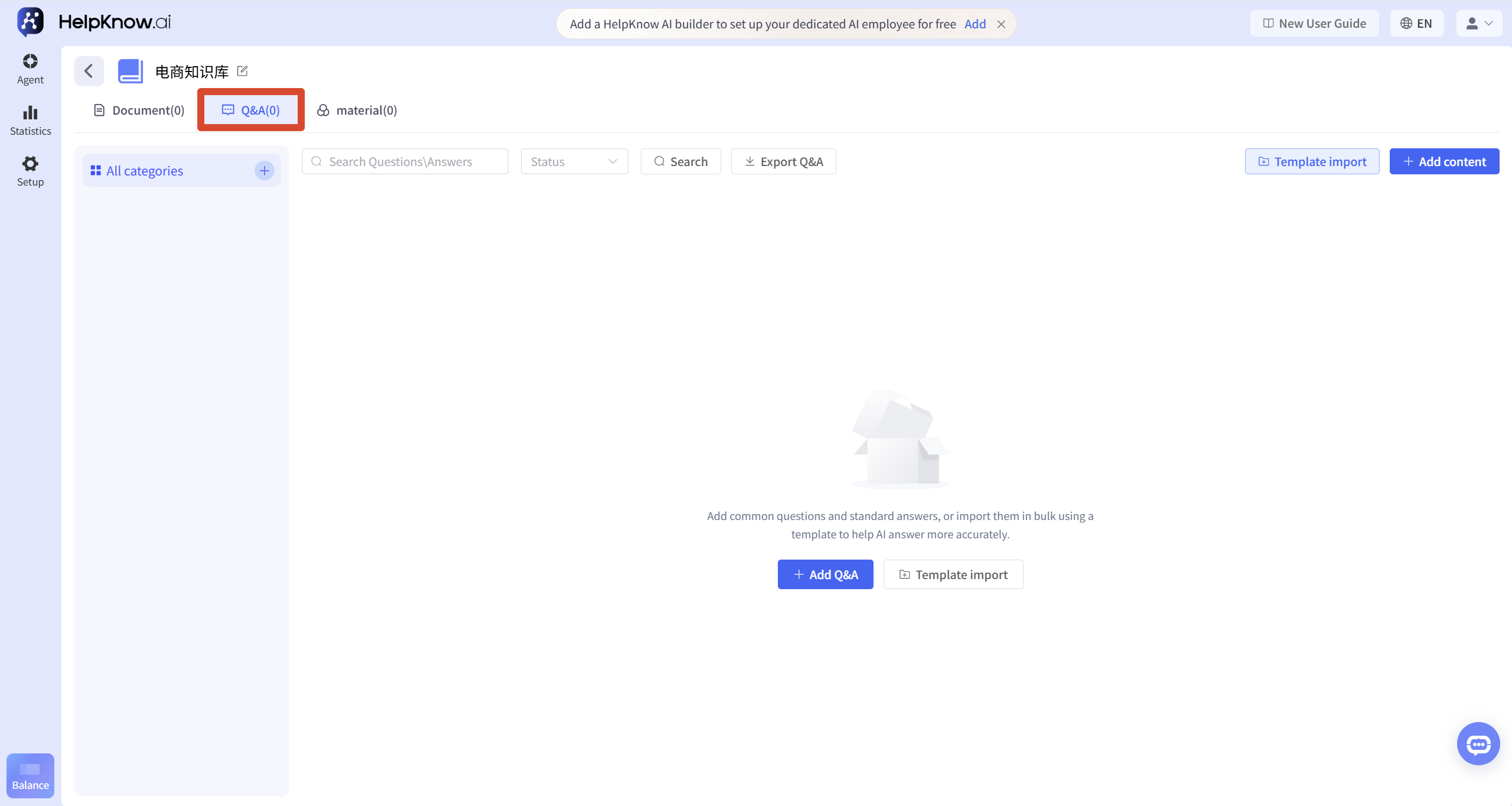
Enter the target knowledge base and click the "Q&A" tab at the top. On this page, you can add, search, edit, and manage questions and answers.
III. FAQs on Adding and Batch Maintenance
1. Added online Q&A
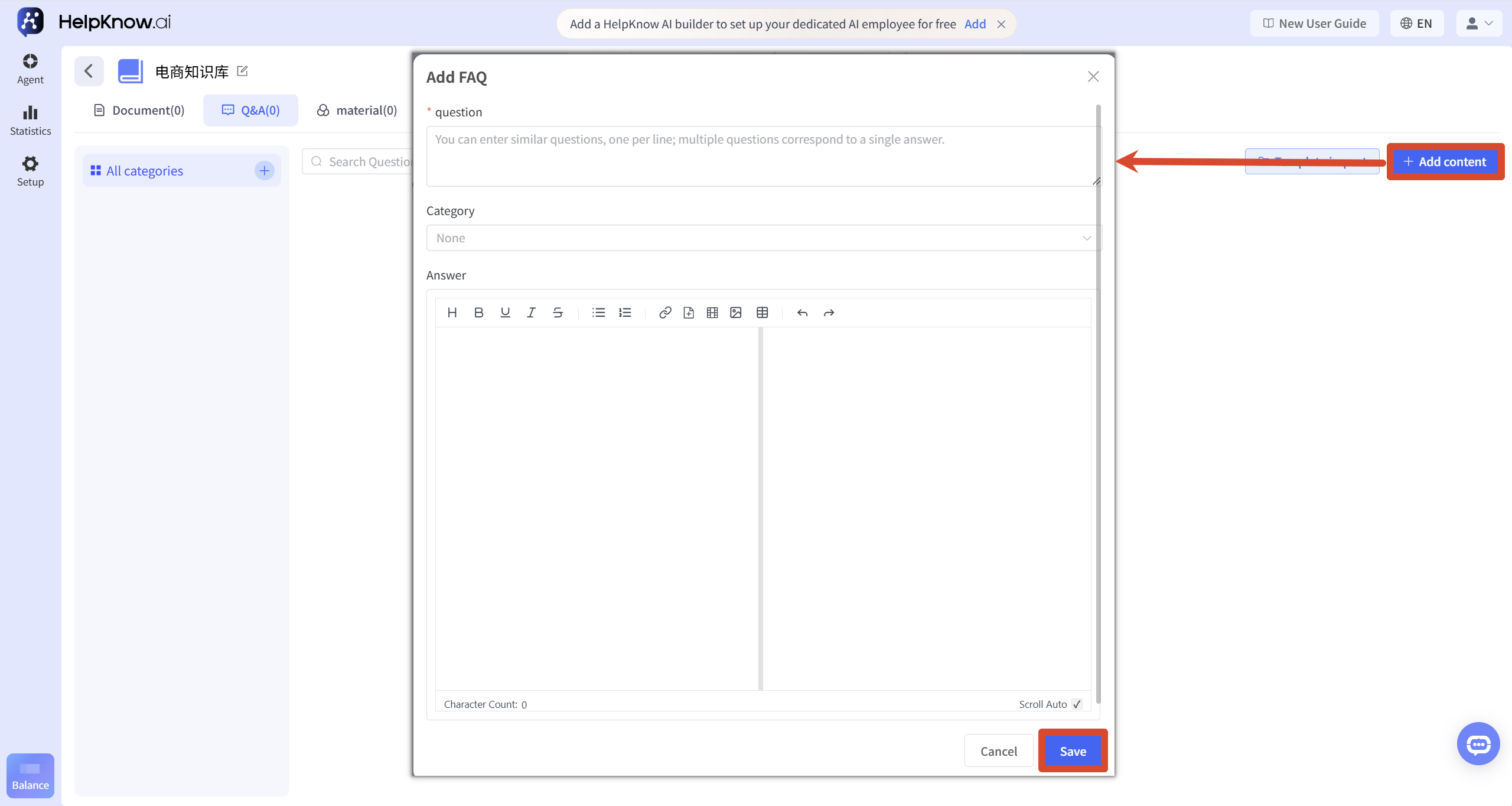
Click "Add Content", and fill in the following information in the "Add Q&A" pop-up window:
- "Questions": Enter questions that users might ask. If multiple expressions correspond to the same answer, enter one similar question per line.
- "Category": Select an existing category or click "Add Category". This field is optional; if not selected, the Q&A will not have a custom category.
- "Answer": Enter the answers that the AI staff will need to refer to. The editor supports setting text formatting, as well as adding links, attachments, videos, and images.
After filling in the form, click "Save". The Q&A will take effect immediately, and there is no need to republish the AI employee.
2. Batch import using templates
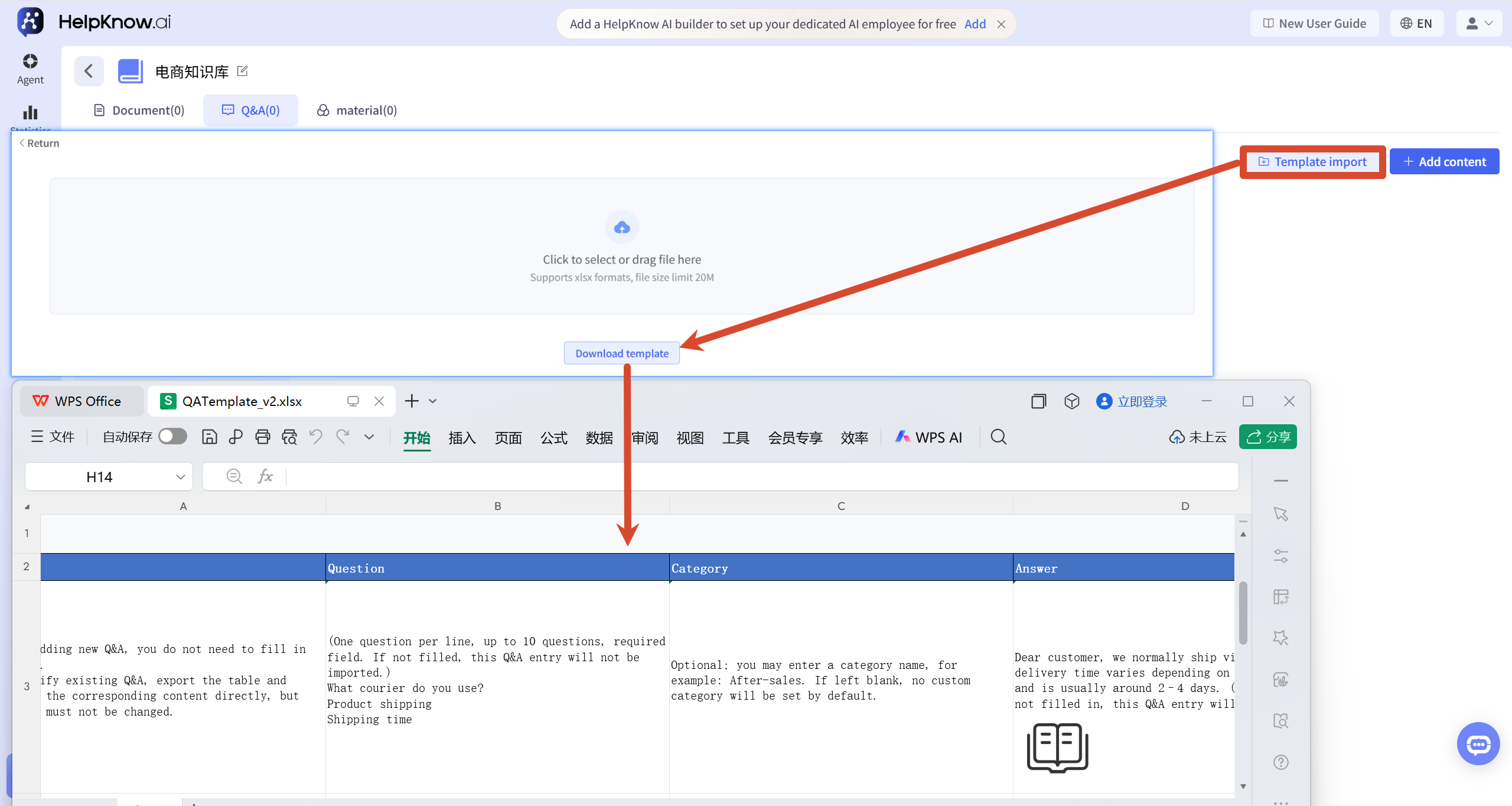
If you need to add multiple sets of questions and answers at once, click "Import Template" and then click "Download Template".
2.1 Fill out and upload the template
Enter the questions and answers according to the filling guidelines at the top of the template. Please note the following when filling in:
- Each line represents a set of questions and answers, and each set of questions and answers can only correspond to one answer.
- If multiple similar questions correspond to the same answer, please fill in these questions in the same "Question" cell, and separate them with new lines, with one question per line.
- If the answers to the questions are different, they need to be filled in different rows.
- Both "Question" and "Answer" are required fields; "Category" is optional.
For limitations on the number of questions, word count, and image format, please refer to the latest template instructions downloaded.
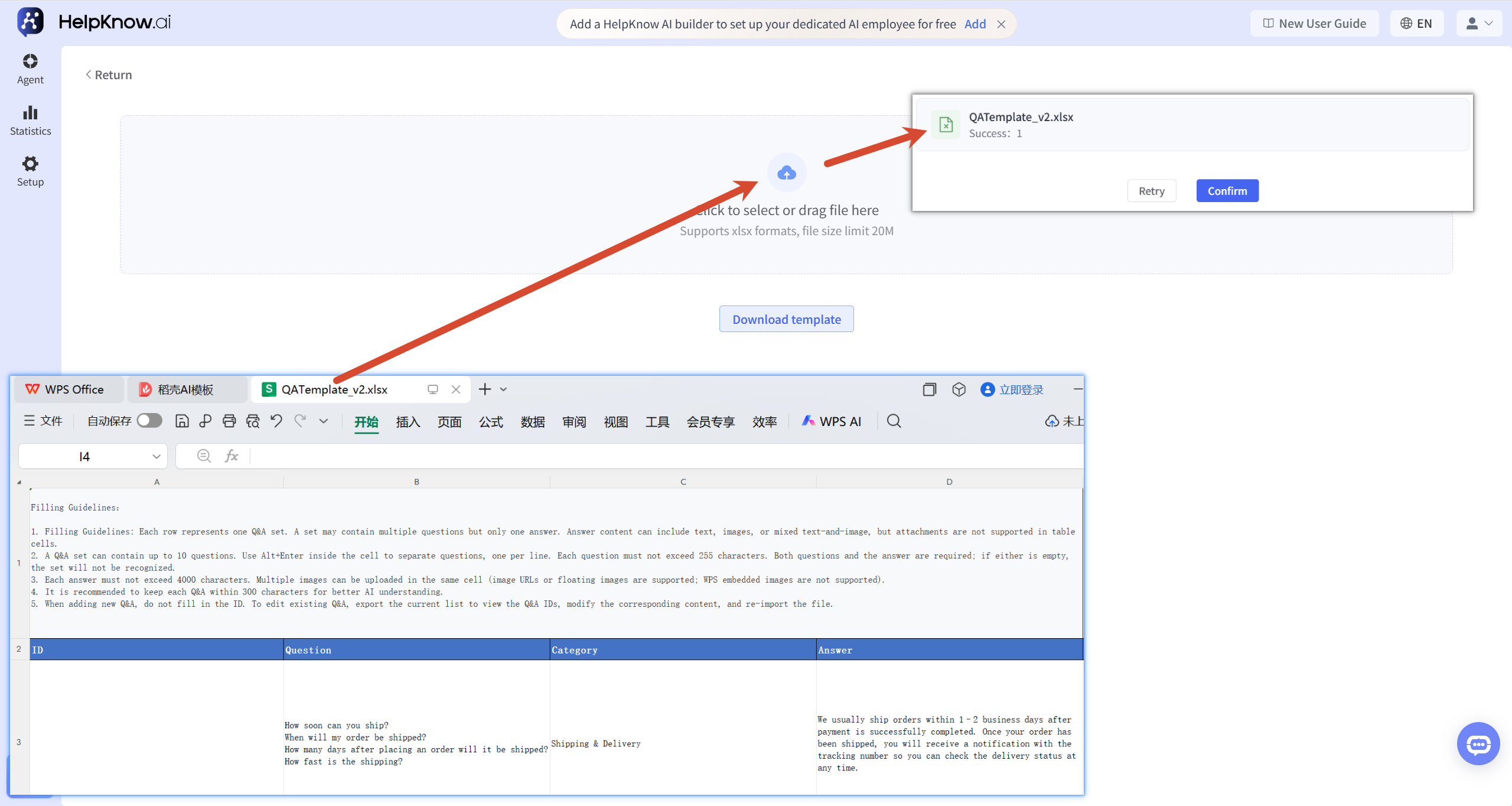
After filling in the form, drag the file .xlsx into the upload area or click to select the file. A single file cannot exceed 20 MB in size.
After the file is successfully uploaded, the system will automatically import the identified questions and answers and display the import results. After verifying the results, click "Confirm" to return to the "Questions and Answers" page.
2.2 Batch Editing of Existing Questions and Answers
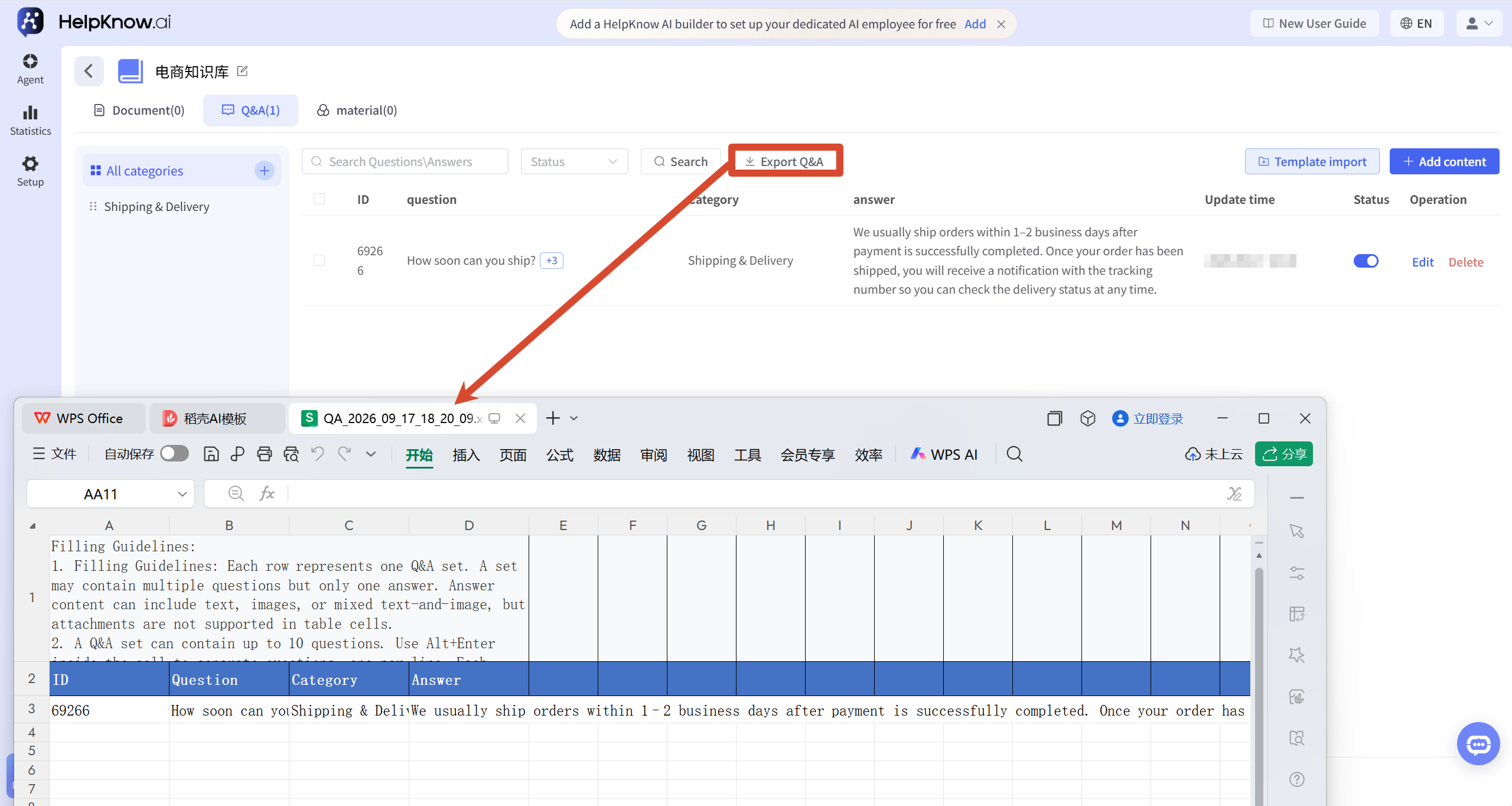
To edit existing questions and answers in batches, click "Export Questions and Answers," and the system will export all questions and answers in the current knowledge base.
The exported table will contain the ID for each question and answer set. Please keep the original IDs and do not modify or delete them. Then, modify the corresponding question, category, or answer.
After making the changes, re-upload the form, and the system will update the existing questions and answers based on the ID.
No ID is required when adding a new question or answer.
IV. Management Q&A
1. Search and filter questions and answers
You can find the questions and answers in the following ways:
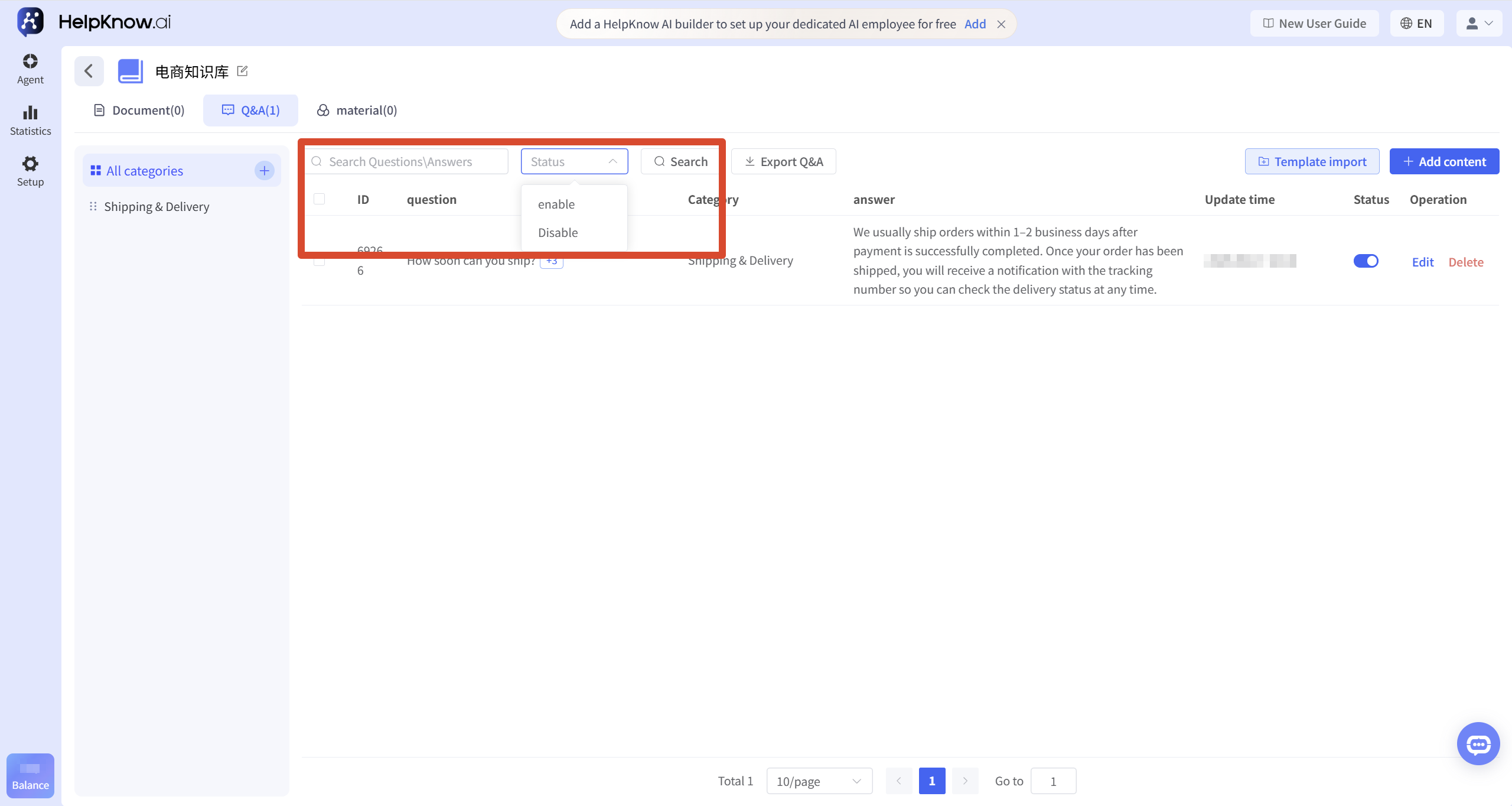
- Enter keywords for your question or answer in the search box, and then click "Search".
- Select "Enabled" or "Disabled" status to filter the Q&A for the corresponding status.
- Click on the category on the left to view only the questions and answers under that category.
Keywords, status, and categories can be used individually or in combination.
2. Enable or disable Q&A
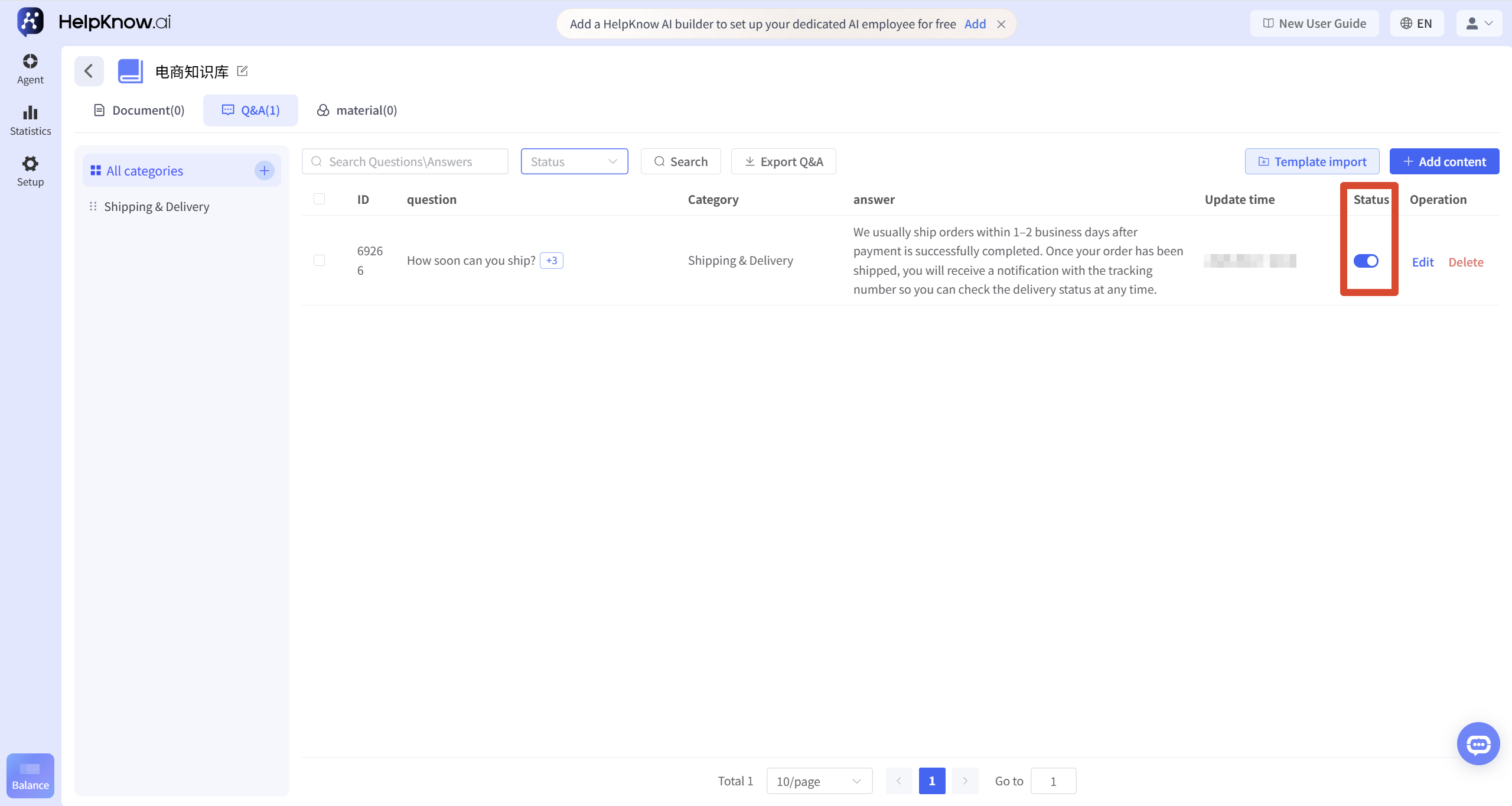
You can enable or disable the question/answer section using the status switch on the right side of the question/answer.
- Once enabled, AI employees can retrieve and refer to the answers in the Q&A section.
- After decommissioning, this question and answer will no longer be used as a knowledge source for retrieval. AI staff will still generate answers by combining the user persona, conversational context, or other content from the knowledge base.
3. Edit or delete questions and answers
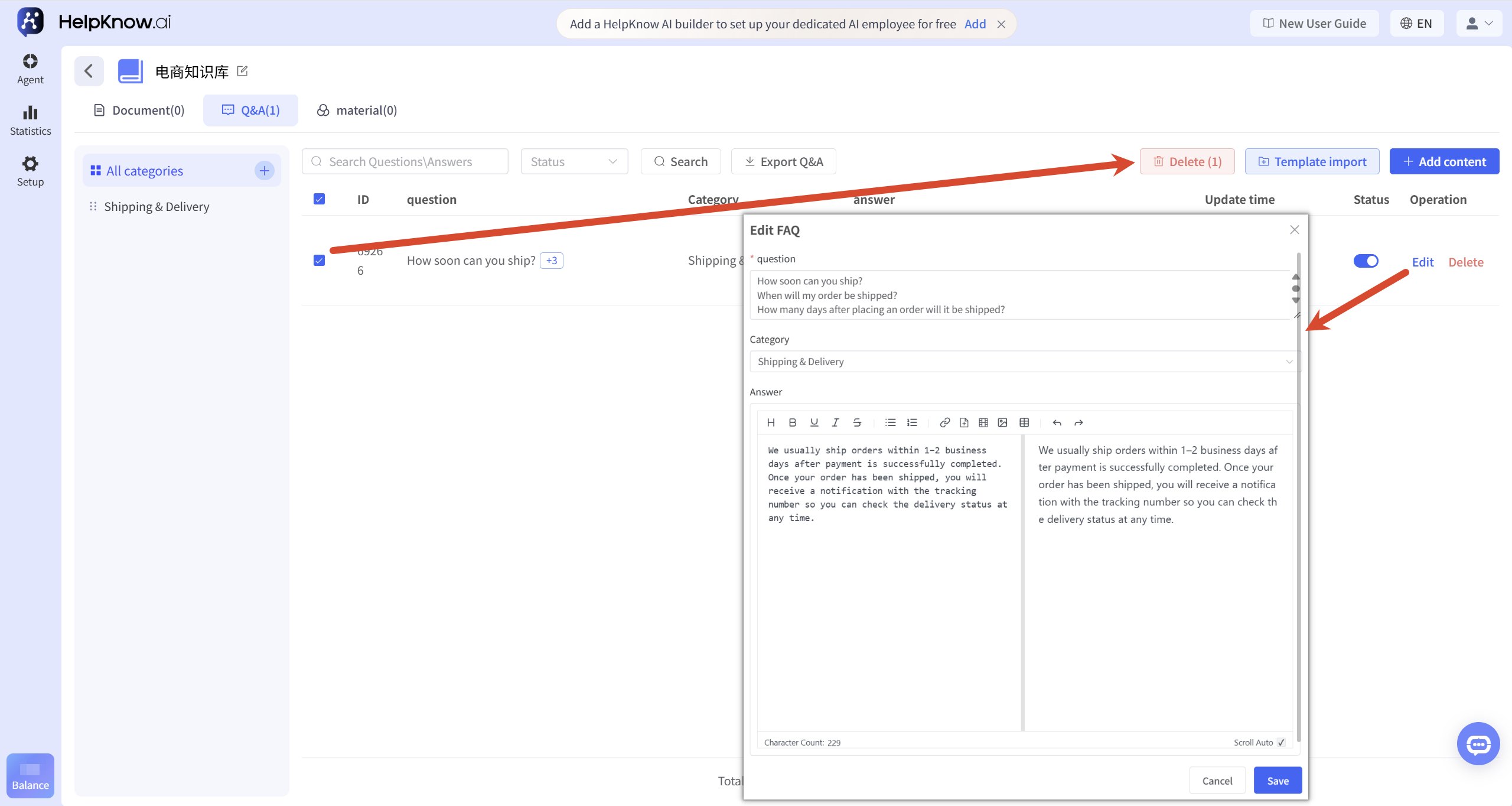
Click "Edit" on the right side of the Q&A to modify the question, category, or answer.
To delete a single question or answer, click "Delete" on the right. To delete multiple questions or answers, first select the corresponding questions and answers; clicking the checkboxes at the top of the list will select all questions and answers displayed on the current page.
Once deleted, questions and answers cannot be recovered. Please confirm the selected content before deleting.
4. Management Classification
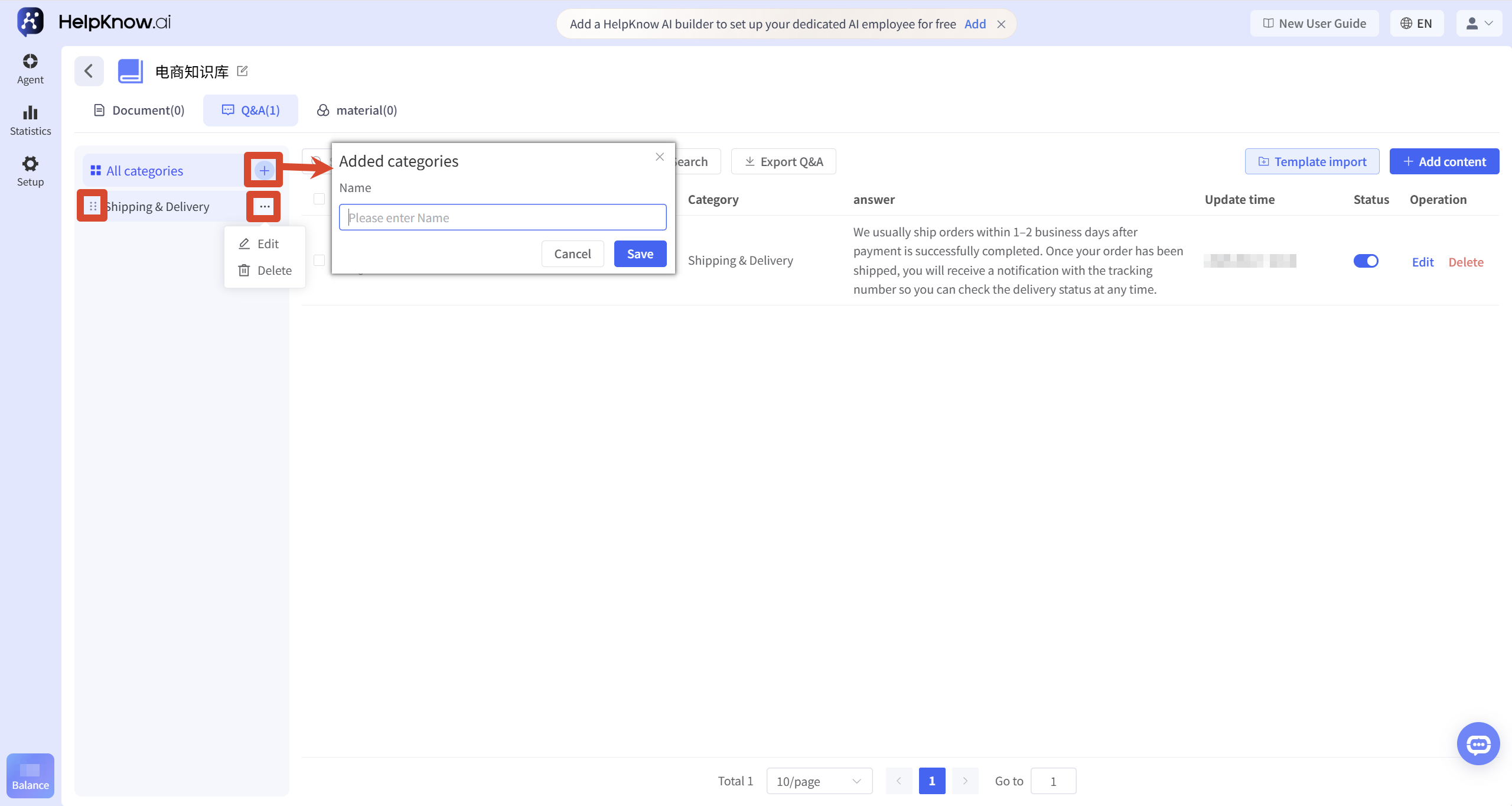
Click the plus sign in the category area to add a new category.
Click the "More Actions" button to the right of the category name to edit or delete the category; drag the sort icon to the left of the category name to adjust the category order.
When you delete a category, all questions and answers under that category will also be deleted simultaneously, and these deletions cannot be recovered. Please confirm before proceeding. Deleting a single question or all questions and answers under a category will not delete the entire category.
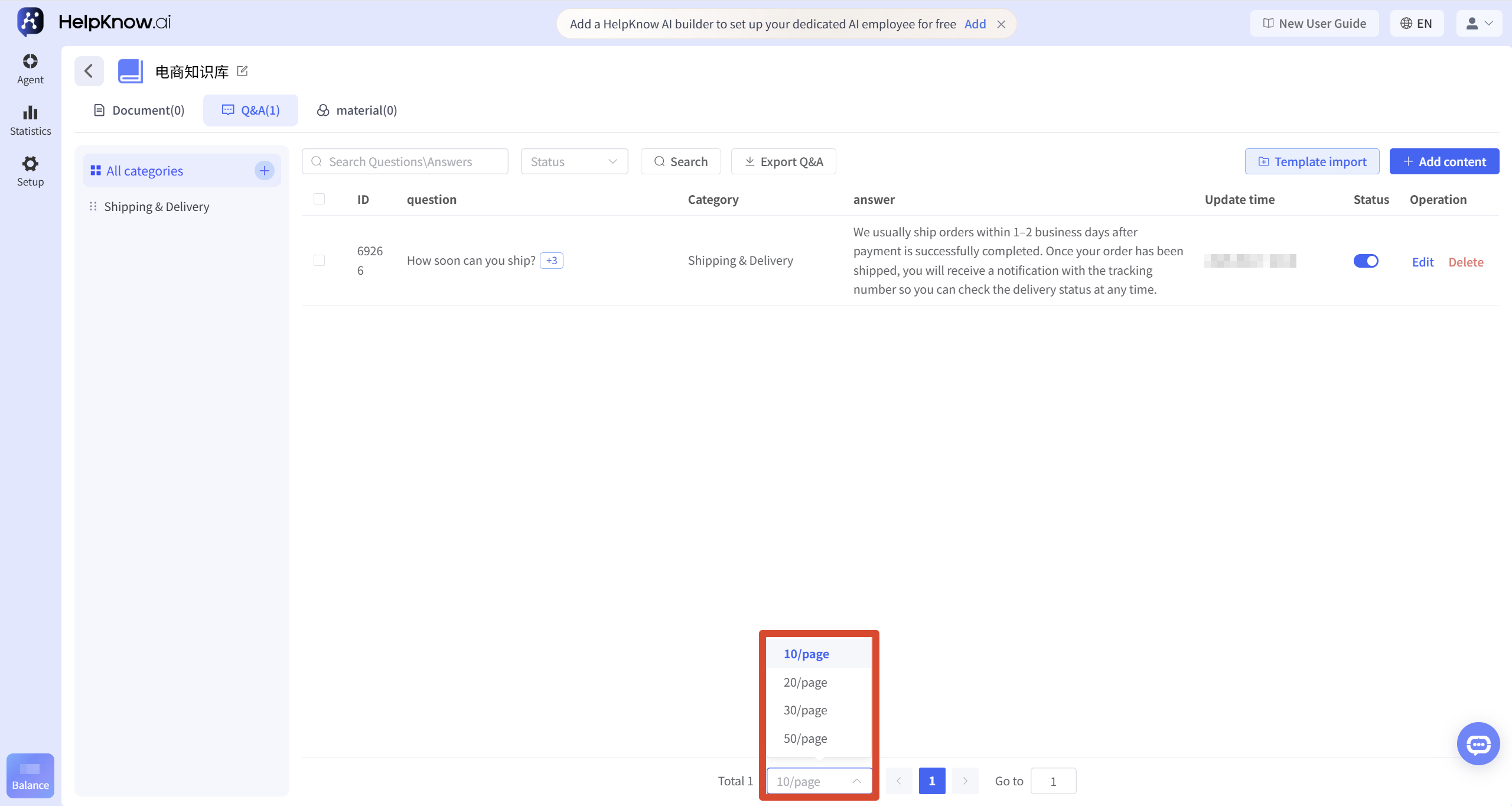
5. Adjust list display
The bottom of the list allows users to select whether to display 10, 20, 30, or 50 questions and answers per page, and to switch pages using page numbers.
V. Testing the effectiveness of the question-and-answer session
After adding or importing questions and answers, go to the AI employee that has already used the knowledge base, enter the corresponding question in "Question and Answer Test", and check the AI employee's answer performance.
During testing, you can enter the following respectively:
- The questions have already been answered in the Q&A section.
- Problems with the same meaning but different ways of expression.
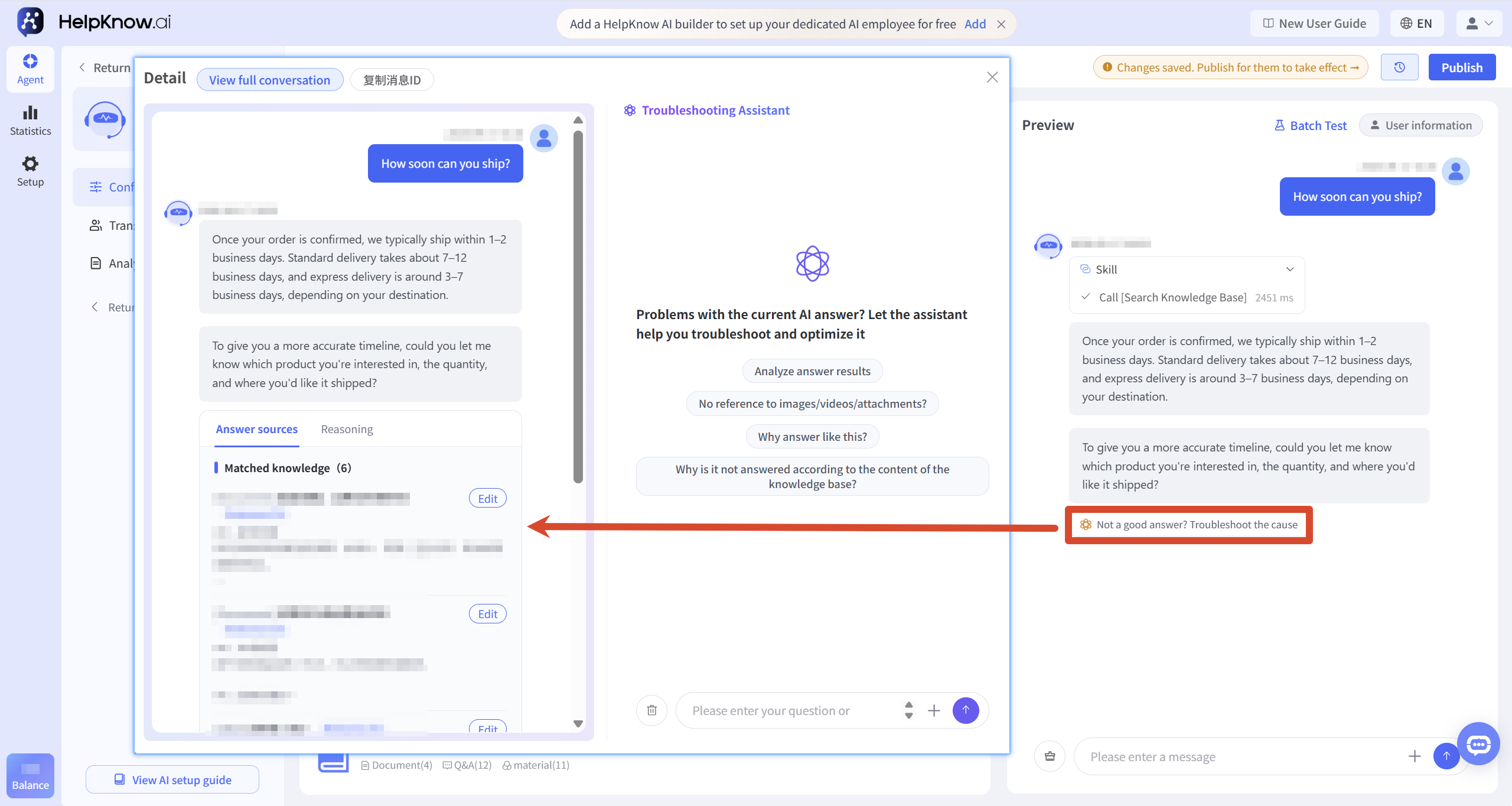
If you need to confirm whether the AI employee has hit the expected question and answer, you can click "Poor answer? Check the reason" below the answer to enter the troubleshooting assistant and view the knowledge source of this answer.
In the "Knowledge Source" section, you can check whether your answer matches the corresponding question and answer. If the question and answer content needs to be adjusted, you can click "Edit" on the right side of the Knowledge Source to directly modify the corresponding question, category, or answer.
After you make changes and save, the Q&A will be updated immediately without needing to republish the AI employee. You can return to "Q&A Test" to resubmit the question and check the effect of the revised answer.
AI employees may combine user questions, dialogue context, and other knowledge to organize responses, and may not necessarily output the answers filled in in the question-and-answer form word for word.
VI. Applicable Scenarios
- Handling high-frequency inquiries : Suitable for adding frequently asked questions such as prices, business hours, delivery range, and payment methods.
- Unified rule-based answers : Suitable for answers that require consistency in return and exchange policies, warranty, after-sales procedures, and service scope.
- Covering different question formats : When users may use multiple expressions to ask the same question, multiple similar questions can be added for a single answer.
- Batch maintenance of frequently asked questions : When there are already many frequently asked questions, you can import, migrate, or modify the questions and answers in batches using templates.
VII. Frequently Asked Questions
1. Will the AI employee reply to the answers entered in the Q&A section word for word?
uncertain.
AI employees will refer to the matched questions and answers, and may combine the user's specific expressions, the context of the conversation, and other knowledge to organize their responses.
Related tutorial: How to add frequently asked questions and corresponding answers using Q&A?
2. After adding the questions and answers, why didn't the AI employee use the answers?
Please check the following:
- Have the AI employees been added to the corresponding knowledge base?
- Is this Q&A feature enabled?
- Does the question raised by the user relate to a question that has already been filled out or a similar question?
- Has the Q&A been successfully saved or imported?
During testing, you can enter the questions you've already filled in and other expressions with the same meaning to check the coverage of similar questions. If the expected answers are still not used, you can use the "Troubleshooting Assistant" to view the knowledge sources of the answers that were matched.
Related tutorial: How to Troubleshoot When AI Employee Responses Do Not Meet Expectations?
3. After the question-and-answer function is disabled, will the AI employee still answer related questions?
meeting.
After it is deactivated, the Q&A will no longer be used as a source of knowledge for retrieval, but the AI employee may still answer related questions by combining the persona, the context of the conversation, or other content in the knowledge base.
Related tutorial: How to add frequently asked questions and corresponding answers using Q&A?
4. How to edit existing Q&A in batches?
Click "Export Q&A". In the exported table, keep the original Q&A IDs. Do not modify or delete them. Modify the corresponding questions, categories or answers.
After making the changes, re-import the table, and the system will update the existing questions and answers based on the ID.
Related tutorial: How to add frequently asked questions and corresponding answers using Q&A?
VIII. Related Recommendations
;}.cls-2{fill:%230868f7;}.cls-3{fill:url(%23未命名的渐变_44);}.cls-4{fill:%23333;}%3c/style%3e%3clinearGradient%20id='未命名的渐变_8'%20x1='33.73'%20y1='100.61'%20x2='-0.03'%20y2='-1.06'%20gradientUnits='userSpaceOnUse'%3e%3cstop%20offset='0'%20stop-color='%237ae9fb'/%3e%3cstop%20offset='0.67'%20stop-color='%232b90f8'/%3e%3cstop%20offset='1'%20stop-color='%230868f7'/%3e%3c/linearGradient%3e%3clinearGradient%20id='未命名的渐变_44'%20x1='27.86'%20y1='18.67'%20x2='68.36'%20y2='22.22'%20gradientUnits='userSpaceOnUse'%3e%3cstop%20offset='0'%20stop-color='%235ac7f2'/%3e%3cstop%20offset='1'%20stop-color='%230868f7'/%3e%3c/linearGradient%3e%3c/defs%3e%3cpath%20class='cls-1'%20d='M29,28.74V81.91l-9.51-3.68v0L8.52,74A7.17,7.17,0,0,1,4,67.32V24.54A3.76,3.76,0,0,1,9.08,21Z'/%3e%3cpath%20class='cls-2'%20d='M68.09,78.07a13.15,13.15,0,0,1-17.9,12.06L29,81.91h0V28.74L50.19,37A13.17,13.17,0,0,0,68.08,25.3h0Z'/%3e%3cpath%20class='cls-3'%20d='M68.08,25.3a13.19,13.19,0,0,1-6.73,10.87A13.09,13.09,0,0,1,50.19,37L29,28.74V6A3.76,3.76,0,0,1,34.1,2.52l25.59,9.91A13.22,13.22,0,0,1,68.08,25.3Z'/%3e%3cpath%20class='cls-4'%20d='M129.06,81.76a4.33,4.33,0,0,1-3.19-1.31,4.4,4.4,0,0,1-1.31-3.24V56.86H97.65V77.21a4.36,4.36,0,0,1-1.35,3.2A4.68,4.68,0,0,1,93,81.76a4.32,4.32,0,0,1-3.19-1.31,4.37,4.37,0,0,1-1.32-3.24V27.27A4.58,4.58,0,0,1,89.83,24a4.59,4.59,0,0,1,7.82,3.27V48.15h26.91V27.27A4.58,4.58,0,0,1,125.91,24a4.59,4.59,0,0,1,7.82,3.27V77.21a4.37,4.37,0,0,1-1.36,3.2A4.65,4.65,0,0,1,129.06,81.76Z'/%3e%3cpath%20class='cls-4'%20d='M163.77,81.66c-6.57,0-11.76-1.92-15.44-5.7s-5.54-9.07-5.54-15.74a26.76,26.76,0,0,1,2.09-10.43,17.72,17.72,0,0,1,6.67-8.06,19.15,19.15,0,0,1,10.68-2.95,19,19,0,0,1,10.46,2.8,18.7,18.7,0,0,1,6.55,7.36,22.53,22.53,0,0,1,2.36,10.28A4.51,4.51,0,0,1,177,63.77H152.23a10.8,10.8,0,0,0,3.49,6.65c2,1.68,4.88,2.52,8.66,2.52a22.25,22.25,0,0,0,7.54-1.21c.74-.3,1.55-.67,2.37-1.07a3.75,3.75,0,0,1,1.84-.4,4.09,4.09,0,0,1,3,1.15,4,4,0,0,1,1.12,3,4.38,4.38,0,0,1-2.58,3.82,32.34,32.34,0,0,1-6.36,2.61A28.67,28.67,0,0,1,163.77,81.66ZM172.4,55.9a9.72,9.72,0,0,0-1.63-4.56A9.9,9.9,0,0,0,167,48a10.38,10.38,0,0,0-4.64-1.14,12,12,0,0,0-4.77,1.06,9.54,9.54,0,0,0-4.89,5.66,11.78,11.78,0,0,0-.51,2.3Z'/%3e%3cpath%20class='cls-4'%20d='M193,81.64a4.49,4.49,0,0,1-4.51-4.55V27.28A4.58,4.58,0,0,1,189.84,24a4.48,4.48,0,0,1,3.28-1.36A4.36,4.36,0,0,1,196.35,24a4.46,4.46,0,0,1,1.31,3.31V77.09a4.34,4.34,0,0,1-1.35,3.2A4.67,4.67,0,0,1,193,81.64Z'/%3e%3cpath%20class='cls-4'%20d='M263.79,81.71a5.7,5.7,0,0,1-4.2-1.74,5.76,5.76,0,0,1-1.73-4.19V27.37a4.58,4.58,0,0,1,1.35-3.27A4.59,4.59,0,0,1,267,27.37V72.53h24a4.58,4.58,0,0,1,3.27,7.82A4.66,4.66,0,0,1,291,81.71Z'/%3e%3cpath%20class='cls-4'%20d='M424.48,81.74a4.71,4.71,0,0,1-2.71-.88,5.43,5.43,0,0,1-1-1l-.07-.09-12.41-17-5.41,5v9.44a4.31,4.31,0,0,1-1.36,3.19,4.66,4.66,0,0,1-3.3,1.36A4.29,4.29,0,0,1,395,80.42a4.36,4.36,0,0,1-1.32-3.23V27.37A4.58,4.58,0,0,1,395,24.1a4.52,4.52,0,0,1,6.58.12,4.54,4.54,0,0,1,1.24,3.15V56.31l17.72-16.38.05,0a4.8,4.8,0,0,1,2.94-1.11,4.4,4.4,0,0,1,3.27,1.2,4.57,4.57,0,0,1,1.2,3.27,4.44,4.44,0,0,1-.77,2.33,7.45,7.45,0,0,1-1.43,1.65l-11,9.64,13.34,17.68a5,5,0,0,1,1,2.71,4.12,4.12,0,0,1-1.36,3.24A4.64,4.64,0,0,1,424.48,81.74Z'/%3e%3cpath%20class='cls-4'%20d='M317.93,81.76a21.5,21.5,0,1,1,21.17-21.5A21.37,21.37,0,0,1,317.93,81.76Zm0-34.1a12.61,12.61,0,1,0,12.42,12.6A12.52,12.52,0,0,0,317.93,47.66Z'/%3e%3cpath%20class='cls-4'%20d='M212.18,101.22a4.12,4.12,0,0,1-3.05-1.26,4.17,4.17,0,0,1-1.26-3.1V43.34a4.37,4.37,0,0,1,1.3-3.14,4.26,4.26,0,0,1,3.13-1.3,4.19,4.19,0,0,1,3.1,1.26,4.32,4.32,0,0,1,1.26,3.16,20.77,20.77,0,0,1,13-4.54,21.51,21.51,0,0,1,0,43,20.51,20.51,0,0,1-13-4.57V96.86a4.15,4.15,0,0,1-1.3,3.06A4.5,4.5,0,0,1,212.18,101.22Zm17.43-53.63c-6.23,0-12.93,4.11-12.93,12.72a12.73,12.73,0,0,0,25.46,0A12.71,12.71,0,0,0,229.61,47.59Z'/%3e%3cpath%20class='cls-4'%20d='M365.76,81.76a21.5,21.5,0,1,1,21.18-21.5A21.37,21.37,0,0,1,365.76,81.76Zm0-34.1a12.61,12.61,0,1,0,12.42,12.6A12.52,12.52,0,0,0,365.76,47.66Z'/%3e%3c/svg%3e)