
How to set up AI employees to automatically stop replying?
I. Function Introduction
Automatically stopping replies allows AI employees to stop responding to users after specified conditions are met or a set stop time is reached.
You can set two stop methods according to your business needs:
- Stop conditions: Stop replying when conditions such as reply round number and user attributes are met.
- Stop time: Stop responding within the specified week and time period.
The two methods can be set individually or used simultaneously.
This article's link: "How to set up AI employees to automatically stop replying?"
II. Set up automatic stop reply
1. Enable the function
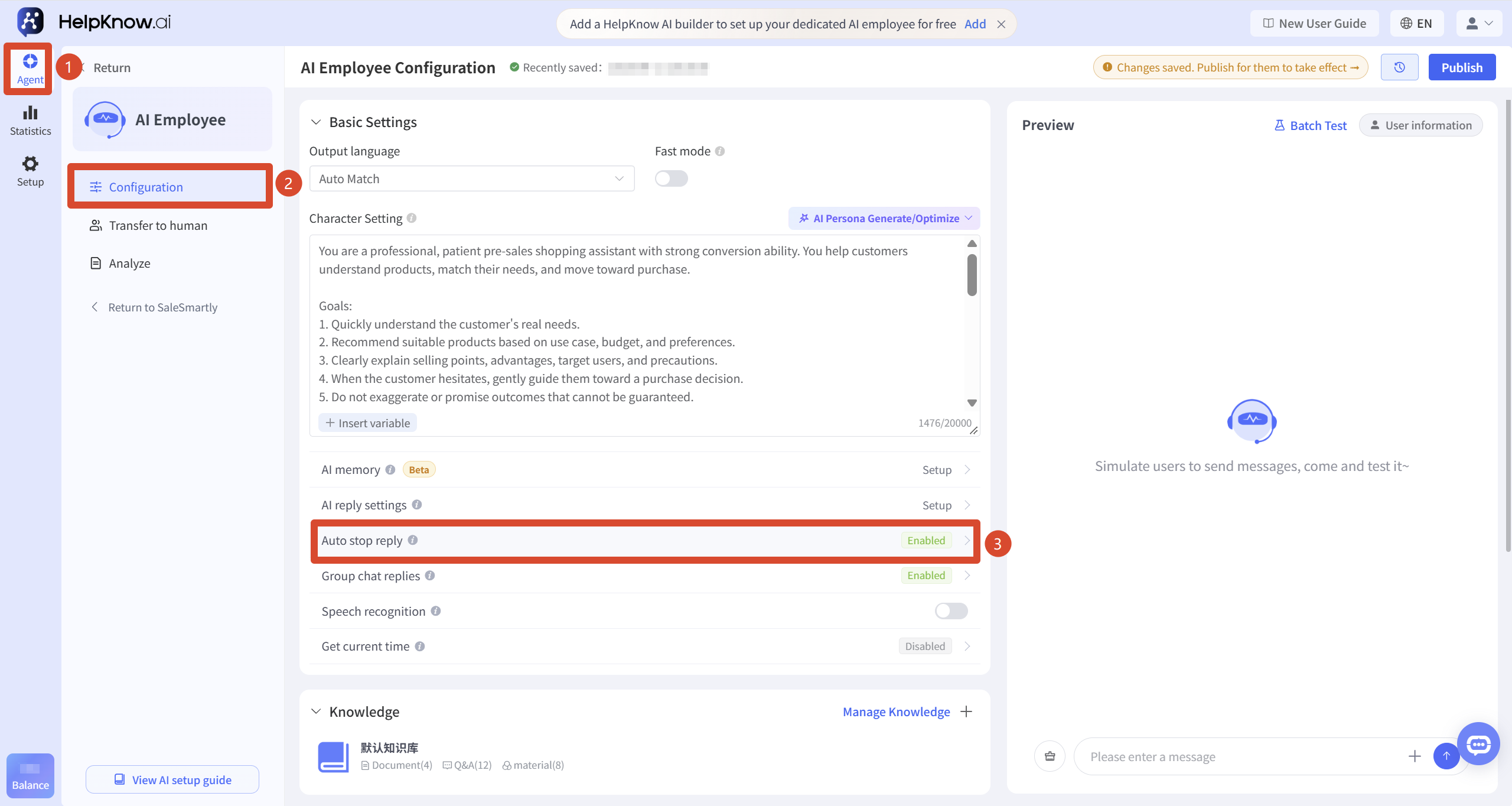
Enter the AI employee you want to configure, and select "Configuration" on the left. In "Other Configurations", find "Automatically Stop Replying", click "Settings" on the right, and turn on the "Automatically Stop Replying" switch.
2. Set stop conditions
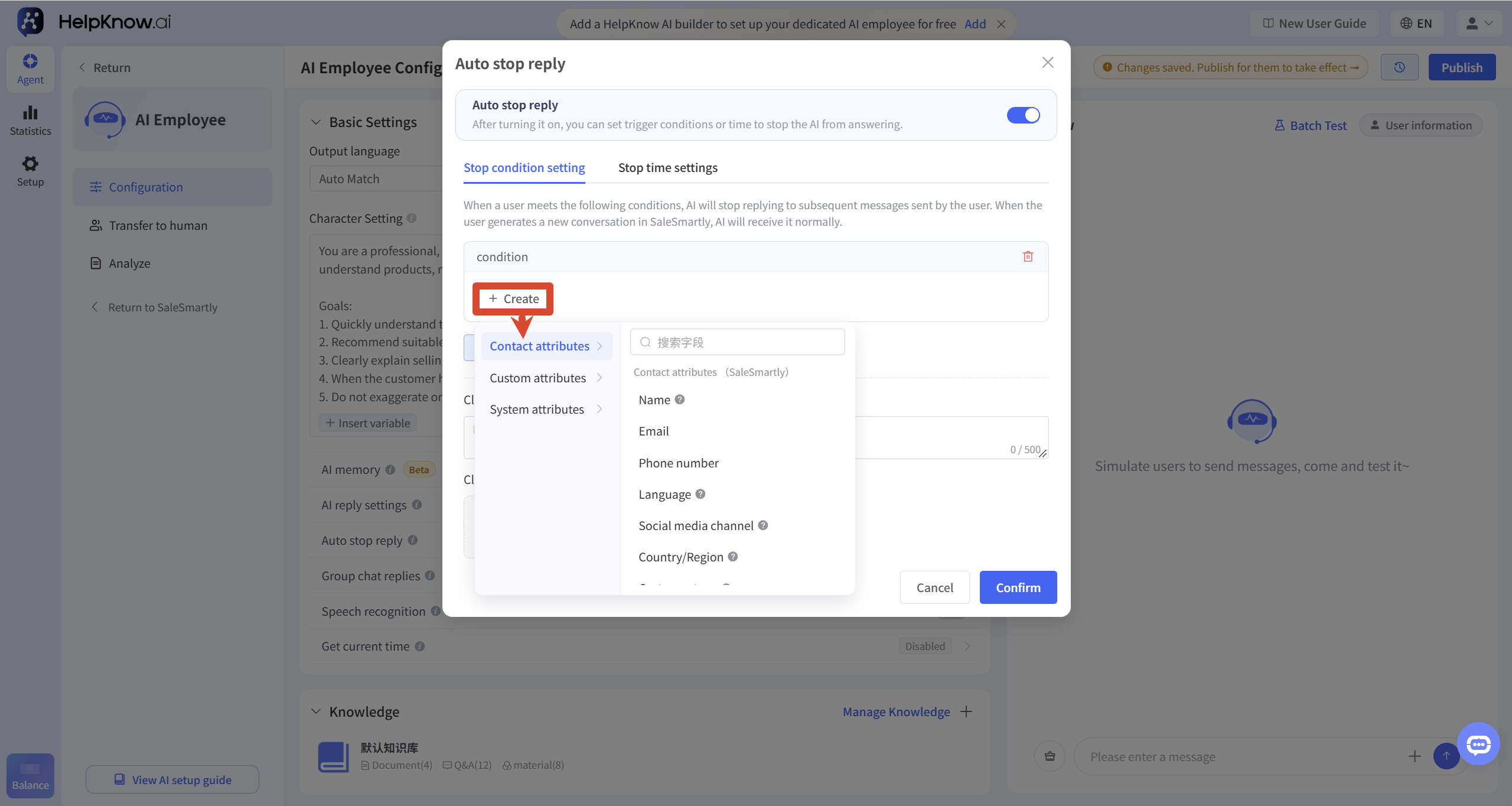
Go to "Stop Condition Settings", click "New", and then select the condition to trigger the stop reply.
- Custom Attributes : Select an existing user attribute or session attribute as the stop condition. User attributes also include customer tags. Optional content is based on what's already in the current project. For creating or managing related attributes, refer to "How to Set Up AI Employees to Update Customer Tags?" for customer tags, and "How to Set Up AI Employees to Collect Customer Information?" for other user attributes and session attributes.
- Contact Attributes : Uses existing contact attributes from SaleSmartly as stop criteria, such as name, email, phone number, language, social media channels, country/region, etc. These attributes are preset by SaleSmartly and do not need to be created separately in HelpKnow.
- System attribute : "AI Response Rounds". This variable counts the number of response rounds of the AI employee in the current session.
To set multiple conditions:
- If the condition group contains an AND relationship, all conditions within the group must be satisfied.
- Different condition groups are related by "OR", and stopping the reply is triggered when any one of the condition groups is satisfied.
You can also set a closing message or upload a closing image. Once the stopping condition is triggered, the AI employee will first send the closing message and then stop replying.
The closing remarks can be up to 500 characters long and will be automatically translated based on the user's language. If no closing remarks or image are set, the AI employee will stop replying once the conditions are met.
After completing the settings, click "OK".
3. Set stop time
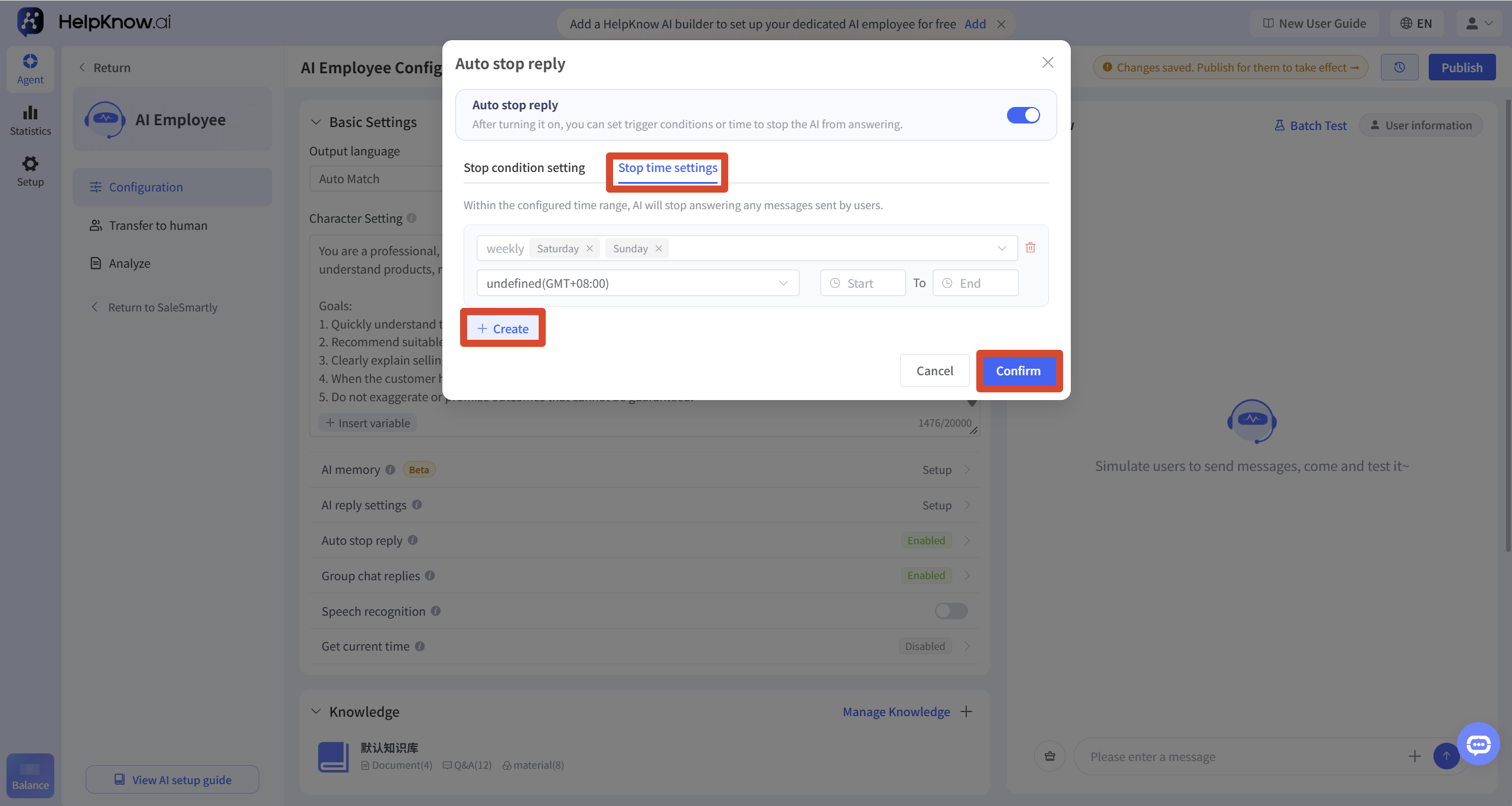
Go to "Stop Time Settings," click "New," and set the weekday, time zone, start time, and end time for the weekly recurrence. When setting this, please ensure that the selected time zone matches the time zone used in your actual business operations. New rules default to selecting Saturdays and Sundays; you can adjust this according to your actual working hours.
To add other time periods, click "New" again; click "OK" when finished.
4. Test and release
4.1 Test Stopping Conditions
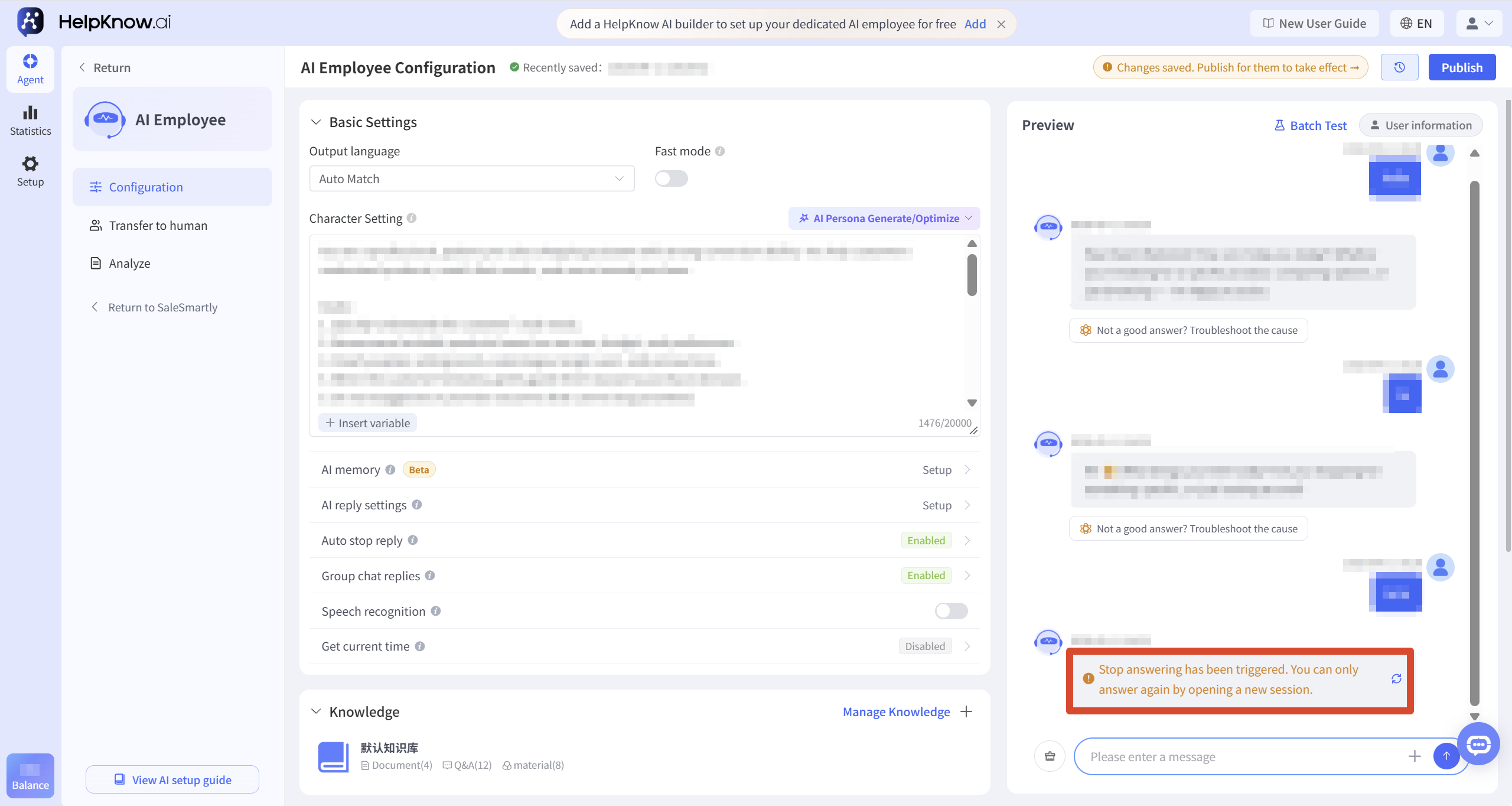
The stopping conditions can be tested in the "Question and Answer Test" area on the right.
After sending the message and triggering the stop condition:
- If a closing message or image is set, the AI employee will send the corresponding content first.
- If no closing message is set, the AI employee will stop replying immediately.
- When you send a message again, the page will display a message saying "The stop reply has been triggered. You can reply again by starting a new session".
4.2 Test Stop Time
The "Q&A Test" does not currently support a test stop time. To verify that the settings are effective, please first publish the AI employee, and then send a message through the connected social media channels within the set stop time to conduct the test.
After completing the test, please click "Publish" for the new settings to take effect on the official access channels.
III. Restore AI response after triggering
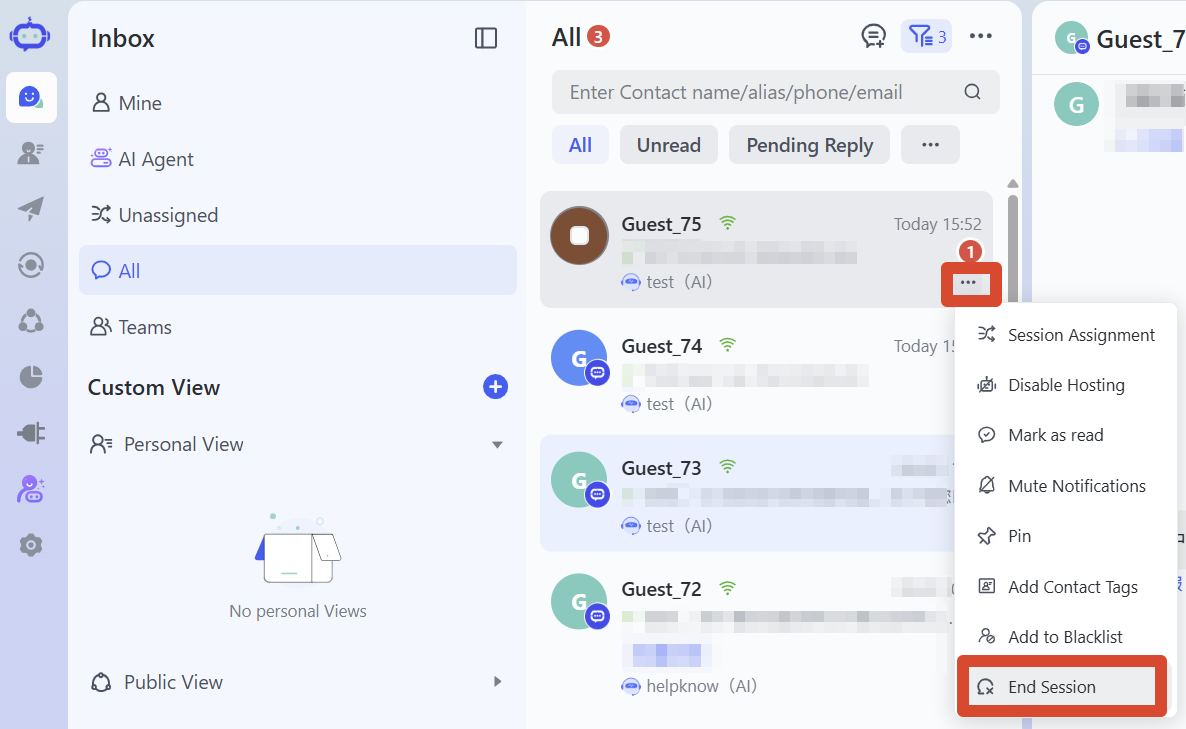
- Triggered by a stop condition : Once triggered, the AI employee will not continue replying in the current session. The current session must be ended in SaleSmartly first. The AI employee can then resume replying after the user sends a message again. If the set stop time has already elapsed, the AI employee will still not reply.
- Triggered by a stop time : During the set stop time, the AI employee will not reply. After the stop time ends, the original session will not automatically resume; the AI employee can continue replying when the user sends a message again. (Note: After the session ends, HelpKnow will generate a new session record when the user sends a message again, but it will still be displayed in the same visitor's chat window in SaleSmartly.)
IV. Applicable Scenarios
- Drive traffic to your private domain: Once the desired conditions are met, guide users into your private domain with a closing remark and stop replying to avoid prolonged conversations.
- Control conversation costs: Stop replying after reaching a specified number of reply rounds or business goals to reduce unnecessary message consumption.
- Human and AI work shifts: During customer service hours, AI employees can be set to stop responding, and human staff will handle all customer service in one shift; after customer service hours, AI employees will then handle customer service.
- Simulate human work and rest schedules: Set fixed stop times for AI employees so that they do not reply to messages at night or during other rest periods, simulating the work and rest schedules of human customer service representatives and avoiding the exposure of AI identity by being online all day.
V. Precautions
- Once the stop reply is triggered, the user message that triggered the stop and subsequent messages will not be displayed in HelpKnow's "Analysis > Conversations" and "Analysis > Messages".
- Automatically stopping replies will only stop the AI employee from answering; it will not automatically transfer the conversation to a human. If you need to transfer the conversation to a human, please configure the "Transfer to Human" function separately.
VI. Frequently Asked Questions
1. Can different stop times be set for different channels?
Not currently supported. Stop times can only be set for weekday, time zone, start time, and end time; conditions such as social media channels cannot be added. Therefore, this will apply uniformly to all channels currently used for AI employee reception.
If different channels require different stop times, you can create separate AI employees, connect different AI employees to the corresponding channels, and then set stop times for each.
If you simply want to stop responding to specific channels when certain conditions are met, you can use "Contact Attributes > Social Media Channels" as the judgment condition in "Stop Condition Settings".
2. Will proactively following up affect the "AI response round" stopping condition?
Yes. If "Proactive Customer Follow-up" is enabled at the same time, proactive follow-up messages will also be counted in the current session's AI response round. Therefore, when the stop condition uses "AI Response Round (Single Session)," proactive follow-up may cause the response round to reach the stop condition.
For example, when setting "AI response rounds (single session) greater than or equal to 3", if a proactive follow-up call causes the response rounds to reach 3, the customer will trigger a stop replying mechanism after sending a message again.
Additionally, triggering the stop reply rule will not cancel any proactive follow-up rules that have not yet been executed. Follow-up messages may still be sent if the follow-up time has arrived and the filtering criteria are still met. For detailed setup instructions, please refer to: "How to Set Up AI-Powered Employees to Proactively Follow Up with Customers?"
VII. Related Recommendations
;}.cls-2{fill:%230868f7;}.cls-3{fill:url(%23未命名的渐变_44);}.cls-4{fill:%23333;}%3c/style%3e%3clinearGradient%20id='未命名的渐变_8'%20x1='33.73'%20y1='100.61'%20x2='-0.03'%20y2='-1.06'%20gradientUnits='userSpaceOnUse'%3e%3cstop%20offset='0'%20stop-color='%237ae9fb'/%3e%3cstop%20offset='0.67'%20stop-color='%232b90f8'/%3e%3cstop%20offset='1'%20stop-color='%230868f7'/%3e%3c/linearGradient%3e%3clinearGradient%20id='未命名的渐变_44'%20x1='27.86'%20y1='18.67'%20x2='68.36'%20y2='22.22'%20gradientUnits='userSpaceOnUse'%3e%3cstop%20offset='0'%20stop-color='%235ac7f2'/%3e%3cstop%20offset='1'%20stop-color='%230868f7'/%3e%3c/linearGradient%3e%3c/defs%3e%3cpath%20class='cls-1'%20d='M29,28.74V81.91l-9.51-3.68v0L8.52,74A7.17,7.17,0,0,1,4,67.32V24.54A3.76,3.76,0,0,1,9.08,21Z'/%3e%3cpath%20class='cls-2'%20d='M68.09,78.07a13.15,13.15,0,0,1-17.9,12.06L29,81.91h0V28.74L50.19,37A13.17,13.17,0,0,0,68.08,25.3h0Z'/%3e%3cpath%20class='cls-3'%20d='M68.08,25.3a13.19,13.19,0,0,1-6.73,10.87A13.09,13.09,0,0,1,50.19,37L29,28.74V6A3.76,3.76,0,0,1,34.1,2.52l25.59,9.91A13.22,13.22,0,0,1,68.08,25.3Z'/%3e%3cpath%20class='cls-4'%20d='M129.06,81.76a4.33,4.33,0,0,1-3.19-1.31,4.4,4.4,0,0,1-1.31-3.24V56.86H97.65V77.21a4.36,4.36,0,0,1-1.35,3.2A4.68,4.68,0,0,1,93,81.76a4.32,4.32,0,0,1-3.19-1.31,4.37,4.37,0,0,1-1.32-3.24V27.27A4.58,4.58,0,0,1,89.83,24a4.59,4.59,0,0,1,7.82,3.27V48.15h26.91V27.27A4.58,4.58,0,0,1,125.91,24a4.59,4.59,0,0,1,7.82,3.27V77.21a4.37,4.37,0,0,1-1.36,3.2A4.65,4.65,0,0,1,129.06,81.76Z'/%3e%3cpath%20class='cls-4'%20d='M163.77,81.66c-6.57,0-11.76-1.92-15.44-5.7s-5.54-9.07-5.54-15.74a26.76,26.76,0,0,1,2.09-10.43,17.72,17.72,0,0,1,6.67-8.06,19.15,19.15,0,0,1,10.68-2.95,19,19,0,0,1,10.46,2.8,18.7,18.7,0,0,1,6.55,7.36,22.53,22.53,0,0,1,2.36,10.28A4.51,4.51,0,0,1,177,63.77H152.23a10.8,10.8,0,0,0,3.49,6.65c2,1.68,4.88,2.52,8.66,2.52a22.25,22.25,0,0,0,7.54-1.21c.74-.3,1.55-.67,2.37-1.07a3.75,3.75,0,0,1,1.84-.4,4.09,4.09,0,0,1,3,1.15,4,4,0,0,1,1.12,3,4.38,4.38,0,0,1-2.58,3.82,32.34,32.34,0,0,1-6.36,2.61A28.67,28.67,0,0,1,163.77,81.66ZM172.4,55.9a9.72,9.72,0,0,0-1.63-4.56A9.9,9.9,0,0,0,167,48a10.38,10.38,0,0,0-4.64-1.14,12,12,0,0,0-4.77,1.06,9.54,9.54,0,0,0-4.89,5.66,11.78,11.78,0,0,0-.51,2.3Z'/%3e%3cpath%20class='cls-4'%20d='M193,81.64a4.49,4.49,0,0,1-4.51-4.55V27.28A4.58,4.58,0,0,1,189.84,24a4.48,4.48,0,0,1,3.28-1.36A4.36,4.36,0,0,1,196.35,24a4.46,4.46,0,0,1,1.31,3.31V77.09a4.34,4.34,0,0,1-1.35,3.2A4.67,4.67,0,0,1,193,81.64Z'/%3e%3cpath%20class='cls-4'%20d='M263.79,81.71a5.7,5.7,0,0,1-4.2-1.74,5.76,5.76,0,0,1-1.73-4.19V27.37a4.58,4.58,0,0,1,1.35-3.27A4.59,4.59,0,0,1,267,27.37V72.53h24a4.58,4.58,0,0,1,3.27,7.82A4.66,4.66,0,0,1,291,81.71Z'/%3e%3cpath%20class='cls-4'%20d='M424.48,81.74a4.71,4.71,0,0,1-2.71-.88,5.43,5.43,0,0,1-1-1l-.07-.09-12.41-17-5.41,5v9.44a4.31,4.31,0,0,1-1.36,3.19,4.66,4.66,0,0,1-3.3,1.36A4.29,4.29,0,0,1,395,80.42a4.36,4.36,0,0,1-1.32-3.23V27.37A4.58,4.58,0,0,1,395,24.1a4.52,4.52,0,0,1,6.58.12,4.54,4.54,0,0,1,1.24,3.15V56.31l17.72-16.38.05,0a4.8,4.8,0,0,1,2.94-1.11,4.4,4.4,0,0,1,3.27,1.2,4.57,4.57,0,0,1,1.2,3.27,4.44,4.44,0,0,1-.77,2.33,7.45,7.45,0,0,1-1.43,1.65l-11,9.64,13.34,17.68a5,5,0,0,1,1,2.71,4.12,4.12,0,0,1-1.36,3.24A4.64,4.64,0,0,1,424.48,81.74Z'/%3e%3cpath%20class='cls-4'%20d='M317.93,81.76a21.5,21.5,0,1,1,21.17-21.5A21.37,21.37,0,0,1,317.93,81.76Zm0-34.1a12.61,12.61,0,1,0,12.42,12.6A12.52,12.52,0,0,0,317.93,47.66Z'/%3e%3cpath%20class='cls-4'%20d='M212.18,101.22a4.12,4.12,0,0,1-3.05-1.26,4.17,4.17,0,0,1-1.26-3.1V43.34a4.37,4.37,0,0,1,1.3-3.14,4.26,4.26,0,0,1,3.13-1.3,4.19,4.19,0,0,1,3.1,1.26,4.32,4.32,0,0,1,1.26,3.16,20.77,20.77,0,0,1,13-4.54,21.51,21.51,0,0,1,0,43,20.51,20.51,0,0,1-13-4.57V96.86a4.15,4.15,0,0,1-1.3,3.06A4.5,4.5,0,0,1,212.18,101.22Zm17.43-53.63c-6.23,0-12.93,4.11-12.93,12.72a12.73,12.73,0,0,0,25.46,0A12.71,12.71,0,0,0,229.61,47.59Z'/%3e%3cpath%20class='cls-4'%20d='M365.76,81.76a21.5,21.5,0,1,1,21.18-21.5A21.37,21.37,0,0,1,365.76,81.76Zm0-34.1a12.61,12.61,0,1,0,12.42,12.6A12.52,12.52,0,0,0,365.76,47.66Z'/%3e%3c/svg%3e)