
How to Set Up AI-Powered Employee Group Chat Replies?
I. Function Introduction
After enabling group chat replies, AI employees can reply to messages in group chats on integrated platforms such as WeChat Work, Telegram, and WhatsApp.
You can have the AI employee reply to any message in the group, or you can set it to only trigger an AI reply when a group member mentions the AI employee or when the message contains a specified keyword; if you don't want the AI employee to reply to internal company members, you can also set the internal members that need to be distinguished.
This article's link: "How to Set Up AI-Powered Employee Group Chat Replies?"
II. Enter "Group Chat Replies"
Enter the AI employee you need to configure, find "Other Configurations" on the "Configuration" page, and click "Group Chat Replies".
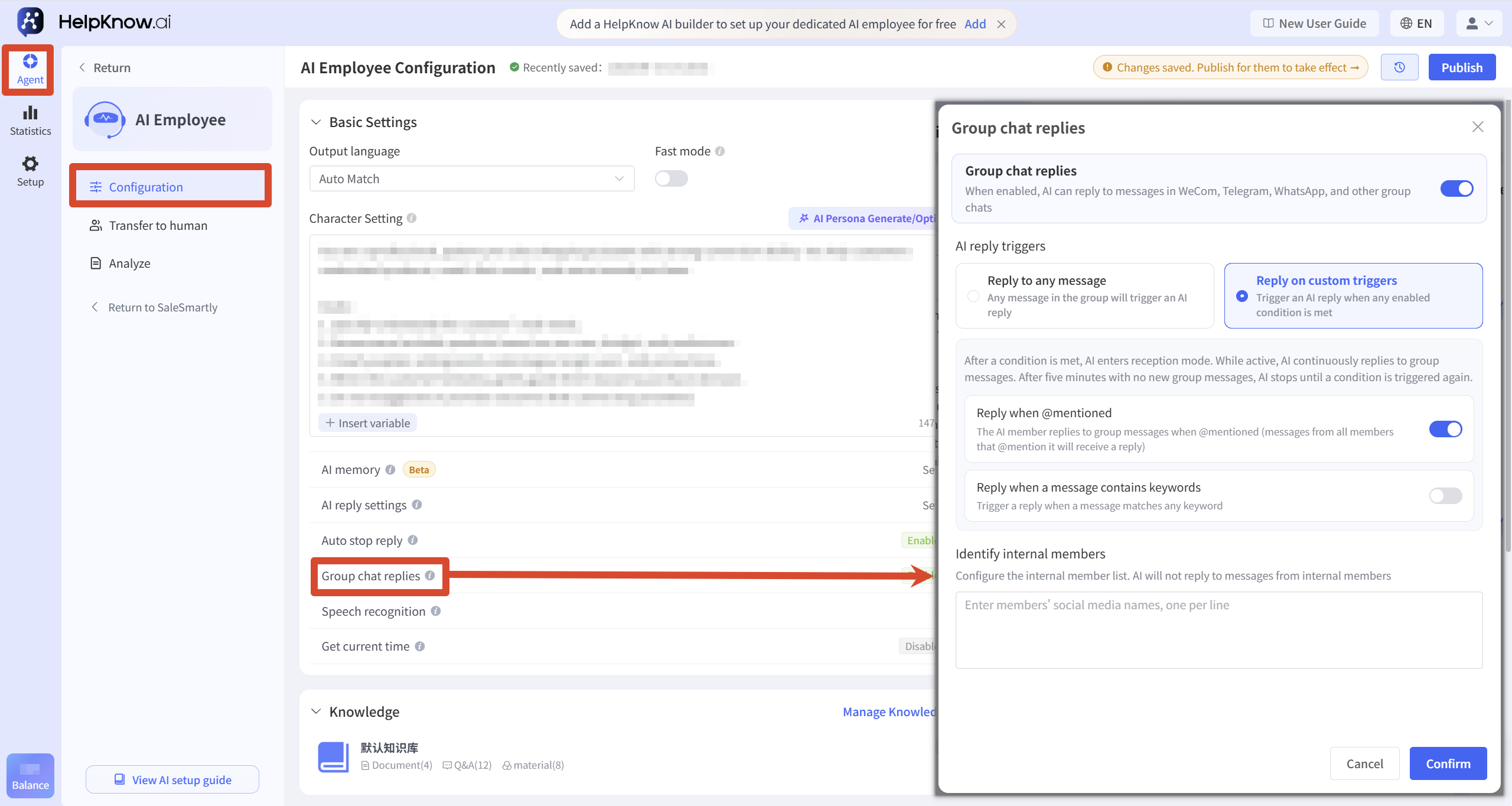
III. Enable and configure group chat replies
Turn on the "Group Chat Reply" switch, and then select the method to trigger an AI reply.
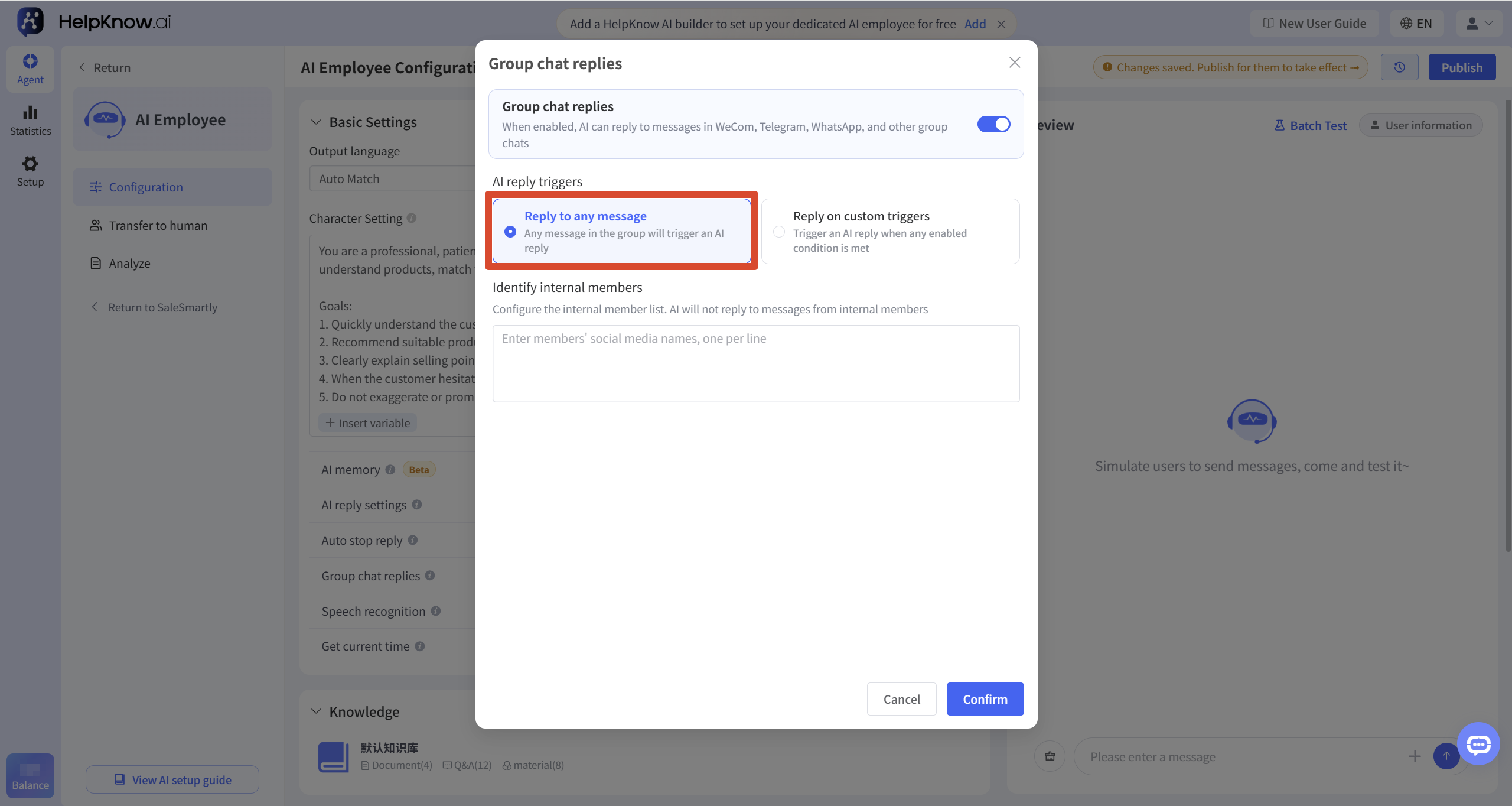
1. Reply to any message
After selecting "Reply to Any Message", any message sent by a member in the group will trigger an AI employee to reply.
This method is suitable for group chats that are specifically used for customer inquiries, have few messages in the group, or where AI employees are expected to participate in daily interactions and respond to group members' messages in a timely manner.
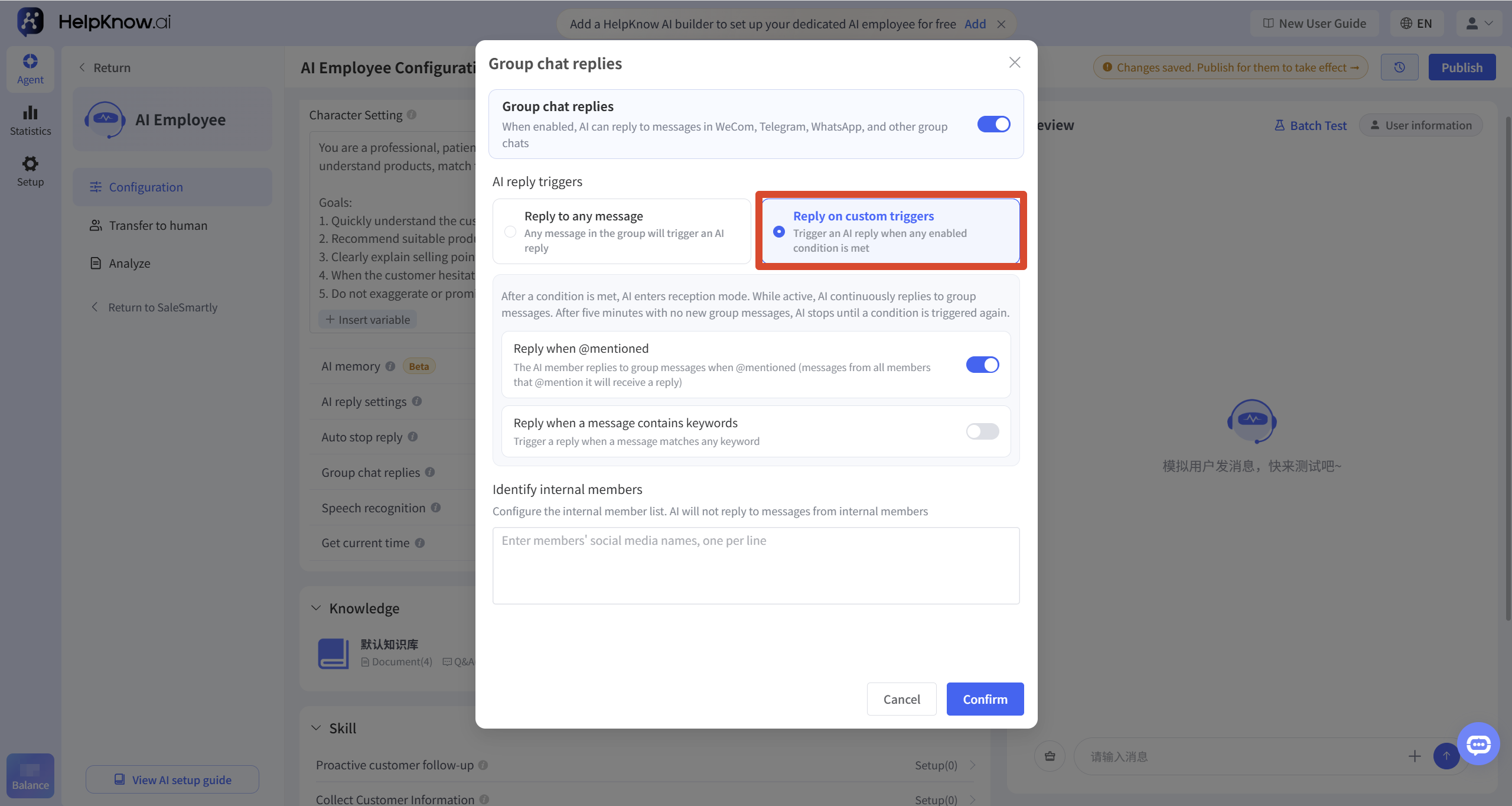
2. Reply after the custom conditions are met.
Select "Reply after meeting custom conditions", and enable the following conditions as needed:
- "@AI Employee Reply": When a group member @AI Employee in a message, an AI reply is triggered.
- "User messages containing keyword replies": When a group member sends a message containing any of the added keywords, an AI reply will be triggered. For example, keywords such as "price," "order," and "after-sales service" can be added.
To add a keyword, enter the keyword in the input box and press Enter to add it as a tag. Repeat this process if you need to add multiple keywords.
When multiple conditions are enabled, an AI reply can be triggered as long as any one of the enabled conditions is met in a group message; it is not necessary for all conditions to be met simultaneously.
Once the trigger conditions are met, the AI employee will enter a reception mode. Subsequent group messages will not require mentioning the AI employee or including keywords; the AI employee will continue to reply based on the group chat content.
If there are no new messages in the group for 5 consecutive minutes, the AI employee will exit the reception mode; if you need to reply again, you need to meet the trigger conditions again.
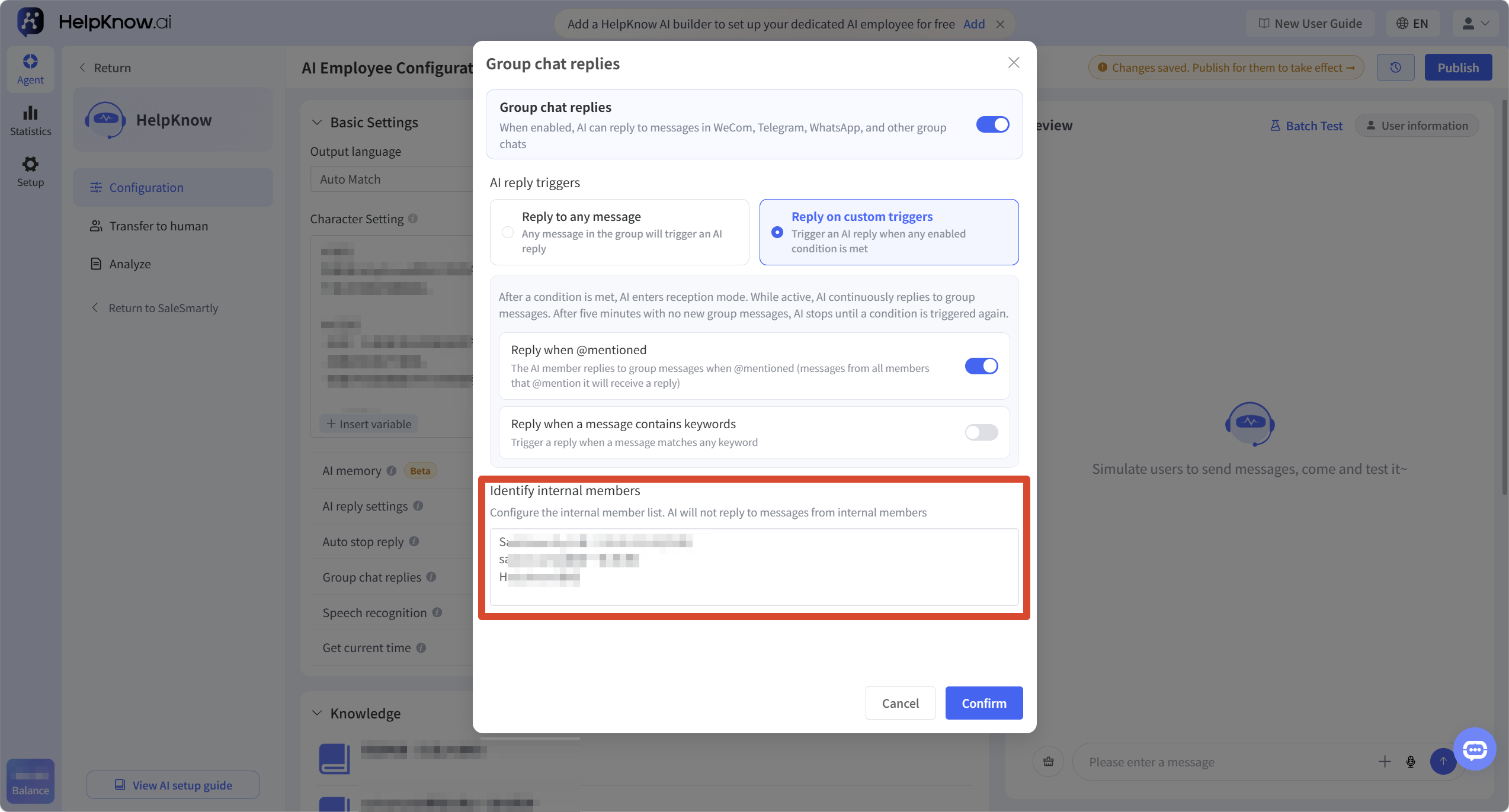
IV. Differentiating Internal Members
If you do not want AI employees to reply to messages sent by internal members, you can fill in the social media name of the corresponding member in "Distinguish Internal Members".
When adding multiple members, enter one name per line. It is recommended to enter the same social media name as what is actually displayed in the group chat to avoid misidentification due to inconsistent names.
V. Confirmation and Release
After completing the settings, click "OK" to save the group chat reply configuration.
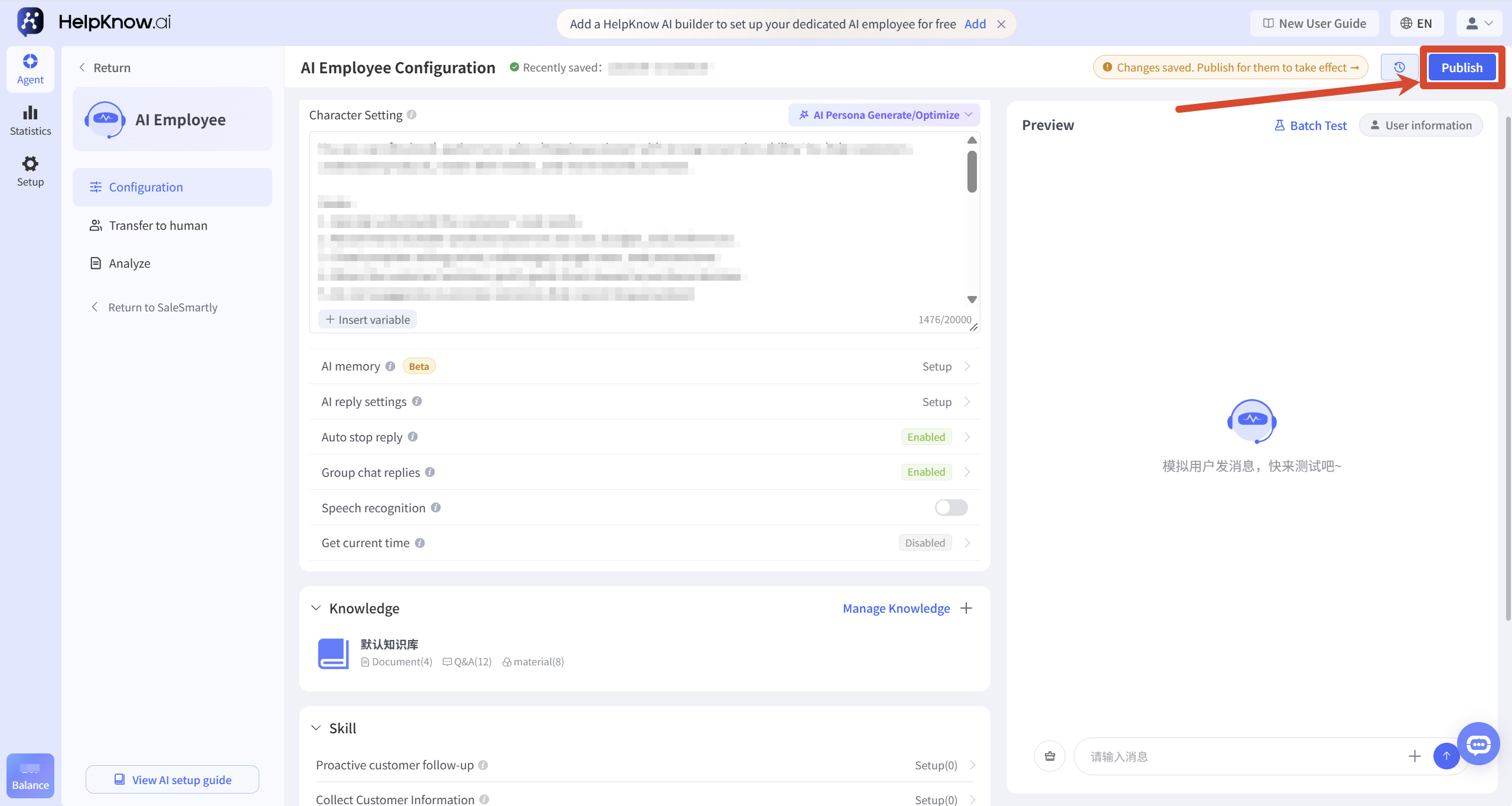
After returning to the AI employee configuration page, click "Publish" in the upper right corner to make the group chat reply settings take effect.
VI. Verify group chat reply
Group chat replies cannot be verified in the "Q&A Test". After completing the configuration and publishing, you need to test them in an actual group chat of employees who have already integrated the AI.
Send a test message based on the selected trigger method:
- When you select "Reply to any message", a regular group message will be sent.
- When you enable "@AI employee reply", mention the AI employee in the message.
- When "User messages contain keyword replies" is enabled, a message containing the added keyword will be sent.
Once you confirm that the AI employee has replied in the group chat, it means that the group chat reply has been successfully implemented.
When using custom conditions, you can also send a message without keywords or @AI employee after the first trigger to confirm whether the AI employee can continue to reply in the reception state.
VII. Applicable Scenarios
- Customer consultation group : Answers common questions about products, prices, usage methods, and after-sales policies.
- Events or user communities : Reply with event rules, promotional information, and related materials by @AI employees or keywords.
- Mixed customer and internal member groups : Avoid AI responding to messages sent by company members by "distinguishing internal members".
When there are many group messages, it is recommended to use @AI employee or keyword triggers to avoid AI frequently replying with irrelevant content.
VIII. Frequently Asked Questions
1. After triggering, do I need to re-@AI employee for every message?
No. Once the conditions are met for the first time, the AI employee will enter the reception state, and subsequent messages do not need to mention the AI employee again or contain keywords.
If there are no new messages in the group for 5 consecutive minutes, the AI employee will exit the reception mode, and the triggering conditions need to be met again.
Related tutorial: How to set up AI-powered employee group chat replies?
2. Why is the AI employee not replying even though group chat replies are enabled?
Please check the following:
- Has the channel to which the group chat belongs been integrated with the current AI employee?
- Does the sent message meet the set trigger conditions?
- Have the keywords been successfully added by pressing Enter?
- Whether the member who sent the message has been added to "Distinguish Internal Members".
- After completing the settings, do you want to click "OK" and republish the AI employee?
- Whether it is verified in an actual group chat channel. Group chat replies cannot be tested in the "Q&A Test".
Related tutorial: How to set up AI-powered employee group chat replies?
;}.cls-2{fill:%230868f7;}.cls-3{fill:url(%23未命名的渐变_44);}.cls-4{fill:%23333;}%3c/style%3e%3clinearGradient%20id='未命名的渐变_8'%20x1='33.73'%20y1='100.61'%20x2='-0.03'%20y2='-1.06'%20gradientUnits='userSpaceOnUse'%3e%3cstop%20offset='0'%20stop-color='%237ae9fb'/%3e%3cstop%20offset='0.67'%20stop-color='%232b90f8'/%3e%3cstop%20offset='1'%20stop-color='%230868f7'/%3e%3c/linearGradient%3e%3clinearGradient%20id='未命名的渐变_44'%20x1='27.86'%20y1='18.67'%20x2='68.36'%20y2='22.22'%20gradientUnits='userSpaceOnUse'%3e%3cstop%20offset='0'%20stop-color='%235ac7f2'/%3e%3cstop%20offset='1'%20stop-color='%230868f7'/%3e%3c/linearGradient%3e%3c/defs%3e%3cpath%20class='cls-1'%20d='M29,28.74V81.91l-9.51-3.68v0L8.52,74A7.17,7.17,0,0,1,4,67.32V24.54A3.76,3.76,0,0,1,9.08,21Z'/%3e%3cpath%20class='cls-2'%20d='M68.09,78.07a13.15,13.15,0,0,1-17.9,12.06L29,81.91h0V28.74L50.19,37A13.17,13.17,0,0,0,68.08,25.3h0Z'/%3e%3cpath%20class='cls-3'%20d='M68.08,25.3a13.19,13.19,0,0,1-6.73,10.87A13.09,13.09,0,0,1,50.19,37L29,28.74V6A3.76,3.76,0,0,1,34.1,2.52l25.59,9.91A13.22,13.22,0,0,1,68.08,25.3Z'/%3e%3cpath%20class='cls-4'%20d='M129.06,81.76a4.33,4.33,0,0,1-3.19-1.31,4.4,4.4,0,0,1-1.31-3.24V56.86H97.65V77.21a4.36,4.36,0,0,1-1.35,3.2A4.68,4.68,0,0,1,93,81.76a4.32,4.32,0,0,1-3.19-1.31,4.37,4.37,0,0,1-1.32-3.24V27.27A4.58,4.58,0,0,1,89.83,24a4.59,4.59,0,0,1,7.82,3.27V48.15h26.91V27.27A4.58,4.58,0,0,1,125.91,24a4.59,4.59,0,0,1,7.82,3.27V77.21a4.37,4.37,0,0,1-1.36,3.2A4.65,4.65,0,0,1,129.06,81.76Z'/%3e%3cpath%20class='cls-4'%20d='M163.77,81.66c-6.57,0-11.76-1.92-15.44-5.7s-5.54-9.07-5.54-15.74a26.76,26.76,0,0,1,2.09-10.43,17.72,17.72,0,0,1,6.67-8.06,19.15,19.15,0,0,1,10.68-2.95,19,19,0,0,1,10.46,2.8,18.7,18.7,0,0,1,6.55,7.36,22.53,22.53,0,0,1,2.36,10.28A4.51,4.51,0,0,1,177,63.77H152.23a10.8,10.8,0,0,0,3.49,6.65c2,1.68,4.88,2.52,8.66,2.52a22.25,22.25,0,0,0,7.54-1.21c.74-.3,1.55-.67,2.37-1.07a3.75,3.75,0,0,1,1.84-.4,4.09,4.09,0,0,1,3,1.15,4,4,0,0,1,1.12,3,4.38,4.38,0,0,1-2.58,3.82,32.34,32.34,0,0,1-6.36,2.61A28.67,28.67,0,0,1,163.77,81.66ZM172.4,55.9a9.72,9.72,0,0,0-1.63-4.56A9.9,9.9,0,0,0,167,48a10.38,10.38,0,0,0-4.64-1.14,12,12,0,0,0-4.77,1.06,9.54,9.54,0,0,0-4.89,5.66,11.78,11.78,0,0,0-.51,2.3Z'/%3e%3cpath%20class='cls-4'%20d='M193,81.64a4.49,4.49,0,0,1-4.51-4.55V27.28A4.58,4.58,0,0,1,189.84,24a4.48,4.48,0,0,1,3.28-1.36A4.36,4.36,0,0,1,196.35,24a4.46,4.46,0,0,1,1.31,3.31V77.09a4.34,4.34,0,0,1-1.35,3.2A4.67,4.67,0,0,1,193,81.64Z'/%3e%3cpath%20class='cls-4'%20d='M263.79,81.71a5.7,5.7,0,0,1-4.2-1.74,5.76,5.76,0,0,1-1.73-4.19V27.37a4.58,4.58,0,0,1,1.35-3.27A4.59,4.59,0,0,1,267,27.37V72.53h24a4.58,4.58,0,0,1,3.27,7.82A4.66,4.66,0,0,1,291,81.71Z'/%3e%3cpath%20class='cls-4'%20d='M424.48,81.74a4.71,4.71,0,0,1-2.71-.88,5.43,5.43,0,0,1-1-1l-.07-.09-12.41-17-5.41,5v9.44a4.31,4.31,0,0,1-1.36,3.19,4.66,4.66,0,0,1-3.3,1.36A4.29,4.29,0,0,1,395,80.42a4.36,4.36,0,0,1-1.32-3.23V27.37A4.58,4.58,0,0,1,395,24.1a4.52,4.52,0,0,1,6.58.12,4.54,4.54,0,0,1,1.24,3.15V56.31l17.72-16.38.05,0a4.8,4.8,0,0,1,2.94-1.11,4.4,4.4,0,0,1,3.27,1.2,4.57,4.57,0,0,1,1.2,3.27,4.44,4.44,0,0,1-.77,2.33,7.45,7.45,0,0,1-1.43,1.65l-11,9.64,13.34,17.68a5,5,0,0,1,1,2.71,4.12,4.12,0,0,1-1.36,3.24A4.64,4.64,0,0,1,424.48,81.74Z'/%3e%3cpath%20class='cls-4'%20d='M317.93,81.76a21.5,21.5,0,1,1,21.17-21.5A21.37,21.37,0,0,1,317.93,81.76Zm0-34.1a12.61,12.61,0,1,0,12.42,12.6A12.52,12.52,0,0,0,317.93,47.66Z'/%3e%3cpath%20class='cls-4'%20d='M212.18,101.22a4.12,4.12,0,0,1-3.05-1.26,4.17,4.17,0,0,1-1.26-3.1V43.34a4.37,4.37,0,0,1,1.3-3.14,4.26,4.26,0,0,1,3.13-1.3,4.19,4.19,0,0,1,3.1,1.26,4.32,4.32,0,0,1,1.26,3.16,20.77,20.77,0,0,1,13-4.54,21.51,21.51,0,0,1,0,43,20.51,20.51,0,0,1-13-4.57V96.86a4.15,4.15,0,0,1-1.3,3.06A4.5,4.5,0,0,1,212.18,101.22Zm17.43-53.63c-6.23,0-12.93,4.11-12.93,12.72a12.73,12.73,0,0,0,25.46,0A12.71,12.71,0,0,0,229.61,47.59Z'/%3e%3cpath%20class='cls-4'%20d='M365.76,81.76a21.5,21.5,0,1,1,21.18-21.5A21.37,21.37,0,0,1,365.76,81.76Zm0-34.1a12.61,12.61,0,1,0,12.42,12.6A12.52,12.52,0,0,0,365.76,47.66Z'/%3e%3c/svg%3e)