
How to use materials to get AI employees to reply with images, audio/video files, and attachments?
I. Function Introduction
The "Materials" section is used for centralized management of images, videos, audio files, and attachments that require direct responses from AI employees based on user questions. You can use material groups to categorize and manage files, and by accurately filling in the material names and descriptions, you can help AI employees match and respond with relevant content in appropriate scenarios.
If the knowledge base contains images, audio/video files, or attachments that need to be sent directly to users by AI employees, it is recommended to add them through the "Materials" section first. Compared to inserting files into "Documents" or "Q&A," "Materials" is more suitable for managing files that require independent matching and responses from AI employees.
Once the knowledge base has been added to the AI staff, the materials will take effect immediately after being saved, without the need to redeploy the AI staff.
This article's link: "How to use materials to get AI employees to reply with images, audio/video files, and attachments?"
II. Go to "Materials" and create a materials group
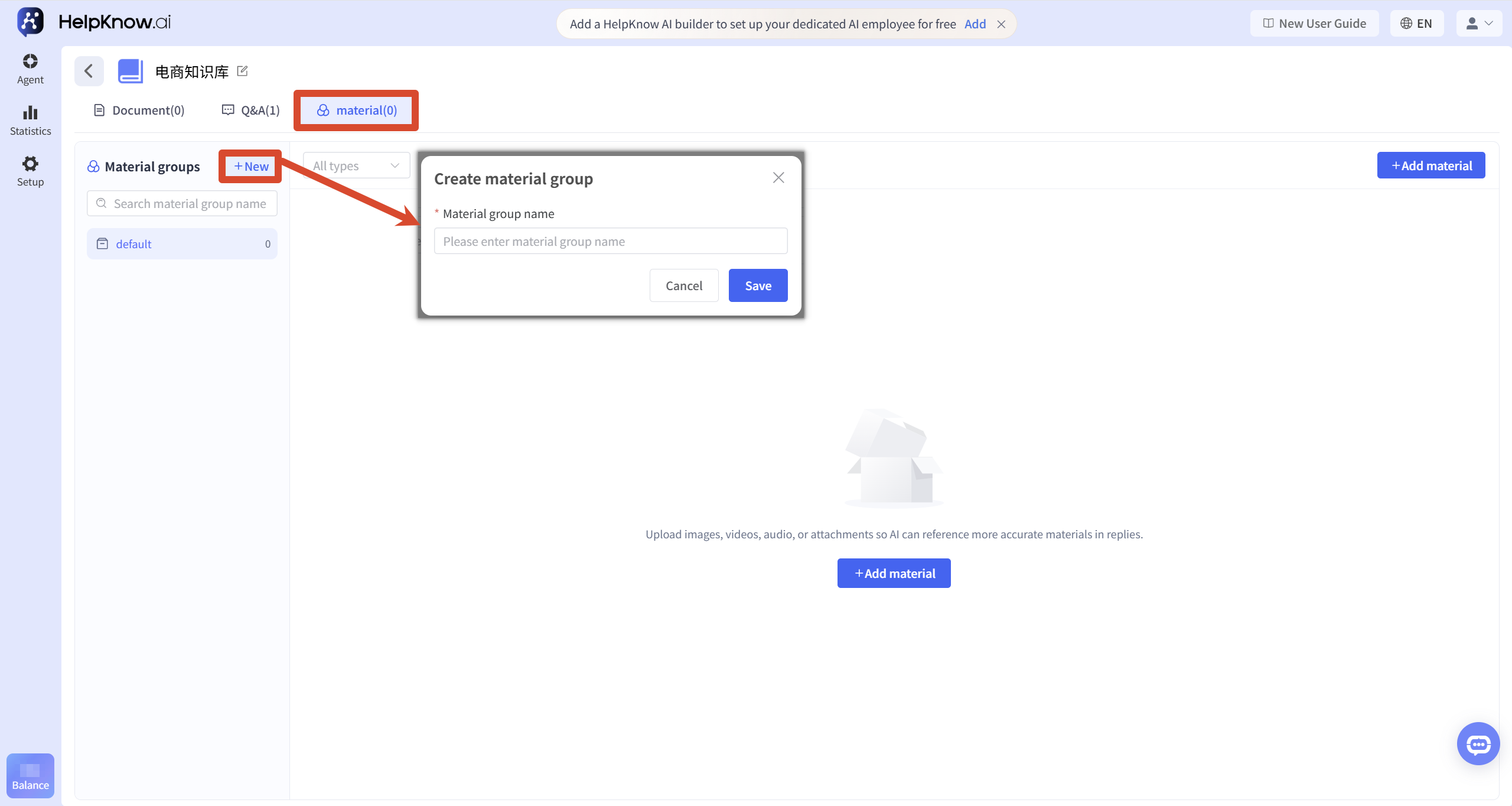
Enter the knowledge base you need and click the "Materials" tab at the top.
In the "Material Groups" area on the left, click "New", enter the name of the material group, and then click "Save".
You can group materials according to product, model, or purpose for easier searching and management later. For example:
- Product categories: Bicycles, Clothing, Electronics
- Product Models: A100, B200, Pro Max
- Material usage: Product images, operation videos, product manuals
Each media group can contain a maximum of 100 media items. Once the limit is reached, you need to create a new media group before you can continue uploading.
III. Upload and complete the material information
1. Select and upload the file
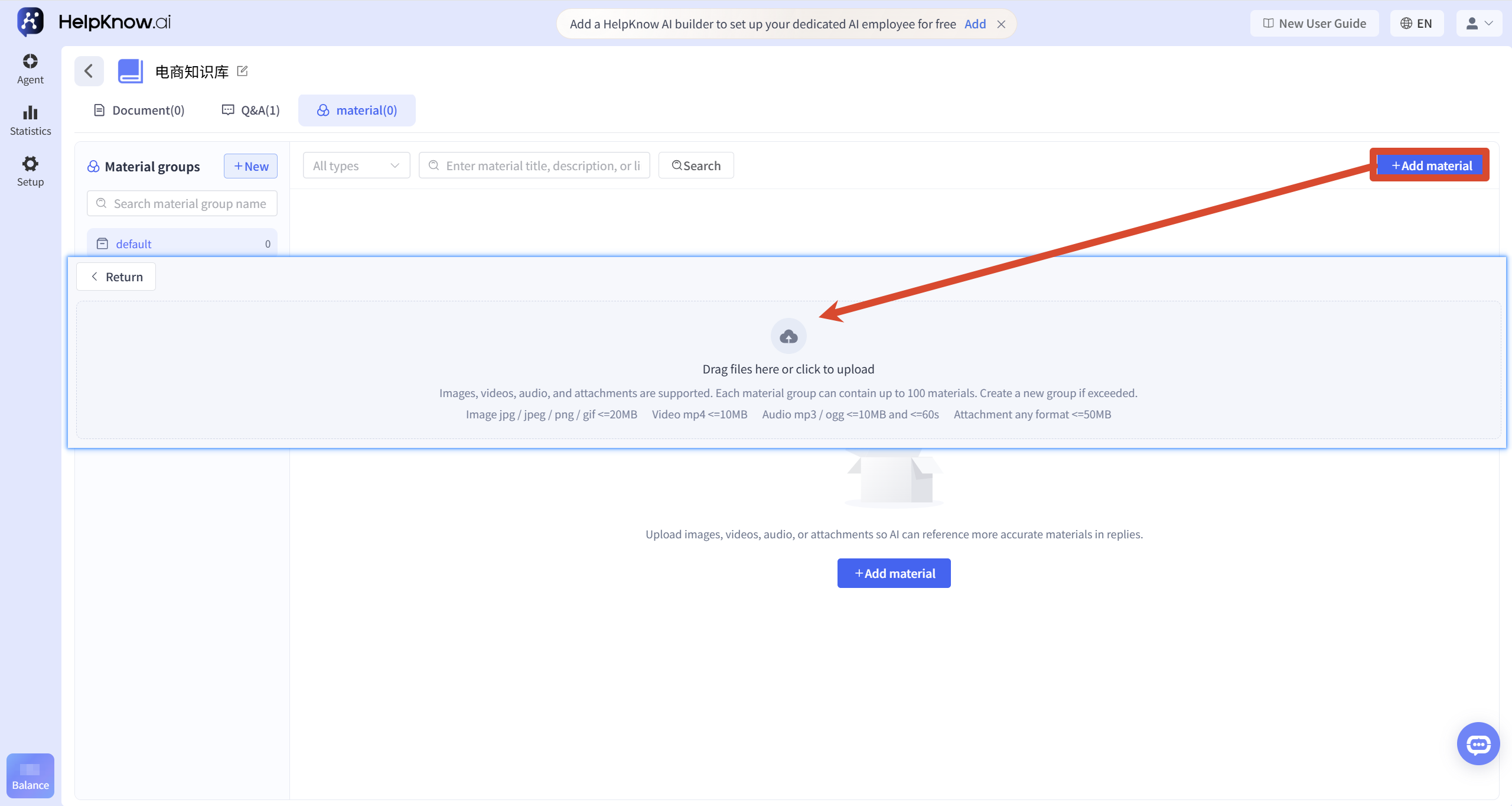
Select the resource set you want to use and click "Add Resource".
You can drag files to the upload area, or click on the upload area to select files.
Before uploading, please ensure that the file meets the following requirements:
- Images: Supports JPG, JPEG, PNG, and GIF formats, with a single file not exceeding 20 MB.
- Video: Supports MP4 format, single file size not exceeding 10 MB.
- Audio: Supports MP3 and OGG formats, with a single file not exceeding 10 MB and a duration not exceeding 60 seconds.
- Attachments: No file format restrictions, but each file must not exceed 50 MB.
2. Fill in the material name and description.
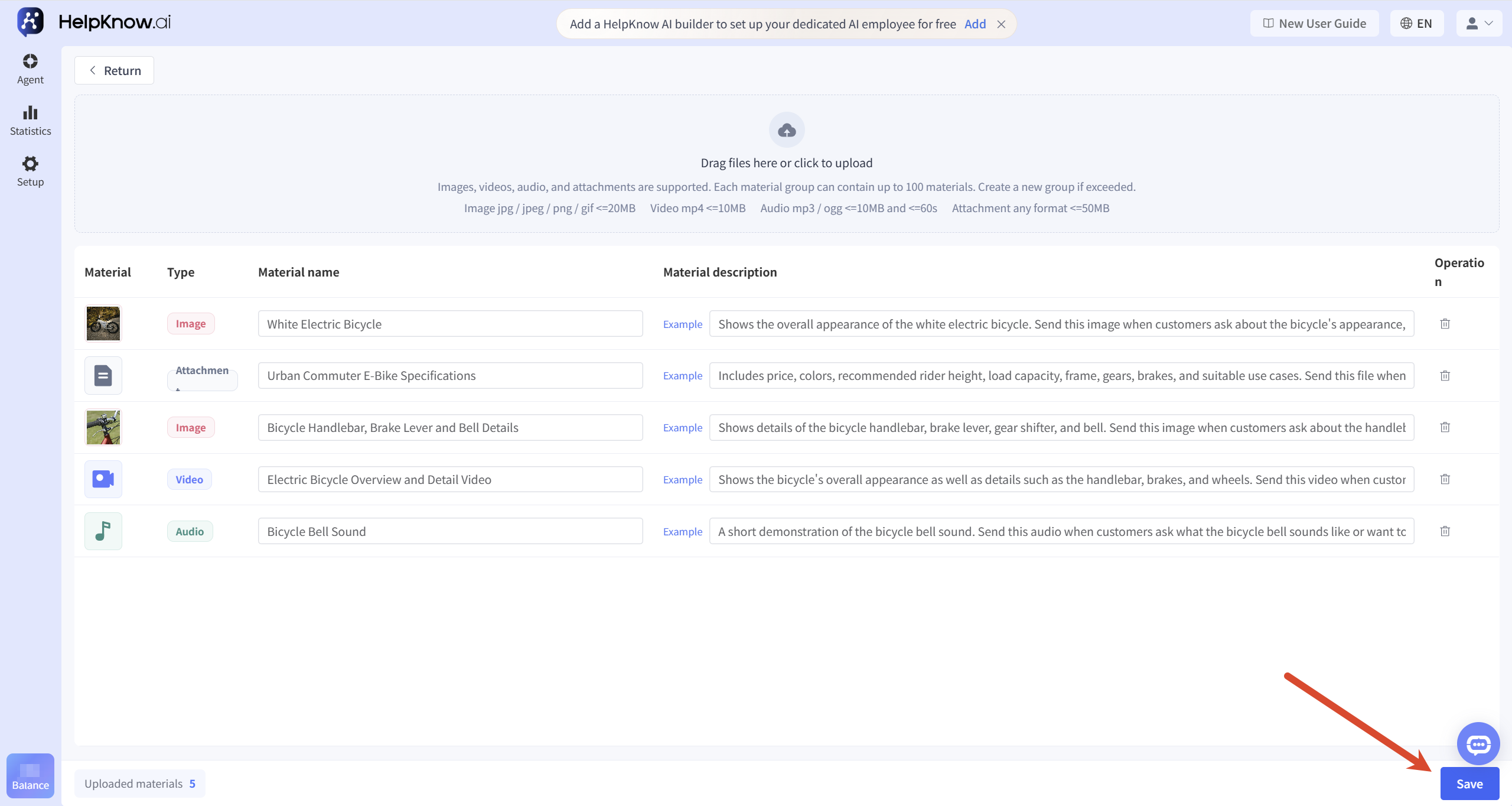
After uploading the files, you need to fill in the material name for each file.
The material name is a required field. It should directly describe the specific content of the material and avoid using difficult-to-identify names such as "Image 1", "Video 2", or "File 3".
The description of the material is optional. It is recommended to provide details about the material's content, target audience, and usage scenario to help the AI employee more accurately determine when to respond.
If the same set of materials contains multiple similar products, it is recommended to clearly specify the product name, model, color, or purpose in the name and description to avoid AI employees making matching errors.
After confirming that the material information is correct, click "Save". If an incorrect file was uploaded, you can delete it before saving.
IV. Viewing and Managing Materials
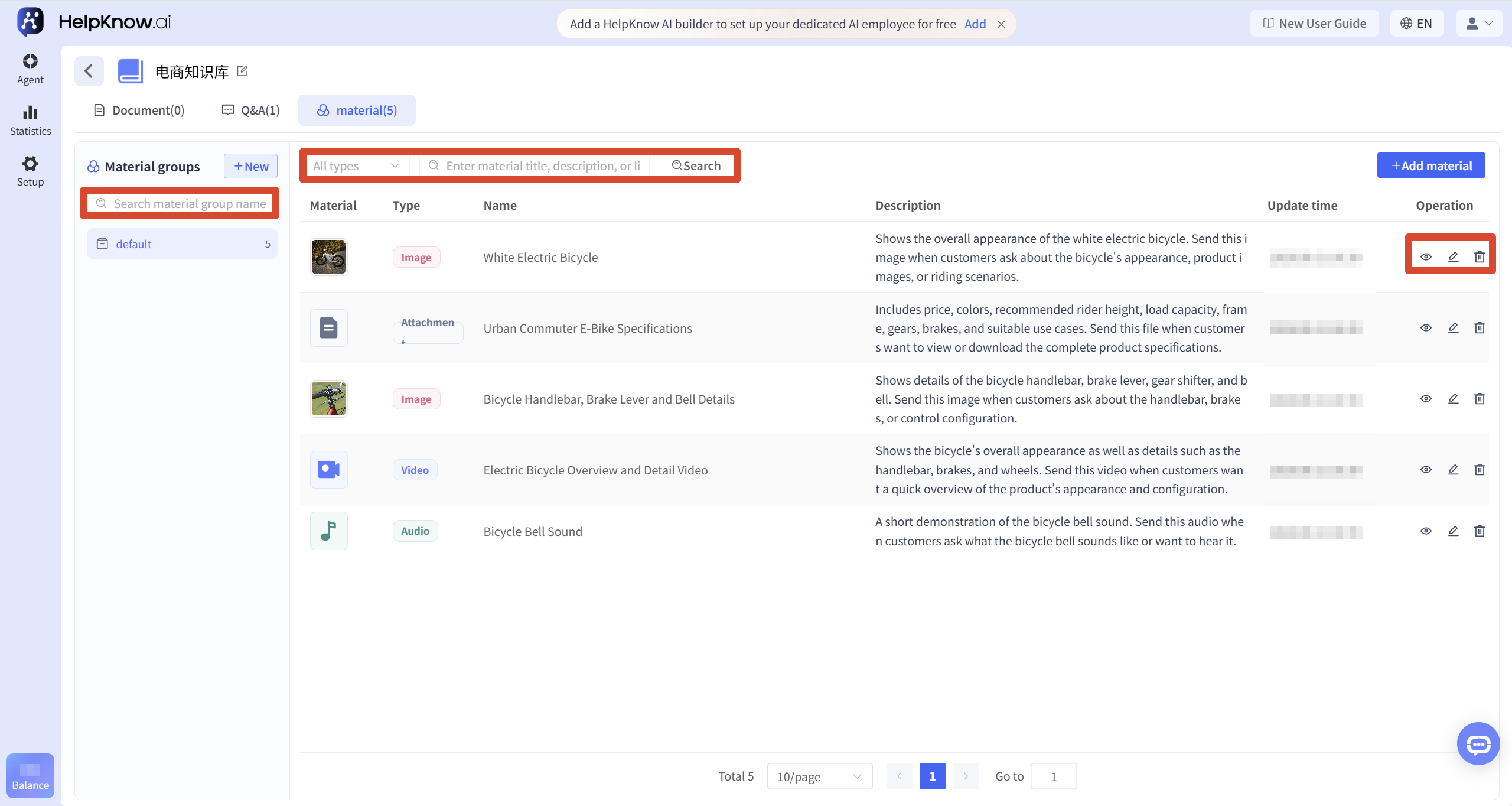
After saving, you can view the uploaded materials in the materials group.
The resource list will display the resource type, name, and description, and provide editing and deletion options.
When there are many materials, you can search for them in the following ways:
- Search for the name of the material group on the left.
- Filter by material type: image, video, audio, or attachment.
- Enter the material name, description, or link in the search box.
If the content, applicable scenarios, or product information of the materials change, you can edit the material name and description in a timely manner. After deleting the materials, the AI employee will no longer be able to respond to them.
V. Testing the Response Effectiveness of AI Employees
Before testing, please ensure that the knowledge base has been added to the AI employees who need to use it.
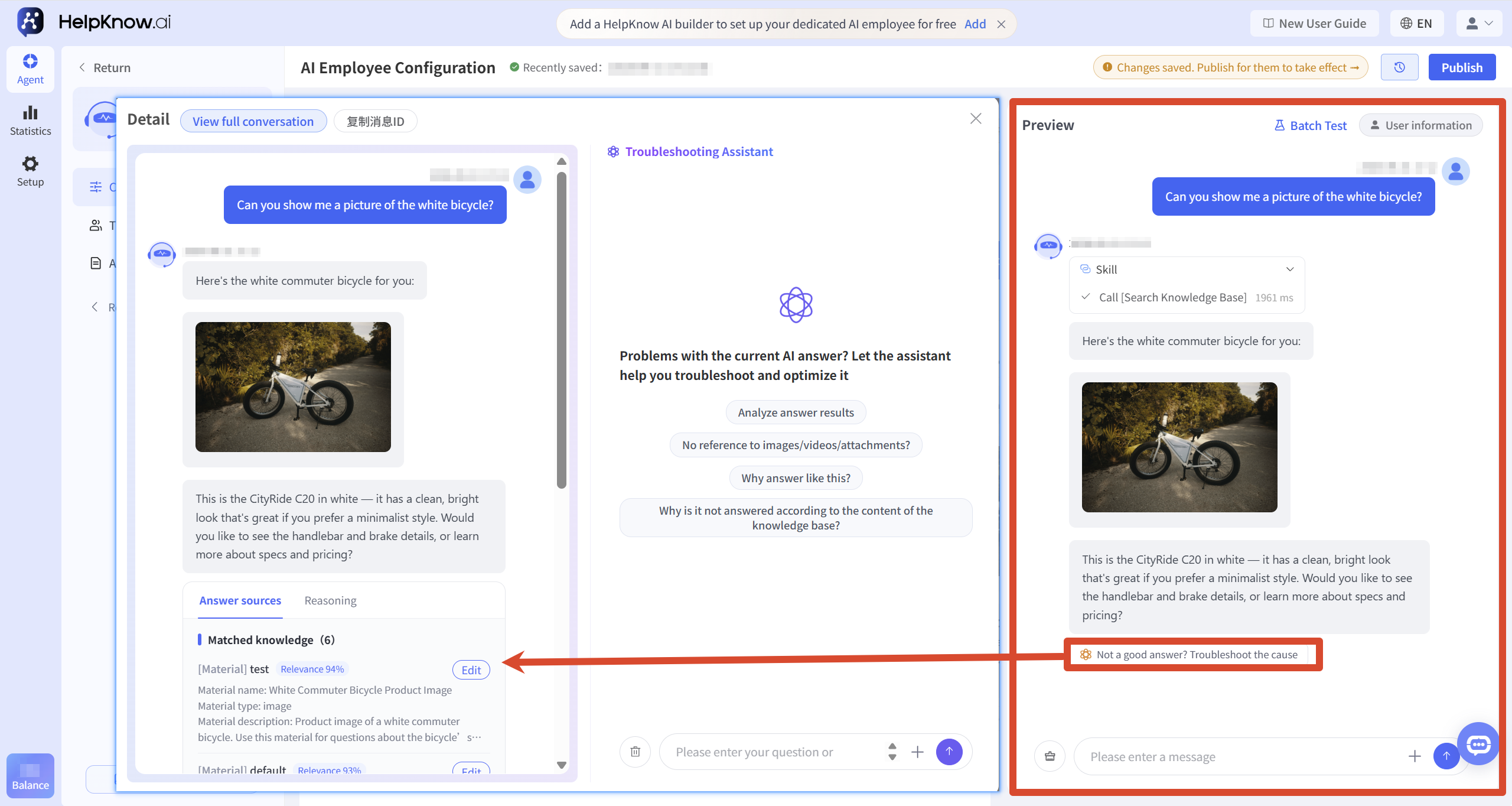
Enter the AI employee configuration page, and in the "Q&A Test" area on the right, enter questions related to the materials to check if the correct images, videos, audio, or attachments appear in the AI employee's response.
If the AI employee does not provide the expected materials or provides incorrect materials, you can click "Poor answer? Check the reason" below the answer to use the troubleshooting assistant to see the knowledge source that the answer hit.
In the "Knowledge Sources" section, you can check if the corresponding material has been matched. If not, you can adjust the material name and description and retest; if it has been matched but the response still does not meet expectations, you can continue to use the troubleshooting assistant to view other knowledge sources and the reasons for the answers.
VI. Applicable Scenarios
- Product Display : When users inquire about the appearance, color, style, or details of a product, the system will respond with corresponding product images to help users understand the product more intuitively.
- Instructions : When it is difficult to explain the installation steps, usage methods, or functional effects through text alone, please reply with relevant operation videos or demonstration files.
- Audio preview : When users need to understand the product's sound effects, voice content, or listening experience, they can reply with the corresponding audio material.
- Document delivery : When users request a quotation, parameter table, size table, user manual or after-sales application form, reply with the corresponding attachments.
- Multi-product or multi-model management : When the business involves multiple products, models, colors or versions, the materials can be categorized and managed through material groups to help AI employees match and respond with the correct materials.
VII. Frequently Asked Questions
1. Why didn't the AI employee respond to the materials?
The AI employee won't send the file in every reply just because the material has already been uploaded. Instead, it will determine whether to reply with the appropriate material based on how well the user's question matches the material's name, description, and applicable scenario.
Please check the following:
- Has this knowledge base been added to the target AI employee?
- Have you uploaded the materials and clicked "Save"?
- Does the title of the material accurately describe its content?
- Does the description of the material clearly state the target audience and usage scenarios?
- Is the user's question related to the content in the material name or description?
- Has the material been deleted, or has the knowledge base it belongs to been removed from the AI staff?
If the material title is too simple, such as "Image 1," "Product Image," or "Instruction Manual," the AI employee may find it difficult to determine in what situations a response should be given. It is recommended to use more specific titles and include the applicable scenario in the description. For example, change "Product Image" to "Front View of a White Electric Bicycle."
If you still don't receive the expected materials, you can click "Poor answer? Check the reason" below the answer in the "Q&A Test" to see if your answer matched the corresponding materials. If it didn't match, you can check the knowledge base and material configuration based on the results, or adjust the material name and description and retest.
Related tutorials:
- "How to use materials to get AI employees to reply with images, audio/video files, and attachments?"
- How to Troubleshoot When AI Employee Responses Do Not Meet Expectations?
2. Why did the AI employee respond with incorrect content?
When multiple materials have overly similar names or descriptions, AI employees may not be able to distinguish them accurately.
It is recommended to specify the product, model, color, version, purpose, or usage scenario corresponding to the material in the name and description respectively.
For example, it's not recommended to name multiple images as "bicycle pictures"; instead, name them separately as follows:
- Front view of a white electric bicycle
- Side view of a black mountain bike
- Blue children's bicycle folding effect picture
After making the adjustments, you can check the response again in the "Q&A Test".
Related tutorials:
- "How to use materials to get AI employees to reply with images, audio/video files, and attachments?"
- How to Troubleshoot When AI Employee Responses Do Not Meet Expectations?
3. What is the difference between "Materials" and inserting files in "Document" or "Q&A"?
"Materials" are suitable for centralized management of images, videos, audio, or attachments that AI employees can independently match and respond to based on user questions.
Images, audio, video, or attachments in "Documents" and "Q&A" are part of the knowledge base corpus. AI employees can read and combine them with relevant content for understanding, but there is no guarantee that they will accurately cite the corresponding documents when answering questions.
Therefore, if you need AI employees to send product images, operation videos, audio samples, price lists, or user manuals to users, it is recommended to use the "Materials" feature to add them.
Related tutorials:
- "How to use materials to get AI employees to reply with images, audio/video files, and attachments?"
- How to add a knowledge base for AI employees?
VIII. Related Recommendations
;}.cls-2{fill:%230868f7;}.cls-3{fill:url(%23未命名的渐变_44);}.cls-4{fill:%23333;}%3c/style%3e%3clinearGradient%20id='未命名的渐变_8'%20x1='33.73'%20y1='100.61'%20x2='-0.03'%20y2='-1.06'%20gradientUnits='userSpaceOnUse'%3e%3cstop%20offset='0'%20stop-color='%237ae9fb'/%3e%3cstop%20offset='0.67'%20stop-color='%232b90f8'/%3e%3cstop%20offset='1'%20stop-color='%230868f7'/%3e%3c/linearGradient%3e%3clinearGradient%20id='未命名的渐变_44'%20x1='27.86'%20y1='18.67'%20x2='68.36'%20y2='22.22'%20gradientUnits='userSpaceOnUse'%3e%3cstop%20offset='0'%20stop-color='%235ac7f2'/%3e%3cstop%20offset='1'%20stop-color='%230868f7'/%3e%3c/linearGradient%3e%3c/defs%3e%3cpath%20class='cls-1'%20d='M29,28.74V81.91l-9.51-3.68v0L8.52,74A7.17,7.17,0,0,1,4,67.32V24.54A3.76,3.76,0,0,1,9.08,21Z'/%3e%3cpath%20class='cls-2'%20d='M68.09,78.07a13.15,13.15,0,0,1-17.9,12.06L29,81.91h0V28.74L50.19,37A13.17,13.17,0,0,0,68.08,25.3h0Z'/%3e%3cpath%20class='cls-3'%20d='M68.08,25.3a13.19,13.19,0,0,1-6.73,10.87A13.09,13.09,0,0,1,50.19,37L29,28.74V6A3.76,3.76,0,0,1,34.1,2.52l25.59,9.91A13.22,13.22,0,0,1,68.08,25.3Z'/%3e%3cpath%20class='cls-4'%20d='M129.06,81.76a4.33,4.33,0,0,1-3.19-1.31,4.4,4.4,0,0,1-1.31-3.24V56.86H97.65V77.21a4.36,4.36,0,0,1-1.35,3.2A4.68,4.68,0,0,1,93,81.76a4.32,4.32,0,0,1-3.19-1.31,4.37,4.37,0,0,1-1.32-3.24V27.27A4.58,4.58,0,0,1,89.83,24a4.59,4.59,0,0,1,7.82,3.27V48.15h26.91V27.27A4.58,4.58,0,0,1,125.91,24a4.59,4.59,0,0,1,7.82,3.27V77.21a4.37,4.37,0,0,1-1.36,3.2A4.65,4.65,0,0,1,129.06,81.76Z'/%3e%3cpath%20class='cls-4'%20d='M163.77,81.66c-6.57,0-11.76-1.92-15.44-5.7s-5.54-9.07-5.54-15.74a26.76,26.76,0,0,1,2.09-10.43,17.72,17.72,0,0,1,6.67-8.06,19.15,19.15,0,0,1,10.68-2.95,19,19,0,0,1,10.46,2.8,18.7,18.7,0,0,1,6.55,7.36,22.53,22.53,0,0,1,2.36,10.28A4.51,4.51,0,0,1,177,63.77H152.23a10.8,10.8,0,0,0,3.49,6.65c2,1.68,4.88,2.52,8.66,2.52a22.25,22.25,0,0,0,7.54-1.21c.74-.3,1.55-.67,2.37-1.07a3.75,3.75,0,0,1,1.84-.4,4.09,4.09,0,0,1,3,1.15,4,4,0,0,1,1.12,3,4.38,4.38,0,0,1-2.58,3.82,32.34,32.34,0,0,1-6.36,2.61A28.67,28.67,0,0,1,163.77,81.66ZM172.4,55.9a9.72,9.72,0,0,0-1.63-4.56A9.9,9.9,0,0,0,167,48a10.38,10.38,0,0,0-4.64-1.14,12,12,0,0,0-4.77,1.06,9.54,9.54,0,0,0-4.89,5.66,11.78,11.78,0,0,0-.51,2.3Z'/%3e%3cpath%20class='cls-4'%20d='M193,81.64a4.49,4.49,0,0,1-4.51-4.55V27.28A4.58,4.58,0,0,1,189.84,24a4.48,4.48,0,0,1,3.28-1.36A4.36,4.36,0,0,1,196.35,24a4.46,4.46,0,0,1,1.31,3.31V77.09a4.34,4.34,0,0,1-1.35,3.2A4.67,4.67,0,0,1,193,81.64Z'/%3e%3cpath%20class='cls-4'%20d='M263.79,81.71a5.7,5.7,0,0,1-4.2-1.74,5.76,5.76,0,0,1-1.73-4.19V27.37a4.58,4.58,0,0,1,1.35-3.27A4.59,4.59,0,0,1,267,27.37V72.53h24a4.58,4.58,0,0,1,3.27,7.82A4.66,4.66,0,0,1,291,81.71Z'/%3e%3cpath%20class='cls-4'%20d='M424.48,81.74a4.71,4.71,0,0,1-2.71-.88,5.43,5.43,0,0,1-1-1l-.07-.09-12.41-17-5.41,5v9.44a4.31,4.31,0,0,1-1.36,3.19,4.66,4.66,0,0,1-3.3,1.36A4.29,4.29,0,0,1,395,80.42a4.36,4.36,0,0,1-1.32-3.23V27.37A4.58,4.58,0,0,1,395,24.1a4.52,4.52,0,0,1,6.58.12,4.54,4.54,0,0,1,1.24,3.15V56.31l17.72-16.38.05,0a4.8,4.8,0,0,1,2.94-1.11,4.4,4.4,0,0,1,3.27,1.2,4.57,4.57,0,0,1,1.2,3.27,4.44,4.44,0,0,1-.77,2.33,7.45,7.45,0,0,1-1.43,1.65l-11,9.64,13.34,17.68a5,5,0,0,1,1,2.71,4.12,4.12,0,0,1-1.36,3.24A4.64,4.64,0,0,1,424.48,81.74Z'/%3e%3cpath%20class='cls-4'%20d='M317.93,81.76a21.5,21.5,0,1,1,21.17-21.5A21.37,21.37,0,0,1,317.93,81.76Zm0-34.1a12.61,12.61,0,1,0,12.42,12.6A12.52,12.52,0,0,0,317.93,47.66Z'/%3e%3cpath%20class='cls-4'%20d='M212.18,101.22a4.12,4.12,0,0,1-3.05-1.26,4.17,4.17,0,0,1-1.26-3.1V43.34a4.37,4.37,0,0,1,1.3-3.14,4.26,4.26,0,0,1,3.13-1.3,4.19,4.19,0,0,1,3.1,1.26,4.32,4.32,0,0,1,1.26,3.16,20.77,20.77,0,0,1,13-4.54,21.51,21.51,0,0,1,0,43,20.51,20.51,0,0,1-13-4.57V96.86a4.15,4.15,0,0,1-1.3,3.06A4.5,4.5,0,0,1,212.18,101.22Zm17.43-53.63c-6.23,0-12.93,4.11-12.93,12.72a12.73,12.73,0,0,0,25.46,0A12.71,12.71,0,0,0,229.61,47.59Z'/%3e%3cpath%20class='cls-4'%20d='M365.76,81.76a21.5,21.5,0,1,1,21.18-21.5A21.37,21.37,0,0,1,365.76,81.76Zm0-34.1a12.61,12.61,0,1,0,12.42,12.6A12.52,12.52,0,0,0,365.76,47.66Z'/%3e%3c/svg%3e)