
How to optimize the AI employee's responses if they are ineffective?
When AI employees give incorrect answers, incomplete content, irrelevant responses, or when their tone, format, or processing procedures do not meet expectations, you can first use the troubleshooting assistant to understand the cause and obtain optimization suggestions, and then adjust the corresponding configuration according to the type of problem.
The troubleshooting assistant will not automatically modify the AI employee configuration. For detailed usage instructions, please refer to: "How to Troubleshoot When AI Employee Responses Do Not Meet Expectations?"
Link to this article: "How to optimize the AI employee's responses if they are ineffective?"
I. Adjust configuration according to problem type
1. The answer is incorrect or incomplete.
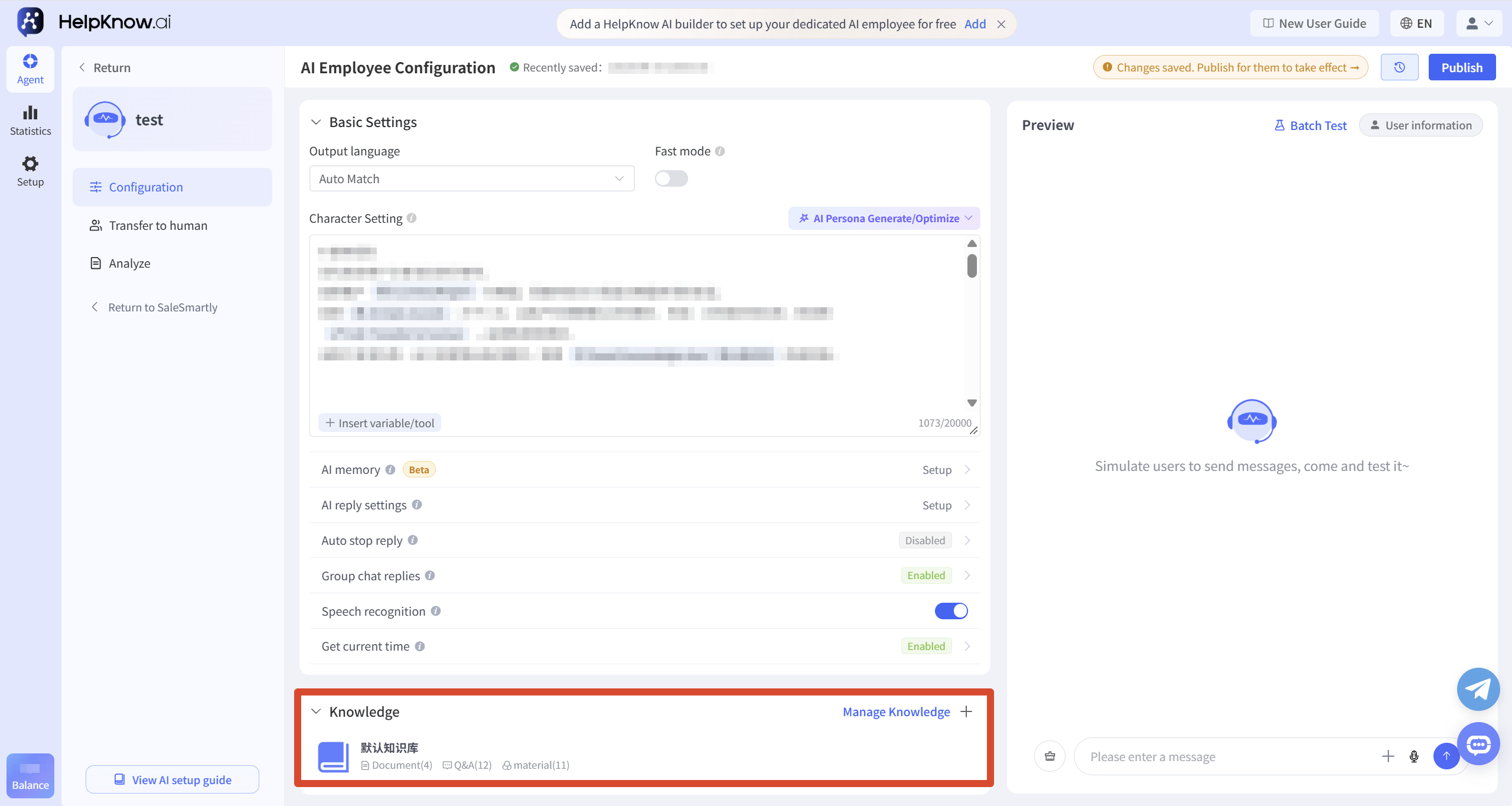
If product information, service policies, or standard answers are incorrect, the knowledge base should be checked to see if the correct content is missing, or if there is any outdated, duplicate, or conflicting content.
For questions that require a unified standard, such as pricing, service policies, and operating rules, clear standard answers can be set through the "Q&A" section.
Data such as order status, inventory, and logistics, which are constantly changing, should be queried through plugins or tools. It is not recommended to write fixed query results into the knowledge base.
Related tutorial: "How to Add a Knowledge Base for AI Employees?"
2. The tone, format, or processing flow does not meet the requirements.
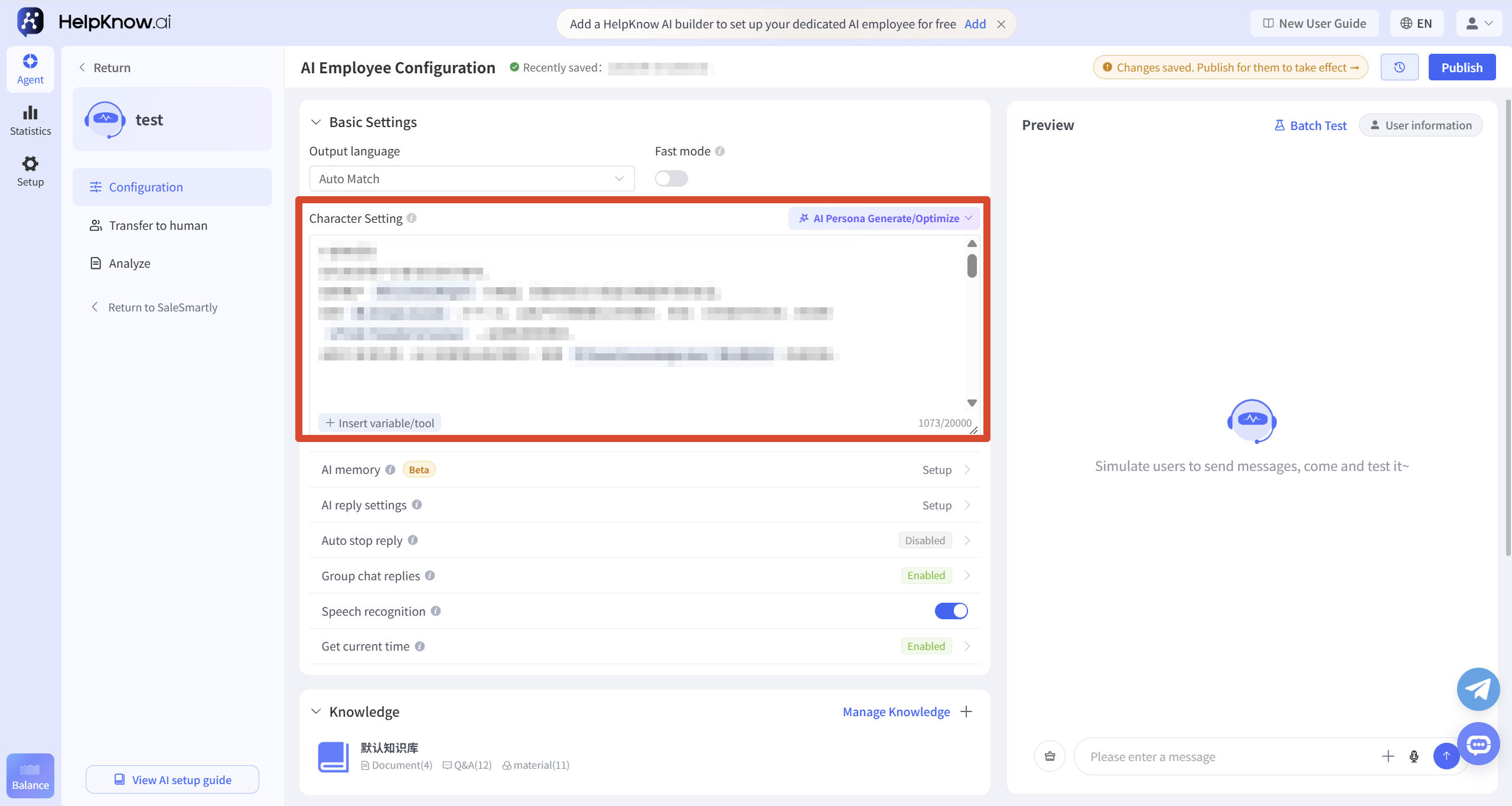
If the core content of the AI employee's answer is basically correct, but the tone, format, or processing flow does not meet the requirements, it can be adjusted by optimizing the persona.
You can clearly specify in the persona how the AI employee should answer questions, and what content or behaviors are not allowed.
For example, if you don't want emojis in your reply, you can specify:
Do not use emojis in your answers.
If you want AI employees to collect user information in specific scenarios, you can specify the triggering conditions, information format, and subsequent processing methods. For example:
When a user reports a damaged product, first ask for the order number and details of the damage. If the user has already provided the order number, do not ask again; after collecting all the information, inform the user of the subsequent handling procedures.
If you are unsure how to write it, you can click "AI Generate/Optimize" in the character description text box, briefly describe the desired improvement, and let AI generate or optimize the current character description.
Before applying the generated or optimized results, please check whether the content conforms to the actual business rules; after applying, confirm the response effect through the "Q&A Test" on the right.
Related tutorial: "How to Configure Character Settings for an AI Employee?"
3. Incorrect reply with images, audio/video files, or attachments.
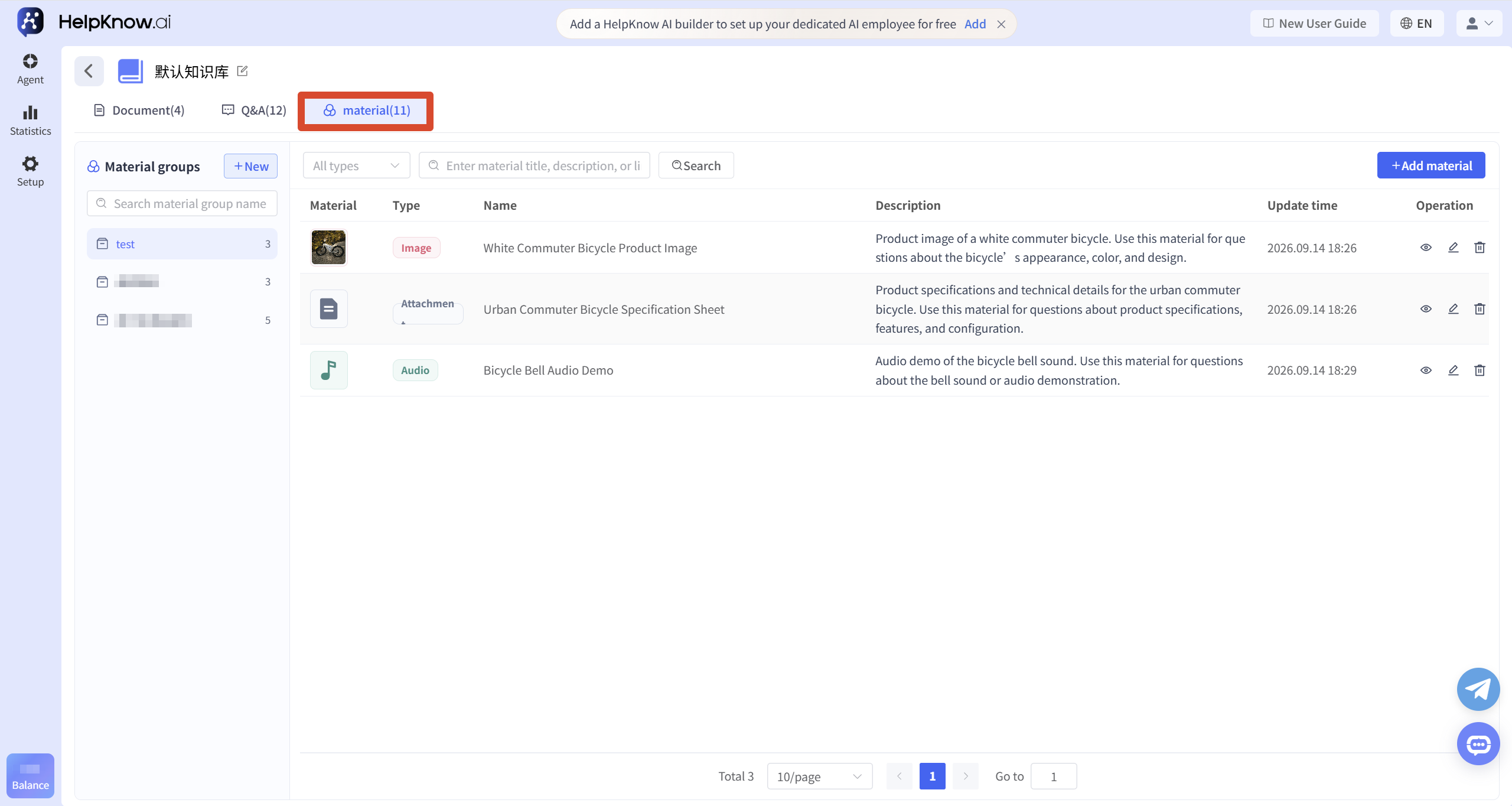
If the AI employee fails to send materials, or sends incorrect images, audio, video, or attachments, check whether the material name and description accurately represent the product, model, color, and purpose.
It is recommended to avoid using names that do not clearly describe the content, such as "Image 1" or "Video 2". The more specific the name and description, the easier it will be for the AI staff to match the correct materials.
For detailed configuration and optimization methods, please refer to: "How to use materials to get AI employees to reply with images, audio/video files, and attachments?"
4. No tool was used to query data.
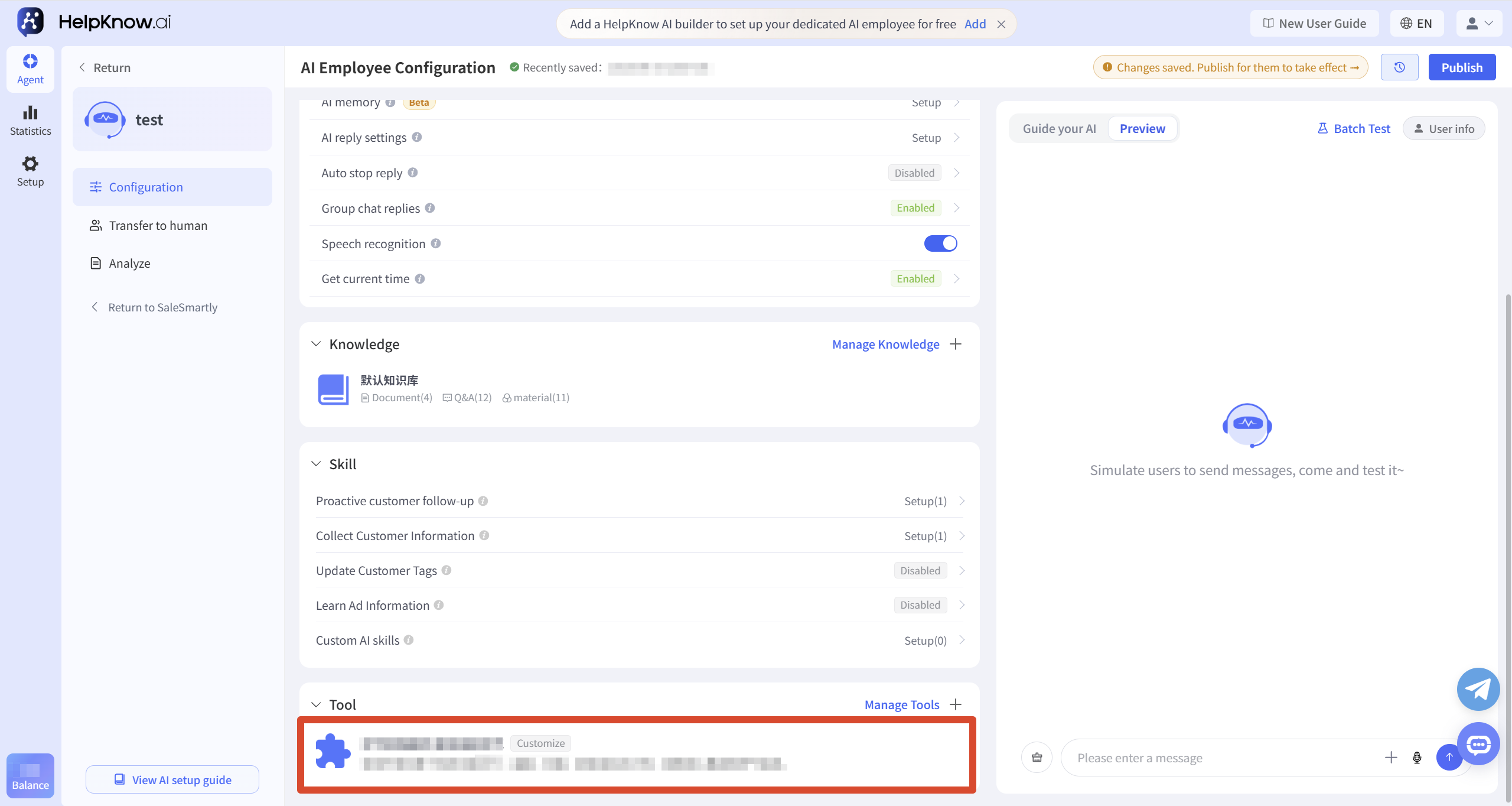
If a user inquires about real-time information such as orders, inventory, or logistics, the AI employee may not use the corresponding tools and may answer directly based on fixed data or provide inaccurate information.
You can check whether the corresponding plugins and tools have been added, and whether the tool name, description, and calling conditions are clear.
For detailed optimization methods, please refer to: "Why didn't the AI employee use the tools as expected?"
II. Re-test the questions and answers.
After making the adjustments, it is recommended to clear the original test dialogue and start a new question-and-answer test to avoid the previous dialogue content continuing to affect the answers.
Send a question that can directly verify the changes. If the answer still does not meet expectations, you can continue to use the troubleshooting assistant to review the specific answer.
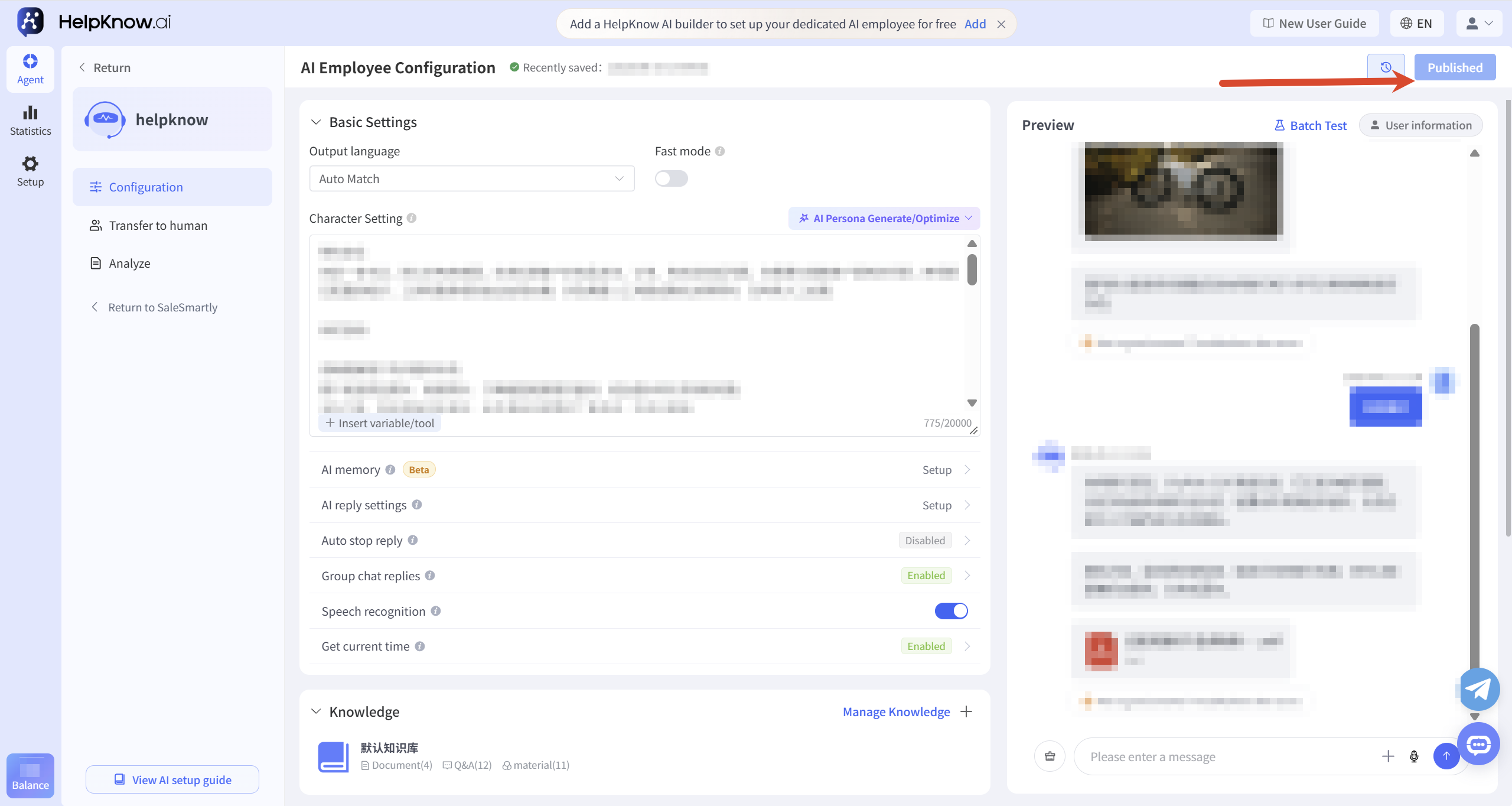
After the test is complete, please check the status in the upper right corner of the configuration page:
- If it is displayed as "Draft" and the "Publish" button is clickable, please click "Publish".
- If it displays as "Published" and the button is not clickable, there is no need to publish it again.
The activation method may vary depending on the configuration. Please refer to the following for details: "Why are there no changes in responses after modifying AI employee configurations?"
III. Related Recommendations
- How to Troubleshoot When AI Employee Responses Do Not Meet Expectations?
- How to Configure Character Settings for an AI Employee?
- How to add a knowledge base for AI employees?
- How to use materials to get AI employees to reply with images, audio/video files, and attachments?
- Why didn't the AI employee use the tools as expected?
- Why are there no changes in responses after modifying AI employee configurations?
;}.cls-2{fill:%230868f7;}.cls-3{fill:url(%23未命名的渐变_44);}.cls-4{fill:%23333;}%3c/style%3e%3clinearGradient%20id='未命名的渐变_8'%20x1='33.73'%20y1='100.61'%20x2='-0.03'%20y2='-1.06'%20gradientUnits='userSpaceOnUse'%3e%3cstop%20offset='0'%20stop-color='%237ae9fb'/%3e%3cstop%20offset='0.67'%20stop-color='%232b90f8'/%3e%3cstop%20offset='1'%20stop-color='%230868f7'/%3e%3c/linearGradient%3e%3clinearGradient%20id='未命名的渐变_44'%20x1='27.86'%20y1='18.67'%20x2='68.36'%20y2='22.22'%20gradientUnits='userSpaceOnUse'%3e%3cstop%20offset='0'%20stop-color='%235ac7f2'/%3e%3cstop%20offset='1'%20stop-color='%230868f7'/%3e%3c/linearGradient%3e%3c/defs%3e%3cpath%20class='cls-1'%20d='M29,28.74V81.91l-9.51-3.68v0L8.52,74A7.17,7.17,0,0,1,4,67.32V24.54A3.76,3.76,0,0,1,9.08,21Z'/%3e%3cpath%20class='cls-2'%20d='M68.09,78.07a13.15,13.15,0,0,1-17.9,12.06L29,81.91h0V28.74L50.19,37A13.17,13.17,0,0,0,68.08,25.3h0Z'/%3e%3cpath%20class='cls-3'%20d='M68.08,25.3a13.19,13.19,0,0,1-6.73,10.87A13.09,13.09,0,0,1,50.19,37L29,28.74V6A3.76,3.76,0,0,1,34.1,2.52l25.59,9.91A13.22,13.22,0,0,1,68.08,25.3Z'/%3e%3cpath%20class='cls-4'%20d='M129.06,81.76a4.33,4.33,0,0,1-3.19-1.31,4.4,4.4,0,0,1-1.31-3.24V56.86H97.65V77.21a4.36,4.36,0,0,1-1.35,3.2A4.68,4.68,0,0,1,93,81.76a4.32,4.32,0,0,1-3.19-1.31,4.37,4.37,0,0,1-1.32-3.24V27.27A4.58,4.58,0,0,1,89.83,24a4.59,4.59,0,0,1,7.82,3.27V48.15h26.91V27.27A4.58,4.58,0,0,1,125.91,24a4.59,4.59,0,0,1,7.82,3.27V77.21a4.37,4.37,0,0,1-1.36,3.2A4.65,4.65,0,0,1,129.06,81.76Z'/%3e%3cpath%20class='cls-4'%20d='M163.77,81.66c-6.57,0-11.76-1.92-15.44-5.7s-5.54-9.07-5.54-15.74a26.76,26.76,0,0,1,2.09-10.43,17.72,17.72,0,0,1,6.67-8.06,19.15,19.15,0,0,1,10.68-2.95,19,19,0,0,1,10.46,2.8,18.7,18.7,0,0,1,6.55,7.36,22.53,22.53,0,0,1,2.36,10.28A4.51,4.51,0,0,1,177,63.77H152.23a10.8,10.8,0,0,0,3.49,6.65c2,1.68,4.88,2.52,8.66,2.52a22.25,22.25,0,0,0,7.54-1.21c.74-.3,1.55-.67,2.37-1.07a3.75,3.75,0,0,1,1.84-.4,4.09,4.09,0,0,1,3,1.15,4,4,0,0,1,1.12,3,4.38,4.38,0,0,1-2.58,3.82,32.34,32.34,0,0,1-6.36,2.61A28.67,28.67,0,0,1,163.77,81.66ZM172.4,55.9a9.72,9.72,0,0,0-1.63-4.56A9.9,9.9,0,0,0,167,48a10.38,10.38,0,0,0-4.64-1.14,12,12,0,0,0-4.77,1.06,9.54,9.54,0,0,0-4.89,5.66,11.78,11.78,0,0,0-.51,2.3Z'/%3e%3cpath%20class='cls-4'%20d='M193,81.64a4.49,4.49,0,0,1-4.51-4.55V27.28A4.58,4.58,0,0,1,189.84,24a4.48,4.48,0,0,1,3.28-1.36A4.36,4.36,0,0,1,196.35,24a4.46,4.46,0,0,1,1.31,3.31V77.09a4.34,4.34,0,0,1-1.35,3.2A4.67,4.67,0,0,1,193,81.64Z'/%3e%3cpath%20class='cls-4'%20d='M263.79,81.71a5.7,5.7,0,0,1-4.2-1.74,5.76,5.76,0,0,1-1.73-4.19V27.37a4.58,4.58,0,0,1,1.35-3.27A4.59,4.59,0,0,1,267,27.37V72.53h24a4.58,4.58,0,0,1,3.27,7.82A4.66,4.66,0,0,1,291,81.71Z'/%3e%3cpath%20class='cls-4'%20d='M424.48,81.74a4.71,4.71,0,0,1-2.71-.88,5.43,5.43,0,0,1-1-1l-.07-.09-12.41-17-5.41,5v9.44a4.31,4.31,0,0,1-1.36,3.19,4.66,4.66,0,0,1-3.3,1.36A4.29,4.29,0,0,1,395,80.42a4.36,4.36,0,0,1-1.32-3.23V27.37A4.58,4.58,0,0,1,395,24.1a4.52,4.52,0,0,1,6.58.12,4.54,4.54,0,0,1,1.24,3.15V56.31l17.72-16.38.05,0a4.8,4.8,0,0,1,2.94-1.11,4.4,4.4,0,0,1,3.27,1.2,4.57,4.57,0,0,1,1.2,3.27,4.44,4.44,0,0,1-.77,2.33,7.45,7.45,0,0,1-1.43,1.65l-11,9.64,13.34,17.68a5,5,0,0,1,1,2.71,4.12,4.12,0,0,1-1.36,3.24A4.64,4.64,0,0,1,424.48,81.74Z'/%3e%3cpath%20class='cls-4'%20d='M317.93,81.76a21.5,21.5,0,1,1,21.17-21.5A21.37,21.37,0,0,1,317.93,81.76Zm0-34.1a12.61,12.61,0,1,0,12.42,12.6A12.52,12.52,0,0,0,317.93,47.66Z'/%3e%3cpath%20class='cls-4'%20d='M212.18,101.22a4.12,4.12,0,0,1-3.05-1.26,4.17,4.17,0,0,1-1.26-3.1V43.34a4.37,4.37,0,0,1,1.3-3.14,4.26,4.26,0,0,1,3.13-1.3,4.19,4.19,0,0,1,3.1,1.26,4.32,4.32,0,0,1,1.26,3.16,20.77,20.77,0,0,1,13-4.54,21.51,21.51,0,0,1,0,43,20.51,20.51,0,0,1-13-4.57V96.86a4.15,4.15,0,0,1-1.3,3.06A4.5,4.5,0,0,1,212.18,101.22Zm17.43-53.63c-6.23,0-12.93,4.11-12.93,12.72a12.73,12.73,0,0,0,25.46,0A12.71,12.71,0,0,0,229.61,47.59Z'/%3e%3cpath%20class='cls-4'%20d='M365.76,81.76a21.5,21.5,0,1,1,21.18-21.5A21.37,21.37,0,0,1,365.76,81.76Zm0-34.1a12.61,12.61,0,1,0,12.42,12.6A12.52,12.52,0,0,0,365.76,47.66Z'/%3e%3c/svg%3e)