
How to Test the Actual Reception Effectiveness of AI Employees?
I. Function Introduction
After completing the AI employee's persona, knowledge base, and other capability configurations, it is recommended to use SaleSmartly's chat plugin to simulate a customer initiating an inquiry from the website to test the AI employee's actual reception effectiveness.
By testing the chat plugin, you can check whether the test session can be properly assigned to the AI employee, whether the AI can respond normally, and whether the configured capabilities such as transferring to human agents and collecting customer information are executed as expected.
Once the test results are confirmed to meet expectations, the AI employees will be officially used for reception on the website or social media channels.
This article's link: "How to Test the Actual Reception Effectiveness of AI Employees?"
II. Creating a test chat plugin
If your project already has a chat plugin that can be used directly for testing, you can use it directly without creating a new one.
If you want to differentiate the test environment from the production chat plugin, you can create a separate test chat plugin.
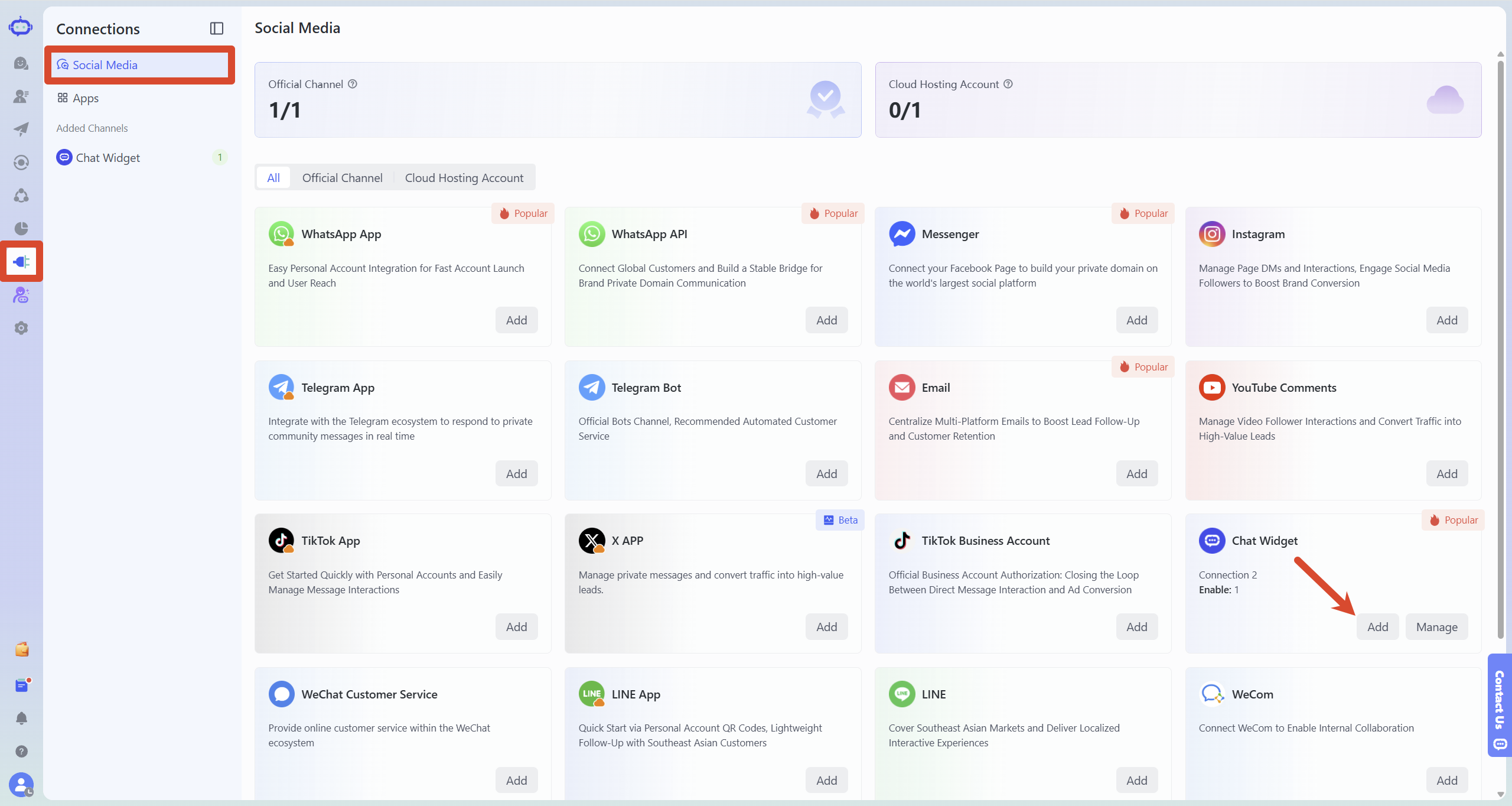
Go to SaleSmartly, then go to "Connections > Social Media" , find "Chat Plugins", and click "Add".
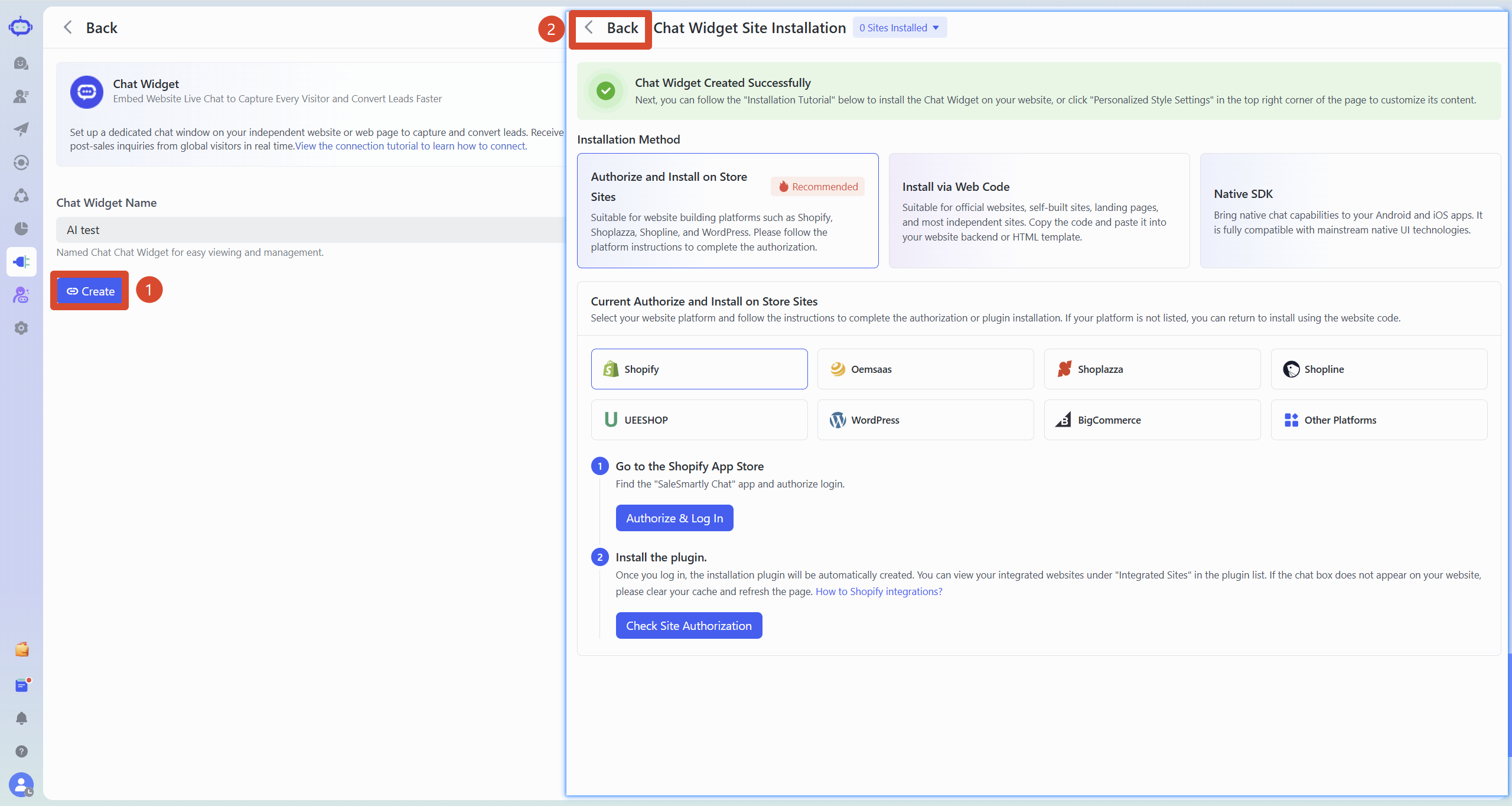
Enter a name for the chat plugin, such as "AI Test," and click "Create." After successful creation, you will be taken to the chat plugin installation page on the website. Click "Back" in the upper left corner to return to the chat plugin list.
III. Configure a test chat plugin for AI employees
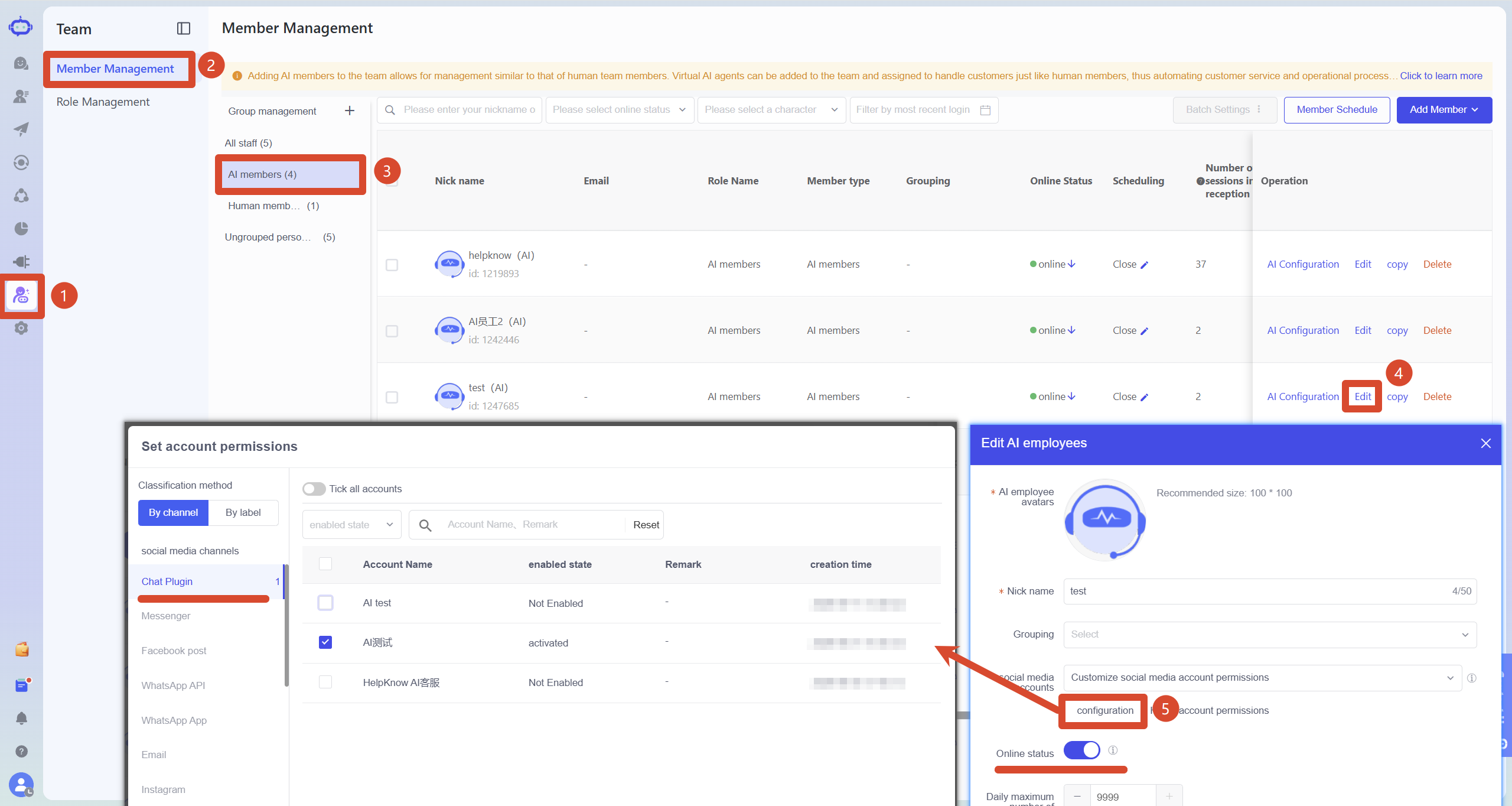
Go to SaleSmartly, then go to "Team > Member Management," find the AI employee you want to test, and click "Edit."
Confirm that the AI employee is online, then click "Configuration" in "Social Media Accounts", select the chat plugin account to be used for testing, and save.
AI employees need to have reception permissions for the corresponding chat plugin before test sessions can be assigned to the AI employee according to the current session allocation rules.
If the AI staff is not yet officially used for customer reception, you can first bind the test chat plugin to complete the test. After confirming that the effect meets expectations, you can then configure the website or social media account for official use.
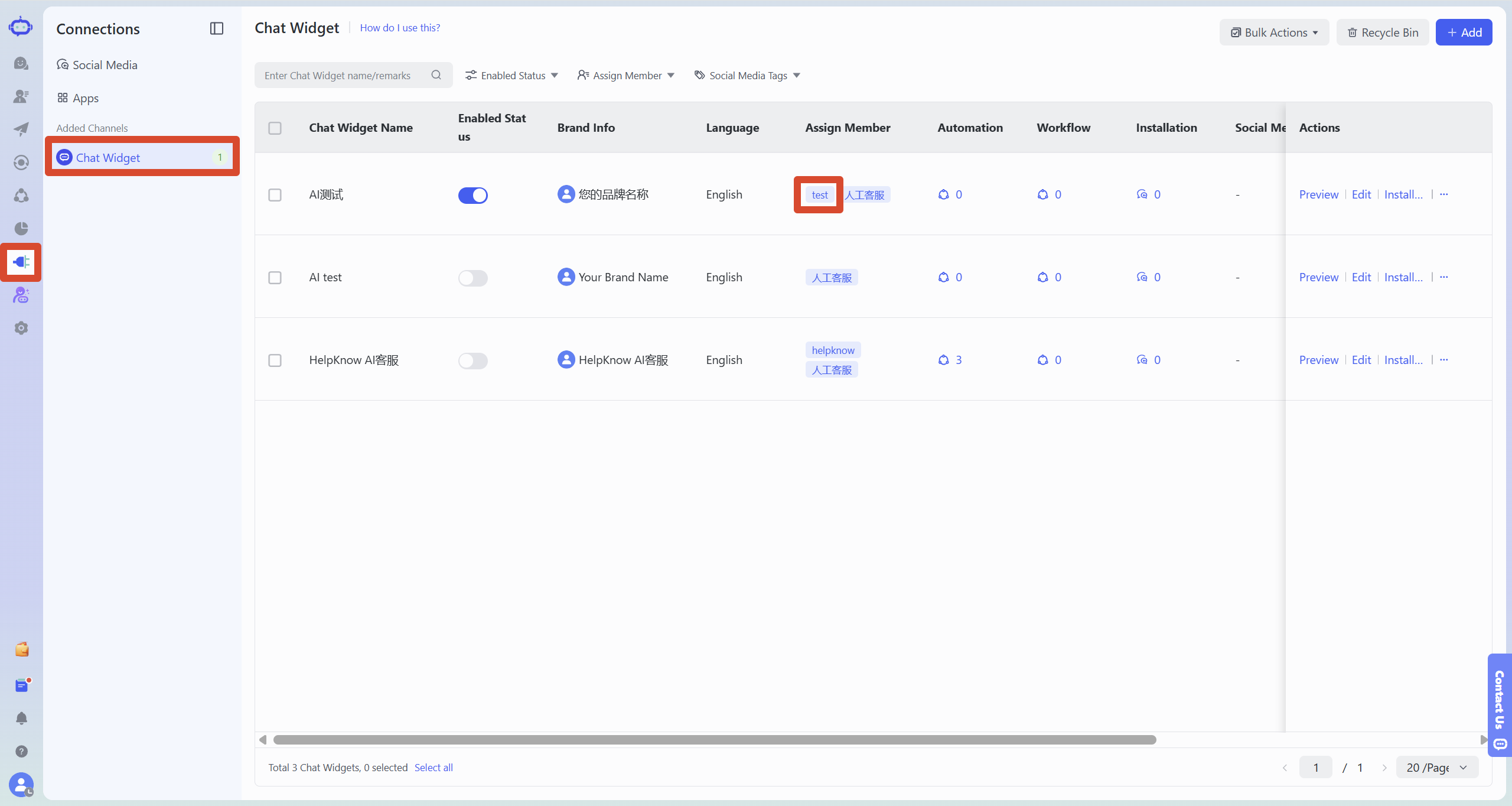
After configuration, you can go to SaleSmartly "Connection > Chat Plugins" , find the corresponding test chat plugin, and confirm in "Assign Members" that the AI employee to be tested has been assigned to the chat plugin.
If the test chat plugin is assigned to multiple reception members simultaneously, the test session will be allocated according to the current session allocation rules. Before testing, confirm whether the actual session enters the AI employee to be tested; if a specific AI employee is required to consistently handle the reception, adjust the allocation settings accordingly.
IV. Conducting actual reception tests using a chat plugin
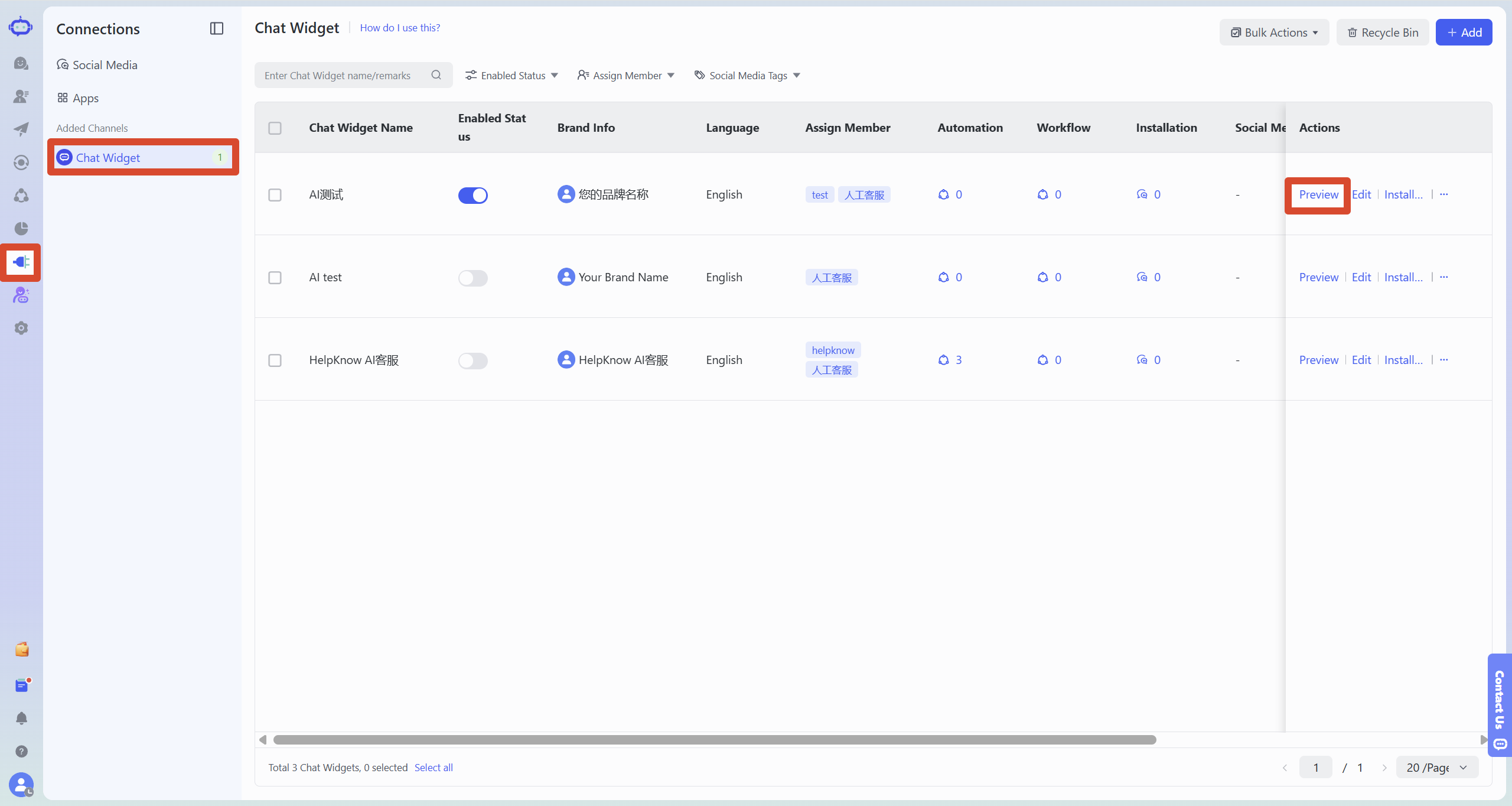
1. Open the chat plugin preview
Return to the SaleSmartly chat plugin management page, find the chat plugin used for testing, and click "Preview".
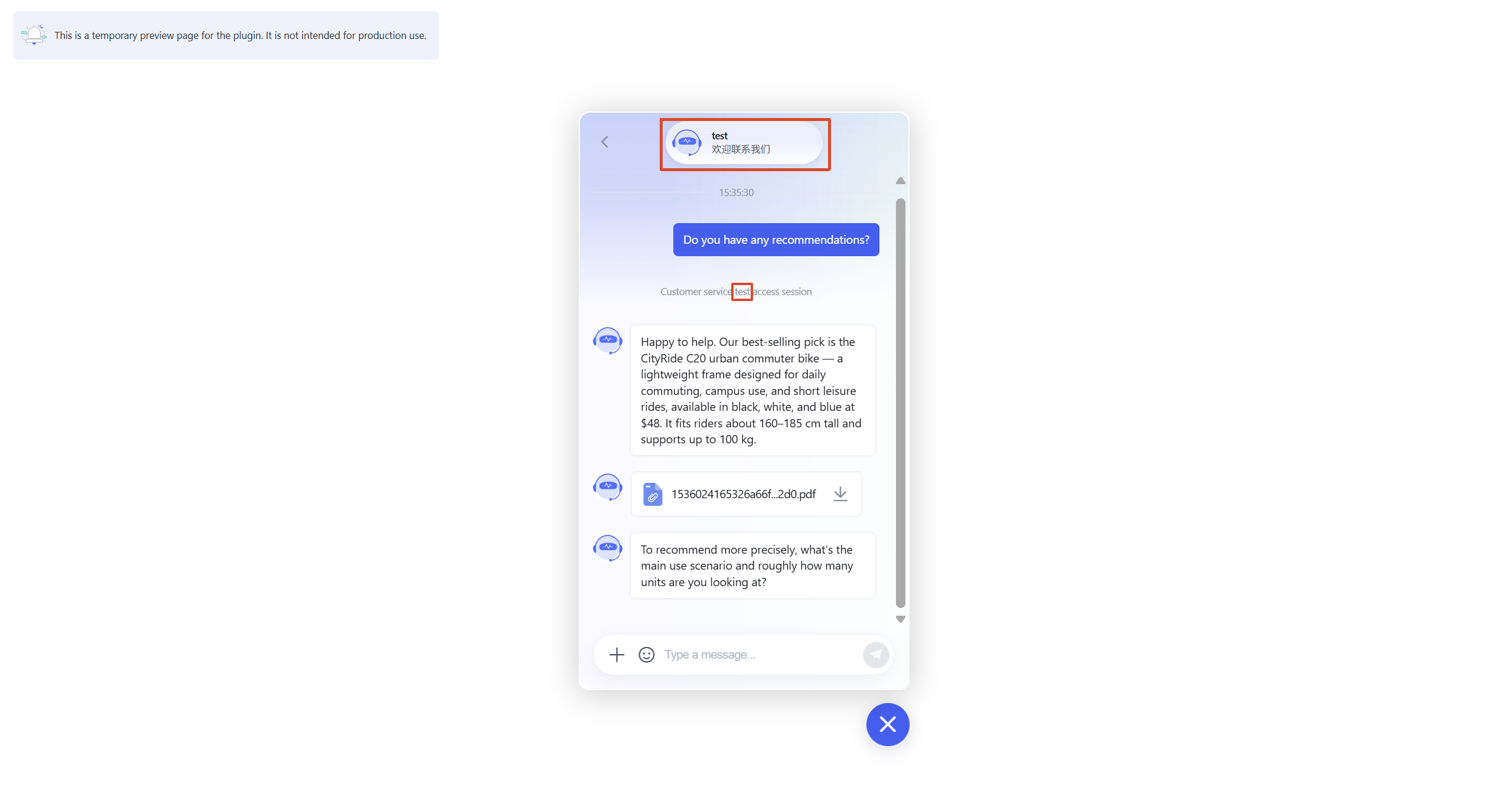
2. Send test message
On the chat plugin preview page, click to enter the chat and send a test message as a guest.
The test can be conducted by combining the existing AI employee's persona, knowledge base, ability to transfer to human agents, customer information collection, plugins, and tools.
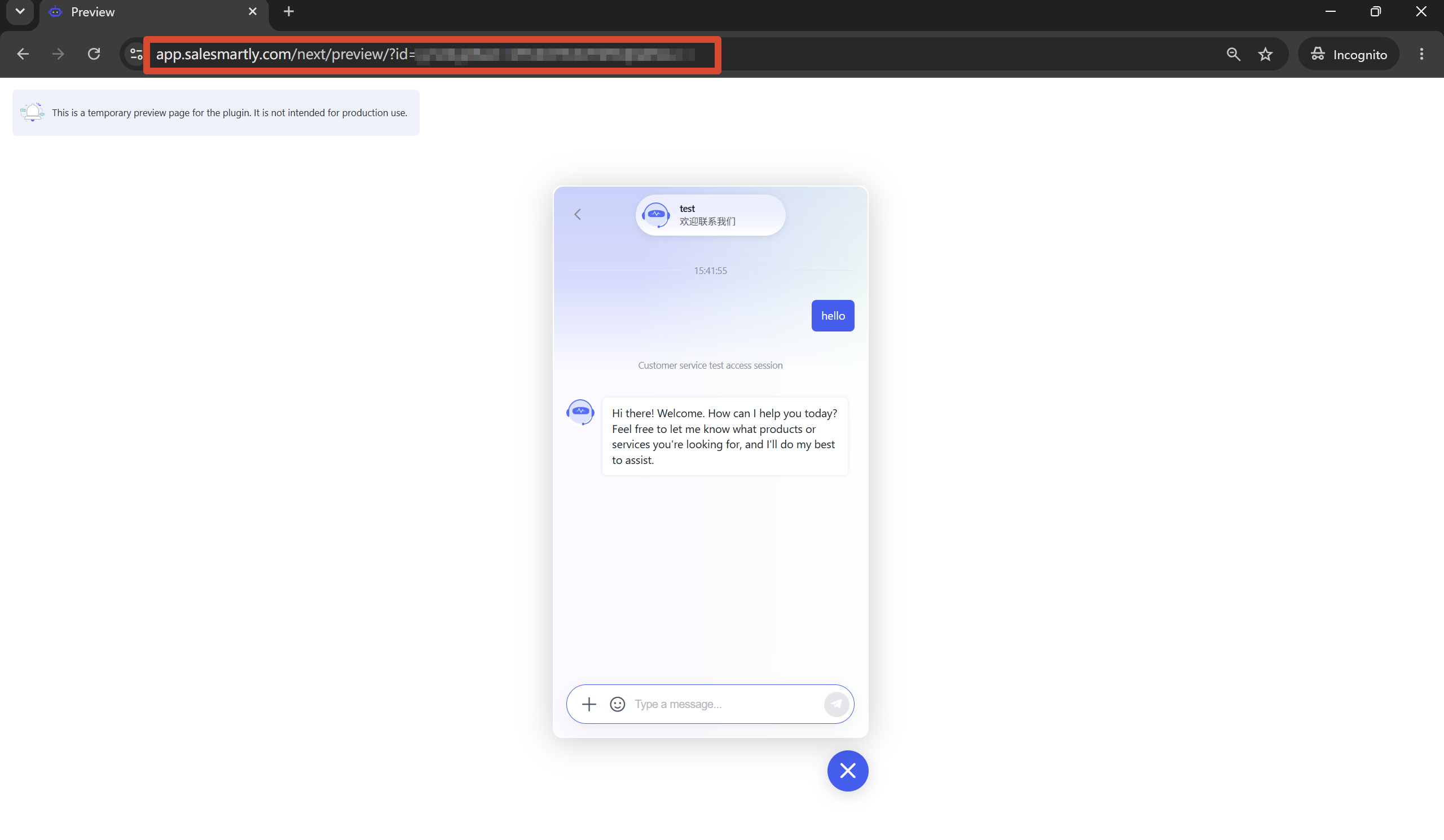
3. Simulate different visitors to conduct tests.
If you need to test the effect of different customers initiating inquiries, you can copy the chat plugin preview link, open it in incognito/private browsing mode or another browser, and then send a test message.
If you need to simulate multiple independent visitors continuously, it is recommended to close the current incognito/private window and reopen it, or use different browsers for testing.
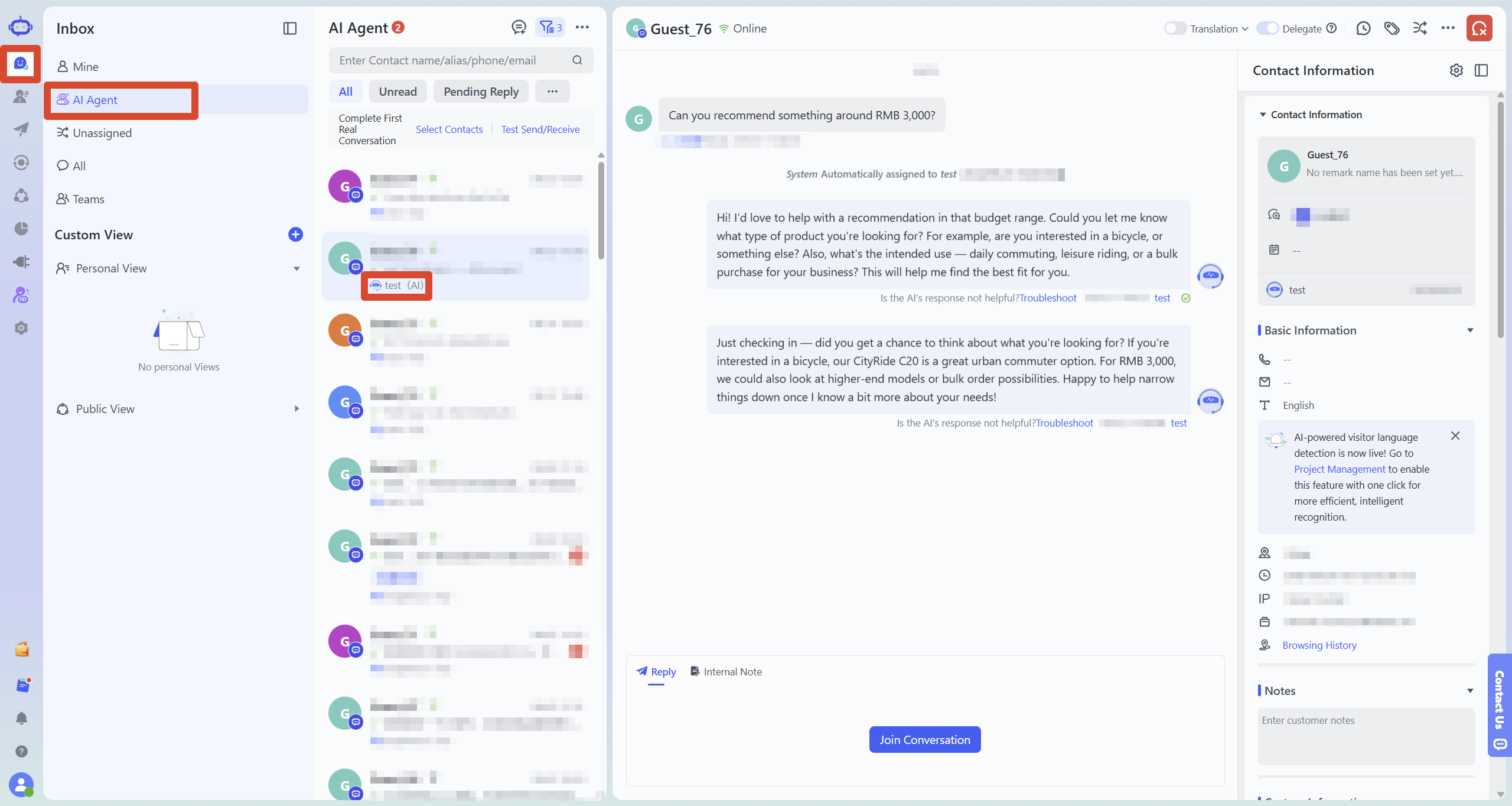
4. View the test session
After sending the test message, you can go to SaleSmartly "Chat > AI Members" to find the test session that was just created and view the complete session record and the actual members received.
If the AI response does not meet expectations during testing, you can directly access HelpKnow from the corresponding AI message to investigate. Please refer to the next section for specific instructions.
V. Investigate and optimize test results
1. The AI response did not meet expectations.
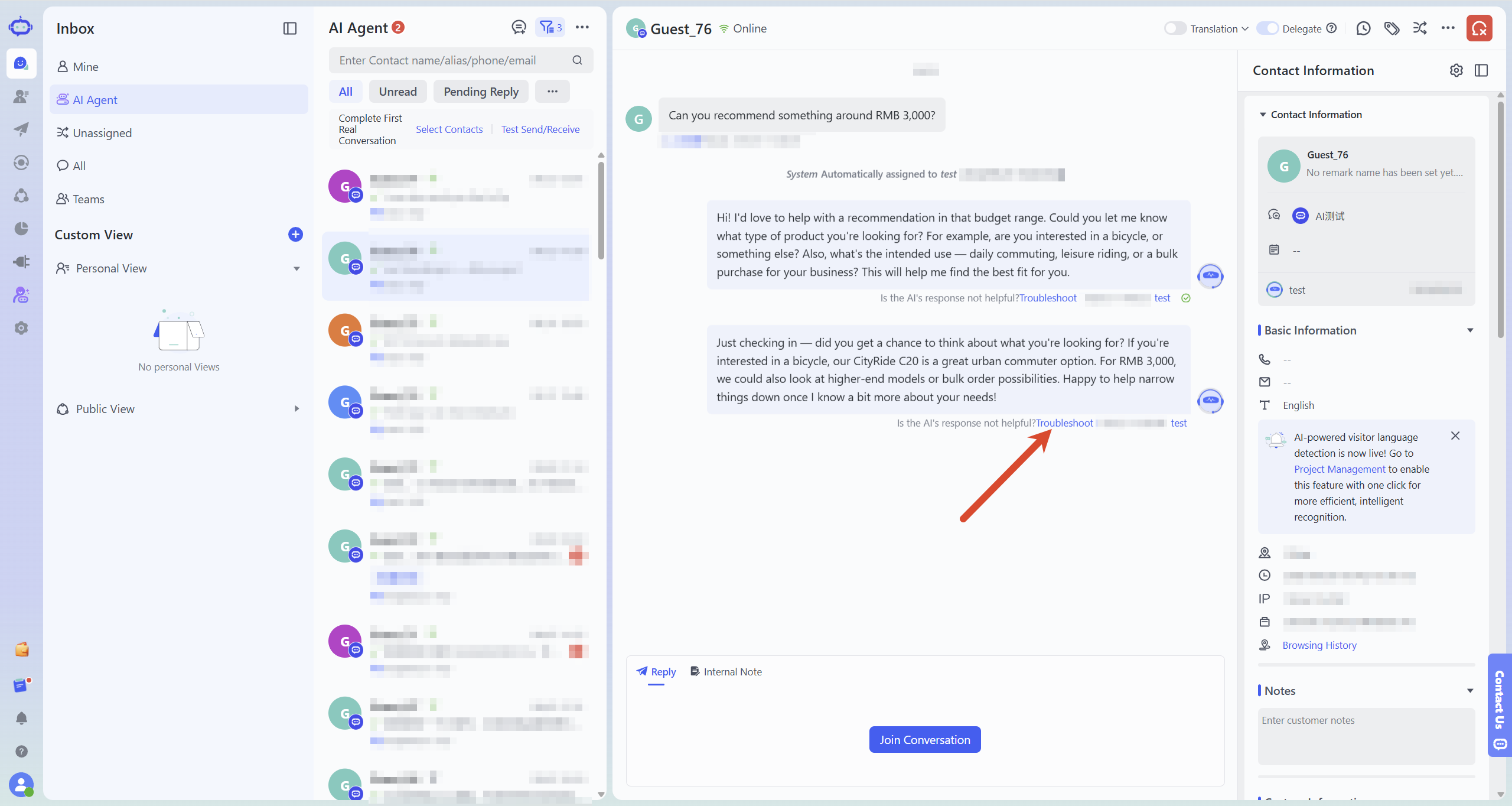
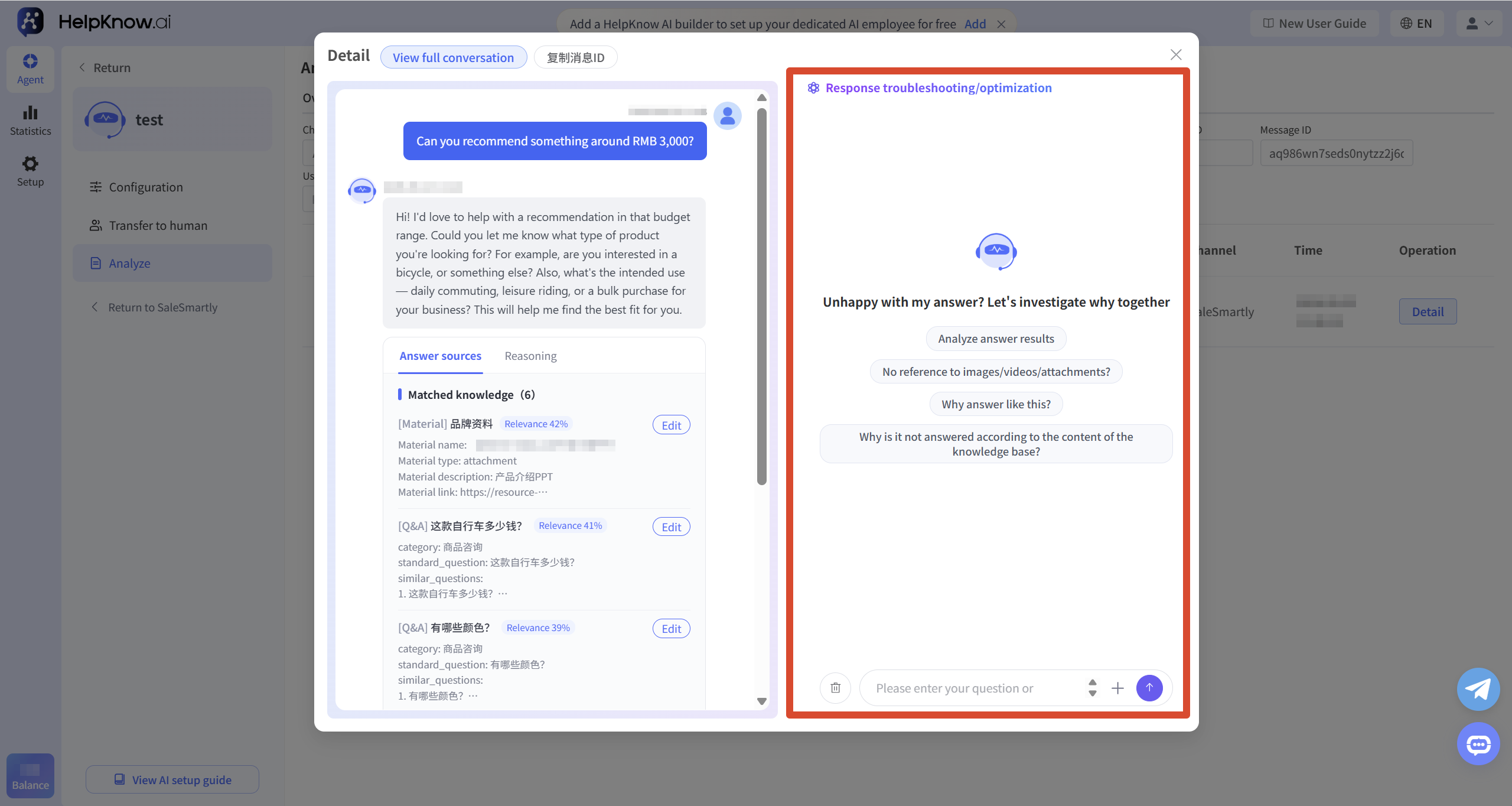
If you encounter issues such as incorrect answers, incomplete content, irrelevant answers, or failure to answer according to the expected knowledge base content during the test, it is recommended to use the "Troubleshooting Assistant" to analyze the specific reasons.
On the SaleSmartly "Chat" page, find the AI response you need to investigate, hover your mouse over the message, and click "View Source".
The system will directly redirect you to the corresponding HelpKnow answer details. Use the "Troubleshooting Assistant" on the right to analyze the information and adjust relevant configurations based on the results.
After making the adjustments, re-release the AI employee and send a test message via the chat plugin to confirm the actual effect of the optimization.
For more information on how to use the troubleshooting assistant, please refer to: "How to troubleshoot when AI employee answers do not meet expectations?"
2. The AI did not reply.
If the AI employee does not reply after sending a test message, you can first check the receiving members and assignment status of the current test session on the SaleSmartly "Chat" page. For specific troubleshooting methods, please refer to: "Why doesn't the AI employee reply after the customer sends a message?"
VI. After testing is completed, formal access to the channel will be granted.
Once you confirm that the AI employee's reception process and response meet your expectations, you can go to SaleSmartly "Team > Member Management" to configure the official website chat plugin or social media account for the AI employee.
After officially integrating with the website or social media channels, it is recommended to send test messages through actual channels to confirm that the channel messages can be successfully entered into SaleSmartly, the conversation can be properly assigned, and the AI staff can respond normally.
If the AI employee's persona, knowledge base, or other important configurations are modified later, they can be tested again to confirm that the effect meets expectations before being used for actual reception.
VII. Related Recommendations
;}.cls-2{fill:%230868f7;}.cls-3{fill:url(%23未命名的渐变_44);}.cls-4{fill:%23333;}%3c/style%3e%3clinearGradient%20id='未命名的渐变_8'%20x1='33.73'%20y1='100.61'%20x2='-0.03'%20y2='-1.06'%20gradientUnits='userSpaceOnUse'%3e%3cstop%20offset='0'%20stop-color='%237ae9fb'/%3e%3cstop%20offset='0.67'%20stop-color='%232b90f8'/%3e%3cstop%20offset='1'%20stop-color='%230868f7'/%3e%3c/linearGradient%3e%3clinearGradient%20id='未命名的渐变_44'%20x1='27.86'%20y1='18.67'%20x2='68.36'%20y2='22.22'%20gradientUnits='userSpaceOnUse'%3e%3cstop%20offset='0'%20stop-color='%235ac7f2'/%3e%3cstop%20offset='1'%20stop-color='%230868f7'/%3e%3c/linearGradient%3e%3c/defs%3e%3cpath%20class='cls-1'%20d='M29,28.74V81.91l-9.51-3.68v0L8.52,74A7.17,7.17,0,0,1,4,67.32V24.54A3.76,3.76,0,0,1,9.08,21Z'/%3e%3cpath%20class='cls-2'%20d='M68.09,78.07a13.15,13.15,0,0,1-17.9,12.06L29,81.91h0V28.74L50.19,37A13.17,13.17,0,0,0,68.08,25.3h0Z'/%3e%3cpath%20class='cls-3'%20d='M68.08,25.3a13.19,13.19,0,0,1-6.73,10.87A13.09,13.09,0,0,1,50.19,37L29,28.74V6A3.76,3.76,0,0,1,34.1,2.52l25.59,9.91A13.22,13.22,0,0,1,68.08,25.3Z'/%3e%3cpath%20class='cls-4'%20d='M129.06,81.76a4.33,4.33,0,0,1-3.19-1.31,4.4,4.4,0,0,1-1.31-3.24V56.86H97.65V77.21a4.36,4.36,0,0,1-1.35,3.2A4.68,4.68,0,0,1,93,81.76a4.32,4.32,0,0,1-3.19-1.31,4.37,4.37,0,0,1-1.32-3.24V27.27A4.58,4.58,0,0,1,89.83,24a4.59,4.59,0,0,1,7.82,3.27V48.15h26.91V27.27A4.58,4.58,0,0,1,125.91,24a4.59,4.59,0,0,1,7.82,3.27V77.21a4.37,4.37,0,0,1-1.36,3.2A4.65,4.65,0,0,1,129.06,81.76Z'/%3e%3cpath%20class='cls-4'%20d='M163.77,81.66c-6.57,0-11.76-1.92-15.44-5.7s-5.54-9.07-5.54-15.74a26.76,26.76,0,0,1,2.09-10.43,17.72,17.72,0,0,1,6.67-8.06,19.15,19.15,0,0,1,10.68-2.95,19,19,0,0,1,10.46,2.8,18.7,18.7,0,0,1,6.55,7.36,22.53,22.53,0,0,1,2.36,10.28A4.51,4.51,0,0,1,177,63.77H152.23a10.8,10.8,0,0,0,3.49,6.65c2,1.68,4.88,2.52,8.66,2.52a22.25,22.25,0,0,0,7.54-1.21c.74-.3,1.55-.67,2.37-1.07a3.75,3.75,0,0,1,1.84-.4,4.09,4.09,0,0,1,3,1.15,4,4,0,0,1,1.12,3,4.38,4.38,0,0,1-2.58,3.82,32.34,32.34,0,0,1-6.36,2.61A28.67,28.67,0,0,1,163.77,81.66ZM172.4,55.9a9.72,9.72,0,0,0-1.63-4.56A9.9,9.9,0,0,0,167,48a10.38,10.38,0,0,0-4.64-1.14,12,12,0,0,0-4.77,1.06,9.54,9.54,0,0,0-4.89,5.66,11.78,11.78,0,0,0-.51,2.3Z'/%3e%3cpath%20class='cls-4'%20d='M193,81.64a4.49,4.49,0,0,1-4.51-4.55V27.28A4.58,4.58,0,0,1,189.84,24a4.48,4.48,0,0,1,3.28-1.36A4.36,4.36,0,0,1,196.35,24a4.46,4.46,0,0,1,1.31,3.31V77.09a4.34,4.34,0,0,1-1.35,3.2A4.67,4.67,0,0,1,193,81.64Z'/%3e%3cpath%20class='cls-4'%20d='M263.79,81.71a5.7,5.7,0,0,1-4.2-1.74,5.76,5.76,0,0,1-1.73-4.19V27.37a4.58,4.58,0,0,1,1.35-3.27A4.59,4.59,0,0,1,267,27.37V72.53h24a4.58,4.58,0,0,1,3.27,7.82A4.66,4.66,0,0,1,291,81.71Z'/%3e%3cpath%20class='cls-4'%20d='M424.48,81.74a4.71,4.71,0,0,1-2.71-.88,5.43,5.43,0,0,1-1-1l-.07-.09-12.41-17-5.41,5v9.44a4.31,4.31,0,0,1-1.36,3.19,4.66,4.66,0,0,1-3.3,1.36A4.29,4.29,0,0,1,395,80.42a4.36,4.36,0,0,1-1.32-3.23V27.37A4.58,4.58,0,0,1,395,24.1a4.52,4.52,0,0,1,6.58.12,4.54,4.54,0,0,1,1.24,3.15V56.31l17.72-16.38.05,0a4.8,4.8,0,0,1,2.94-1.11,4.4,4.4,0,0,1,3.27,1.2,4.57,4.57,0,0,1,1.2,3.27,4.44,4.44,0,0,1-.77,2.33,7.45,7.45,0,0,1-1.43,1.65l-11,9.64,13.34,17.68a5,5,0,0,1,1,2.71,4.12,4.12,0,0,1-1.36,3.24A4.64,4.64,0,0,1,424.48,81.74Z'/%3e%3cpath%20class='cls-4'%20d='M317.93,81.76a21.5,21.5,0,1,1,21.17-21.5A21.37,21.37,0,0,1,317.93,81.76Zm0-34.1a12.61,12.61,0,1,0,12.42,12.6A12.52,12.52,0,0,0,317.93,47.66Z'/%3e%3cpath%20class='cls-4'%20d='M212.18,101.22a4.12,4.12,0,0,1-3.05-1.26,4.17,4.17,0,0,1-1.26-3.1V43.34a4.37,4.37,0,0,1,1.3-3.14,4.26,4.26,0,0,1,3.13-1.3,4.19,4.19,0,0,1,3.1,1.26,4.32,4.32,0,0,1,1.26,3.16,20.77,20.77,0,0,1,13-4.54,21.51,21.51,0,0,1,0,43,20.51,20.51,0,0,1-13-4.57V96.86a4.15,4.15,0,0,1-1.3,3.06A4.5,4.5,0,0,1,212.18,101.22Zm17.43-53.63c-6.23,0-12.93,4.11-12.93,12.72a12.73,12.73,0,0,0,25.46,0A12.71,12.71,0,0,0,229.61,47.59Z'/%3e%3cpath%20class='cls-4'%20d='M365.76,81.76a21.5,21.5,0,1,1,21.18-21.5A21.37,21.37,0,0,1,365.76,81.76Zm0-34.1a12.61,12.61,0,1,0,12.42,12.6A12.52,12.52,0,0,0,365.76,47.66Z'/%3e%3c/svg%3e)