
What are Skills? How to Configure and Use Skills?
I. Function Introduction
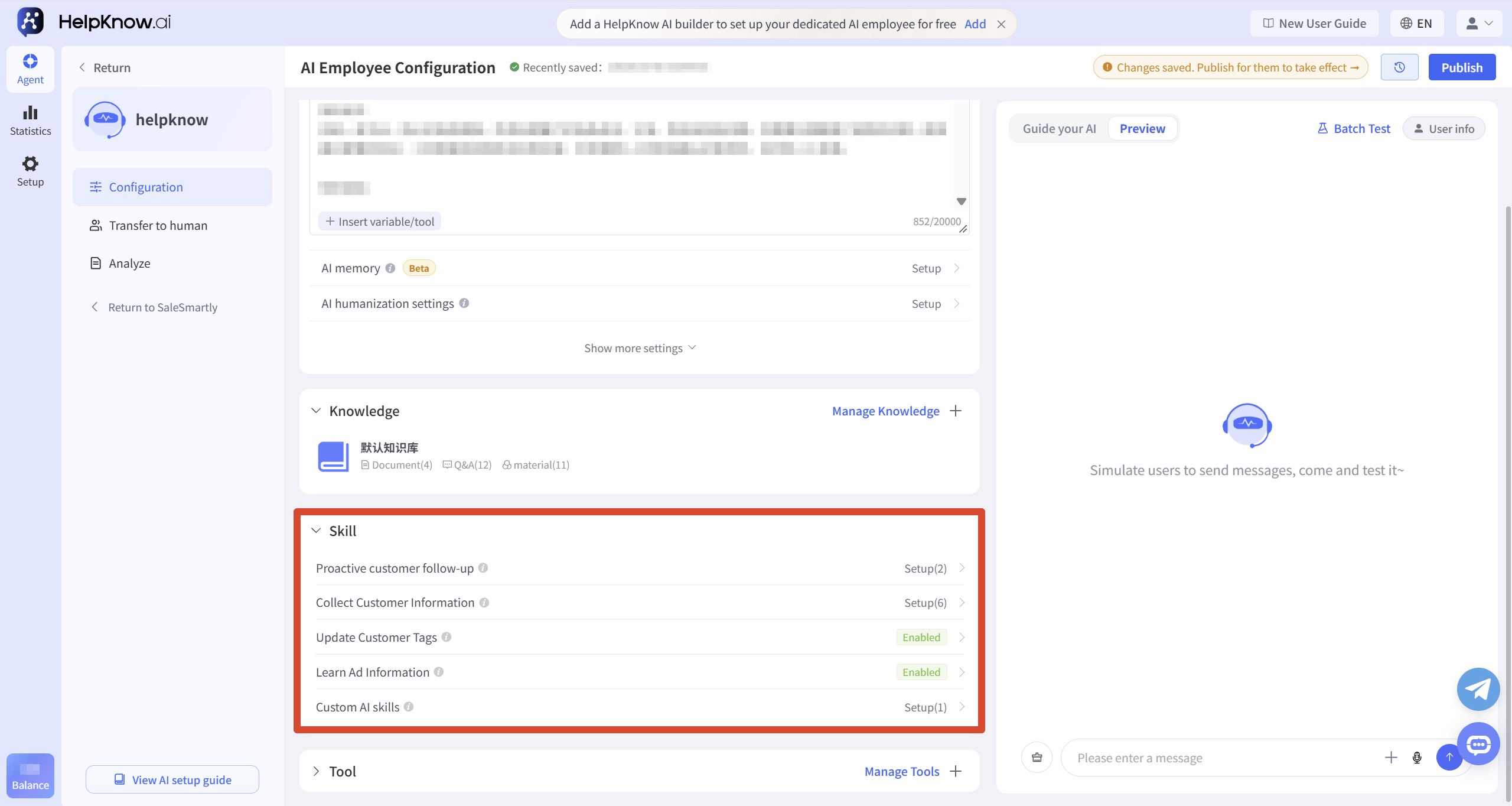
The skills enable AI employees to complete tasks such as information recording, customer tagging, advertising product identification, proactive follow-up, and specific business process processing based on customer sources, conversation content, and preset rules.
Currently, AI employees support the following skills:
- Proactively follow up with customers: If a customer does not reply to the last message from AI within a set time, proactively send a follow-up message to continue the process.
- Collect customer information: Identify and record information provided by customers or their current status during the conversation.
- Update customer tags: Determine customer characteristics based on conversation content and record them as customer tags.
- Learn advertising information: Identify the products a customer is inquiring about based on the source of the customer's advertisements.
- Custom AI Skills: Set trigger conditions and execution instructions for specific business scenarios, and combine variables, knowledge and tools to complete one or more processing steps.
Different skills can be used individually or in combination according to business needs.
This article mainly introduces the functions, selection methods, configuration entry points, and activation rules of various skills. For specific setup methods, please refer to the corresponding skill's dedicated tutorial.
This article's link: "What are skills? How to configure and use skills?"
II. Skill Types and Selection
You can first select skills based on your business objectives:
- If a customer hasn't responded for a long time, and you want AI to proactively follow up, use the "Proactive Customer Follow-up" feature.
- You need to record specific information such as customer contact information, company name, purchase quantity, and budget: use "Collect Customer Information".
- To add categories such as "high intent" and "price sensitive" to customers based on the conversation content, use "Update Customer Tags".
- Customers inquire via Facebook ads through Messenger or WhatsApp and want AI to identify the corresponding products based on the source ad: using "Learning Ad Information".
- Independent processing workflows need to be set up for specific business scenarios such as after-sales applications, lead screening, and document delivery: using "custom AI skills".
1. Proactively follow up with customers
If a customer does not respond within a set time, the AI employee can proactively send a follow-up message to continue the process. The follow-up time, requirements, and applicable customer scope can be set.
For detailed setup instructions, please refer to: "How to Set Up AI-Powered Employees to Proactively Follow Up with Customers?"
2. Collect customer information
Used to identify and record information provided by customers during a conversation, such as contact information, company name, purchase quantity, budget, etc.
For detailed setup instructions, please refer to: "How to Set Up AI Employees to Collect Customer Information?"
3. Update customer tags
This tool is used to determine customer characteristics based on conversation content and add corresponding HelpKnow customer tags. The results can also be synchronized to SaleSmartly visitor tags when needed.
For detailed setup instructions, please refer to: "How to Set Up AI Employees to Update Customer Tags?"
4. Learn about advertising information
When customers inquire via Facebook ads through Messenger or WhatsApp, AI employees can retrieve relevant product information based on the source ad ID and respond to customers accordingly.
Before use, you need to configure the mapping relationship between the advertising ID and the product information.
For detailed setup instructions, please refer to: "How to Make AI Employees Learn Advertising Information?"
5. Custom AI Skills
This is used to configure a specific business scenario as a separate set of "trigger conditions + execution instructions".
The skills can incorporate variables such as customer attributes and AI response rounds, and utilize capabilities such as transferring to human agents, collecting attributes, stopping responses, retrieving knowledge base documents, and sending knowledge base materials to complete one or more processing steps according to the business process.
For detailed setup instructions, please refer to: "How to Configure Custom AI Skills for AI Employees?"
6. Selection of Attributes and Customer Tags
Both attributes and customer tags can record information from a session, but they are suitable for storing different types of content:
- User-level attributes: Used to record information at the customer level, such as company name, customer type, and contact details.
- Conversation-level attributes: Used to record information related to a specific conversation, such as the purchase quantity for the current inquiry or the product being discussed.
- Customer tags: Used to record multiple customer characteristics that can exist at the same time, such as “Bulk Purchase,” “Price Sensitive,” and “Urgent Delivery.”
Once a new value is detected, the attribute will overwrite the original value; customer tags are appended, so adding a new tag will not overwrite an existing tag.
7. Examples of skill combination usage
Suppose a customer clicks on a Facebook ad for a product and starts asking questions, stating in the conversation:
I'd like to purchase 200 units, with a budget of approximately $5,000. Are there any discounts available for bulk purchases?
After the AI employee replies with product and pricing information, the customer does not respond further. In this scenario, the following skills can be used to complete different tasks:
- Learn advertising information: Obtain information about the products that customers are inquiring about based on the source ad ID.
- Collect customer information: Record the quantity of this purchase as "200 pieces" using a session-level attribute, and record the customer's budget as "$5,000".
- Update customer tags: Add a "bulk purchase" tag; if the customer's bargaining behavior meets the preset judgment criteria, a "price sensitive" tag can also be added.
- Proactively follow up with customers: After the set follow-up time has elapsed, proactively ask customers if they still need to know about pricing, discounts, or order placement methods.
Different skills are used to handle corresponding tasks, and the skills that need to be used can be selected according to the actual business objectives.
III. Skill Configuration and Activation
Enter the AI employee that needs to be configured, click "Configure" in the left menu, and then find the "Skill" area.
1. Configuring skills
Different skills require different configurations:
- Proactively follow up with customers: Create follow-up rules and set the rule name, follow-up time, AI follow-up requirements, and follow-up users.
- Collect customer information: Use system attribute templates or create attributes according to business needs, and set attribute types and attribute levels; attributes that meet the mapping conditions can also select the corresponding SaleSmartly customer information fields.
- Update customer tags: After enabling the feature, set the tag value and judgment description; if you need to synchronize with SaleSmartly, then select the corresponding mapping tag.
- Learn about advertising information: After enabling the feature, upload an "Ad & Product Mapping Table" containing the ad ID and product information.
- Custom AI Skills: Create skills and set skill names, trigger conditions, and execution instructions; variables, tools, or specified knowledge content can be inserted into the execution instructions as needed.
Different skills also require corresponding rule or content configuration, such as return visit rules, customer attributes, tag rules, advertising product mapping tables, as well as custom AI skill trigger conditions and execution instructions.
For specific fields, testing methods, and results viewing locations, please refer to the corresponding skill-specific tutorials.
2. Apply the configuration.
Different skills take effect in different ways:
- Proactive customer follow-up: Rules for creating, editing, deleting, or starting/stopping follow-up visits take effect automatically and do not need to be published.
- Collect customer information: Customer attributes take effect automatically after creation, editing, deletion, or activation/deactivation; no publishing is required.
- Update customer tags: You need to publish after enabling or disabling the feature; after adding, editing or deleting tag rules, click "OK" for the changes to take effect automatically.
- Learning advertising information: After modifying the function switch or re-uploading the mapping table, you need to publish the AI employee configuration.
- Custom AI Skills: After creating, editing, or adjusting skills, you need to publish the AI employee configuration.
If the "Publish" button in the upper right corner of the page is clickable, it means there are still changes that need to be published.
IV. Precautions
- Attributes use a single-value overwrite method, while customer tags use a multi-value append method. Please select the appropriate method based on the data you need to record.
- The Q&A test can verify whether HelpKnow customer tags are generated, but it cannot verify whether SaleSmartly visitor tags are synchronized.
- "Learning Ad Messages" only apply to Messenger and WhatsApp channels integrated with SaleSmartly.
- Proactive follow-ups cannot be triggered in the "Q&A Test". For testing purposes, please create a real conversation through websites or social media channels that are already integrated with SaleSmartly.
- When using capabilities such as transferring to human intervention, attribute collection, and sending knowledge base materials in custom AI skills, you need to complete the configuration of the corresponding functions or content first.
V. Frequently Asked Questions
1. Why is there no result after activating the skill?
Please first confirm that the corresponding skill has been configured as required:
- Proactively follow up with customers to see if they have created and enabled follow-up rules, whether the set follow-up time has been reached, and whether the current user or session meets the filtering criteria.
- Check if customer information has been created and the corresponding attributes have been enabled.
- Update customer tags to check if tag values have been configured and determine the description.
- Check if the advertising information has been uploaded to the advertising and product mapping table.
- Check if the custom AI skills have been enabled and if the triggering conditions match the current customer inquiry. If the execution instructions use capabilities such as transferring to human assistance, attribute collection, or sending knowledge base materials, you also need to confirm that the corresponding functions or content have been configured.
- Has the required changes already been published?
If the configuration has already taken effect, you also need to confirm whether the test session contains information that can trigger the corresponding skill.
If it still does not trigger or execute as expected, you can click "Poor answer? Troubleshoot the cause" below the answer in "Q&A Test" to use the troubleshooting assistant to view possible causes and optimization suggestions.
2. Can I use multiple skills at the same time?
Yes. For example, AI employees can retrieve corresponding product information based on the source ad ID, record the purchase quantity using attributes, add a "bulk purchase" tag, and proactively send follow-up messages when the customer does not respond further.
VI. Related Recommendations
;}.cls-2{fill:%230868f7;}.cls-3{fill:url(%23未命名的渐变_44);}.cls-4{fill:%23333;}%3c/style%3e%3clinearGradient%20id='未命名的渐变_8'%20x1='33.73'%20y1='100.61'%20x2='-0.03'%20y2='-1.06'%20gradientUnits='userSpaceOnUse'%3e%3cstop%20offset='0'%20stop-color='%237ae9fb'/%3e%3cstop%20offset='0.67'%20stop-color='%232b90f8'/%3e%3cstop%20offset='1'%20stop-color='%230868f7'/%3e%3c/linearGradient%3e%3clinearGradient%20id='未命名的渐变_44'%20x1='27.86'%20y1='18.67'%20x2='68.36'%20y2='22.22'%20gradientUnits='userSpaceOnUse'%3e%3cstop%20offset='0'%20stop-color='%235ac7f2'/%3e%3cstop%20offset='1'%20stop-color='%230868f7'/%3e%3c/linearGradient%3e%3c/defs%3e%3cpath%20class='cls-1'%20d='M29,28.74V81.91l-9.51-3.68v0L8.52,74A7.17,7.17,0,0,1,4,67.32V24.54A3.76,3.76,0,0,1,9.08,21Z'/%3e%3cpath%20class='cls-2'%20d='M68.09,78.07a13.15,13.15,0,0,1-17.9,12.06L29,81.91h0V28.74L50.19,37A13.17,13.17,0,0,0,68.08,25.3h0Z'/%3e%3cpath%20class='cls-3'%20d='M68.08,25.3a13.19,13.19,0,0,1-6.73,10.87A13.09,13.09,0,0,1,50.19,37L29,28.74V6A3.76,3.76,0,0,1,34.1,2.52l25.59,9.91A13.22,13.22,0,0,1,68.08,25.3Z'/%3e%3cpath%20class='cls-4'%20d='M129.06,81.76a4.33,4.33,0,0,1-3.19-1.31,4.4,4.4,0,0,1-1.31-3.24V56.86H97.65V77.21a4.36,4.36,0,0,1-1.35,3.2A4.68,4.68,0,0,1,93,81.76a4.32,4.32,0,0,1-3.19-1.31,4.37,4.37,0,0,1-1.32-3.24V27.27A4.58,4.58,0,0,1,89.83,24a4.59,4.59,0,0,1,7.82,3.27V48.15h26.91V27.27A4.58,4.58,0,0,1,125.91,24a4.59,4.59,0,0,1,7.82,3.27V77.21a4.37,4.37,0,0,1-1.36,3.2A4.65,4.65,0,0,1,129.06,81.76Z'/%3e%3cpath%20class='cls-4'%20d='M163.77,81.66c-6.57,0-11.76-1.92-15.44-5.7s-5.54-9.07-5.54-15.74a26.76,26.76,0,0,1,2.09-10.43,17.72,17.72,0,0,1,6.67-8.06,19.15,19.15,0,0,1,10.68-2.95,19,19,0,0,1,10.46,2.8,18.7,18.7,0,0,1,6.55,7.36,22.53,22.53,0,0,1,2.36,10.28A4.51,4.51,0,0,1,177,63.77H152.23a10.8,10.8,0,0,0,3.49,6.65c2,1.68,4.88,2.52,8.66,2.52a22.25,22.25,0,0,0,7.54-1.21c.74-.3,1.55-.67,2.37-1.07a3.75,3.75,0,0,1,1.84-.4,4.09,4.09,0,0,1,3,1.15,4,4,0,0,1,1.12,3,4.38,4.38,0,0,1-2.58,3.82,32.34,32.34,0,0,1-6.36,2.61A28.67,28.67,0,0,1,163.77,81.66ZM172.4,55.9a9.72,9.72,0,0,0-1.63-4.56A9.9,9.9,0,0,0,167,48a10.38,10.38,0,0,0-4.64-1.14,12,12,0,0,0-4.77,1.06,9.54,9.54,0,0,0-4.89,5.66,11.78,11.78,0,0,0-.51,2.3Z'/%3e%3cpath%20class='cls-4'%20d='M193,81.64a4.49,4.49,0,0,1-4.51-4.55V27.28A4.58,4.58,0,0,1,189.84,24a4.48,4.48,0,0,1,3.28-1.36A4.36,4.36,0,0,1,196.35,24a4.46,4.46,0,0,1,1.31,3.31V77.09a4.34,4.34,0,0,1-1.35,3.2A4.67,4.67,0,0,1,193,81.64Z'/%3e%3cpath%20class='cls-4'%20d='M263.79,81.71a5.7,5.7,0,0,1-4.2-1.74,5.76,5.76,0,0,1-1.73-4.19V27.37a4.58,4.58,0,0,1,1.35-3.27A4.59,4.59,0,0,1,267,27.37V72.53h24a4.58,4.58,0,0,1,3.27,7.82A4.66,4.66,0,0,1,291,81.71Z'/%3e%3cpath%20class='cls-4'%20d='M424.48,81.74a4.71,4.71,0,0,1-2.71-.88,5.43,5.43,0,0,1-1-1l-.07-.09-12.41-17-5.41,5v9.44a4.31,4.31,0,0,1-1.36,3.19,4.66,4.66,0,0,1-3.3,1.36A4.29,4.29,0,0,1,395,80.42a4.36,4.36,0,0,1-1.32-3.23V27.37A4.58,4.58,0,0,1,395,24.1a4.52,4.52,0,0,1,6.58.12,4.54,4.54,0,0,1,1.24,3.15V56.31l17.72-16.38.05,0a4.8,4.8,0,0,1,2.94-1.11,4.4,4.4,0,0,1,3.27,1.2,4.57,4.57,0,0,1,1.2,3.27,4.44,4.44,0,0,1-.77,2.33,7.45,7.45,0,0,1-1.43,1.65l-11,9.64,13.34,17.68a5,5,0,0,1,1,2.71,4.12,4.12,0,0,1-1.36,3.24A4.64,4.64,0,0,1,424.48,81.74Z'/%3e%3cpath%20class='cls-4'%20d='M317.93,81.76a21.5,21.5,0,1,1,21.17-21.5A21.37,21.37,0,0,1,317.93,81.76Zm0-34.1a12.61,12.61,0,1,0,12.42,12.6A12.52,12.52,0,0,0,317.93,47.66Z'/%3e%3cpath%20class='cls-4'%20d='M212.18,101.22a4.12,4.12,0,0,1-3.05-1.26,4.17,4.17,0,0,1-1.26-3.1V43.34a4.37,4.37,0,0,1,1.3-3.14,4.26,4.26,0,0,1,3.13-1.3,4.19,4.19,0,0,1,3.1,1.26,4.32,4.32,0,0,1,1.26,3.16,20.77,20.77,0,0,1,13-4.54,21.51,21.51,0,0,1,0,43,20.51,20.51,0,0,1-13-4.57V96.86a4.15,4.15,0,0,1-1.3,3.06A4.5,4.5,0,0,1,212.18,101.22Zm17.43-53.63c-6.23,0-12.93,4.11-12.93,12.72a12.73,12.73,0,0,0,25.46,0A12.71,12.71,0,0,0,229.61,47.59Z'/%3e%3cpath%20class='cls-4'%20d='M365.76,81.76a21.5,21.5,0,1,1,21.18-21.5A21.37,21.37,0,0,1,365.76,81.76Zm0-34.1a12.61,12.61,0,1,0,12.42,12.6A12.52,12.52,0,0,0,365.76,47.66Z'/%3e%3c/svg%3e)