
Introduction to Statistical Analysis Functions
I. Function Introduction
The "Statistics" module is used to view the overall usage and detailed conversation data of AI employees. You can first compare the summary data of all AI employees on the statistics page, and then go to the analysis page of an individual AI employee to view usage trends, conversation details, and message details.
The statistical analysis is divided into two page levels:
- Statistics page: View and compare summary data for all AI employees.
- Analytics page: View usage trends, conversations, and message details for individual AI employees.
Link to this article: "Introduction to Statistical Analysis Functions"
II. Page Description
1. Statistics Page
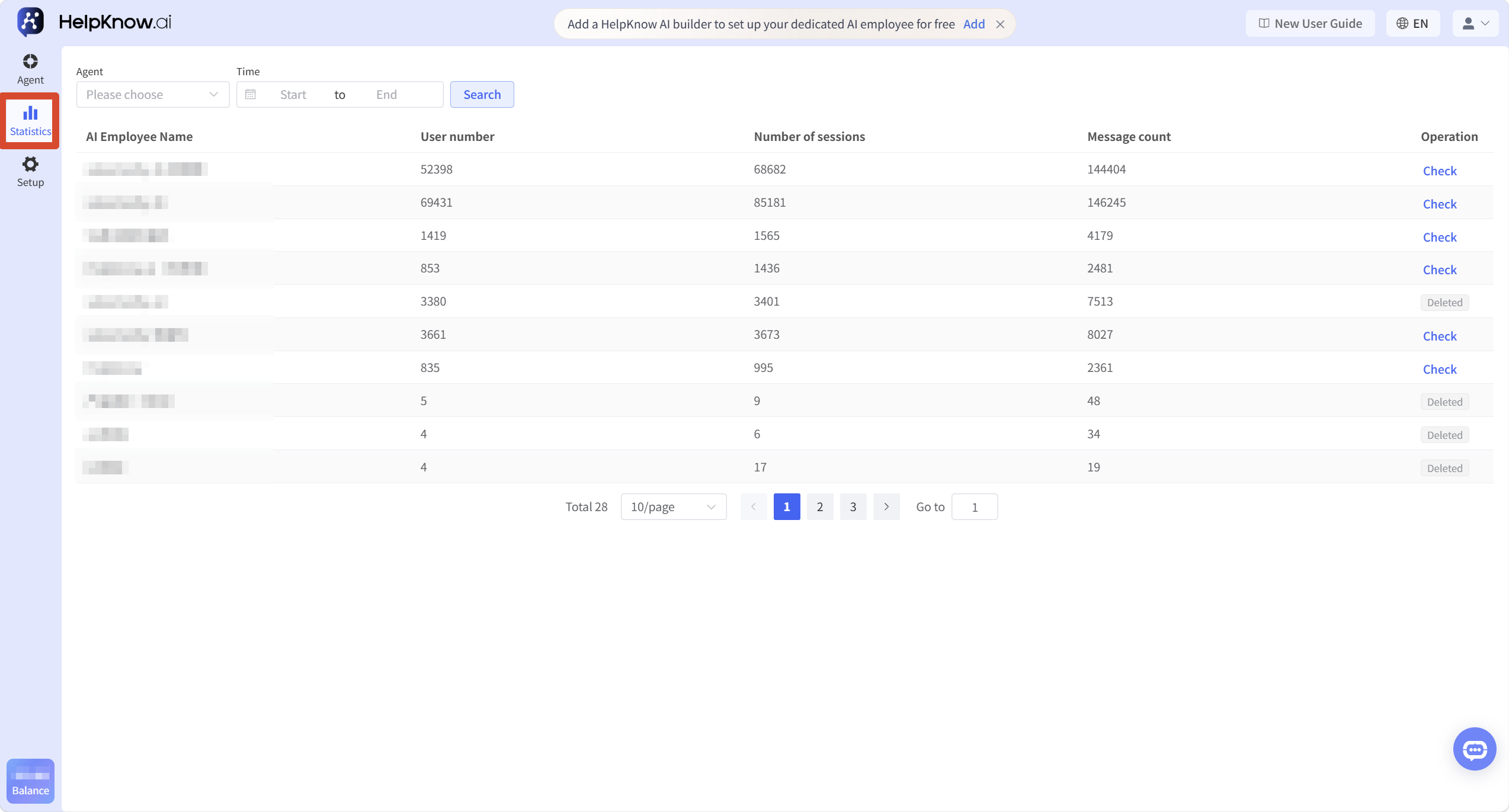
The statistics page is used to view summary data for all AI employees, making it easier to understand the overall usage and compare the data of different AI employees.
On the statistics page, you can view summary data such as AI employee names, number of users, number of conversations, and number of user messages.
(Note: The "Points Consumed" field in the image below is a historical statistic from the older version of the project. The current version no longer uses a points system. This field may still be displayed on some older project pages.)
2. Analysis Page
In the statistics list, clicking "View" to the right of a specific AI employee will take you to that AI employee's analysis page.
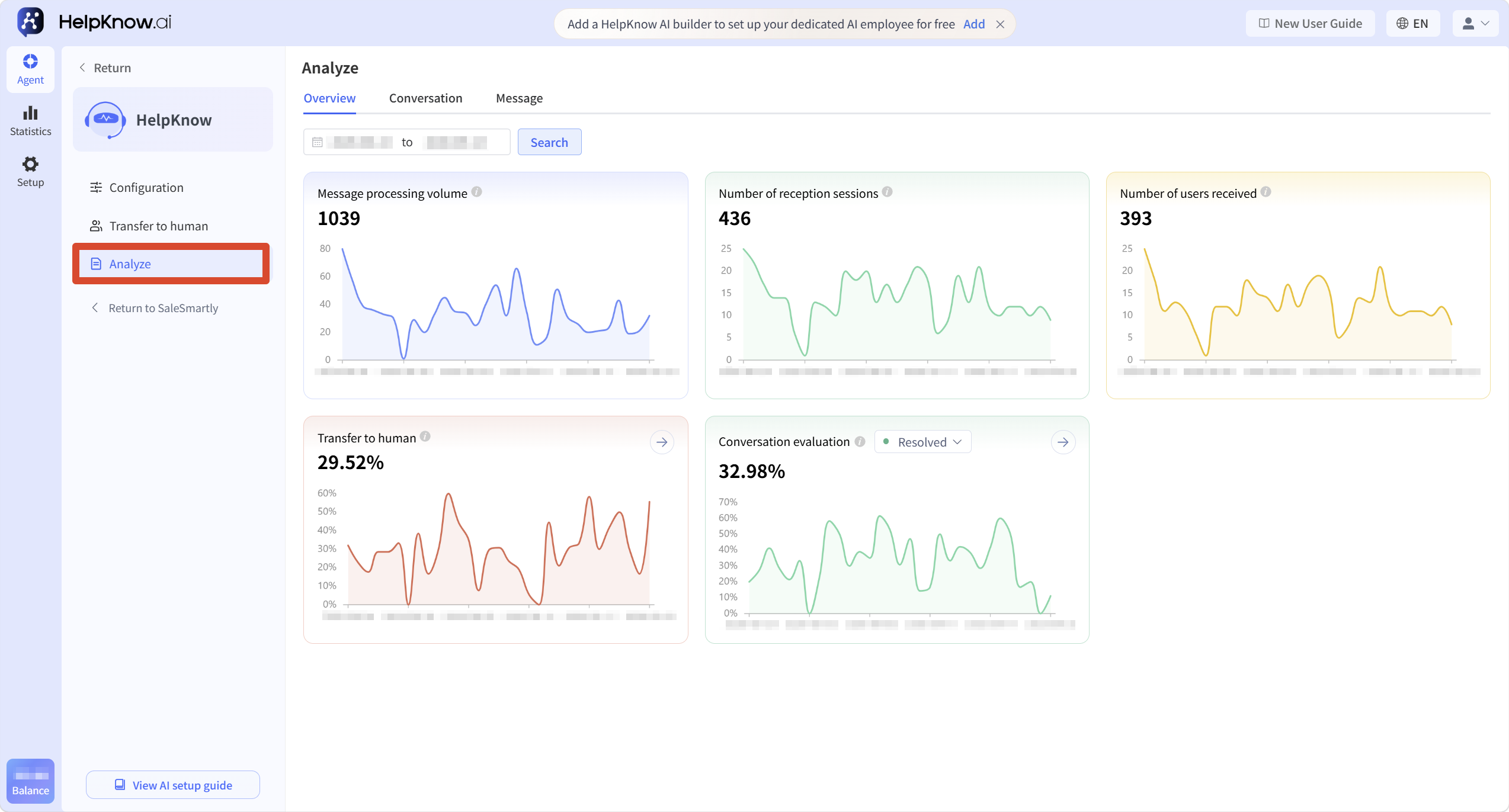
The analysis page includes the following:
- Overview : View trend data such as message processing volume, number of sessions handled, number of users handled, rate of transfer to human agent, and session resolution rate.
- Conversation : View a complete conversation between a user and an AI employee, as well as the relevant conversation status.
- Messages : View individual messages and related response details in the conversation.
III. Applicable Scenarios
You can select the corresponding page as needed:
- To understand the overall usage of all AI employees or to compare data from different AI employees, view the "Statistics Page".
- To view the usage trends of a specific AI employee within a specified time frame, go to "Analysis Page - Overview".
- To view a complete conversation or to investigate whether a conversation has been transferred to a human operator or is unresolved, go to "Analysis Page - Conversations".
- To locate a specific reply and view its details, go to "Analysis Page - Messages".
When older projects need to verify the points consumption of AI employees, the points consumption can also be viewed on the statistics page.
IV. Precautions
- "Points Consumption" is a statistic from previous versions; the current version no longer uses a points system.
- The number of users, sessions, and user messages use different statistical methods and are not recommended to be compared directly as the same metric.
- A user can create multiple sessions, and a single session can contain multiple user messages.
- Statistical data can help identify changes in usage or service effectiveness, but it doesn't directly represent the quality of responses. When examining specific responses, it's necessary to consider both the conversation and message details.
V. Frequently Asked Questions
1. Why is the number of received sessions in the "Overview" different from the number of sessions in the "Sessions" list?
The statistics methods used on the "Overview" and "Conversation" pages are different.
The session IDs in the "Sessions" list are unique, and the same session will only be displayed once within the selected time range.
The number of sessions received in the "Overview" section is a daily summary based on message activity. If the same session generates messages across multiple dates, they may be counted separately for each date. Therefore, when a longer time range is selected, the number of sessions received in the "Overview" section may be higher than the number of sessions in the "Sessions" list.
2. Why do some AI responses in "Analysis > Messages" show "Not sent to user"?
When a customer sends multiple messages in quick succession and triggers an aggregated response, the AI will combine these messages to provide a unified response, rather than sending separate responses generated during the processing of each message.
Therefore, some response records that were not sent individually to customers may be retained in "Analytics > Messages". These records will have a tooltip icon next to them; hovering the mouse over them will show "This message triggered an aggregated reply but was not sent to the user".
This is normal for aggregated replies and does not indicate message failure. The customer ultimately receives the aggregated reply.
For information on setting up and triggering aggregated replies, please refer to "How to Make AI Respond More Like a Real Person?"
VI. Related Tutorials
;}.cls-2{fill:%230868f7;}.cls-3{fill:url(%23未命名的渐变_44);}.cls-4{fill:%23333;}%3c/style%3e%3clinearGradient%20id='未命名的渐变_8'%20x1='33.73'%20y1='100.61'%20x2='-0.03'%20y2='-1.06'%20gradientUnits='userSpaceOnUse'%3e%3cstop%20offset='0'%20stop-color='%237ae9fb'/%3e%3cstop%20offset='0.67'%20stop-color='%232b90f8'/%3e%3cstop%20offset='1'%20stop-color='%230868f7'/%3e%3c/linearGradient%3e%3clinearGradient%20id='未命名的渐变_44'%20x1='27.86'%20y1='18.67'%20x2='68.36'%20y2='22.22'%20gradientUnits='userSpaceOnUse'%3e%3cstop%20offset='0'%20stop-color='%235ac7f2'/%3e%3cstop%20offset='1'%20stop-color='%230868f7'/%3e%3c/linearGradient%3e%3c/defs%3e%3cpath%20class='cls-1'%20d='M29,28.74V81.91l-9.51-3.68v0L8.52,74A7.17,7.17,0,0,1,4,67.32V24.54A3.76,3.76,0,0,1,9.08,21Z'/%3e%3cpath%20class='cls-2'%20d='M68.09,78.07a13.15,13.15,0,0,1-17.9,12.06L29,81.91h0V28.74L50.19,37A13.17,13.17,0,0,0,68.08,25.3h0Z'/%3e%3cpath%20class='cls-3'%20d='M68.08,25.3a13.19,13.19,0,0,1-6.73,10.87A13.09,13.09,0,0,1,50.19,37L29,28.74V6A3.76,3.76,0,0,1,34.1,2.52l25.59,9.91A13.22,13.22,0,0,1,68.08,25.3Z'/%3e%3cpath%20class='cls-4'%20d='M129.06,81.76a4.33,4.33,0,0,1-3.19-1.31,4.4,4.4,0,0,1-1.31-3.24V56.86H97.65V77.21a4.36,4.36,0,0,1-1.35,3.2A4.68,4.68,0,0,1,93,81.76a4.32,4.32,0,0,1-3.19-1.31,4.37,4.37,0,0,1-1.32-3.24V27.27A4.58,4.58,0,0,1,89.83,24a4.59,4.59,0,0,1,7.82,3.27V48.15h26.91V27.27A4.58,4.58,0,0,1,125.91,24a4.59,4.59,0,0,1,7.82,3.27V77.21a4.37,4.37,0,0,1-1.36,3.2A4.65,4.65,0,0,1,129.06,81.76Z'/%3e%3cpath%20class='cls-4'%20d='M163.77,81.66c-6.57,0-11.76-1.92-15.44-5.7s-5.54-9.07-5.54-15.74a26.76,26.76,0,0,1,2.09-10.43,17.72,17.72,0,0,1,6.67-8.06,19.15,19.15,0,0,1,10.68-2.95,19,19,0,0,1,10.46,2.8,18.7,18.7,0,0,1,6.55,7.36,22.53,22.53,0,0,1,2.36,10.28A4.51,4.51,0,0,1,177,63.77H152.23a10.8,10.8,0,0,0,3.49,6.65c2,1.68,4.88,2.52,8.66,2.52a22.25,22.25,0,0,0,7.54-1.21c.74-.3,1.55-.67,2.37-1.07a3.75,3.75,0,0,1,1.84-.4,4.09,4.09,0,0,1,3,1.15,4,4,0,0,1,1.12,3,4.38,4.38,0,0,1-2.58,3.82,32.34,32.34,0,0,1-6.36,2.61A28.67,28.67,0,0,1,163.77,81.66ZM172.4,55.9a9.72,9.72,0,0,0-1.63-4.56A9.9,9.9,0,0,0,167,48a10.38,10.38,0,0,0-4.64-1.14,12,12,0,0,0-4.77,1.06,9.54,9.54,0,0,0-4.89,5.66,11.78,11.78,0,0,0-.51,2.3Z'/%3e%3cpath%20class='cls-4'%20d='M193,81.64a4.49,4.49,0,0,1-4.51-4.55V27.28A4.58,4.58,0,0,1,189.84,24a4.48,4.48,0,0,1,3.28-1.36A4.36,4.36,0,0,1,196.35,24a4.46,4.46,0,0,1,1.31,3.31V77.09a4.34,4.34,0,0,1-1.35,3.2A4.67,4.67,0,0,1,193,81.64Z'/%3e%3cpath%20class='cls-4'%20d='M263.79,81.71a5.7,5.7,0,0,1-4.2-1.74,5.76,5.76,0,0,1-1.73-4.19V27.37a4.58,4.58,0,0,1,1.35-3.27A4.59,4.59,0,0,1,267,27.37V72.53h24a4.58,4.58,0,0,1,3.27,7.82A4.66,4.66,0,0,1,291,81.71Z'/%3e%3cpath%20class='cls-4'%20d='M424.48,81.74a4.71,4.71,0,0,1-2.71-.88,5.43,5.43,0,0,1-1-1l-.07-.09-12.41-17-5.41,5v9.44a4.31,4.31,0,0,1-1.36,3.19,4.66,4.66,0,0,1-3.3,1.36A4.29,4.29,0,0,1,395,80.42a4.36,4.36,0,0,1-1.32-3.23V27.37A4.58,4.58,0,0,1,395,24.1a4.52,4.52,0,0,1,6.58.12,4.54,4.54,0,0,1,1.24,3.15V56.31l17.72-16.38.05,0a4.8,4.8,0,0,1,2.94-1.11,4.4,4.4,0,0,1,3.27,1.2,4.57,4.57,0,0,1,1.2,3.27,4.44,4.44,0,0,1-.77,2.33,7.45,7.45,0,0,1-1.43,1.65l-11,9.64,13.34,17.68a5,5,0,0,1,1,2.71,4.12,4.12,0,0,1-1.36,3.24A4.64,4.64,0,0,1,424.48,81.74Z'/%3e%3cpath%20class='cls-4'%20d='M317.93,81.76a21.5,21.5,0,1,1,21.17-21.5A21.37,21.37,0,0,1,317.93,81.76Zm0-34.1a12.61,12.61,0,1,0,12.42,12.6A12.52,12.52,0,0,0,317.93,47.66Z'/%3e%3cpath%20class='cls-4'%20d='M212.18,101.22a4.12,4.12,0,0,1-3.05-1.26,4.17,4.17,0,0,1-1.26-3.1V43.34a4.37,4.37,0,0,1,1.3-3.14,4.26,4.26,0,0,1,3.13-1.3,4.19,4.19,0,0,1,3.1,1.26,4.32,4.32,0,0,1,1.26,3.16,20.77,20.77,0,0,1,13-4.54,21.51,21.51,0,0,1,0,43,20.51,20.51,0,0,1-13-4.57V96.86a4.15,4.15,0,0,1-1.3,3.06A4.5,4.5,0,0,1,212.18,101.22Zm17.43-53.63c-6.23,0-12.93,4.11-12.93,12.72a12.73,12.73,0,0,0,25.46,0A12.71,12.71,0,0,0,229.61,47.59Z'/%3e%3cpath%20class='cls-4'%20d='M365.76,81.76a21.5,21.5,0,1,1,21.18-21.5A21.37,21.37,0,0,1,365.76,81.76Zm0-34.1a12.61,12.61,0,1,0,12.42,12.6A12.52,12.52,0,0,0,365.76,47.66Z'/%3e%3c/svg%3e)