
How to Set Up AI-Powered Employees to Proactively Follow Up with Customers?
I. Function Introduction
Once proactive follow-up is enabled, AI employees can proactively send follow-up messages at set times when customers do not continue to respond, thus continuing to follow up with customers.
Currently, it supports calculating the follow-up time from the time of the AI's last response or the time when the AI was reassigned.
The same callback rule can be triggered at most once in each HelpKnow session, and each callback will consume 1 message quota. If multiple rules are met in the same session, each rule can be triggered once.
This article's link: "How to Set Up AI-Powered Employees to Proactively Follow Up with Customers?"
II. Enter "Proactively Follow Up with Customers"
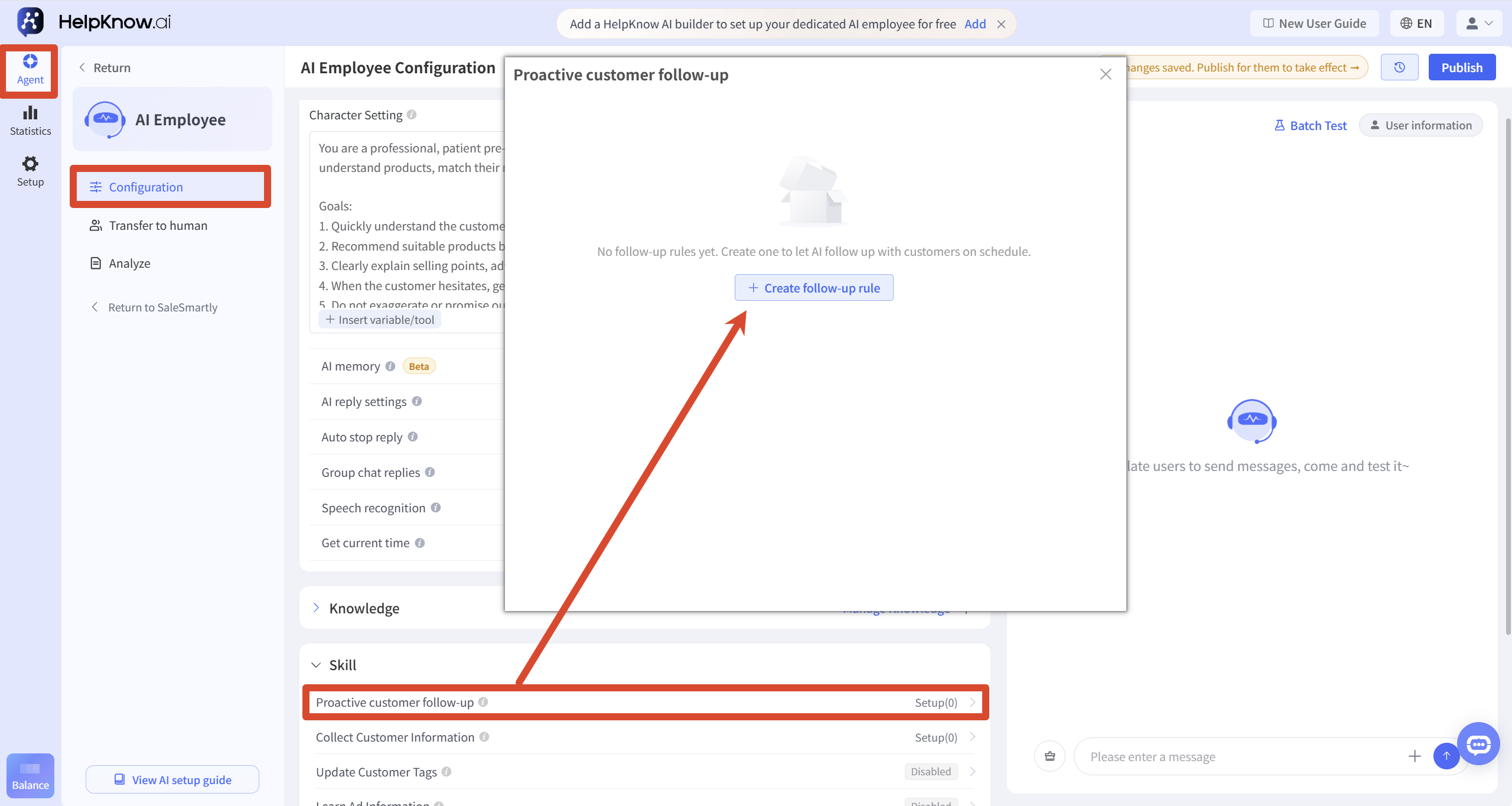
Enter the AI employee that needs to be configured, find "Proactive Customer Follow-up" in the "Skills" area of the "Configuration" page, and click to enter the settings page.
Click "Create Follow-up Rule" to start setting up a new follow-up rule.
III. Creating Follow-up Rules
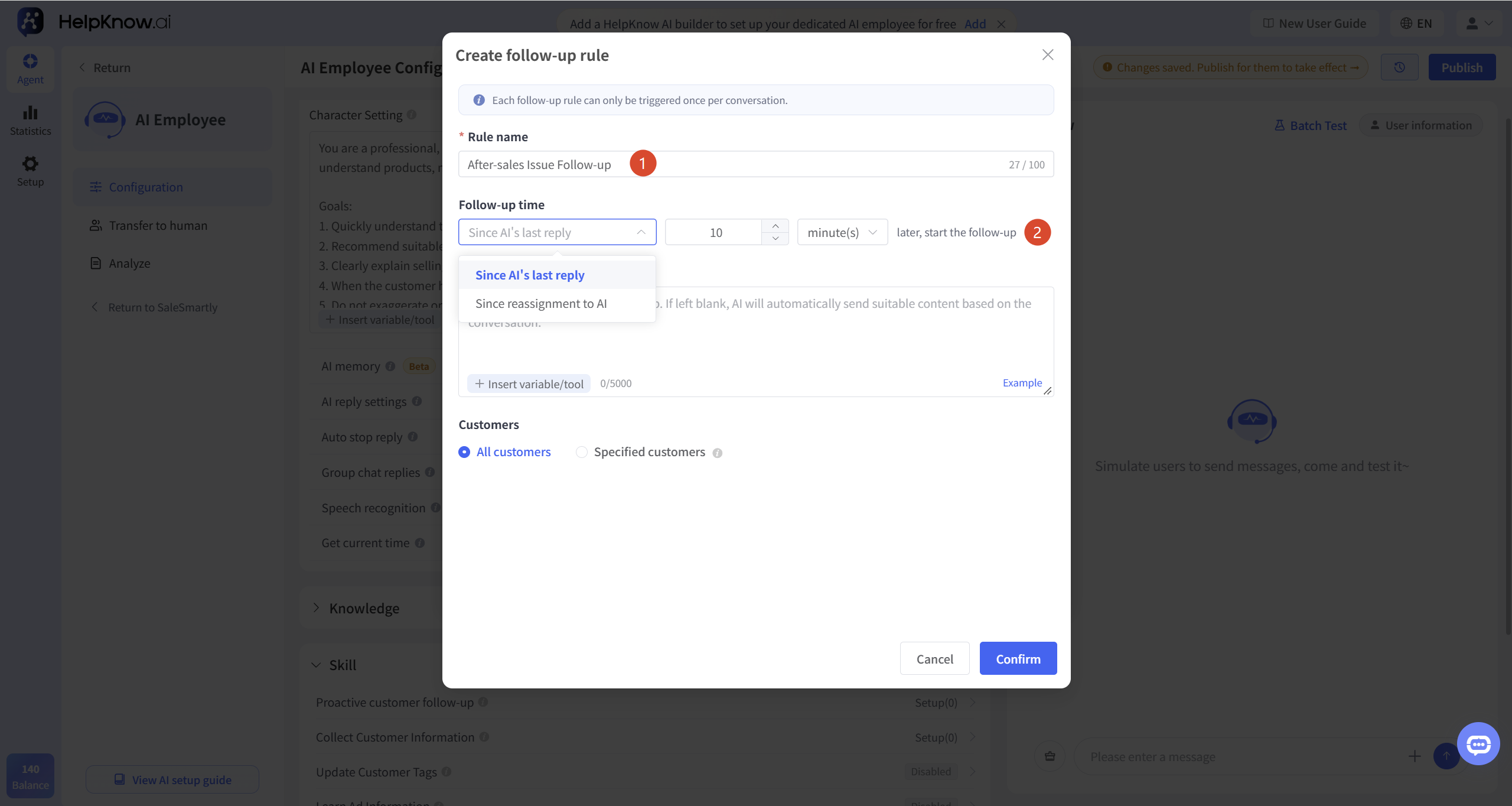
1. Set the rule name and callback time.
Enter the "Rule Name", which can be up to 100 characters long.
It is recommended to name them according to their specific purpose to make it easier to distinguish different rules, such as: follow-up call for unanswered product inquiries, follow-up call after sending a quote, and follow-up call for after-sales issues.
Enter the waiting time in "Follow-up Time" and select minutes, hours, or days.
The following two timing methods are currently supported:
- Time elapsed since AI's last reply : The system calculates the time from the last reply from the AI employee. If the customer still hasn't replied after the set time has elapsed, and meets the follow-up user criteria set in this rule, the system will initiate a follow-up call.
- AI Reassignment Distance : The system calculates the time from when the session is reassigned to an AI employee. After the set time is reached, even if the customer does not send a message again, the system will initiate a follow-up call as long as the user conditions for follow-up calls set in this rule are met.
If you select "Distance from AI's last reply", the timer based on the last AI reply will be canceled after the customer replies during the waiting period; after the AI replies to the customer again, the system will recalculate the time from the latest AI reply.
2. Fill out the "AI Follow-up Request" form.
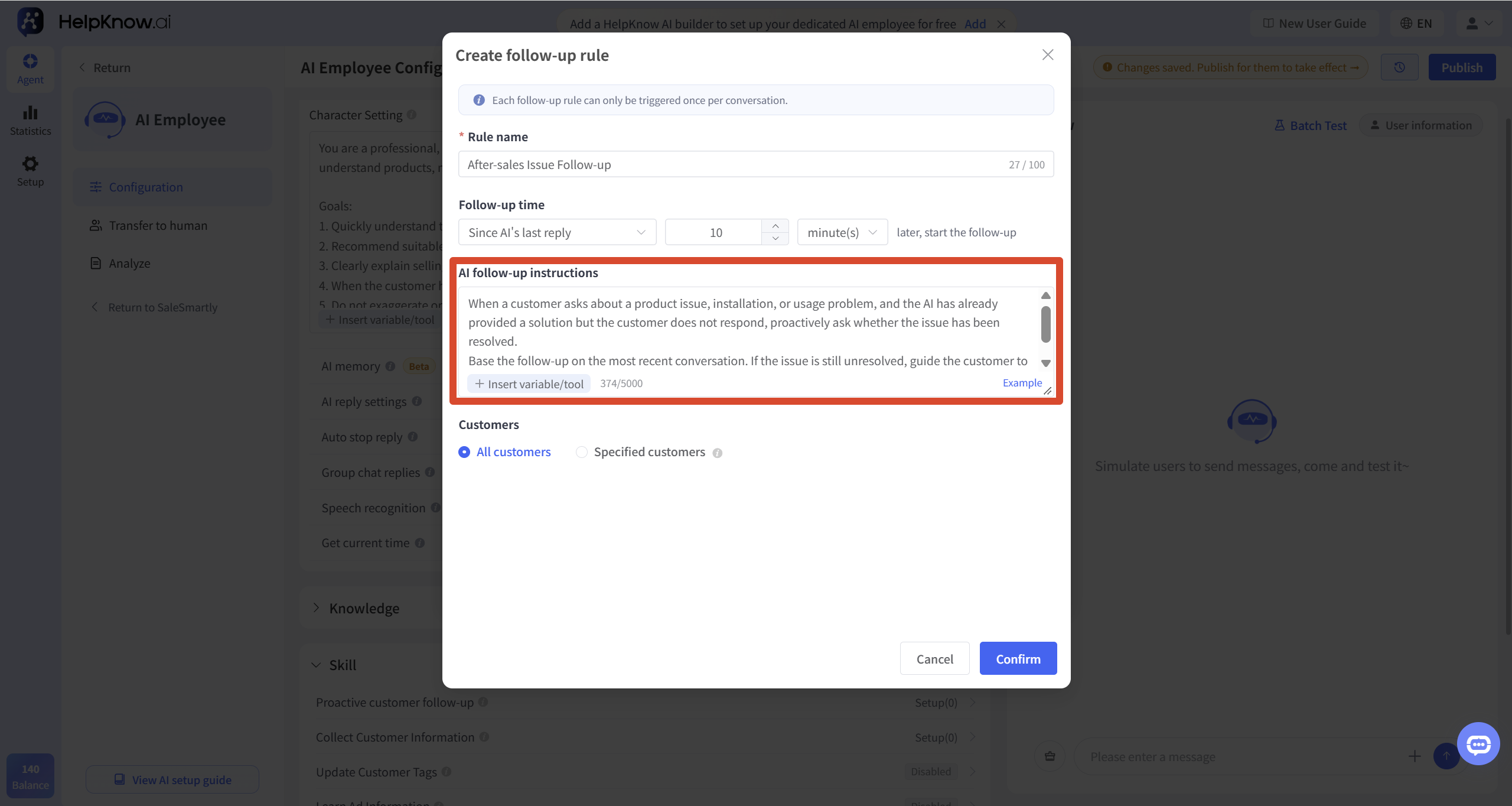
The "AI Follow-up Requirements" section outlines the goals and important considerations for this follow-up visit. AI staff will then generate a follow-up message based on these requirements and recent conversation content.
This field is optional. If left blank, the AI employee will automatically generate follow-up content based on the recent conversation context.
For example, in a follow-up call scenario for after-sales issues, you can fill in:
When a customer inquires about product malfunctions, installation, or usage issues, and the AI has already provided a solution but the customer hasn't responded, the system proactively inquires whether the problem has been resolved. A follow-up call is made based on recent conversation content; if the problem persists, the customer is guided to provide necessary information or contact human customer service.
The "AI Follow-up Requirements" are used to guide the AI in generating follow-up content; they are not a filter for determining which users need to be followed up. If you need to restrict the follow-up recipients, please select "Specified Users" in "Follow-up Users" and set the filter criteria.
The actual content sent during the callback is generated by AI based on the conversation and may not be exactly the same as the requirements or examples filled in.
3. Configure actions to be performed during follow-up visits.
In addition to generating follow-up messages, AI can also be instructed to perform configured operations simultaneously when initiating a follow-up call, such as transferring the call to a human agent or updating customer tags or attributes.
For example:
Reply to customer: Your issue requires further processing by a human operator. I will now transfer you to a human operator.
Politely ask the customer if they still need help, and update the conversation attribute "follow-up status" to "followed up".
Reply to customer: We are upgrading your service. At the same time, mark the user as "Pending Follow-up".
Before using these operations, you need to complete the corresponding configuration. Switching to human assistance requires prior setup; updating tags or attributes requires creating the corresponding tags or attributes first.
These operations are executed synchronously when the follow-up message is triggered, without waiting for the customer's reply before making a judgment.
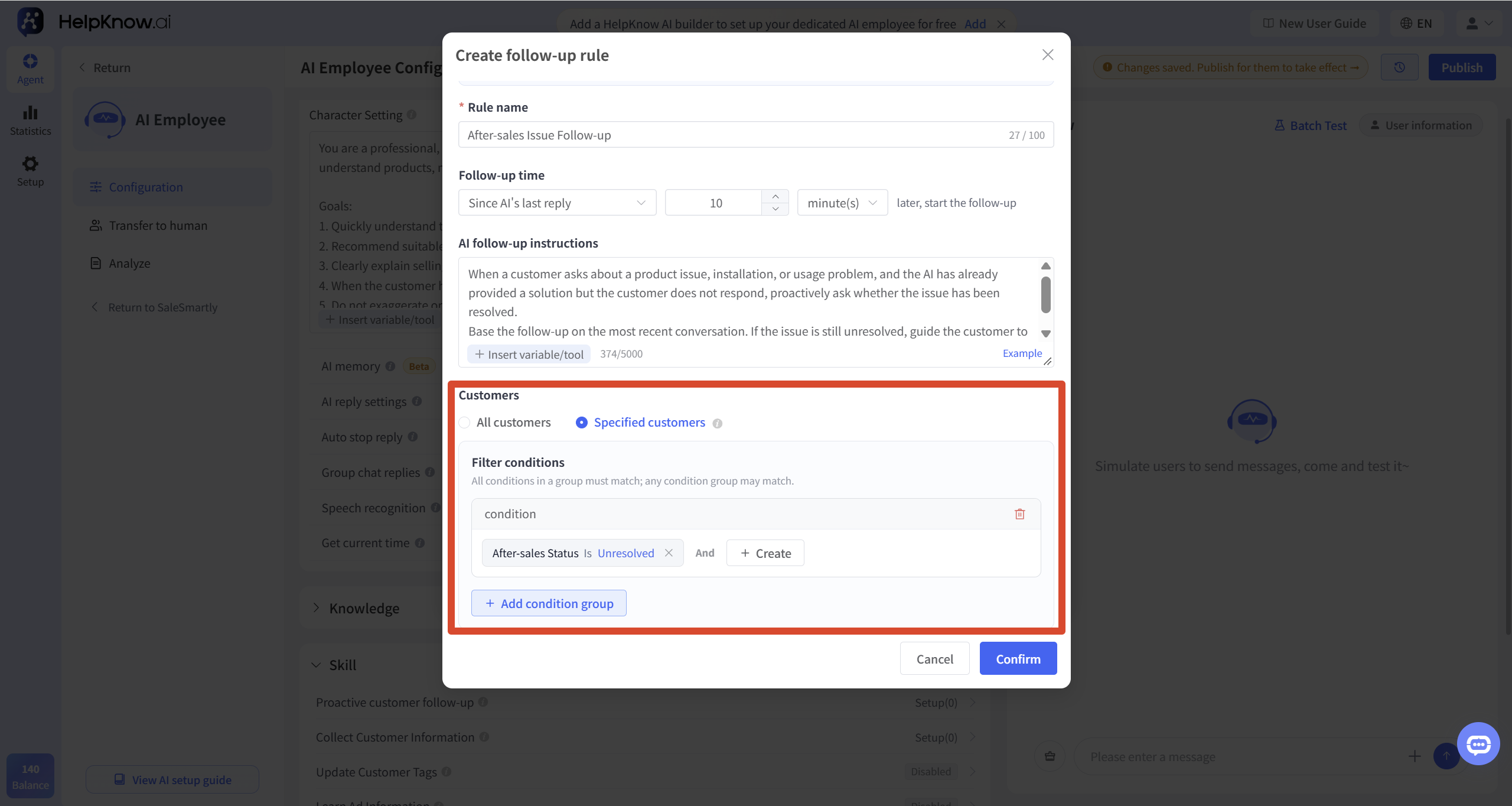
4. Select users to follow up
The "Returning Users" feature supports the following two configuration methods:
- "All Users": Initiate a follow-up visit for all users whose follow-up visit time has arrived and for whom the rule has not yet been triggered in the current session.
- "Specified Users": Only initiate follow-up visits to users who meet the filtering criteria.
After selecting "Specific User", click "New" to add criteria. The following types of filter criteria can be used:
- Custom Attributes : Select existing user attributes or session attributes as return visit filtering criteria. User attributes also include customer tags. Optional content is based on what's already in the current project. For creating or managing related attributes, refer to "How to Set Up AI Employees to Update Customer Tags?" for customer tags, and "How to Set Up AI Employees to Collect Customer Information?" for other user attributes and session attributes.
- Contact Attributes : Use existing contact attributes from SaleSmartly as return visit filters, such as name, email, phone number, language, social media channels, country/region, etc. These attributes are preset by SaleSmartly and do not need to be created separately in HelpKnow.
- System attribute : "AI Response Rounds". This variable counts the number of response rounds of the AI employee in the current session.
All conditions in the same condition group must be met; after adding multiple condition groups, it is sufficient to meet any one of the condition groups.
5. Save and enable the rules.
After completing the settings, click "OK".
After returning to the rule list, confirm that the switch in the upper right corner of the rule is turned on. When the switch is off, the rule will not trigger a revisit.
Once the follow-up rules are created, modified, and enabled, they will take effect immediately without needing to click "Publish" in the upper right corner of the AI Employee Configuration page.
IV. Management Follow-up Rules
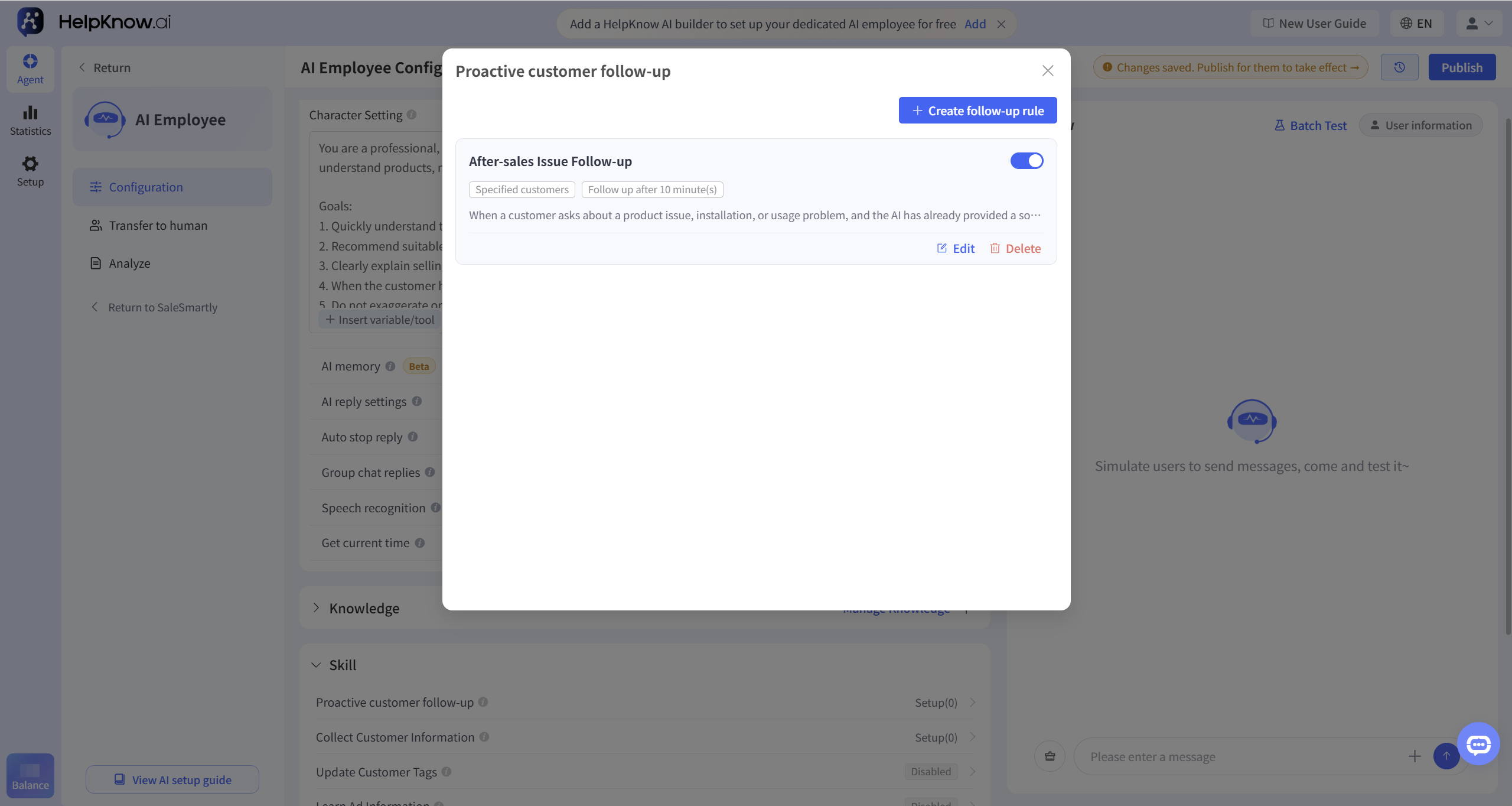
On the "Proactive Customer Follow-up" page, you can view the rules that have been created, as well as the users, timing, and requirements for follow-up.
You can do the following:
- Turn off the switch to suspend the use of a certain rule.
- Click "Edit" to modify the rule content.
- Click "Delete" to remove rules that are no longer in use.
- Click "Create Return Visit Rule" to add other rules.
Multiple callback rules can be triggered within the same session. When creating multiple rules, it is recommended to avoid callback times and content being too close together to prevent sending multiple messages to the customer consecutively.
V. Test and review the follow-up results
Proactive follow-up calls cannot be triggered in the "Q&A Test" on the right side of the AI employee configuration page.
For testing purposes, please initiate a real conversation through websites or social media channels that SaleSmartly has integrated with. For detailed testing methods, please refer to: "How to Test the Actual Reception Effectiveness of AI Employees?"
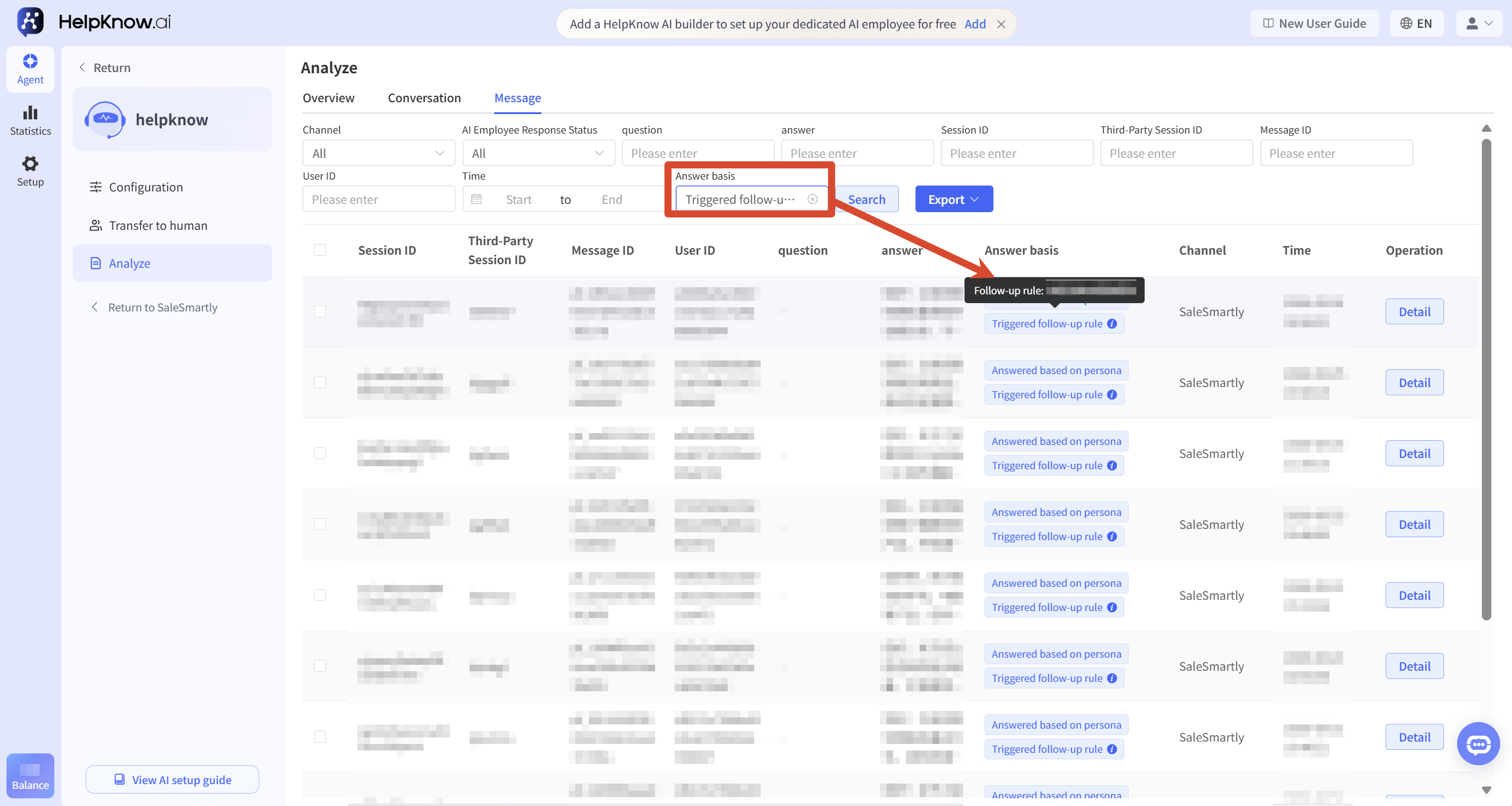
After the follow-up message is sent, you can view the record by going to the "Analysis > Messages" page of the corresponding AI employee.
Since there is no corresponding user question for the proactive follow-up message, the "Question" field may display as "-"; the "Basis for Answer" will display as "Trigger Follow-up Rule". Hovering the mouse over this icon will show the name of the follow-up rule used for this message.
VI. Applicable Scenarios
Proactive follow-up is suitable for scenarios where customers have not yet responded but further follow-up is still needed, such as:
- After inquiring about the product, ask the customer if they need to know anything about the price, specifications, or purchase method.
- After sending a quote or product information, ask the customer if they have already viewed it.
- After providing after-sales service methods, inquire whether the problem has been resolved.
VII. Frequently Asked Questions
1. Why wasn't the proactive follow-up call triggered?
Please check the following:
- Has the follow-up visit rule been enabled?
- Has the set follow-up time been reached?
- Whether the test is conducted through websites or social media channels already integrated with SaleSmartly. Proactive follow-ups are not supported in "Q&A Tests".
- Does the current user or session meet the filter criteria in "Specified User"?
- Has this rule already been triggered in the current session? The same rule can be triggered at most once per session.
- Does the current session still meet the conditions for a follow-up call, such as whether it has been transferred to a human operator, the session has ended, or automatic cessation of responses has been triggered?
Once the follow-up visit is triggered, you can go to "Analysis > Messages" to view the relevant records.
2. Will a follow-up call be triggered after the call is transferred to a human operator?
Once the conversation is switched to a human, the proactive follow-up based on the "distance from the AI's last reply" will not continue.
If a human customer service representative completes the reception and then reassigns the conversation to an AI employee, a follow-up rule of the "distance-reassigned AI" type can be used to allow the AI to proactively follow up with the customer based on the reassignment time.
3. After enabling proactive follow-up, will you follow up with customers who have consulted us before?
No. Proactive follow-ups will not automatically trace back to historical customers who had already consulted and remained silent before the rules were enabled.
Once the rule is enabled, a new, matching session state needs to be generated before the system will begin calculating the follow-up time based on the selected follow-up time type. For example, if "Distance from AI's Last Response" is selected, the AI employee needs to respond to the customer again; if "Distance from AI Reassignment" is selected, the calculation will start from the time when the AI was reassigned.
4. Will a follow-up call be triggered after the session ends?
No. Once the session ends, any proactive callbacks that have not yet been triggered in that session will not be executed.
If the customer initiates a new inquiry later, the system will recalculate the follow-up time based on the new session status and the selected follow-up time type.
5. Why do I receive multiple follow-up calls from the same customer?
Each callback rule can be triggered at most once in the same HelpKnow session.
If the same session meets multiple callback rules, each rule can be triggered separately, so the customer may receive multiple callback messages.
It is recommended to check the enabled callback rules, the users to be called back, the callback time, and the content, to avoid the scope of application and callback time of different rules being too similar.
6. Will proactively following up affect the "automatic stop reply" setting?
If the session has already triggered "automatic stop reply", the proactive follow-up will not continue.
Additionally, if "Automatic Stop Reply" uses "AI Reply Round (Single Session)" as the stop condition, proactive follow-up messages will also be counted in the current session's AI reply round.
For example, if the stopping condition is set to "AI response rounds (single session) greater than or equal to 3", after actively calling back to make the current session's AI response rounds reach 3, the customer will trigger the stop reply when sending a message again.
Related tutorial: "How to set up AI employees to automatically stop replying?"
;}.cls-2{fill:%230868f7;}.cls-3{fill:url(%23未命名的渐变_44);}.cls-4{fill:%23333;}%3c/style%3e%3clinearGradient%20id='未命名的渐变_8'%20x1='33.73'%20y1='100.61'%20x2='-0.03'%20y2='-1.06'%20gradientUnits='userSpaceOnUse'%3e%3cstop%20offset='0'%20stop-color='%237ae9fb'/%3e%3cstop%20offset='0.67'%20stop-color='%232b90f8'/%3e%3cstop%20offset='1'%20stop-color='%230868f7'/%3e%3c/linearGradient%3e%3clinearGradient%20id='未命名的渐变_44'%20x1='27.86'%20y1='18.67'%20x2='68.36'%20y2='22.22'%20gradientUnits='userSpaceOnUse'%3e%3cstop%20offset='0'%20stop-color='%235ac7f2'/%3e%3cstop%20offset='1'%20stop-color='%230868f7'/%3e%3c/linearGradient%3e%3c/defs%3e%3cpath%20class='cls-1'%20d='M29,28.74V81.91l-9.51-3.68v0L8.52,74A7.17,7.17,0,0,1,4,67.32V24.54A3.76,3.76,0,0,1,9.08,21Z'/%3e%3cpath%20class='cls-2'%20d='M68.09,78.07a13.15,13.15,0,0,1-17.9,12.06L29,81.91h0V28.74L50.19,37A13.17,13.17,0,0,0,68.08,25.3h0Z'/%3e%3cpath%20class='cls-3'%20d='M68.08,25.3a13.19,13.19,0,0,1-6.73,10.87A13.09,13.09,0,0,1,50.19,37L29,28.74V6A3.76,3.76,0,0,1,34.1,2.52l25.59,9.91A13.22,13.22,0,0,1,68.08,25.3Z'/%3e%3cpath%20class='cls-4'%20d='M129.06,81.76a4.33,4.33,0,0,1-3.19-1.31,4.4,4.4,0,0,1-1.31-3.24V56.86H97.65V77.21a4.36,4.36,0,0,1-1.35,3.2A4.68,4.68,0,0,1,93,81.76a4.32,4.32,0,0,1-3.19-1.31,4.37,4.37,0,0,1-1.32-3.24V27.27A4.58,4.58,0,0,1,89.83,24a4.59,4.59,0,0,1,7.82,3.27V48.15h26.91V27.27A4.58,4.58,0,0,1,125.91,24a4.59,4.59,0,0,1,7.82,3.27V77.21a4.37,4.37,0,0,1-1.36,3.2A4.65,4.65,0,0,1,129.06,81.76Z'/%3e%3cpath%20class='cls-4'%20d='M163.77,81.66c-6.57,0-11.76-1.92-15.44-5.7s-5.54-9.07-5.54-15.74a26.76,26.76,0,0,1,2.09-10.43,17.72,17.72,0,0,1,6.67-8.06,19.15,19.15,0,0,1,10.68-2.95,19,19,0,0,1,10.46,2.8,18.7,18.7,0,0,1,6.55,7.36,22.53,22.53,0,0,1,2.36,10.28A4.51,4.51,0,0,1,177,63.77H152.23a10.8,10.8,0,0,0,3.49,6.65c2,1.68,4.88,2.52,8.66,2.52a22.25,22.25,0,0,0,7.54-1.21c.74-.3,1.55-.67,2.37-1.07a3.75,3.75,0,0,1,1.84-.4,4.09,4.09,0,0,1,3,1.15,4,4,0,0,1,1.12,3,4.38,4.38,0,0,1-2.58,3.82,32.34,32.34,0,0,1-6.36,2.61A28.67,28.67,0,0,1,163.77,81.66ZM172.4,55.9a9.72,9.72,0,0,0-1.63-4.56A9.9,9.9,0,0,0,167,48a10.38,10.38,0,0,0-4.64-1.14,12,12,0,0,0-4.77,1.06,9.54,9.54,0,0,0-4.89,5.66,11.78,11.78,0,0,0-.51,2.3Z'/%3e%3cpath%20class='cls-4'%20d='M193,81.64a4.49,4.49,0,0,1-4.51-4.55V27.28A4.58,4.58,0,0,1,189.84,24a4.48,4.48,0,0,1,3.28-1.36A4.36,4.36,0,0,1,196.35,24a4.46,4.46,0,0,1,1.31,3.31V77.09a4.34,4.34,0,0,1-1.35,3.2A4.67,4.67,0,0,1,193,81.64Z'/%3e%3cpath%20class='cls-4'%20d='M263.79,81.71a5.7,5.7,0,0,1-4.2-1.74,5.76,5.76,0,0,1-1.73-4.19V27.37a4.58,4.58,0,0,1,1.35-3.27A4.59,4.59,0,0,1,267,27.37V72.53h24a4.58,4.58,0,0,1,3.27,7.82A4.66,4.66,0,0,1,291,81.71Z'/%3e%3cpath%20class='cls-4'%20d='M424.48,81.74a4.71,4.71,0,0,1-2.71-.88,5.43,5.43,0,0,1-1-1l-.07-.09-12.41-17-5.41,5v9.44a4.31,4.31,0,0,1-1.36,3.19,4.66,4.66,0,0,1-3.3,1.36A4.29,4.29,0,0,1,395,80.42a4.36,4.36,0,0,1-1.32-3.23V27.37A4.58,4.58,0,0,1,395,24.1a4.52,4.52,0,0,1,6.58.12,4.54,4.54,0,0,1,1.24,3.15V56.31l17.72-16.38.05,0a4.8,4.8,0,0,1,2.94-1.11,4.4,4.4,0,0,1,3.27,1.2,4.57,4.57,0,0,1,1.2,3.27,4.44,4.44,0,0,1-.77,2.33,7.45,7.45,0,0,1-1.43,1.65l-11,9.64,13.34,17.68a5,5,0,0,1,1,2.71,4.12,4.12,0,0,1-1.36,3.24A4.64,4.64,0,0,1,424.48,81.74Z'/%3e%3cpath%20class='cls-4'%20d='M317.93,81.76a21.5,21.5,0,1,1,21.17-21.5A21.37,21.37,0,0,1,317.93,81.76Zm0-34.1a12.61,12.61,0,1,0,12.42,12.6A12.52,12.52,0,0,0,317.93,47.66Z'/%3e%3cpath%20class='cls-4'%20d='M212.18,101.22a4.12,4.12,0,0,1-3.05-1.26,4.17,4.17,0,0,1-1.26-3.1V43.34a4.37,4.37,0,0,1,1.3-3.14,4.26,4.26,0,0,1,3.13-1.3,4.19,4.19,0,0,1,3.1,1.26,4.32,4.32,0,0,1,1.26,3.16,20.77,20.77,0,0,1,13-4.54,21.51,21.51,0,0,1,0,43,20.51,20.51,0,0,1-13-4.57V96.86a4.15,4.15,0,0,1-1.3,3.06A4.5,4.5,0,0,1,212.18,101.22Zm17.43-53.63c-6.23,0-12.93,4.11-12.93,12.72a12.73,12.73,0,0,0,25.46,0A12.71,12.71,0,0,0,229.61,47.59Z'/%3e%3cpath%20class='cls-4'%20d='M365.76,81.76a21.5,21.5,0,1,1,21.18-21.5A21.37,21.37,0,0,1,365.76,81.76Zm0-34.1a12.61,12.61,0,1,0,12.42,12.6A12.52,12.52,0,0,0,365.76,47.66Z'/%3e%3c/svg%3e)