
How to Troubleshoot When AI Employee Responses Do Not Meet Expectations?
I. Function Introduction
When AI employees give incorrect answers, incomplete answers, irrelevant answers, or answers that do not conform to the expected knowledge base content, the " Troubleshooting Assistant " can be used to analyze the reasons.
The troubleshooting assistant will help you determine whether an AI's response meets expectations, understand why the AI answered in that way, why it did not use the expected knowledge base content, and provide corresponding optimization suggestions for each AI response.
You can use the troubleshooting assistant in the following ways:
- On the SaleSmartly chat page, the AI's response will take you directly to HelpKnow for troubleshooting.
- On the HelpKnow "Analysis" page, find the answers you need to investigate through "Conversations" or "Messages".
- In HelpKnow's "Question and Answer Test," you can directly review the answers generated by the test.
The troubleshooting assistant only provides analysis results and optimization suggestions; it does not automatically modify AI employee configurations. This article will introduce the above-mentioned troubleshooting entry points and how to view and use the troubleshooting results.
Link to this article: "How to Troubleshoot When AI Employee Responses Do Not Meet Expectations?"
II. Instructions for Use
1. Check AI responses from SaleSmartly
If you use SaleSmartly to receive customers, you can directly access the details page of the corresponding AI response from the SaleSmartly "Chat" page .
In SaleSmartly, open the customer conversation you need to investigate, find the AI message whose answer is not as expected, and click "Investigate the reason" below the message.
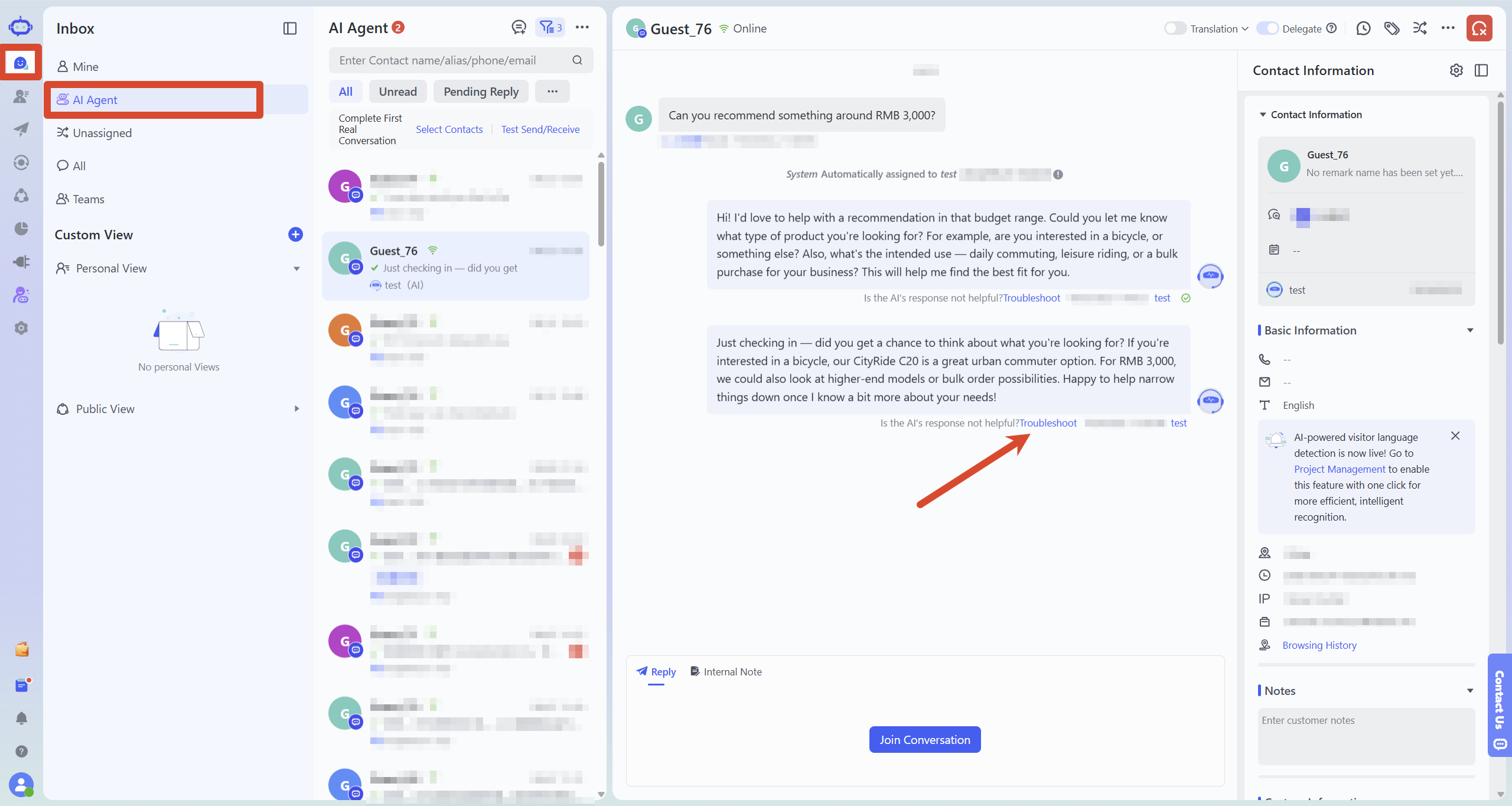
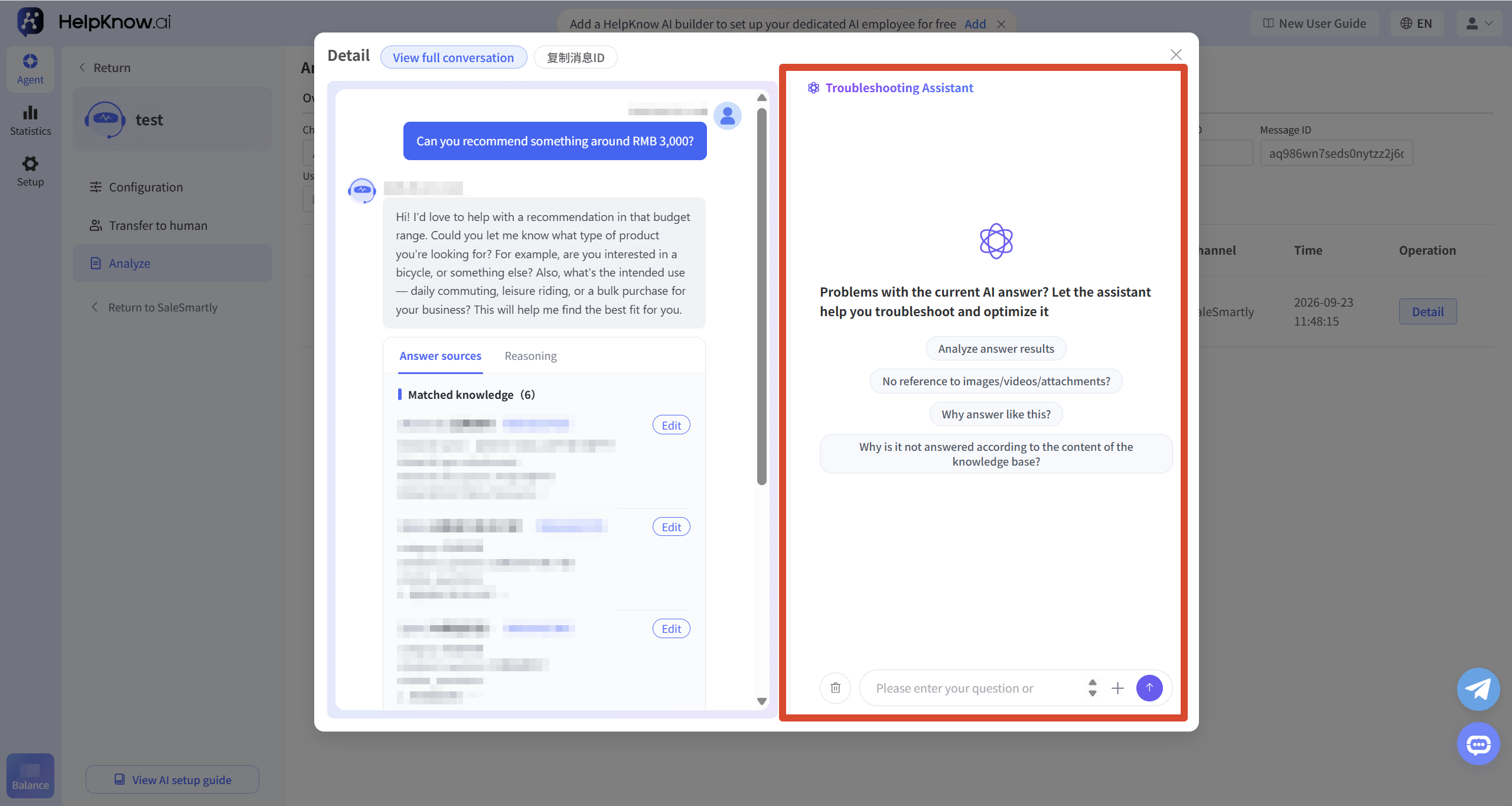
After clicking, the system will redirect you to HelpKnow and open the details page for the AI answer. You can use the troubleshooting assistant on the right side of the page to analyze the answer.
This method can directly locate the AI answer that caused the problem, eliminating the need to manually search for the corresponding conversation or message in HelpKnow.
2. Check the HelpKnow analysis logs.
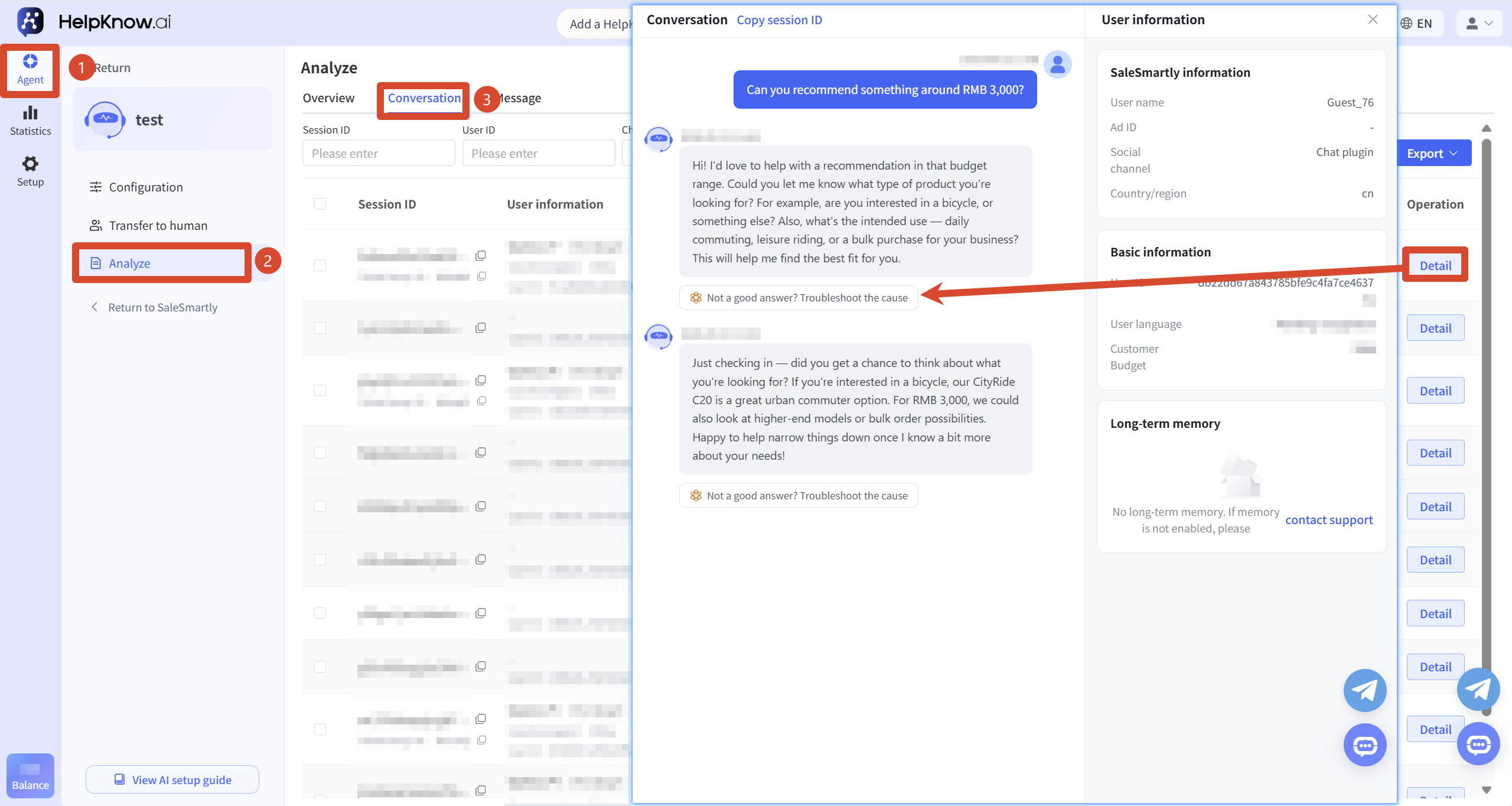
You can also access the corresponding AI employee, click "Analysis" in the left-hand menu, and find the AI's response that you need to investigate through "Conversation" or "Messages".
In the "Conversations" section, you can view a complete dialogue and then select a specific AI response for further investigation. Conversations generated from question-and-answer tests will also be displayed here, accessible through the "Preview & Debug" section; genuine inquiries from users via websites or social media can also be viewed here.
After finding the target conversation, click "Details", then click "Poor answer? Investigate the reason" below the AI answer you need to analyze.
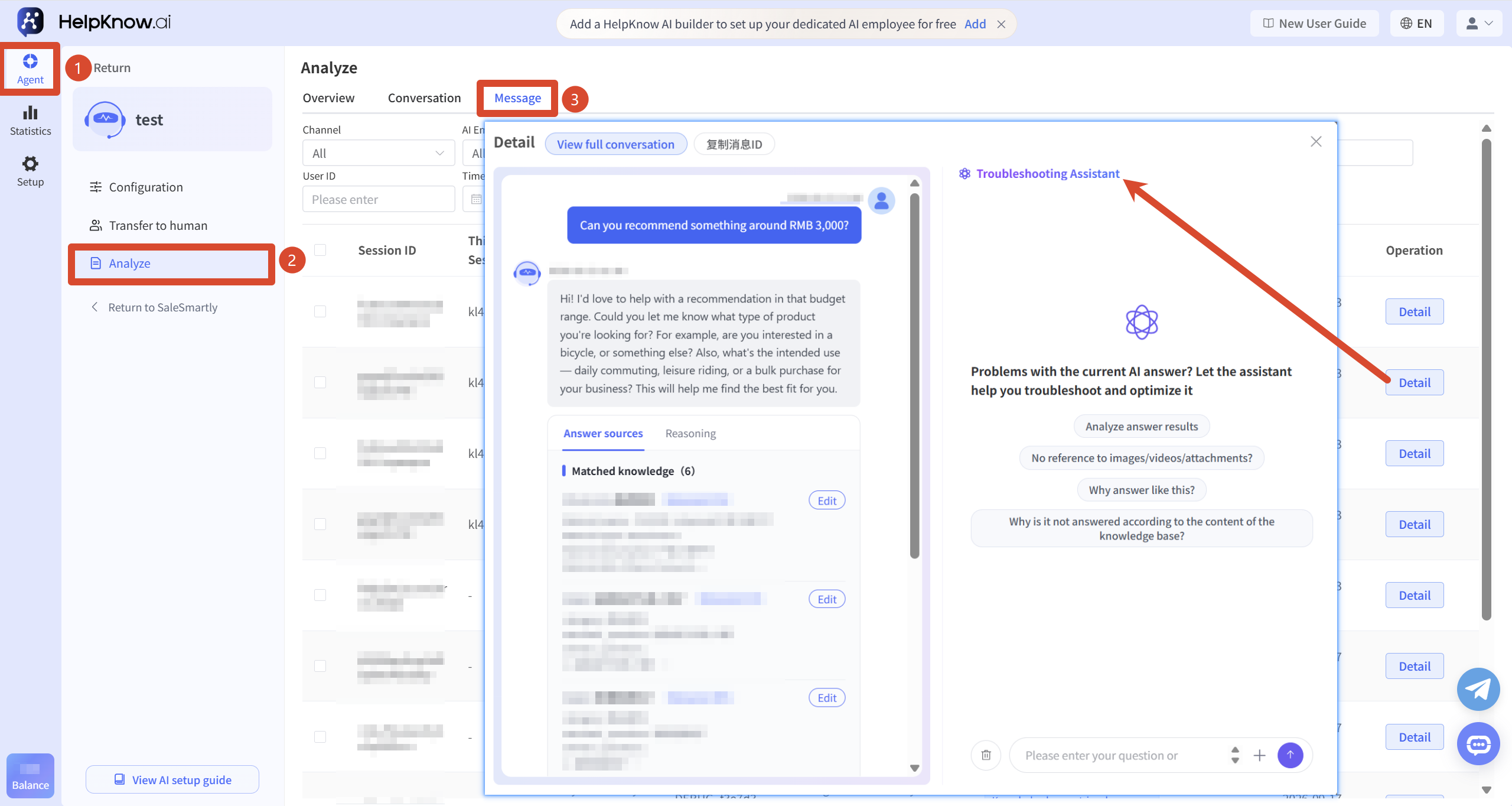
If you have identified a specific message that needs to be investigated, you can switch to "Messages", find the message and click "Details", and use the investigation assistant on the right side of the details window.
3. Directly check in the HelpKnow Q&A test.
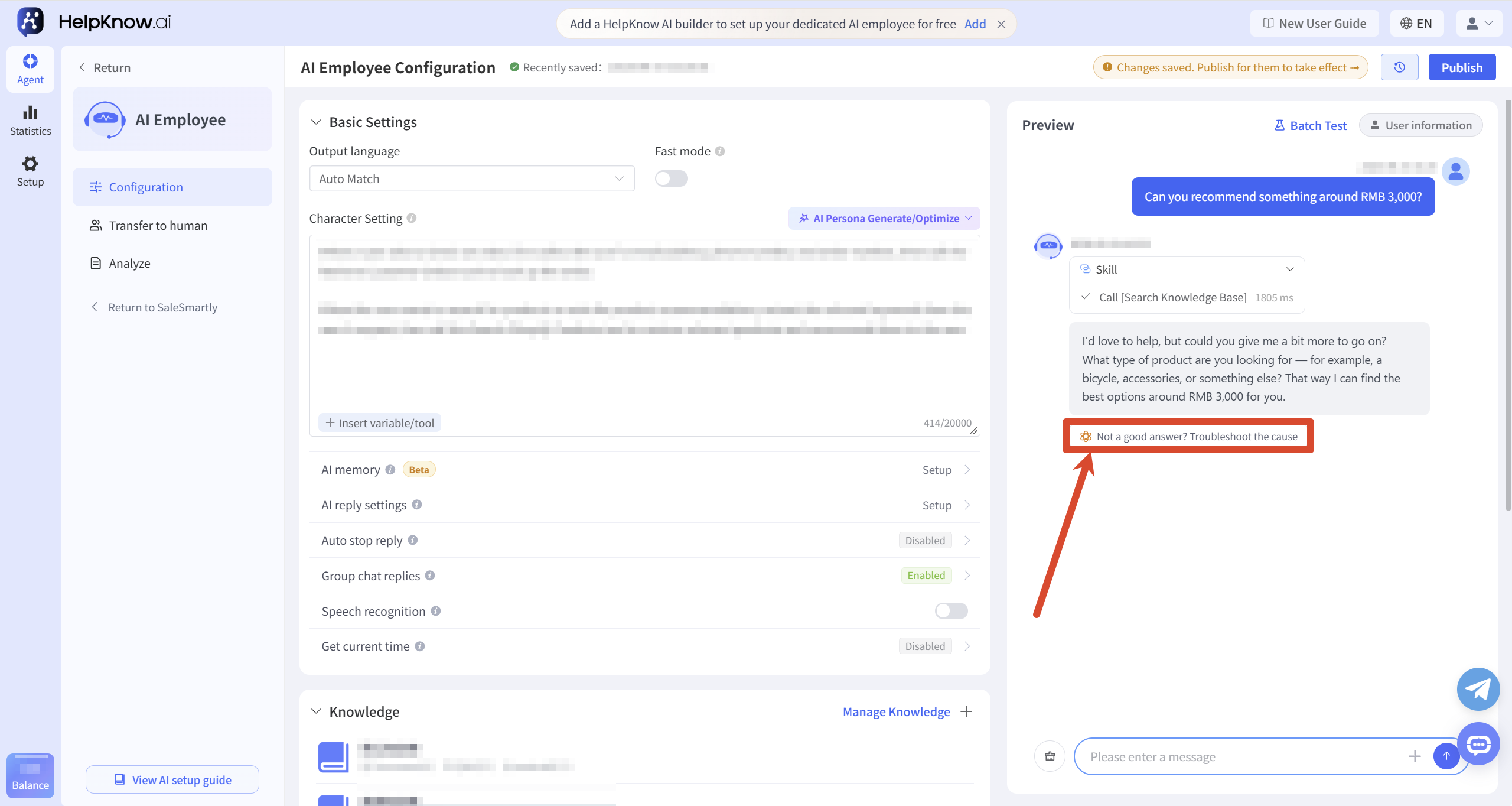
Before or after deploying an AI employee, you can proactively send questions through the "Q&A Test" to check the AI employee's response.
Find the AI answer you need to analyze, and click "Not good answer? Investigate the reason" below the answer.
4. Select the problem to investigate.
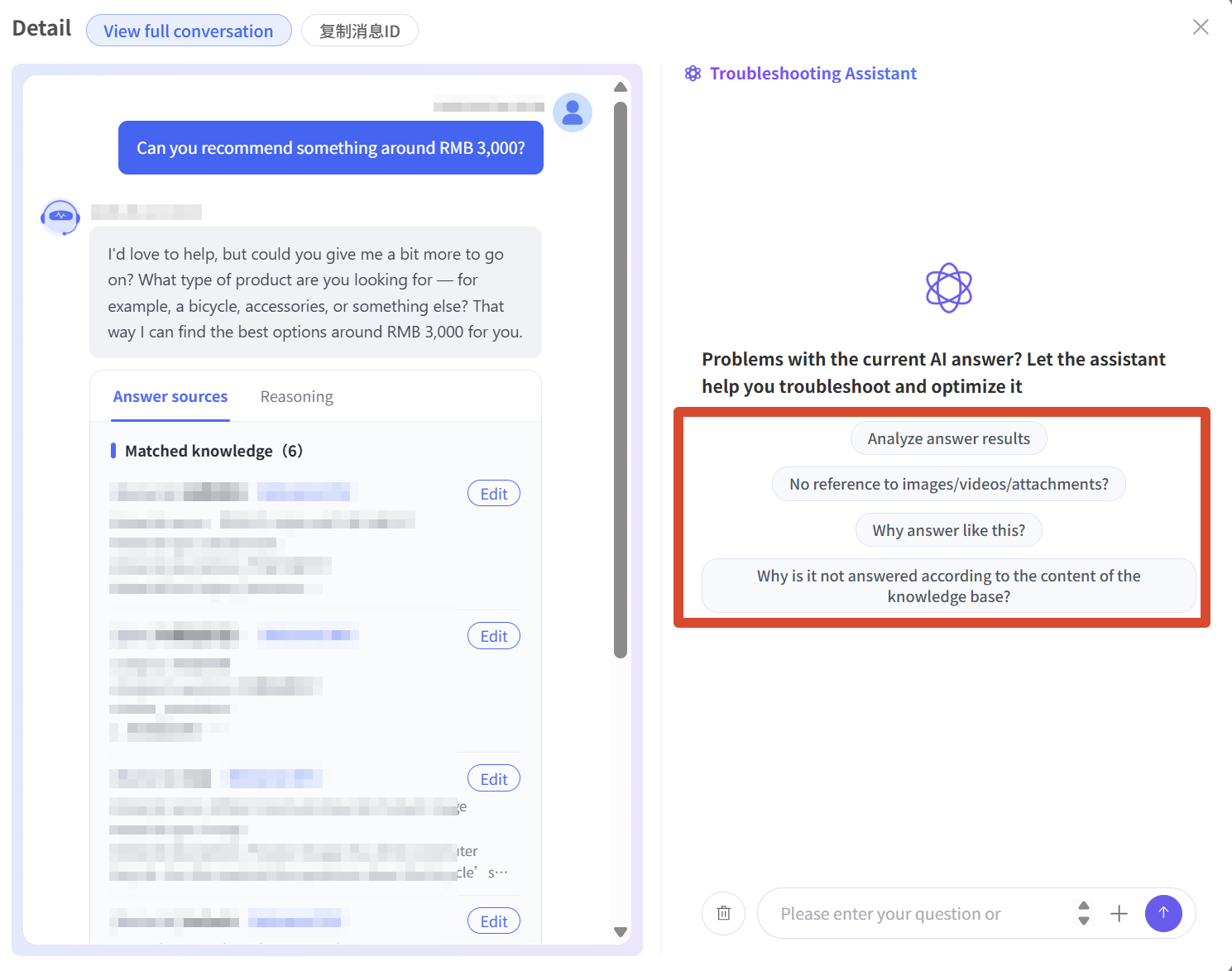
After opening the troubleshooting assistant, you can directly select the following issues:
- "Analyzing the effectiveness of the responses"
- "No images/videos/attachments were referenced?"
- Why did you answer that way?
- Why didn't you answer according to the knowledge base?
You can also describe the specific problem or fill in the expected answer in the input box.
5. View the analysis results
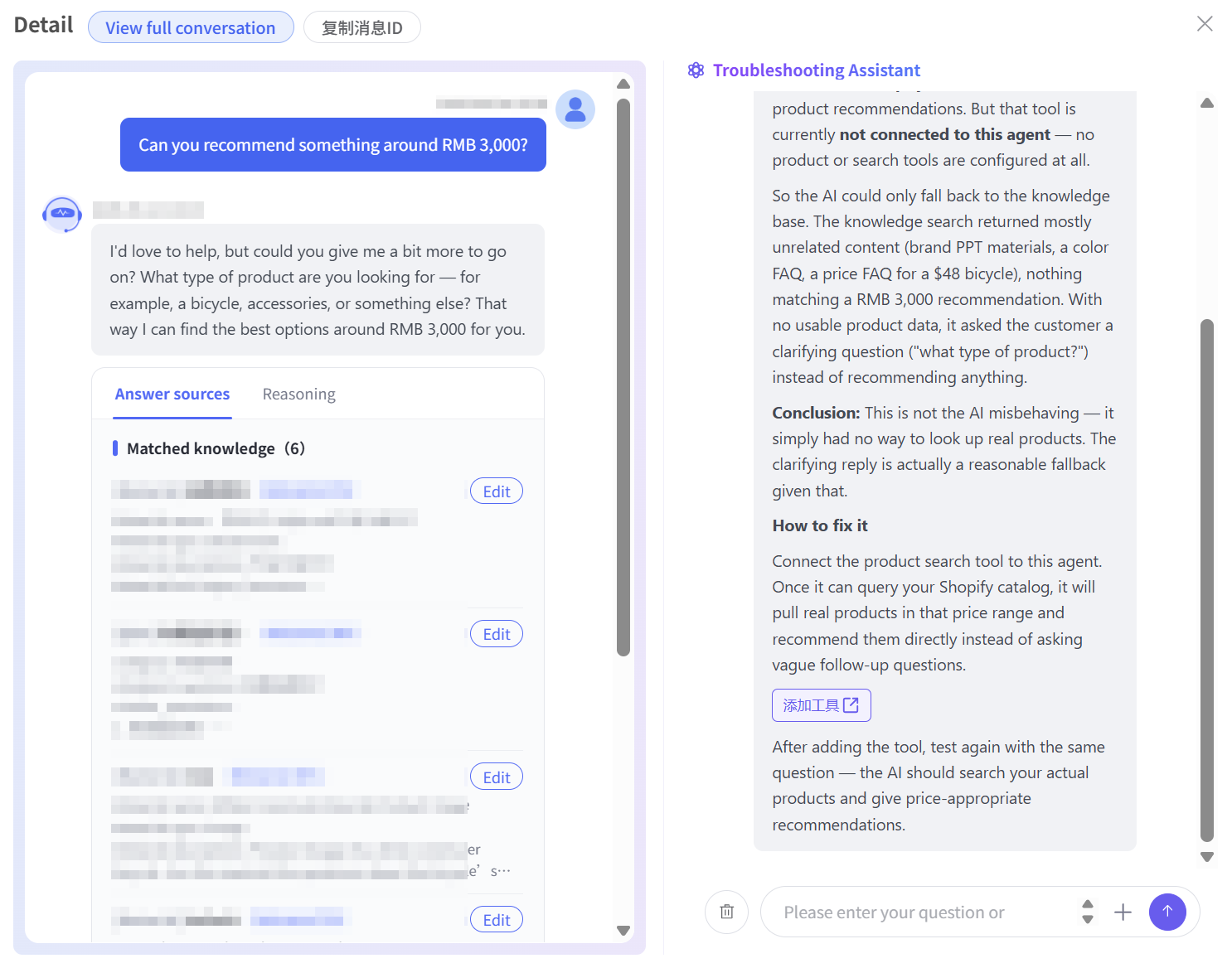
The troubleshooting assistant will analyze whether the current answer meets expectations, identify potential problems, and provide corresponding optimization suggestions.
When the investigation results involve adjustments to AI employee configurations, the page will display corresponding guide buttons. Clicking the button will directly take you to the relevant configuration for modification, without needing to exit the current page and manually search for the corresponding function.
You can adjust the relevant configurations based on the investigation results and optimization suggestions, and retest the AI employee's response performance.
III. Applicable Scenarios
- Investigate abnormal responses in real consultations: When AI employees provide incorrect, incomplete, or irrelevant answers during actual consultations, analyze the specific reasons.
- Before release, check the response effectiveness: Simulate user questions in the Q&A test to check whether the AI employee's response meets expectations.
- Optimize AI employee configuration: Based on the investigation results, check the knowledge base, persona, or other relevant configurations to continuously optimize the response performance of AI employees.
IV. Precautions
- The analysis assistant analyzes only one AI response at a time, and does not analyze all responses in the entire conversation.
- The results of the investigation are used to help locate the problem, but they still need to be verified in conjunction with the actual knowledge base content and the configuration of AI staff.
- The troubleshooting assistant will not automatically modify the AI employee configuration. The guide buttons in the troubleshooting results are only for quick access to the corresponding configuration; you still need to make the specific modifications yourself.
- After adjusting the configuration, it is recommended to retest the Q&A. Once the answers are confirmed to meet expectations, the AI employee needs to be released for the changes to take effect in real-world interactions.
V. Related Recommendations
;}.cls-2{fill:%230868f7;}.cls-3{fill:url(%23未命名的渐变_44);}.cls-4{fill:%23333;}%3c/style%3e%3clinearGradient%20id='未命名的渐变_8'%20x1='33.73'%20y1='100.61'%20x2='-0.03'%20y2='-1.06'%20gradientUnits='userSpaceOnUse'%3e%3cstop%20offset='0'%20stop-color='%237ae9fb'/%3e%3cstop%20offset='0.67'%20stop-color='%232b90f8'/%3e%3cstop%20offset='1'%20stop-color='%230868f7'/%3e%3c/linearGradient%3e%3clinearGradient%20id='未命名的渐变_44'%20x1='27.86'%20y1='18.67'%20x2='68.36'%20y2='22.22'%20gradientUnits='userSpaceOnUse'%3e%3cstop%20offset='0'%20stop-color='%235ac7f2'/%3e%3cstop%20offset='1'%20stop-color='%230868f7'/%3e%3c/linearGradient%3e%3c/defs%3e%3cpath%20class='cls-1'%20d='M29,28.74V81.91l-9.51-3.68v0L8.52,74A7.17,7.17,0,0,1,4,67.32V24.54A3.76,3.76,0,0,1,9.08,21Z'/%3e%3cpath%20class='cls-2'%20d='M68.09,78.07a13.15,13.15,0,0,1-17.9,12.06L29,81.91h0V28.74L50.19,37A13.17,13.17,0,0,0,68.08,25.3h0Z'/%3e%3cpath%20class='cls-3'%20d='M68.08,25.3a13.19,13.19,0,0,1-6.73,10.87A13.09,13.09,0,0,1,50.19,37L29,28.74V6A3.76,3.76,0,0,1,34.1,2.52l25.59,9.91A13.22,13.22,0,0,1,68.08,25.3Z'/%3e%3cpath%20class='cls-4'%20d='M129.06,81.76a4.33,4.33,0,0,1-3.19-1.31,4.4,4.4,0,0,1-1.31-3.24V56.86H97.65V77.21a4.36,4.36,0,0,1-1.35,3.2A4.68,4.68,0,0,1,93,81.76a4.32,4.32,0,0,1-3.19-1.31,4.37,4.37,0,0,1-1.32-3.24V27.27A4.58,4.58,0,0,1,89.83,24a4.59,4.59,0,0,1,7.82,3.27V48.15h26.91V27.27A4.58,4.58,0,0,1,125.91,24a4.59,4.59,0,0,1,7.82,3.27V77.21a4.37,4.37,0,0,1-1.36,3.2A4.65,4.65,0,0,1,129.06,81.76Z'/%3e%3cpath%20class='cls-4'%20d='M163.77,81.66c-6.57,0-11.76-1.92-15.44-5.7s-5.54-9.07-5.54-15.74a26.76,26.76,0,0,1,2.09-10.43,17.72,17.72,0,0,1,6.67-8.06,19.15,19.15,0,0,1,10.68-2.95,19,19,0,0,1,10.46,2.8,18.7,18.7,0,0,1,6.55,7.36,22.53,22.53,0,0,1,2.36,10.28A4.51,4.51,0,0,1,177,63.77H152.23a10.8,10.8,0,0,0,3.49,6.65c2,1.68,4.88,2.52,8.66,2.52a22.25,22.25,0,0,0,7.54-1.21c.74-.3,1.55-.67,2.37-1.07a3.75,3.75,0,0,1,1.84-.4,4.09,4.09,0,0,1,3,1.15,4,4,0,0,1,1.12,3,4.38,4.38,0,0,1-2.58,3.82,32.34,32.34,0,0,1-6.36,2.61A28.67,28.67,0,0,1,163.77,81.66ZM172.4,55.9a9.72,9.72,0,0,0-1.63-4.56A9.9,9.9,0,0,0,167,48a10.38,10.38,0,0,0-4.64-1.14,12,12,0,0,0-4.77,1.06,9.54,9.54,0,0,0-4.89,5.66,11.78,11.78,0,0,0-.51,2.3Z'/%3e%3cpath%20class='cls-4'%20d='M193,81.64a4.49,4.49,0,0,1-4.51-4.55V27.28A4.58,4.58,0,0,1,189.84,24a4.48,4.48,0,0,1,3.28-1.36A4.36,4.36,0,0,1,196.35,24a4.46,4.46,0,0,1,1.31,3.31V77.09a4.34,4.34,0,0,1-1.35,3.2A4.67,4.67,0,0,1,193,81.64Z'/%3e%3cpath%20class='cls-4'%20d='M263.79,81.71a5.7,5.7,0,0,1-4.2-1.74,5.76,5.76,0,0,1-1.73-4.19V27.37a4.58,4.58,0,0,1,1.35-3.27A4.59,4.59,0,0,1,267,27.37V72.53h24a4.58,4.58,0,0,1,3.27,7.82A4.66,4.66,0,0,1,291,81.71Z'/%3e%3cpath%20class='cls-4'%20d='M424.48,81.74a4.71,4.71,0,0,1-2.71-.88,5.43,5.43,0,0,1-1-1l-.07-.09-12.41-17-5.41,5v9.44a4.31,4.31,0,0,1-1.36,3.19,4.66,4.66,0,0,1-3.3,1.36A4.29,4.29,0,0,1,395,80.42a4.36,4.36,0,0,1-1.32-3.23V27.37A4.58,4.58,0,0,1,395,24.1a4.52,4.52,0,0,1,6.58.12,4.54,4.54,0,0,1,1.24,3.15V56.31l17.72-16.38.05,0a4.8,4.8,0,0,1,2.94-1.11,4.4,4.4,0,0,1,3.27,1.2,4.57,4.57,0,0,1,1.2,3.27,4.44,4.44,0,0,1-.77,2.33,7.45,7.45,0,0,1-1.43,1.65l-11,9.64,13.34,17.68a5,5,0,0,1,1,2.71,4.12,4.12,0,0,1-1.36,3.24A4.64,4.64,0,0,1,424.48,81.74Z'/%3e%3cpath%20class='cls-4'%20d='M317.93,81.76a21.5,21.5,0,1,1,21.17-21.5A21.37,21.37,0,0,1,317.93,81.76Zm0-34.1a12.61,12.61,0,1,0,12.42,12.6A12.52,12.52,0,0,0,317.93,47.66Z'/%3e%3cpath%20class='cls-4'%20d='M212.18,101.22a4.12,4.12,0,0,1-3.05-1.26,4.17,4.17,0,0,1-1.26-3.1V43.34a4.37,4.37,0,0,1,1.3-3.14,4.26,4.26,0,0,1,3.13-1.3,4.19,4.19,0,0,1,3.1,1.26,4.32,4.32,0,0,1,1.26,3.16,20.77,20.77,0,0,1,13-4.54,21.51,21.51,0,0,1,0,43,20.51,20.51,0,0,1-13-4.57V96.86a4.15,4.15,0,0,1-1.3,3.06A4.5,4.5,0,0,1,212.18,101.22Zm17.43-53.63c-6.23,0-12.93,4.11-12.93,12.72a12.73,12.73,0,0,0,25.46,0A12.71,12.71,0,0,0,229.61,47.59Z'/%3e%3cpath%20class='cls-4'%20d='M365.76,81.76a21.5,21.5,0,1,1,21.18-21.5A21.37,21.37,0,0,1,365.76,81.76Zm0-34.1a12.61,12.61,0,1,0,12.42,12.6A12.52,12.52,0,0,0,365.76,47.66Z'/%3e%3c/svg%3e)