
How to Insert Variables and Tools in AI Employee Configuration?
I. Function Introduction
When configuring AI employees, you can insert variables or tools, reference customer information, or specify AI employees to perform operations such as transferring to human agents, collecting customer information, and searching the knowledge base.
- Insert variables : Allow AI employees to use information from the current customer or session, such as customer name, customer identity, AI response rounds, etc.
- Insert tools : Allow AI employees to perform specific operations according to set requirements, such as transferring to human agents, recording customer information, or sending specified materials.
This feature can be used in various configuration scenarios, including AI employee personas, customized AI skills, switching to human agents, and proactively following up with customers. The variables and tools that can be inserted may vary depending on the location; please refer to the page display for details.
This article's link: "How to Insert Variables and Tools in AI Employee Configuration?"
II. Inserting Variables
1. Select the variables to be used.
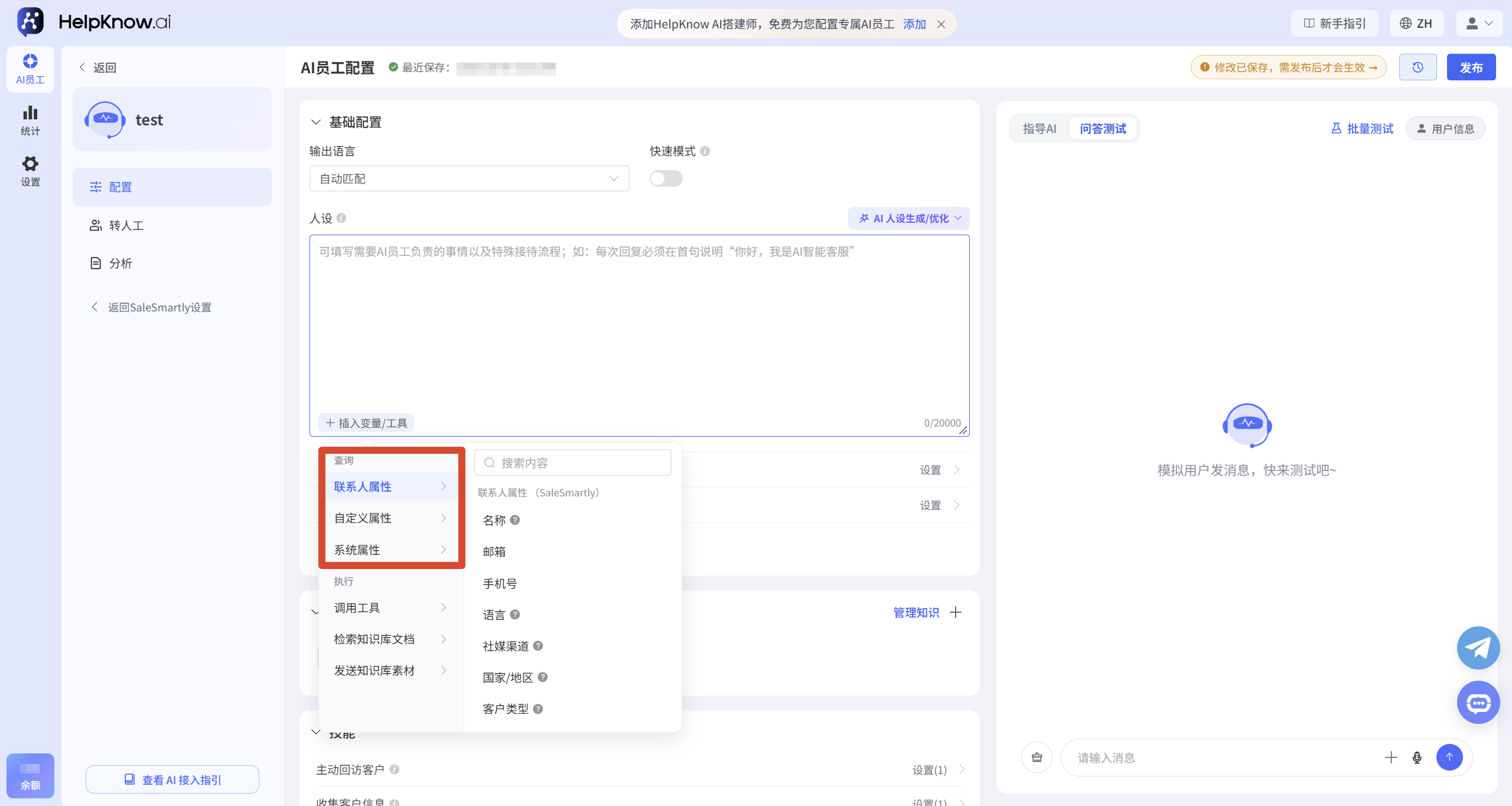
In the configuration input box for supported variables, click "Insert Variable/Tool" or "Insert Variable" and select the property you want to reference.
Currently, the following three types of variables are supported:
- Contact attributes : SaleSmartly provides default contact attributes such as name, email, phone number, language, and social media channels. These attributes are pre-defined by SaleSmartly and do not need to be created separately in HelpKnow.
- Custom attributes : User attributes, session attributes, and customer tags already created in HelpKnow. Optional content is based on what's already in the current project. For creating or managing related attributes, refer to "How to Set Up AI Employees to Update Customer Tags?" for customer tags, and "How to Set Up AI Employees to Collect Customer Information?" for other attributes.
- System Attributes : The HelpKnow system provides attributes, currently including "AI Response Rounds", which is used to count the number of response rounds of the AI employee in the current session.
2. Use variables in configuration content
After inserting variables, rules can be set according to actual business needs, allowing AI employees to respond and process based on customer information or conversation status.
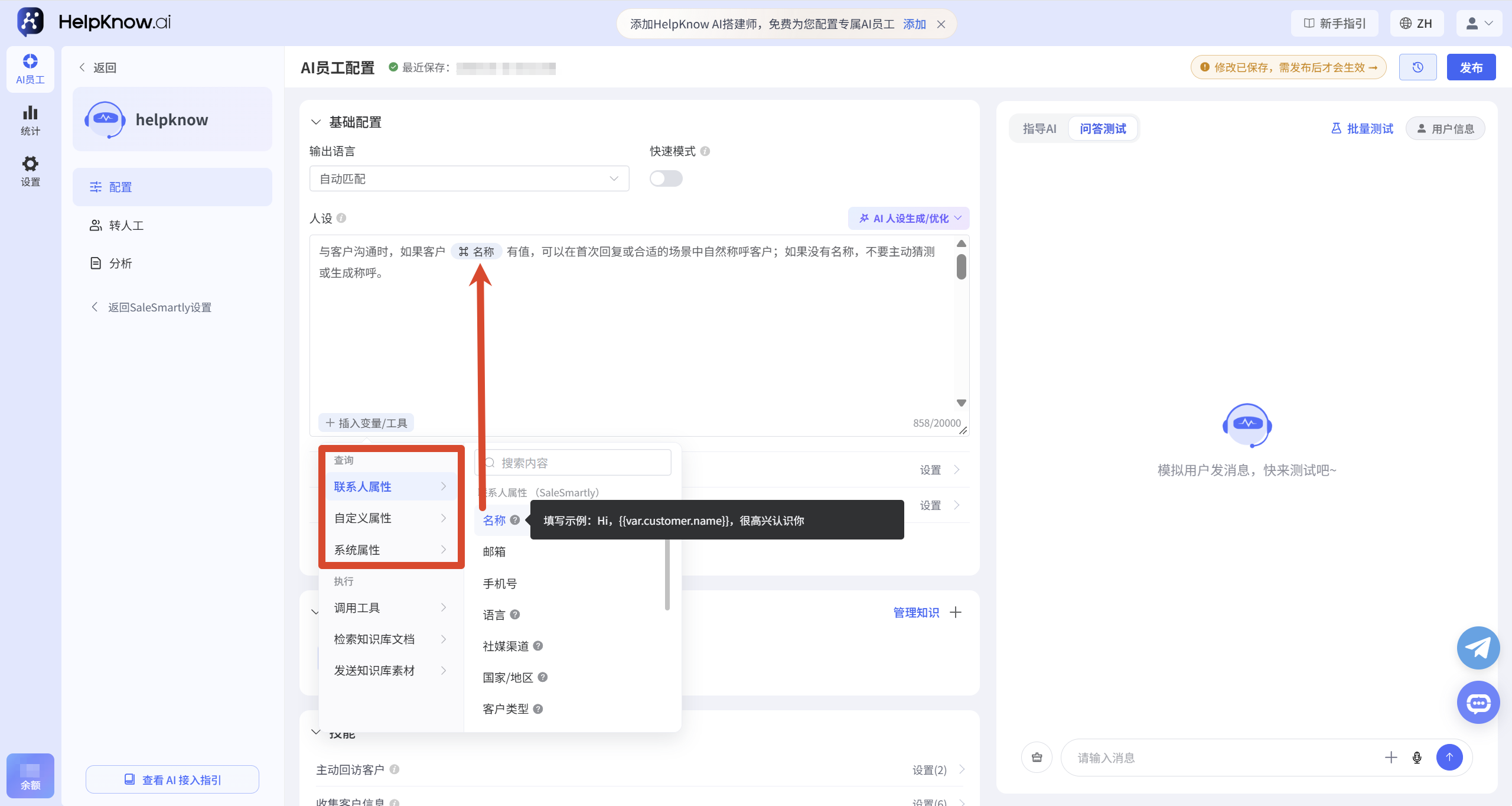
For example, in "AI Employee Persona", you can insert a "Name" variable and set it as follows:
When communicating with customers, if the customer's "name" has a value, you can address the customer naturally in the initial reply or in an appropriate context; if there is no name, do not actively guess or generate a name.
III. Insert Tool
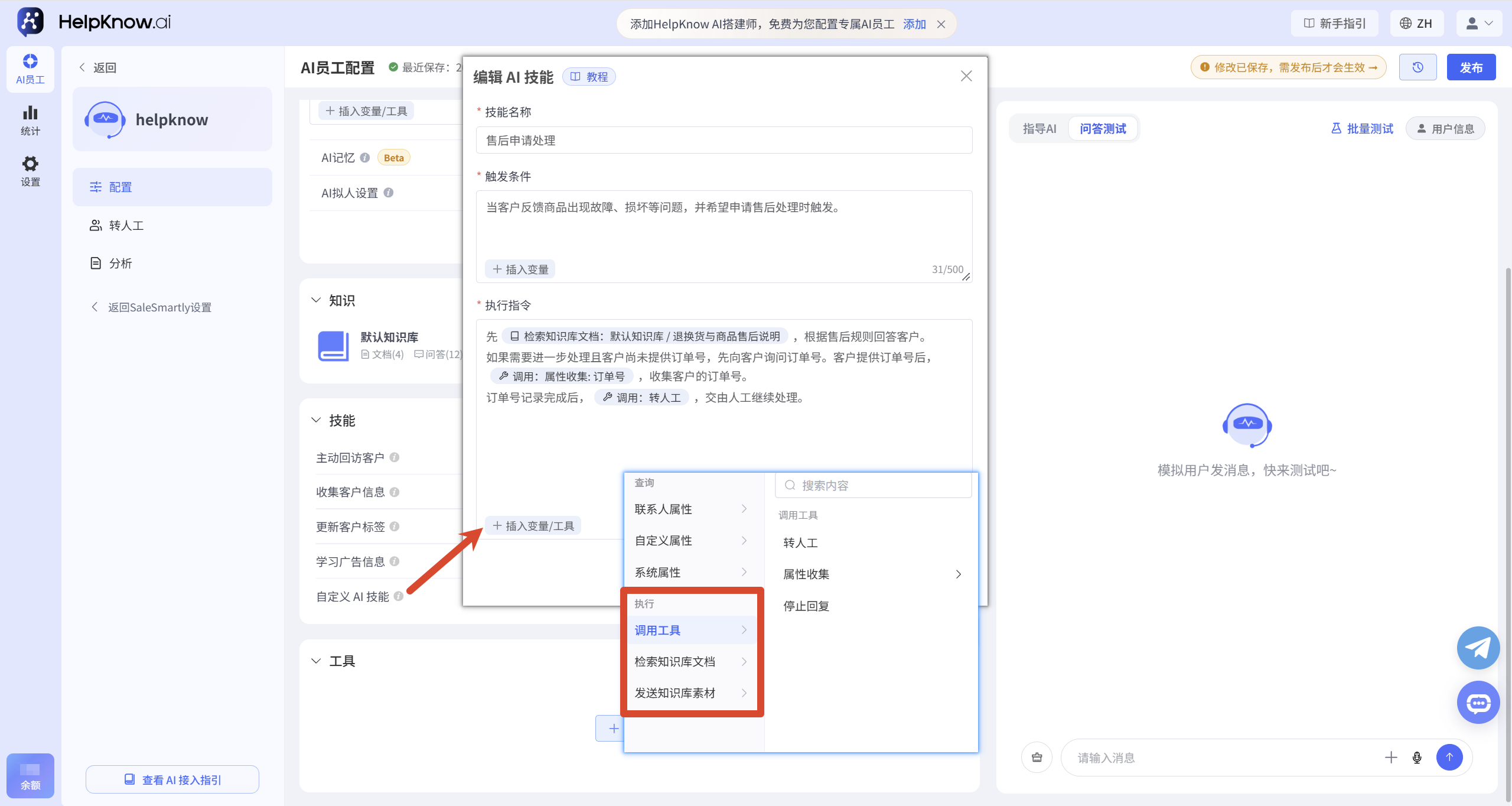
In the input boxes for support tools such as persona, custom AI skills, and proactive customer follow-up, click "Insert Variable/Tool" and select the tool you want to use.
The following commonly used tools are currently supported:
| tool | Function Description |
|---|---|
| Transfer to manual | To transfer the current conversation to a human agent for further processing, you need to enable and configure the transfer function in advance. |
| Attribute collection | Select the created attributes or tags to record the information provided by the customer during the conversation. |
| Stop replying | Stop replying to a message when the current message does not require an AI response. |
| Retrieve Knowledge Base Documents | Specify the entire knowledge base, a specific knowledge base, or a particular document, and let the AI answer based on relevant knowledge. |
| Send knowledge base materials | Select images, videos, or attachments that have been uploaded to the "Materials" section of the knowledge base and send them to the client if they meet the requirements. |
For example, in the "Execution Instructions" of a custom AI skill, you can set them for after-sales service scenarios:
When customers inquire about returns and exchanges, the "Retrieve Knowledge Base Documents: After-Sales Policy" document will provide the answer.
If a customer requests after-sales service, first ask for their order number. Once the customer provides it, record the information using "Recall: Attribute Collection: Order Number".
After the order number is recorded, click "Transfer to human operator".
Other tools can also be configured in the following way:
- Stop replying: When a customer only sends messages such as "Received", "Okay", or "Thank you" and does not ask any new questions, call: Stop replying.
- Send Knowledge Base Materials: When a customer requests a product manual, the "Send Knowledge Base Materials" function will send the uploaded product manual.
Precautions:
- The above example displays the configuration content in text. In actual use, both variables and tools need to be selected through "Insert Variable/Tool" or "Insert Variable".
- Before using the "Transfer to Human Agent" function, you need to complete the configuration process.
- When using "Attribute Collection," you need to select specific attributes or tags. If the customer has not yet provided information, you should guide them to provide it before recording the corresponding information.
- Before using "Send Knowledge Base Materials", you need to upload the corresponding materials and select the specific content when inserting.
- The "Stop Reply" tool prevents the AI from replying to the current message, which is different from the "Auto Stop Reply" function that stops replying to the entire session based on conditions or time.
IV. Configuration Location
Currently, multiple configuration locations for AI employees support inserting variables or tools:
| Configuration location | How to use |
|---|---|
| AI Employee Persona | It supports inserting variables and tools for setting reception rules and executing operations. |
| Custom AI Skills | Reference variables in "Trigger Conditions", or reference variables or invoke tools in "Execution Instructions". |
| Transfer to manual | Insert variables in "Custom Conditions" and set conditions for transferring to human assistance based on customer information. |
| Proactively follow up with customers | Insert variables and tools into the "AI Follow-up Requirements" to generate follow-up content or perform corresponding operations based on customer information. |
V. Test Results
After configuration, you can simulate customer inquiries through the "Q&A test" to check whether the AI employee is using variables and calling tools correctly.
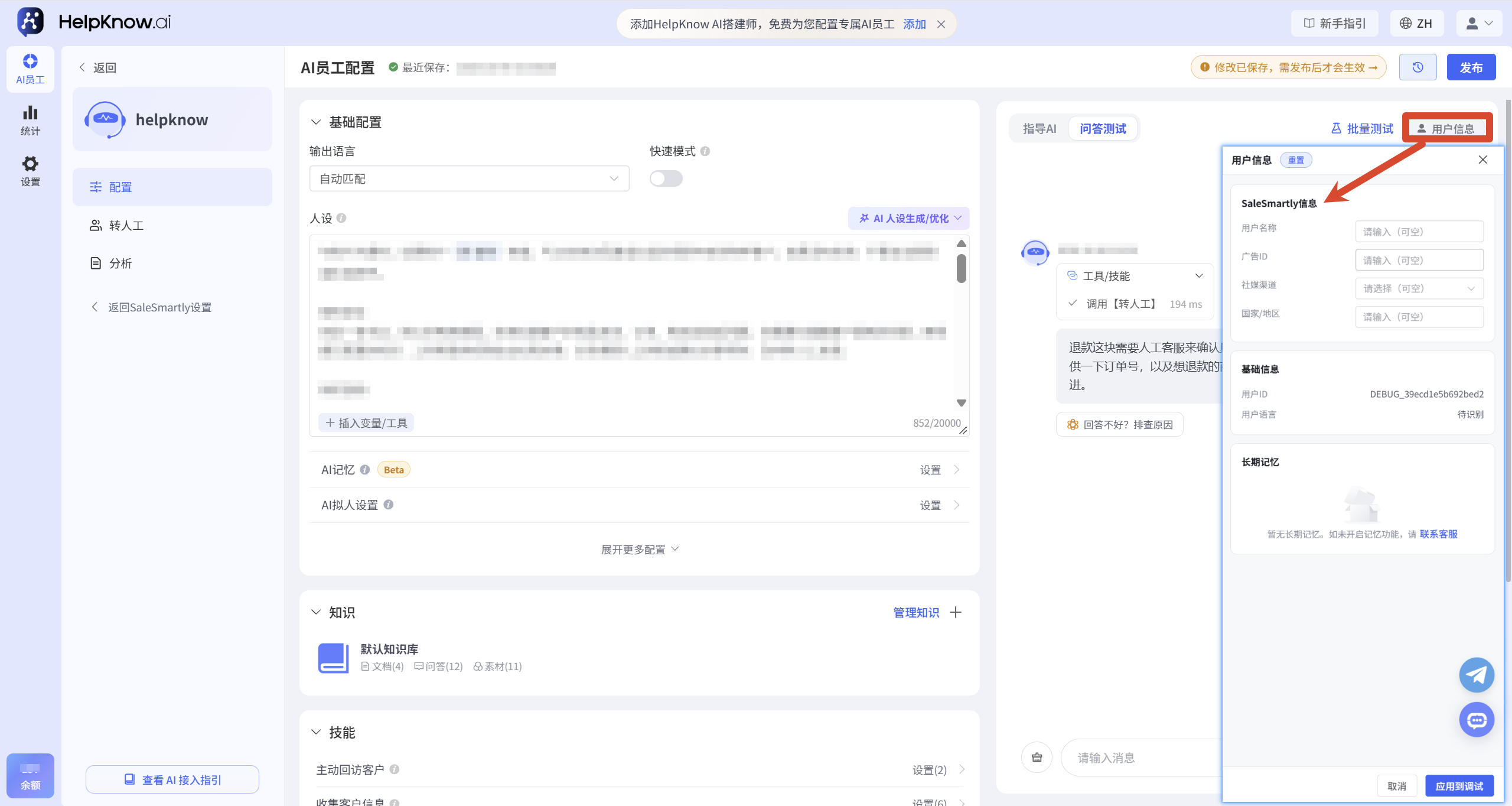
If you used variables such as username, social media channel, country/region, you can set the corresponding information in "User Information" in the upper right corner of the Q&A test before conducting the test.
Some operations cannot be actually performed in the Q&A test. For example, you can view the usage of the "transfer to human agent" tool, but the conversation will not actually be transferred to a human agent. To verify the actual reception effect, you can test it through the integrated chat plugins or social media channels. For specific methods, please refer to: "How to test the actual reception effect of AI employees?"
Related tutorials:
;}.cls-2{fill:%230868f7;}.cls-3{fill:url(%23未命名的渐变_44);}.cls-4{fill:%23333;}%3c/style%3e%3clinearGradient%20id='未命名的渐变_8'%20x1='33.73'%20y1='100.61'%20x2='-0.03'%20y2='-1.06'%20gradientUnits='userSpaceOnUse'%3e%3cstop%20offset='0'%20stop-color='%237ae9fb'/%3e%3cstop%20offset='0.67'%20stop-color='%232b90f8'/%3e%3cstop%20offset='1'%20stop-color='%230868f7'/%3e%3c/linearGradient%3e%3clinearGradient%20id='未命名的渐变_44'%20x1='27.86'%20y1='18.67'%20x2='68.36'%20y2='22.22'%20gradientUnits='userSpaceOnUse'%3e%3cstop%20offset='0'%20stop-color='%235ac7f2'/%3e%3cstop%20offset='1'%20stop-color='%230868f7'/%3e%3c/linearGradient%3e%3c/defs%3e%3cpath%20class='cls-1'%20d='M29,28.74V81.91l-9.51-3.68v0L8.52,74A7.17,7.17,0,0,1,4,67.32V24.54A3.76,3.76,0,0,1,9.08,21Z'/%3e%3cpath%20class='cls-2'%20d='M68.09,78.07a13.15,13.15,0,0,1-17.9,12.06L29,81.91h0V28.74L50.19,37A13.17,13.17,0,0,0,68.08,25.3h0Z'/%3e%3cpath%20class='cls-3'%20d='M68.08,25.3a13.19,13.19,0,0,1-6.73,10.87A13.09,13.09,0,0,1,50.19,37L29,28.74V6A3.76,3.76,0,0,1,34.1,2.52l25.59,9.91A13.22,13.22,0,0,1,68.08,25.3Z'/%3e%3cpath%20class='cls-4'%20d='M129.06,81.76a4.33,4.33,0,0,1-3.19-1.31,4.4,4.4,0,0,1-1.31-3.24V56.86H97.65V77.21a4.36,4.36,0,0,1-1.35,3.2A4.68,4.68,0,0,1,93,81.76a4.32,4.32,0,0,1-3.19-1.31,4.37,4.37,0,0,1-1.32-3.24V27.27A4.58,4.58,0,0,1,89.83,24a4.59,4.59,0,0,1,7.82,3.27V48.15h26.91V27.27A4.58,4.58,0,0,1,125.91,24a4.59,4.59,0,0,1,7.82,3.27V77.21a4.37,4.37,0,0,1-1.36,3.2A4.65,4.65,0,0,1,129.06,81.76Z'/%3e%3cpath%20class='cls-4'%20d='M163.77,81.66c-6.57,0-11.76-1.92-15.44-5.7s-5.54-9.07-5.54-15.74a26.76,26.76,0,0,1,2.09-10.43,17.72,17.72,0,0,1,6.67-8.06,19.15,19.15,0,0,1,10.68-2.95,19,19,0,0,1,10.46,2.8,18.7,18.7,0,0,1,6.55,7.36,22.53,22.53,0,0,1,2.36,10.28A4.51,4.51,0,0,1,177,63.77H152.23a10.8,10.8,0,0,0,3.49,6.65c2,1.68,4.88,2.52,8.66,2.52a22.25,22.25,0,0,0,7.54-1.21c.74-.3,1.55-.67,2.37-1.07a3.75,3.75,0,0,1,1.84-.4,4.09,4.09,0,0,1,3,1.15,4,4,0,0,1,1.12,3,4.38,4.38,0,0,1-2.58,3.82,32.34,32.34,0,0,1-6.36,2.61A28.67,28.67,0,0,1,163.77,81.66ZM172.4,55.9a9.72,9.72,0,0,0-1.63-4.56A9.9,9.9,0,0,0,167,48a10.38,10.38,0,0,0-4.64-1.14,12,12,0,0,0-4.77,1.06,9.54,9.54,0,0,0-4.89,5.66,11.78,11.78,0,0,0-.51,2.3Z'/%3e%3cpath%20class='cls-4'%20d='M193,81.64a4.49,4.49,0,0,1-4.51-4.55V27.28A4.58,4.58,0,0,1,189.84,24a4.48,4.48,0,0,1,3.28-1.36A4.36,4.36,0,0,1,196.35,24a4.46,4.46,0,0,1,1.31,3.31V77.09a4.34,4.34,0,0,1-1.35,3.2A4.67,4.67,0,0,1,193,81.64Z'/%3e%3cpath%20class='cls-4'%20d='M263.79,81.71a5.7,5.7,0,0,1-4.2-1.74,5.76,5.76,0,0,1-1.73-4.19V27.37a4.58,4.58,0,0,1,1.35-3.27A4.59,4.59,0,0,1,267,27.37V72.53h24a4.58,4.58,0,0,1,3.27,7.82A4.66,4.66,0,0,1,291,81.71Z'/%3e%3cpath%20class='cls-4'%20d='M424.48,81.74a4.71,4.71,0,0,1-2.71-.88,5.43,5.43,0,0,1-1-1l-.07-.09-12.41-17-5.41,5v9.44a4.31,4.31,0,0,1-1.36,3.19,4.66,4.66,0,0,1-3.3,1.36A4.29,4.29,0,0,1,395,80.42a4.36,4.36,0,0,1-1.32-3.23V27.37A4.58,4.58,0,0,1,395,24.1a4.52,4.52,0,0,1,6.58.12,4.54,4.54,0,0,1,1.24,3.15V56.31l17.72-16.38.05,0a4.8,4.8,0,0,1,2.94-1.11,4.4,4.4,0,0,1,3.27,1.2,4.57,4.57,0,0,1,1.2,3.27,4.44,4.44,0,0,1-.77,2.33,7.45,7.45,0,0,1-1.43,1.65l-11,9.64,13.34,17.68a5,5,0,0,1,1,2.71,4.12,4.12,0,0,1-1.36,3.24A4.64,4.64,0,0,1,424.48,81.74Z'/%3e%3cpath%20class='cls-4'%20d='M317.93,81.76a21.5,21.5,0,1,1,21.17-21.5A21.37,21.37,0,0,1,317.93,81.76Zm0-34.1a12.61,12.61,0,1,0,12.42,12.6A12.52,12.52,0,0,0,317.93,47.66Z'/%3e%3cpath%20class='cls-4'%20d='M212.18,101.22a4.12,4.12,0,0,1-3.05-1.26,4.17,4.17,0,0,1-1.26-3.1V43.34a4.37,4.37,0,0,1,1.3-3.14,4.26,4.26,0,0,1,3.13-1.3,4.19,4.19,0,0,1,3.1,1.26,4.32,4.32,0,0,1,1.26,3.16,20.77,20.77,0,0,1,13-4.54,21.51,21.51,0,0,1,0,43,20.51,20.51,0,0,1-13-4.57V96.86a4.15,4.15,0,0,1-1.3,3.06A4.5,4.5,0,0,1,212.18,101.22Zm17.43-53.63c-6.23,0-12.93,4.11-12.93,12.72a12.73,12.73,0,0,0,25.46,0A12.71,12.71,0,0,0,229.61,47.59Z'/%3e%3cpath%20class='cls-4'%20d='M365.76,81.76a21.5,21.5,0,1,1,21.18-21.5A21.37,21.37,0,0,1,365.76,81.76Zm0-34.1a12.61,12.61,0,1,0,12.42,12.6A12.52,12.52,0,0,0,365.76,47.66Z'/%3e%3c/svg%3e)