
How to view the details of AI employee conversations?
I. Function Introduction
The AI Employee Analytics page is used to view the conversation handling status of individual AI employees. On the analytics page, you can view conversations, messages, transfers to human agents, and conversation resolution status, and use filters to find conversations or messages you want to focus on.
After entering the message details, you can also view the AI employee's answer basis and reasoning process, and use the "Troubleshooting Assistant" to analyze the answer effect and the cause of the problem.
This article mainly introduces how to view the conversation and message data of AI employees, and how to investigate specific conversations or messages.
This article's link: "How to view the details of AI employee conversations?"
II. Viewing Method
1. Access the AI Employee Analytics page
- In the left-hand menu, click "Statistics".
- In the statistics list, find the AI employee you want to view.
- Click "View" on the right side of the AI employee.
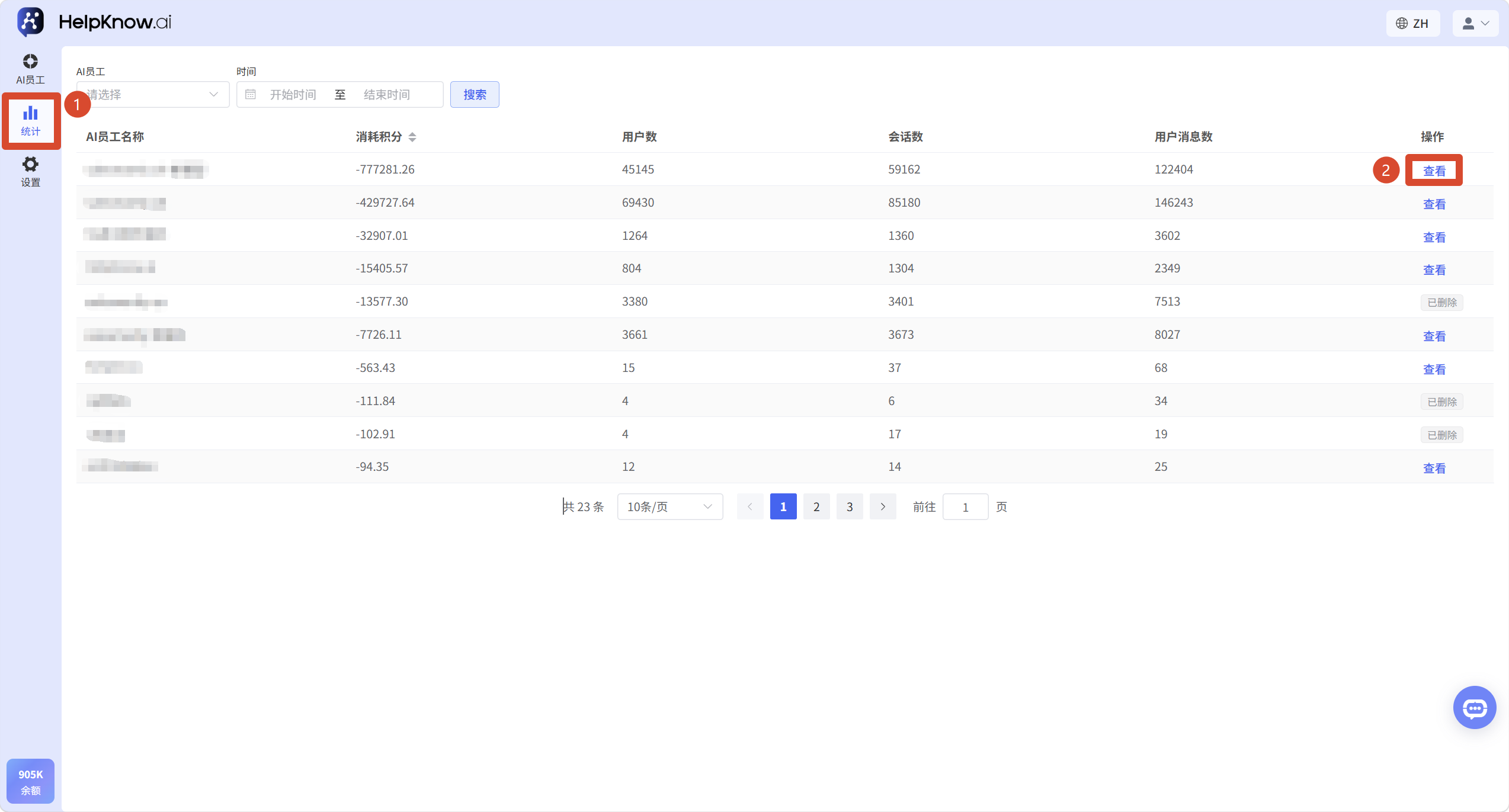
After entering the AI Employee Analytics page, you can switch between the "Overview," "Conversations," and "Messages" tabs.
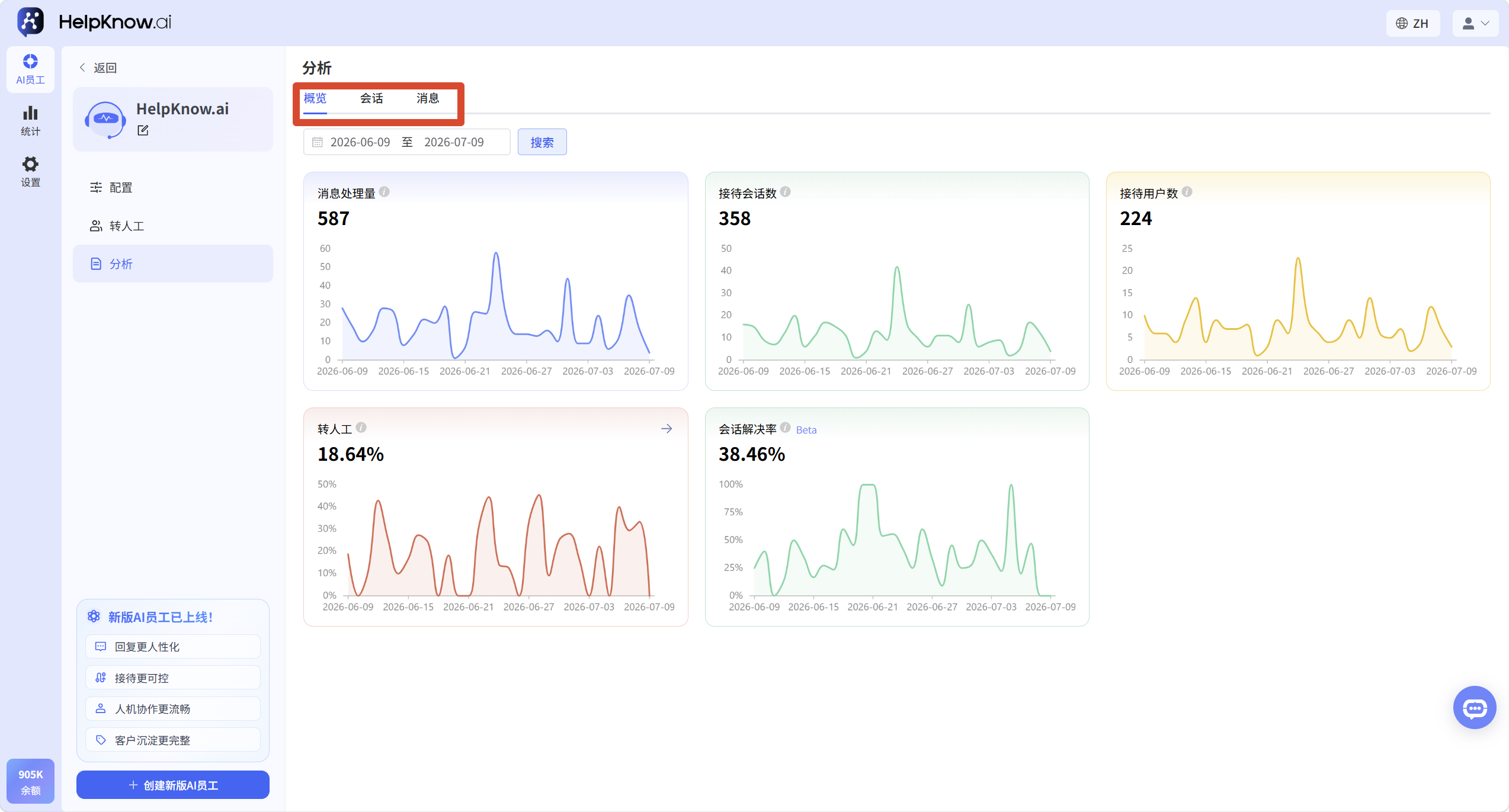
2. View session data
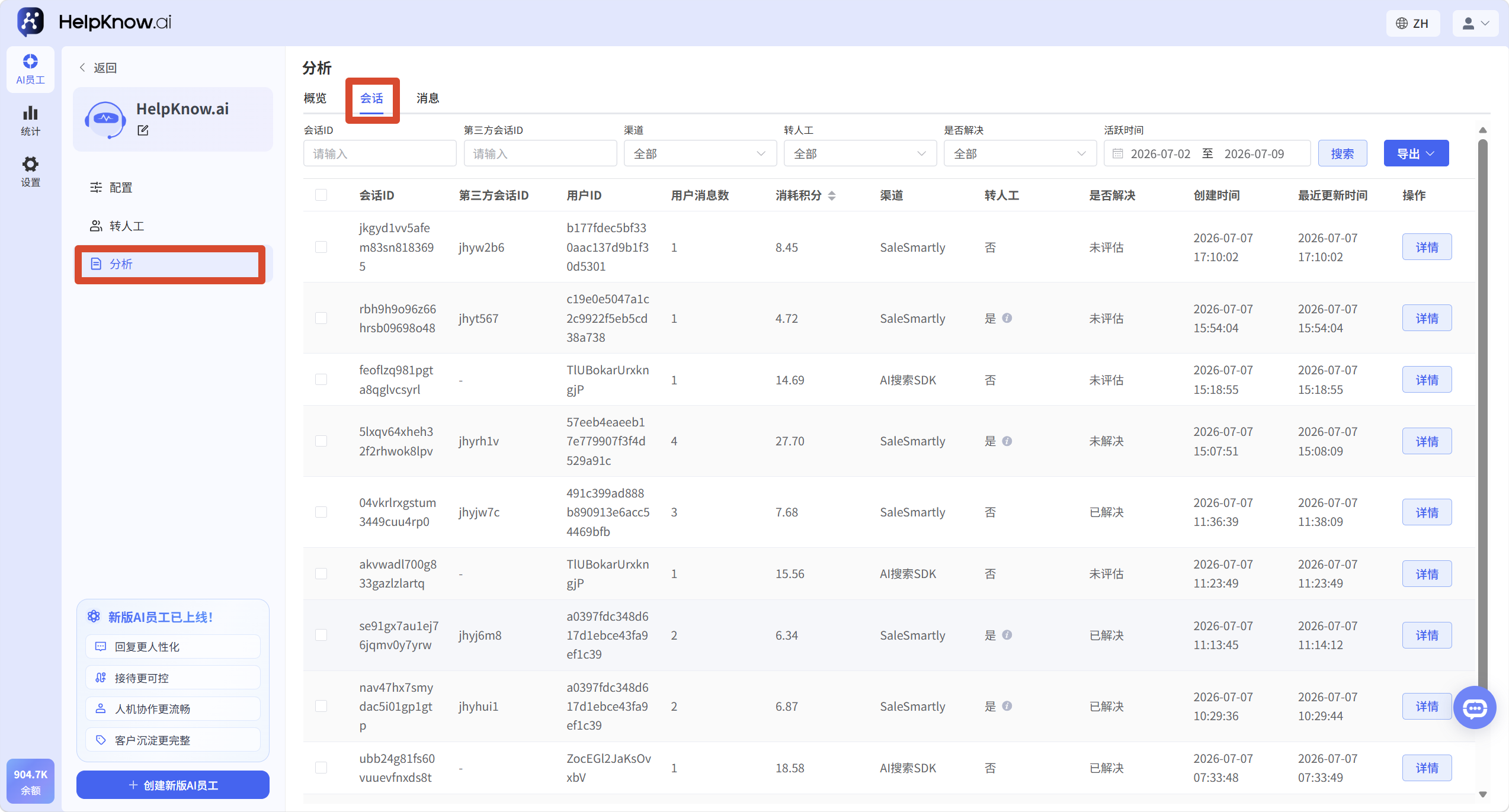
Click "Analysis > Conversations" to view the conversations that the AI employee has handled.
The conversation list allows you to view data by complete conversation . A single conversation for a user may contain multiple user messages and AI responses.
The conversation list displays: Conversation ID, Third-Party Conversation ID, User ID, Number of User Messages, Points Consumed, Channel, Whether Transferred to Human Agent, Whether Resolved, Creation Time, and Last Update Time.
The "Resolved?" status may be displayed as: Not evaluated/Unresolved/Resolved. The system will evaluate whether the session is resolved 24 hours after the conversation ends.
2.1 Filtering Sessions
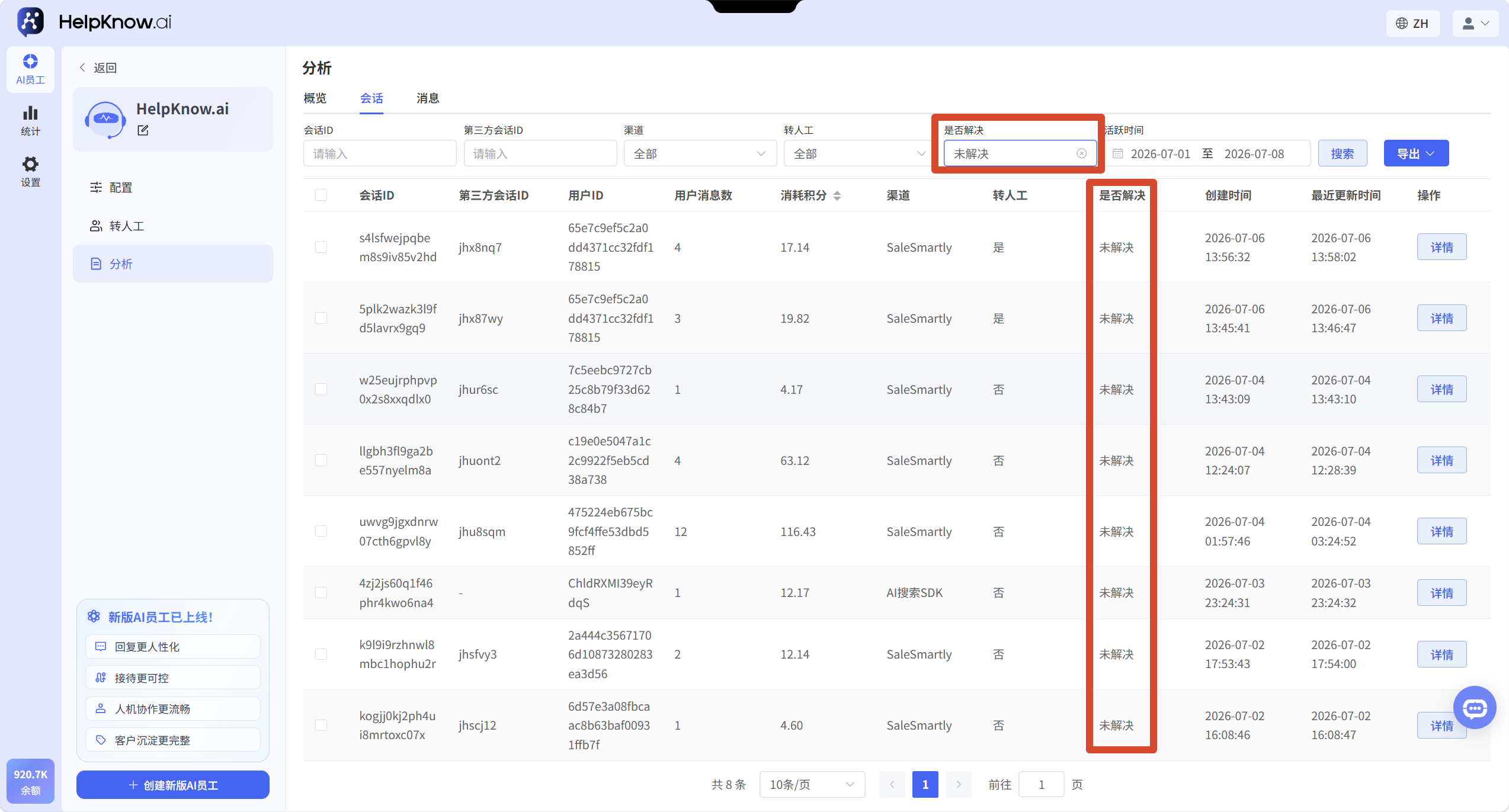
You can use the top filters to filter conversations by conversation ID, third-party conversation ID, channel, whether to transfer to human agent, whether the issue has been resolved, and active time.
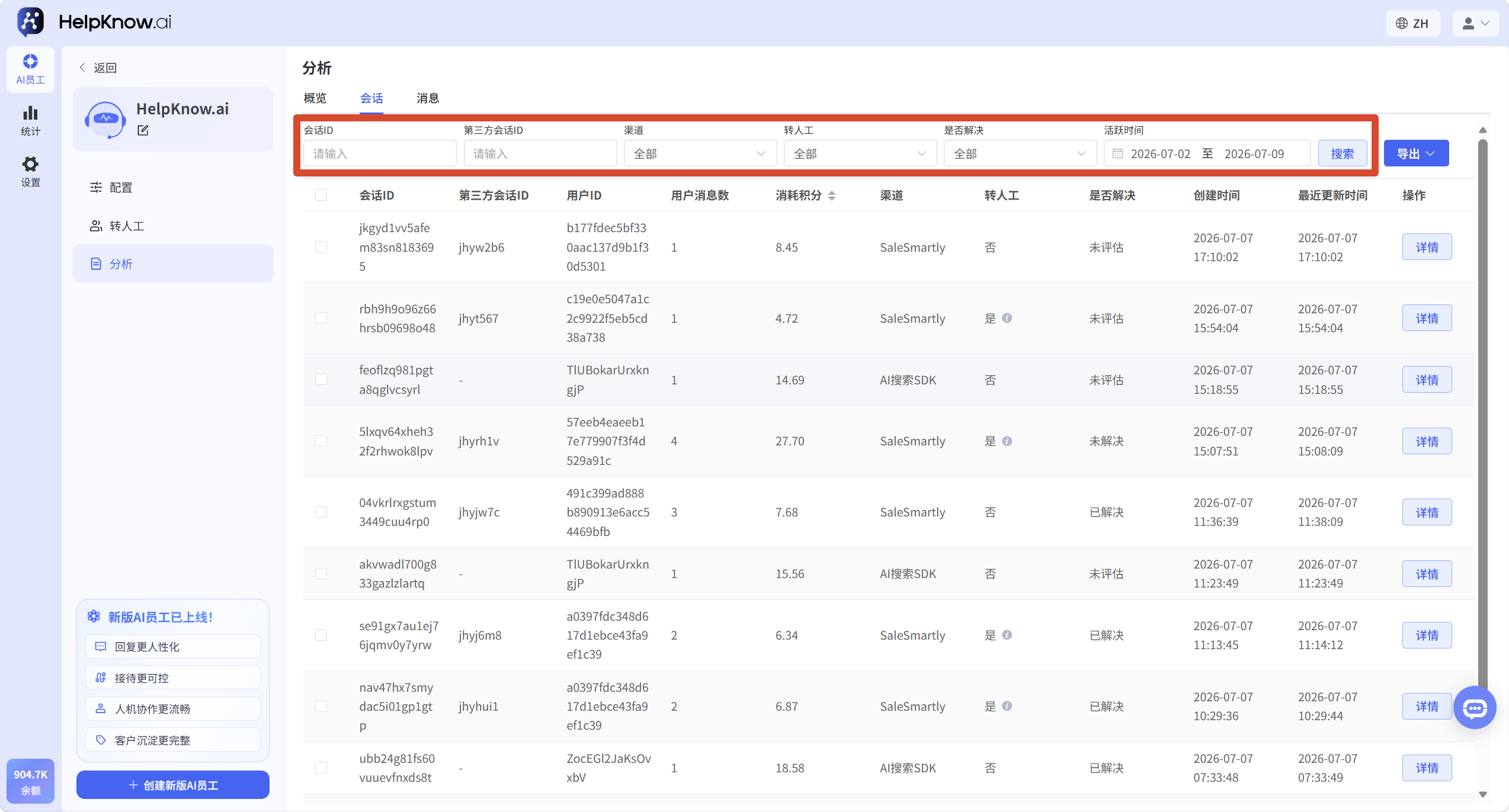
If you want to focus on identifying issues that AI has not resolved, you can filter for "Unresolved" under "Resolved?".
2.2 Viewing Session Details
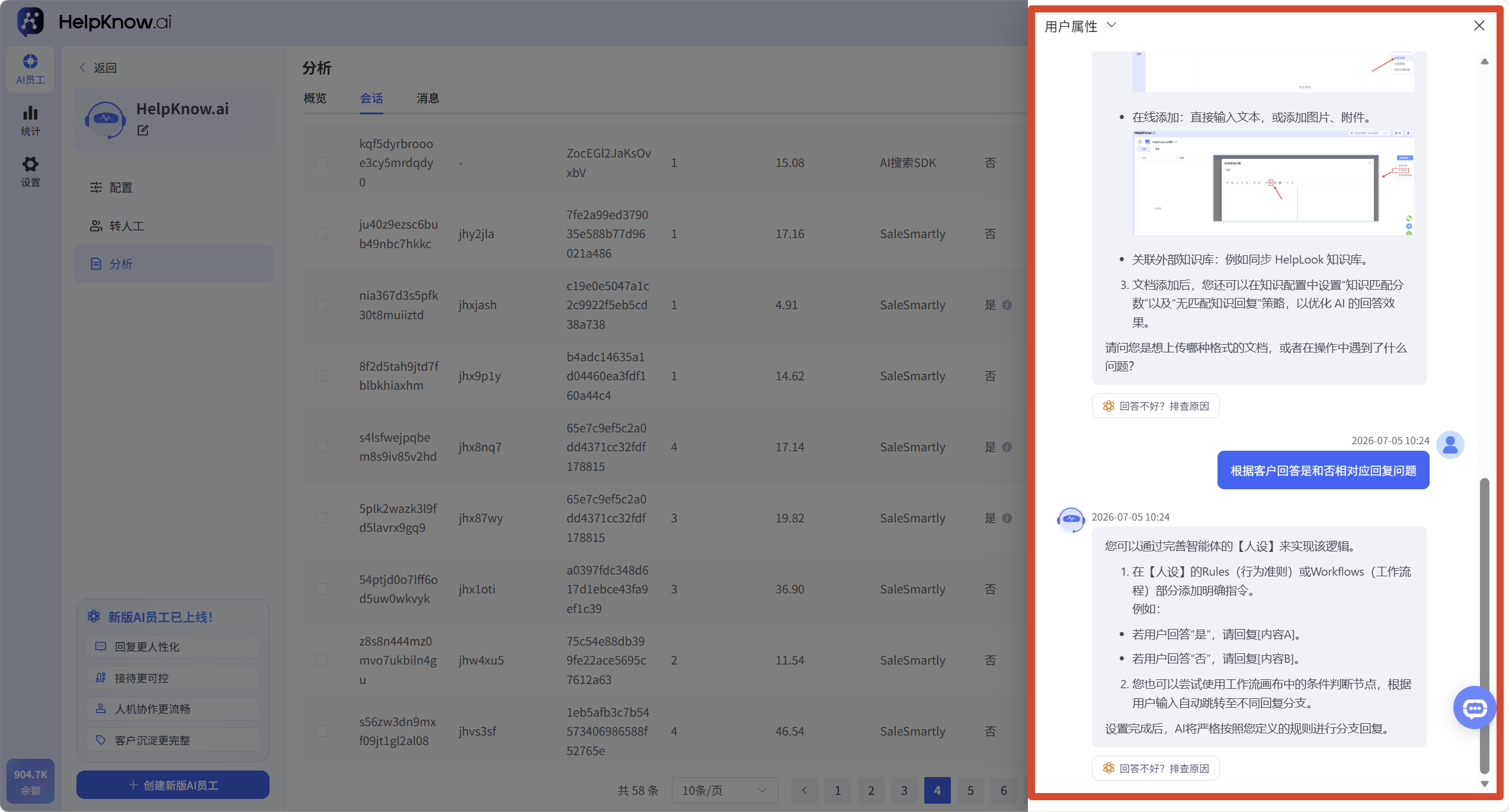
To view the complete conversation history for a particular session, click "Details" on the right side of the session.
In the conversation details, you can view the complete chat history between the user and the AI employee.
2.3 View conversations related to transferring to a human operator
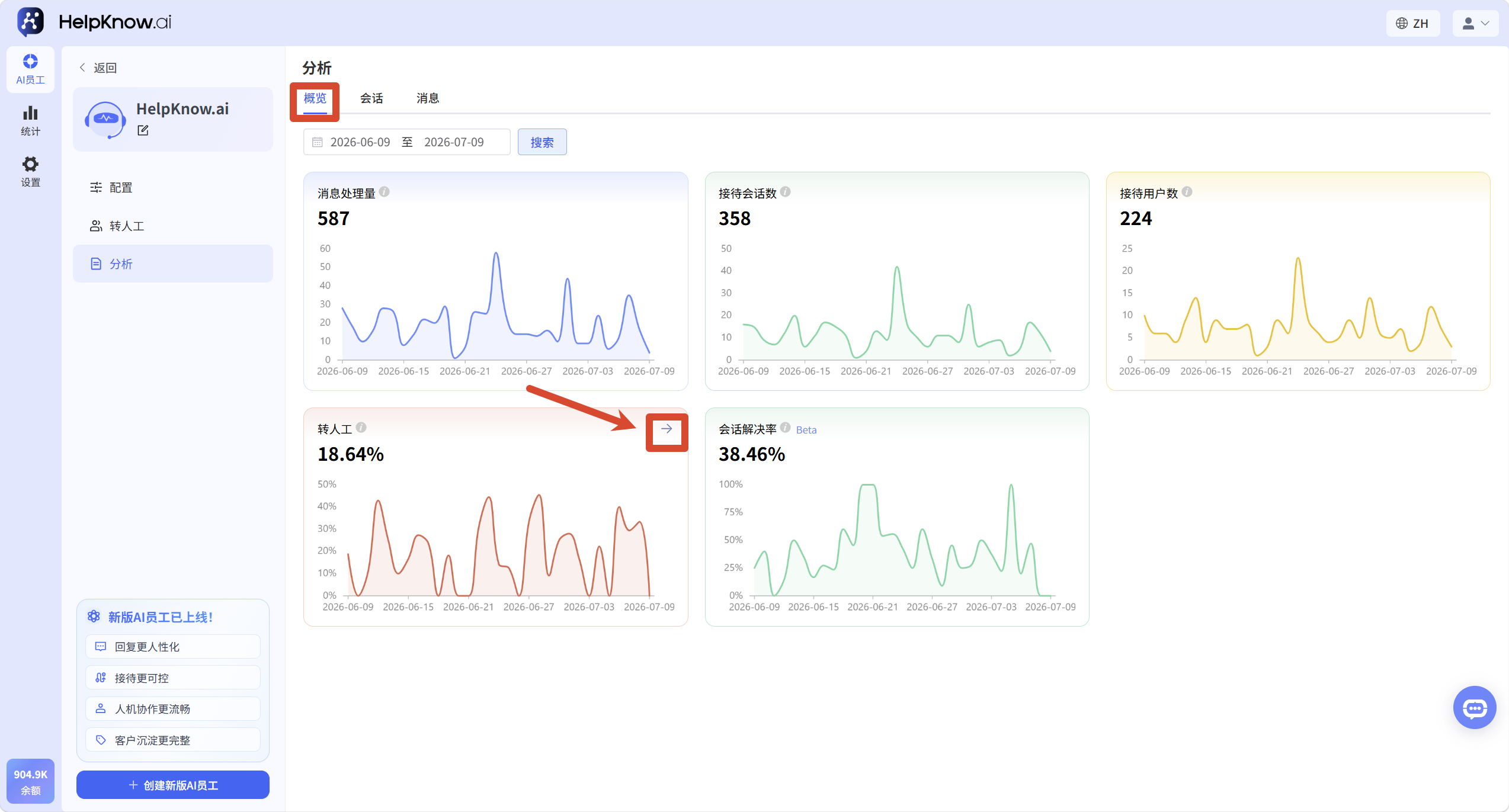
On the "Overview" page, click the arrow to the right of the "Transfer to Human Agent" chart to view the conversations that were triggered to be transferred to a human agent during that time period.
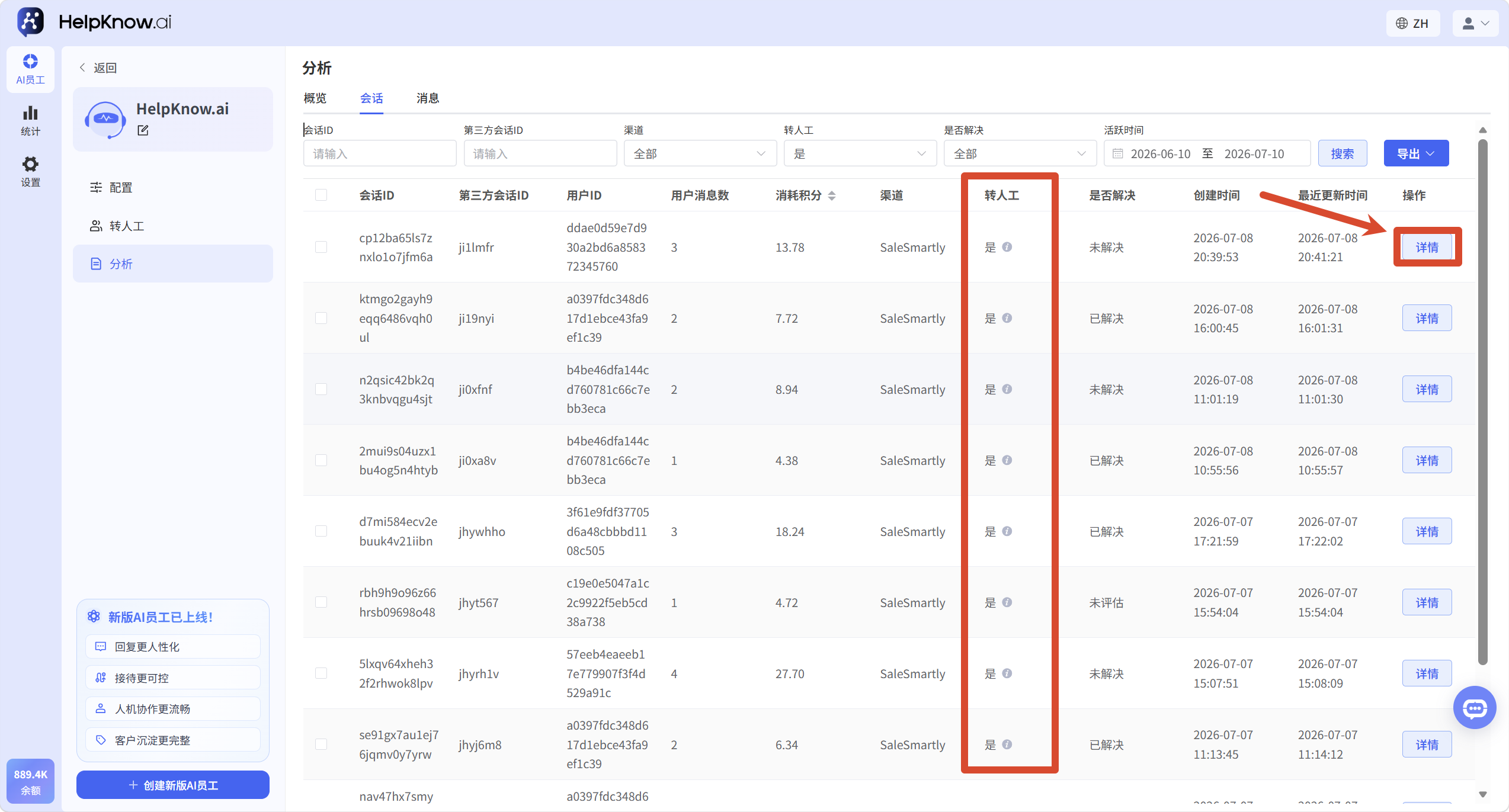
Once you enter the conversation list, the system will display conversations that triggered the transfer to a human agent based on the corresponding criteria. You can click "Details" on the right to view the conversation content and the dialogue history before and after the transfer to a human agent.
3. View message data
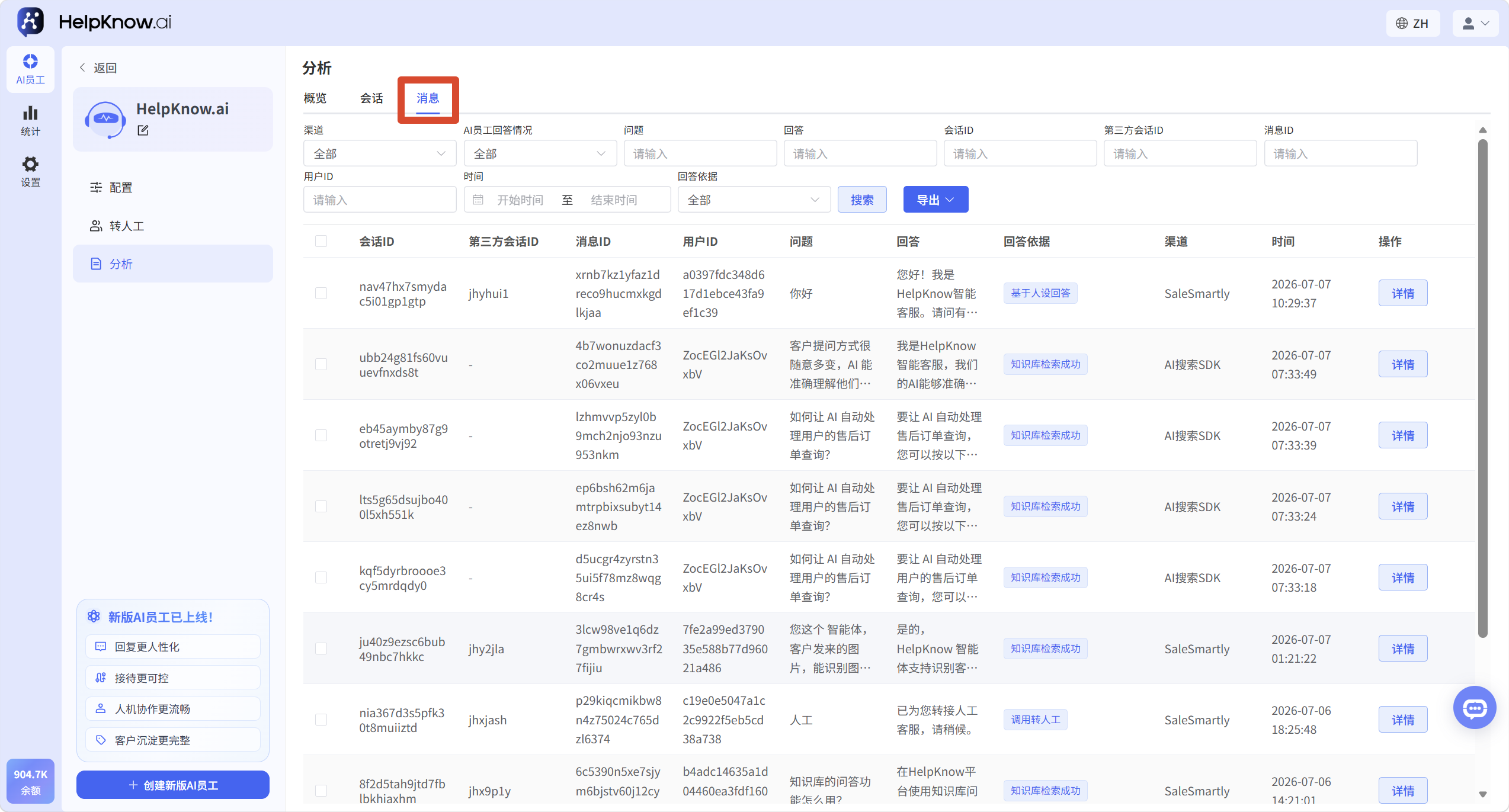
Click "Analysis > Messages" to view a single message processed by this AI employee.
The message list is used to view data by "individual conversation content". A user question or an AI reply both fall under the category of message-level data.
The message list contains: Session ID, Third-party Session ID, Message ID, User ID, Question, Answer, Basis for Answer, Channel, and Time.
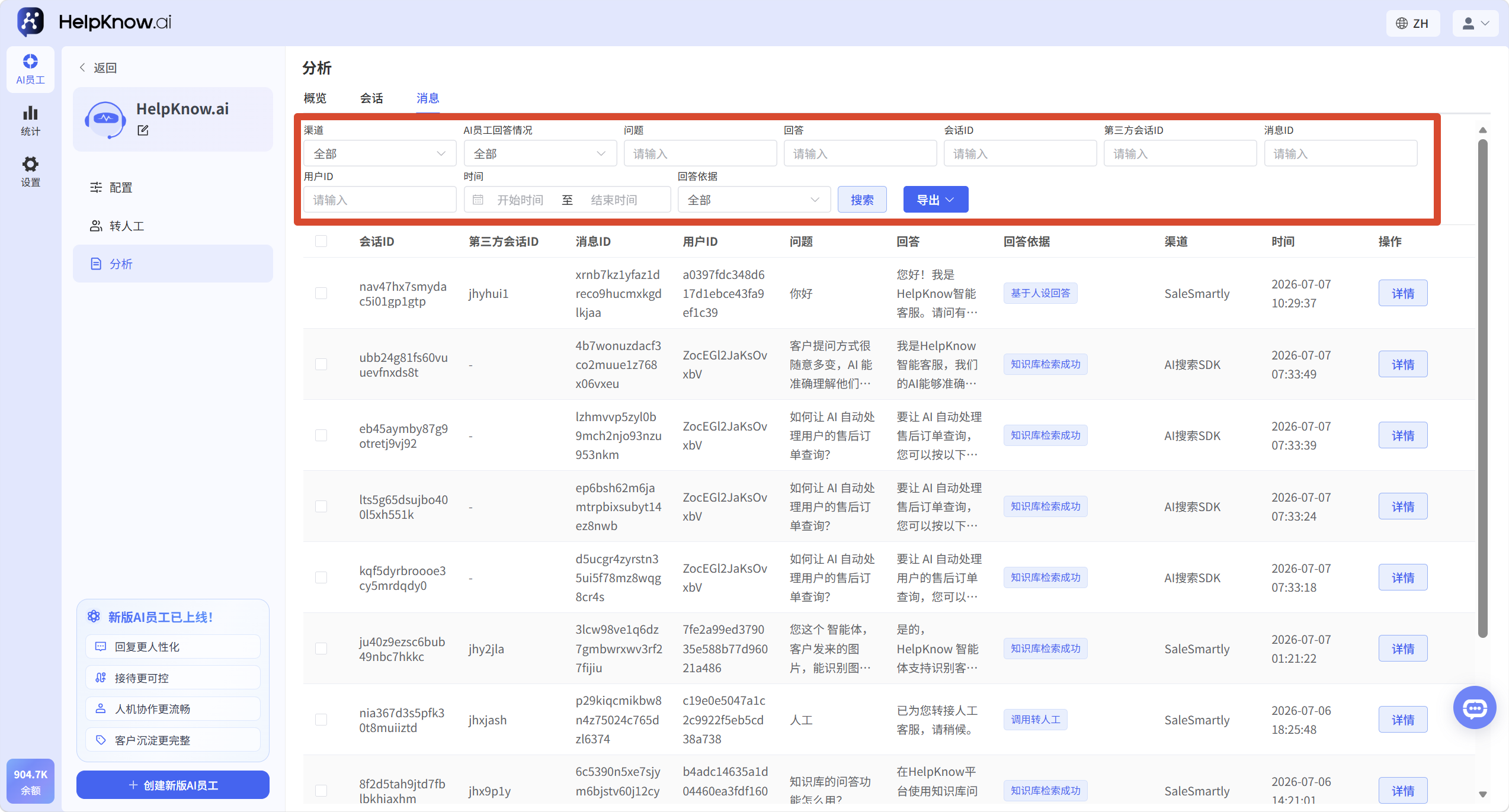
3.1 Message Filtering
You can use the top filters to filter messages by channel, AI employee response status, question, answer, session ID, third-party session ID, message ID, user ID, time, and basis for the answer.
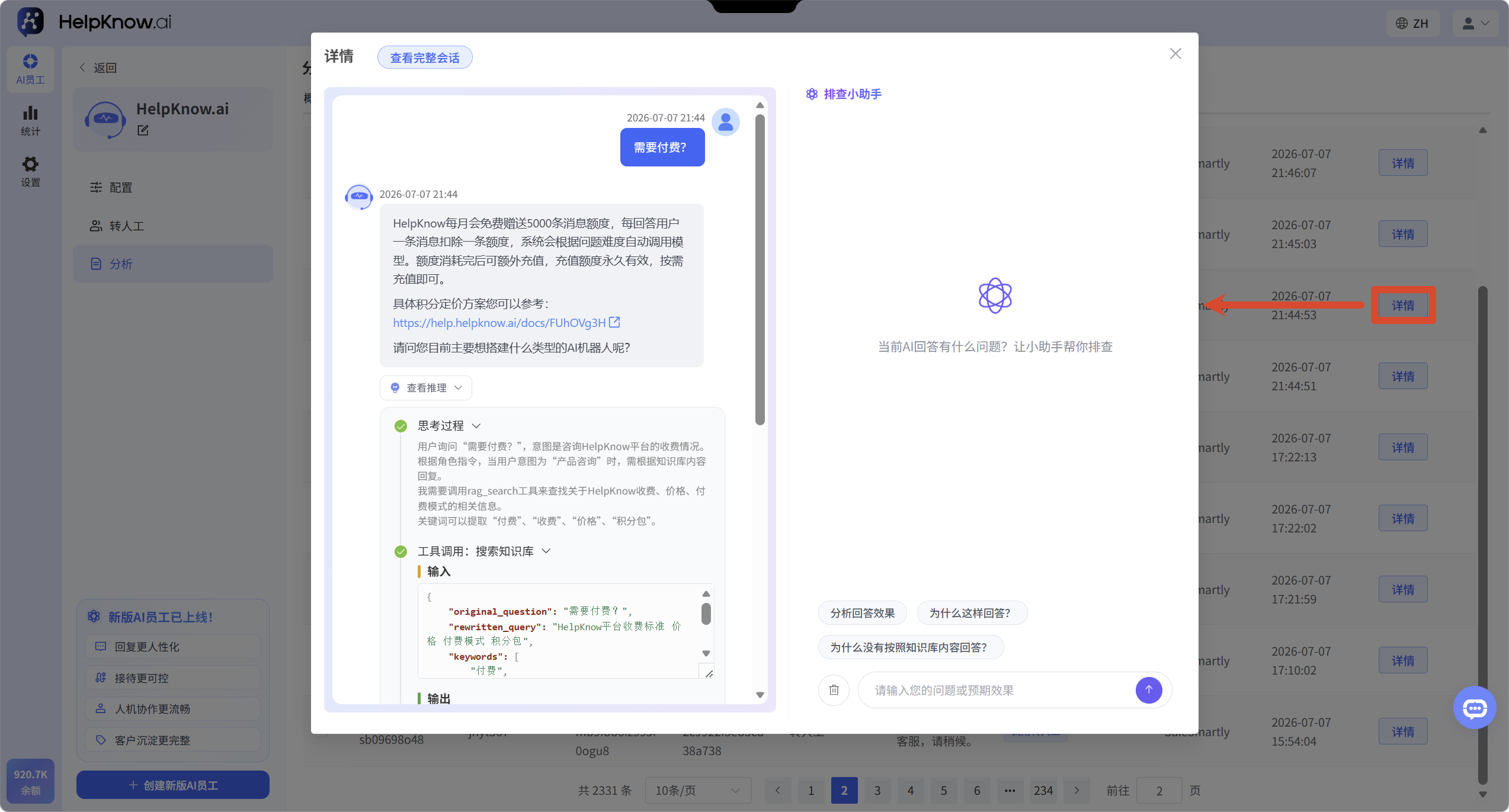
3.2 View message details
To view the details of a message, click "Details" on the right side of the message.
In the message details, you can view the conversation content, the basis for the answer, and the reasoning process.
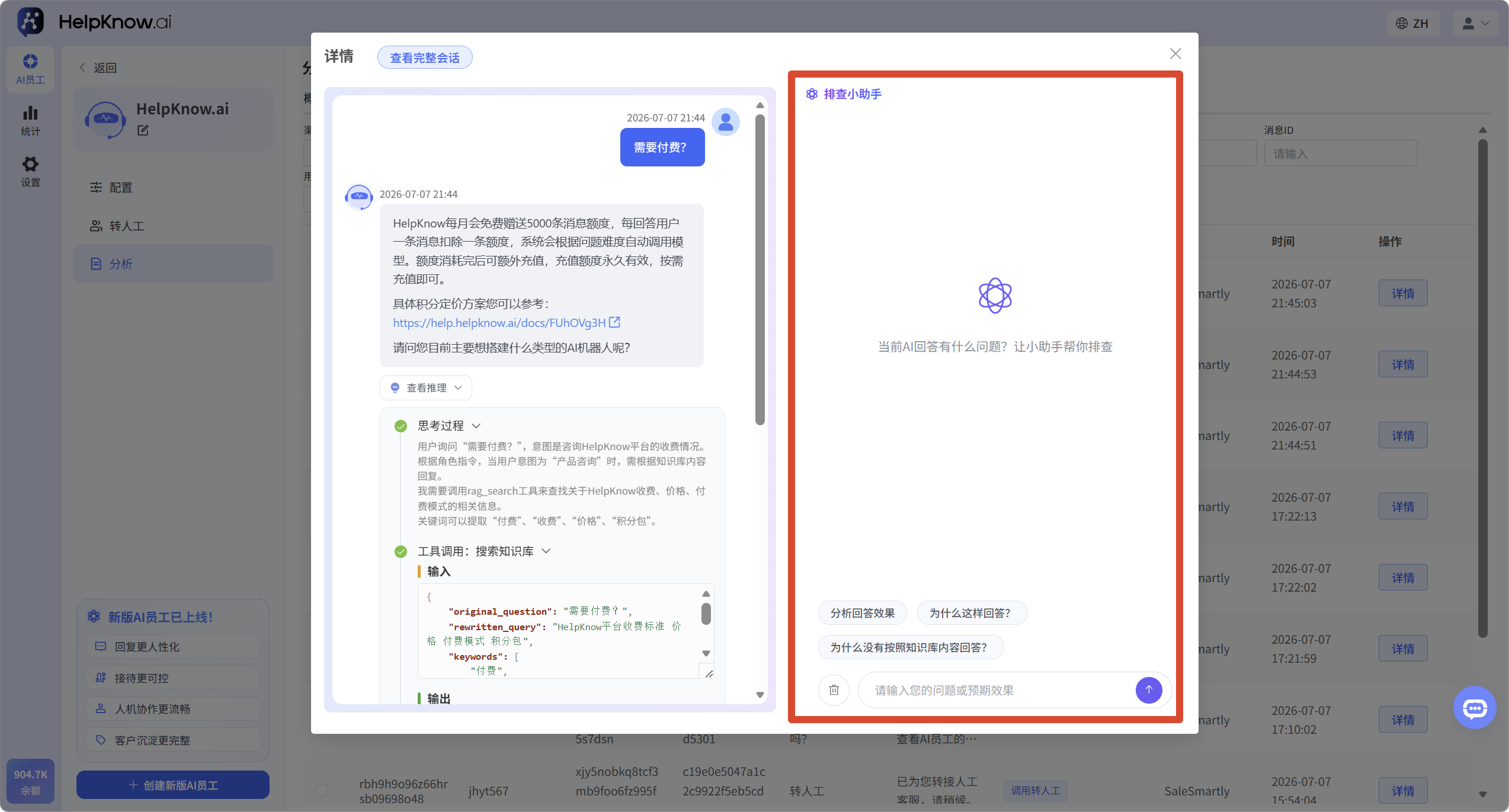
3.3 Use the screening assistant to analyze the effectiveness of responses
On the right side of the message details, you can use the "Investigation Assistant" to analyze the questions currently answered by the AI.
The troubleshooting assistant can help you analyze:
- Does the response meet expectations?
- Why did the AI employee answer like that?
- Why didn't the AI employee answer according to the knowledge base?
If you find that the AI's answer does not meet your expectations, you can first check the basis and reasoning process of the answer in the message details, and then use the troubleshooting assistant to help determine the cause of the problem.
III. The difference between conversations and messages
On the AI employee analytics page, "Conversations" and "Messages" are two different data dimensions.
- Conversation: A complete dialogue between a user and an AI employee.
- Message: A single line of dialogue content within a session. A session can contain multiple messages.
If you want to see the overall picture of a complete conversation, you can view the conversation data; if you want to analyze a specific question or reply, you can view the message data.
IV. Applicable Scenarios
When you need to view the AI employee's reception process or check the effectiveness of their responses, you can view the dialogue reception details.
Common scenarios include:
- See which user conversations the AI employee handled.
- Check which sessions triggered a transfer to human assistance and which sessions remained unresolved.
- To see the basis and reasoning behind the response to a particular message.
- Investigate why the AI employee's answers did not meet expectations.
V. Precautions
- Whether the conversation is resolved will be evaluated 24 hours after the conversation ends.
- If you need to analyze data offline, you can use the "Export" function in the conversation or message list.
VI. Frequently Asked Questions
1. How can I view the conversations that triggered a transfer to a human operator?
You can click the arrow to the right of the "Transfer to Human Agent" chart on the "Overview" page, or you can use the "Transfer to Human Agent" filter in the "Conversations" list to view the options.
2. How do I view unresolved sessions?
You can go to the "Conversations" list, select "Unresolved" in the "Resolved?" filter, and view the conversations that need to be investigated.
3. Why do some sessions show as unevaluated?
The system will evaluate whether the session is resolved 24 hours after the conversation ends. Sessions that have not yet reached the evaluation time, or whose results cannot be determined at the moment, may be displayed as "not evaluated".
4. How to troubleshoot AI employees giving unexpected answers to questions?
You can first go to the "Messages" list, click "Details" on the right side of the corresponding message to view the basis and reasoning process of the answer. You can also use the "Troubleshooting Assistant" on the right to analyze the effectiveness of the answer and the cause of the problem.
;}.cls-2{fill:%230868f7;}.cls-3{fill:url(%23未命名的渐变_44);}.cls-4{fill:%23333;}%3c/style%3e%3clinearGradient%20id='未命名的渐变_8'%20x1='33.73'%20y1='100.61'%20x2='-0.03'%20y2='-1.06'%20gradientUnits='userSpaceOnUse'%3e%3cstop%20offset='0'%20stop-color='%237ae9fb'/%3e%3cstop%20offset='0.67'%20stop-color='%232b90f8'/%3e%3cstop%20offset='1'%20stop-color='%230868f7'/%3e%3c/linearGradient%3e%3clinearGradient%20id='未命名的渐变_44'%20x1='27.86'%20y1='18.67'%20x2='68.36'%20y2='22.22'%20gradientUnits='userSpaceOnUse'%3e%3cstop%20offset='0'%20stop-color='%235ac7f2'/%3e%3cstop%20offset='1'%20stop-color='%230868f7'/%3e%3c/linearGradient%3e%3c/defs%3e%3cpath%20class='cls-1'%20d='M29,28.74V81.91l-9.51-3.68v0L8.52,74A7.17,7.17,0,0,1,4,67.32V24.54A3.76,3.76,0,0,1,9.08,21Z'/%3e%3cpath%20class='cls-2'%20d='M68.09,78.07a13.15,13.15,0,0,1-17.9,12.06L29,81.91h0V28.74L50.19,37A13.17,13.17,0,0,0,68.08,25.3h0Z'/%3e%3cpath%20class='cls-3'%20d='M68.08,25.3a13.19,13.19,0,0,1-6.73,10.87A13.09,13.09,0,0,1,50.19,37L29,28.74V6A3.76,3.76,0,0,1,34.1,2.52l25.59,9.91A13.22,13.22,0,0,1,68.08,25.3Z'/%3e%3cpath%20class='cls-4'%20d='M129.06,81.76a4.33,4.33,0,0,1-3.19-1.31,4.4,4.4,0,0,1-1.31-3.24V56.86H97.65V77.21a4.36,4.36,0,0,1-1.35,3.2A4.68,4.68,0,0,1,93,81.76a4.32,4.32,0,0,1-3.19-1.31,4.37,4.37,0,0,1-1.32-3.24V27.27A4.58,4.58,0,0,1,89.83,24a4.59,4.59,0,0,1,7.82,3.27V48.15h26.91V27.27A4.58,4.58,0,0,1,125.91,24a4.59,4.59,0,0,1,7.82,3.27V77.21a4.37,4.37,0,0,1-1.36,3.2A4.65,4.65,0,0,1,129.06,81.76Z'/%3e%3cpath%20class='cls-4'%20d='M163.77,81.66c-6.57,0-11.76-1.92-15.44-5.7s-5.54-9.07-5.54-15.74a26.76,26.76,0,0,1,2.09-10.43,17.72,17.72,0,0,1,6.67-8.06,19.15,19.15,0,0,1,10.68-2.95,19,19,0,0,1,10.46,2.8,18.7,18.7,0,0,1,6.55,7.36,22.53,22.53,0,0,1,2.36,10.28A4.51,4.51,0,0,1,177,63.77H152.23a10.8,10.8,0,0,0,3.49,6.65c2,1.68,4.88,2.52,8.66,2.52a22.25,22.25,0,0,0,7.54-1.21c.74-.3,1.55-.67,2.37-1.07a3.75,3.75,0,0,1,1.84-.4,4.09,4.09,0,0,1,3,1.15,4,4,0,0,1,1.12,3,4.38,4.38,0,0,1-2.58,3.82,32.34,32.34,0,0,1-6.36,2.61A28.67,28.67,0,0,1,163.77,81.66ZM172.4,55.9a9.72,9.72,0,0,0-1.63-4.56A9.9,9.9,0,0,0,167,48a10.38,10.38,0,0,0-4.64-1.14,12,12,0,0,0-4.77,1.06,9.54,9.54,0,0,0-4.89,5.66,11.78,11.78,0,0,0-.51,2.3Z'/%3e%3cpath%20class='cls-4'%20d='M193,81.64a4.49,4.49,0,0,1-4.51-4.55V27.28A4.58,4.58,0,0,1,189.84,24a4.48,4.48,0,0,1,3.28-1.36A4.36,4.36,0,0,1,196.35,24a4.46,4.46,0,0,1,1.31,3.31V77.09a4.34,4.34,0,0,1-1.35,3.2A4.67,4.67,0,0,1,193,81.64Z'/%3e%3cpath%20class='cls-4'%20d='M263.79,81.71a5.7,5.7,0,0,1-4.2-1.74,5.76,5.76,0,0,1-1.73-4.19V27.37a4.58,4.58,0,0,1,1.35-3.27A4.59,4.59,0,0,1,267,27.37V72.53h24a4.58,4.58,0,0,1,3.27,7.82A4.66,4.66,0,0,1,291,81.71Z'/%3e%3cpath%20class='cls-4'%20d='M424.48,81.74a4.71,4.71,0,0,1-2.71-.88,5.43,5.43,0,0,1-1-1l-.07-.09-12.41-17-5.41,5v9.44a4.31,4.31,0,0,1-1.36,3.19,4.66,4.66,0,0,1-3.3,1.36A4.29,4.29,0,0,1,395,80.42a4.36,4.36,0,0,1-1.32-3.23V27.37A4.58,4.58,0,0,1,395,24.1a4.52,4.52,0,0,1,6.58.12,4.54,4.54,0,0,1,1.24,3.15V56.31l17.72-16.38.05,0a4.8,4.8,0,0,1,2.94-1.11,4.4,4.4,0,0,1,3.27,1.2,4.57,4.57,0,0,1,1.2,3.27,4.44,4.44,0,0,1-.77,2.33,7.45,7.45,0,0,1-1.43,1.65l-11,9.64,13.34,17.68a5,5,0,0,1,1,2.71,4.12,4.12,0,0,1-1.36,3.24A4.64,4.64,0,0,1,424.48,81.74Z'/%3e%3cpath%20class='cls-4'%20d='M317.93,81.76a21.5,21.5,0,1,1,21.17-21.5A21.37,21.37,0,0,1,317.93,81.76Zm0-34.1a12.61,12.61,0,1,0,12.42,12.6A12.52,12.52,0,0,0,317.93,47.66Z'/%3e%3cpath%20class='cls-4'%20d='M212.18,101.22a4.12,4.12,0,0,1-3.05-1.26,4.17,4.17,0,0,1-1.26-3.1V43.34a4.37,4.37,0,0,1,1.3-3.14,4.26,4.26,0,0,1,3.13-1.3,4.19,4.19,0,0,1,3.1,1.26,4.32,4.32,0,0,1,1.26,3.16,20.77,20.77,0,0,1,13-4.54,21.51,21.51,0,0,1,0,43,20.51,20.51,0,0,1-13-4.57V96.86a4.15,4.15,0,0,1-1.3,3.06A4.5,4.5,0,0,1,212.18,101.22Zm17.43-53.63c-6.23,0-12.93,4.11-12.93,12.72a12.73,12.73,0,0,0,25.46,0A12.71,12.71,0,0,0,229.61,47.59Z'/%3e%3cpath%20class='cls-4'%20d='M365.76,81.76a21.5,21.5,0,1,1,21.18-21.5A21.37,21.37,0,0,1,365.76,81.76Zm0-34.1a12.61,12.61,0,1,0,12.42,12.6A12.52,12.52,0,0,0,365.76,47.66Z'/%3e%3c/svg%3e)