
AI Employee Configuration Page Function Introduction
I. Function Introduction
The AI Employee Configuration Page is used to centrally manage the various configurations of AI employees.
On the configuration page, you can set basic functions such as output language, persona, and speech recognition. You can also add knowledge bases, skills, plugins, and tools to your AI employee. After completing the configuration, you can check the response effect through the "Q&A Test" on the right. Only publish the AI employee after confirming that everything is correct. If you need to view or restore previously published configurations, you can also use the historical version function.
This article focuses on features such as output language, quick mode, speech recognition, obtaining the current time, question-and-answer testing, and publishing. For features that already have separate tutorials, this article only introduces their function; for detailed configuration methods, please refer to the corresponding tutorials.
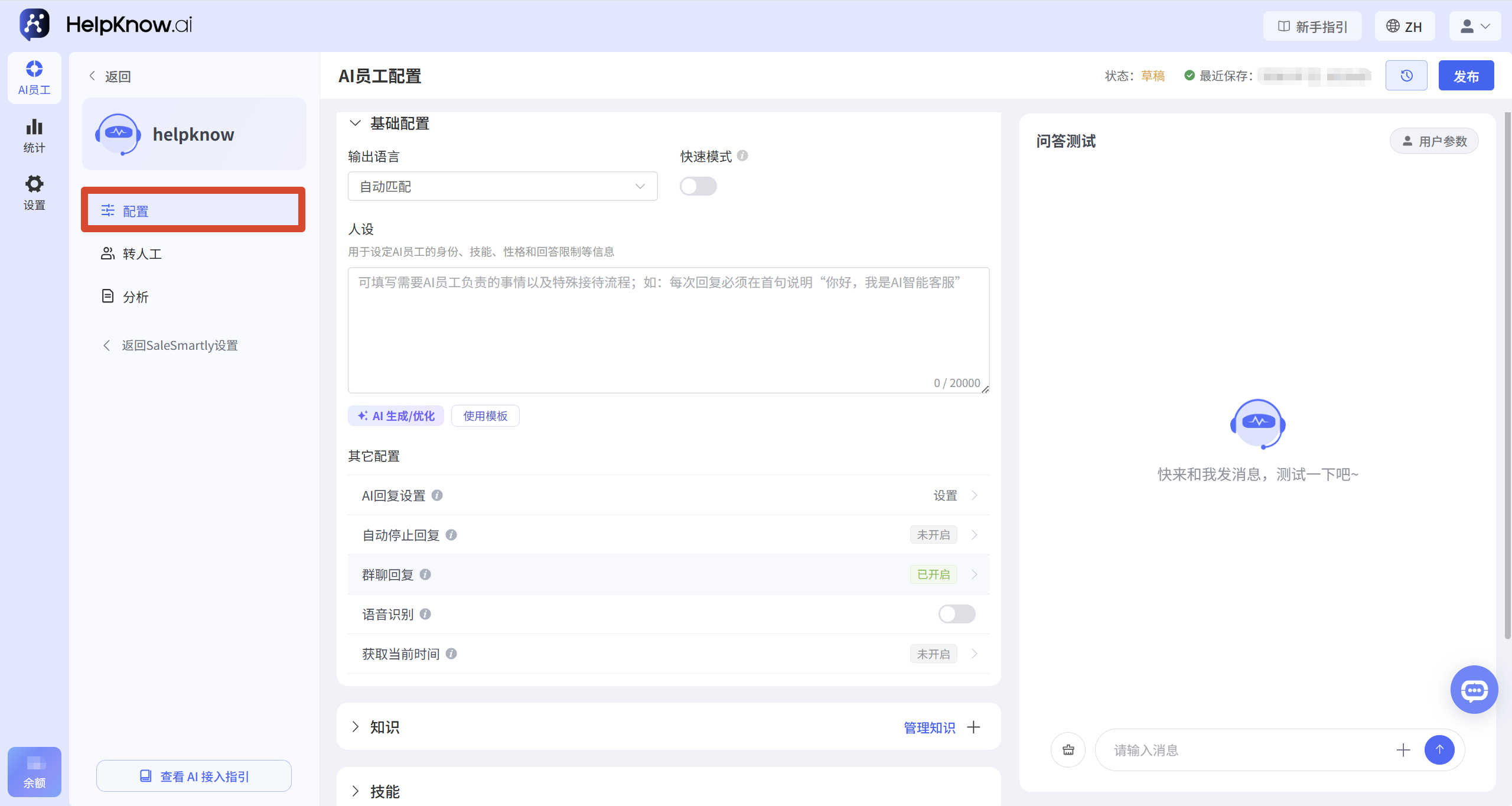
Once you have the AI employee you want to configure, click "Configuration" in the left-hand menu to access the AI employee configuration page.
This article's link: "AI Employee Configuration Page Function Introduction"
II. Basic Configuration
1. Output Language
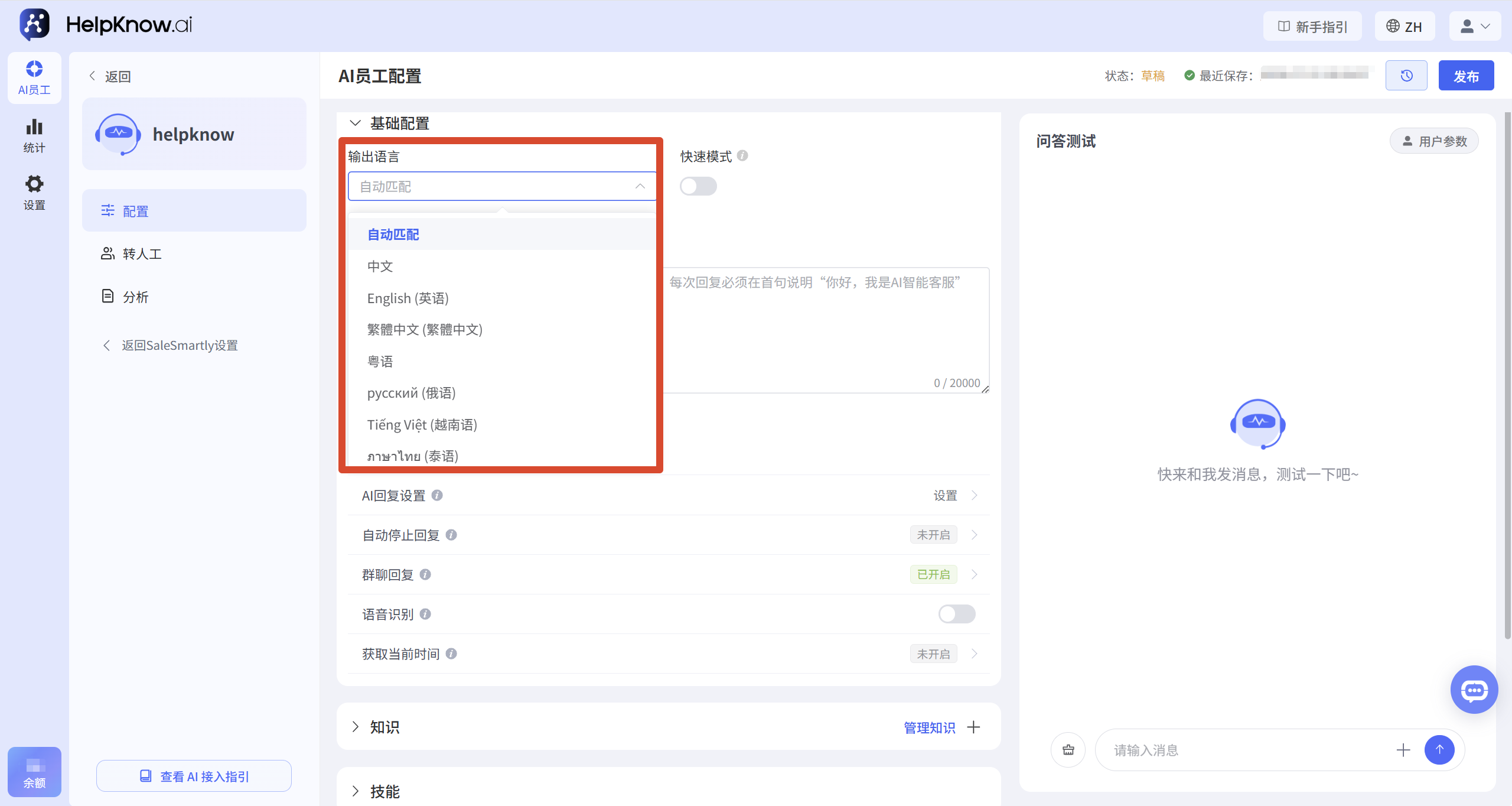
"Output Language" is used to set the language used by AI employees when replying to users.
After selecting "Auto Match," the AI employee will reply based on the language used when the user sent the message. You can also select a specific language so that the AI employee will consistently use that language to reply.
If your business targets users in multiple countries or regions, we recommend selecting "Auto Match"; if you need to unify the language of customer service, you can select the corresponding designated language.
2. Quick Mode
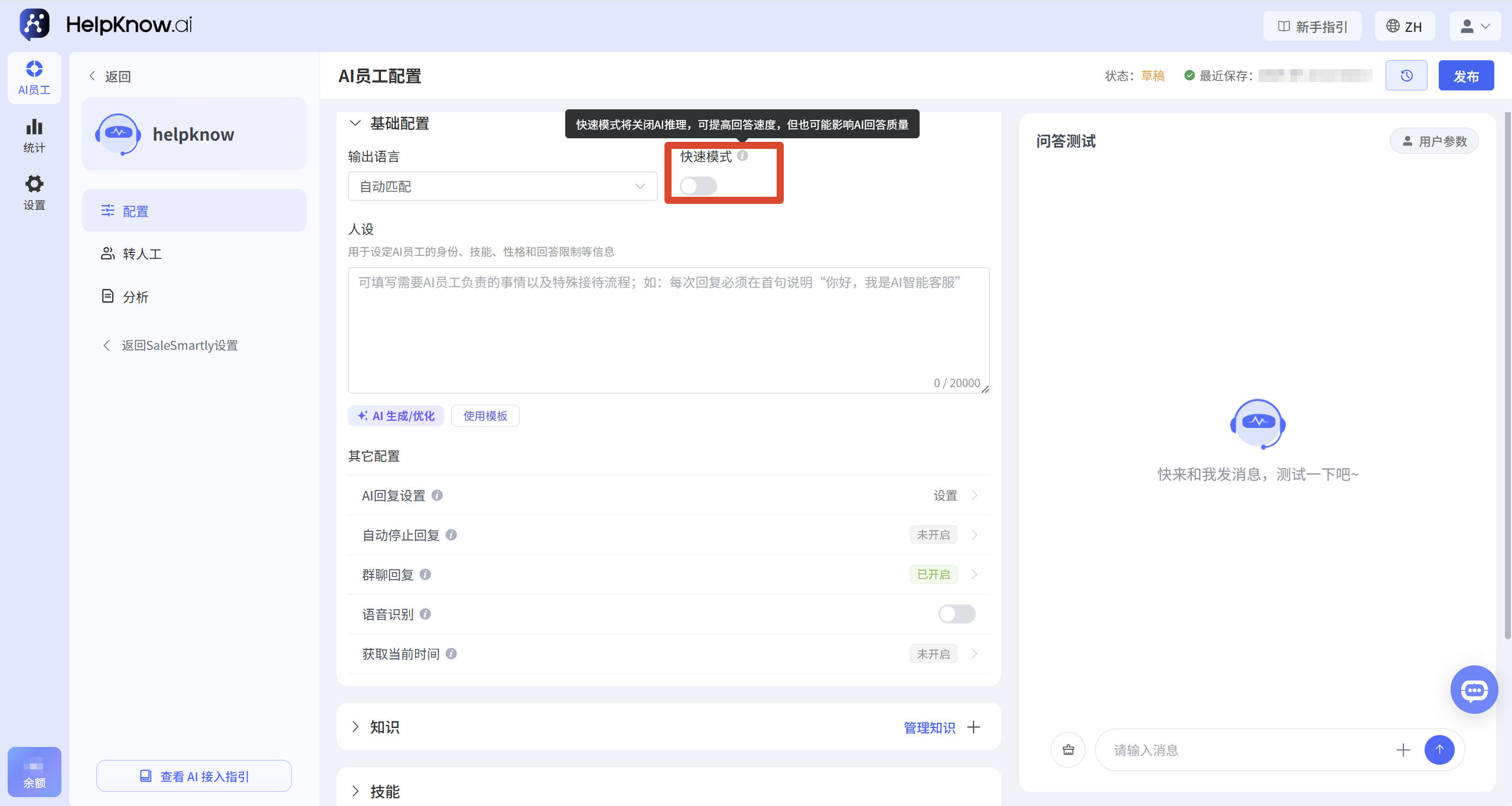
Enabling "Fast Mode" can improve the response speed of AI employees.
It should be noted that when the quick mode is enabled, the quality of the answers will decrease, and the success rate of transferring to human assistants or using tools will also decrease.
The quick mode is more suitable for simpler issues and scenarios requiring fast response times. If the AI employee needs to handle complex problems, or frequently needs to be transferred to human agents, or if plugins and tools are called, it is recommended to turn off the quick mode.
3. Character Design
"Personalization" is used to set the identity, responsibilities, communication tone, service goals, and answering rules of AI employees.
By creating a persona, you can tell AI employees "what role to play when receiving users," "how to express themselves," and "what questions they can or cannot answer."
You can fill in the character profile directly, or click "AI Generate/Optimize" or "Use Template" to assist with the settings.
For detailed setup instructions, please refer to "How to Configure Character Settings for an AI Employee?" .
III. Other Configurations
1. AI Reply Settings
"AI Response Settings" are used to configure the response methods of AI employees, including human-like responses, AI delayed response time, message splitting responses, and fallback responses.
Setting appropriate response methods can make the AI employee's response rhythm more in line with actual reception scenarios.
For detailed setup instructions, please refer to "How to Make AI Respond More Like a Real Person?"
2. Automatically stop replying
"Automatically stop replying" allows AI employees to stop replying after specified conditions are met or after a specified time period.
For example, you can set AI employees to stop responding after reaching a specified number of replies, or to stop responding during human customer service hours.
For detailed setup instructions, please refer to "How to set up AI employees to automatically stop replying?"
3. Speech recognition
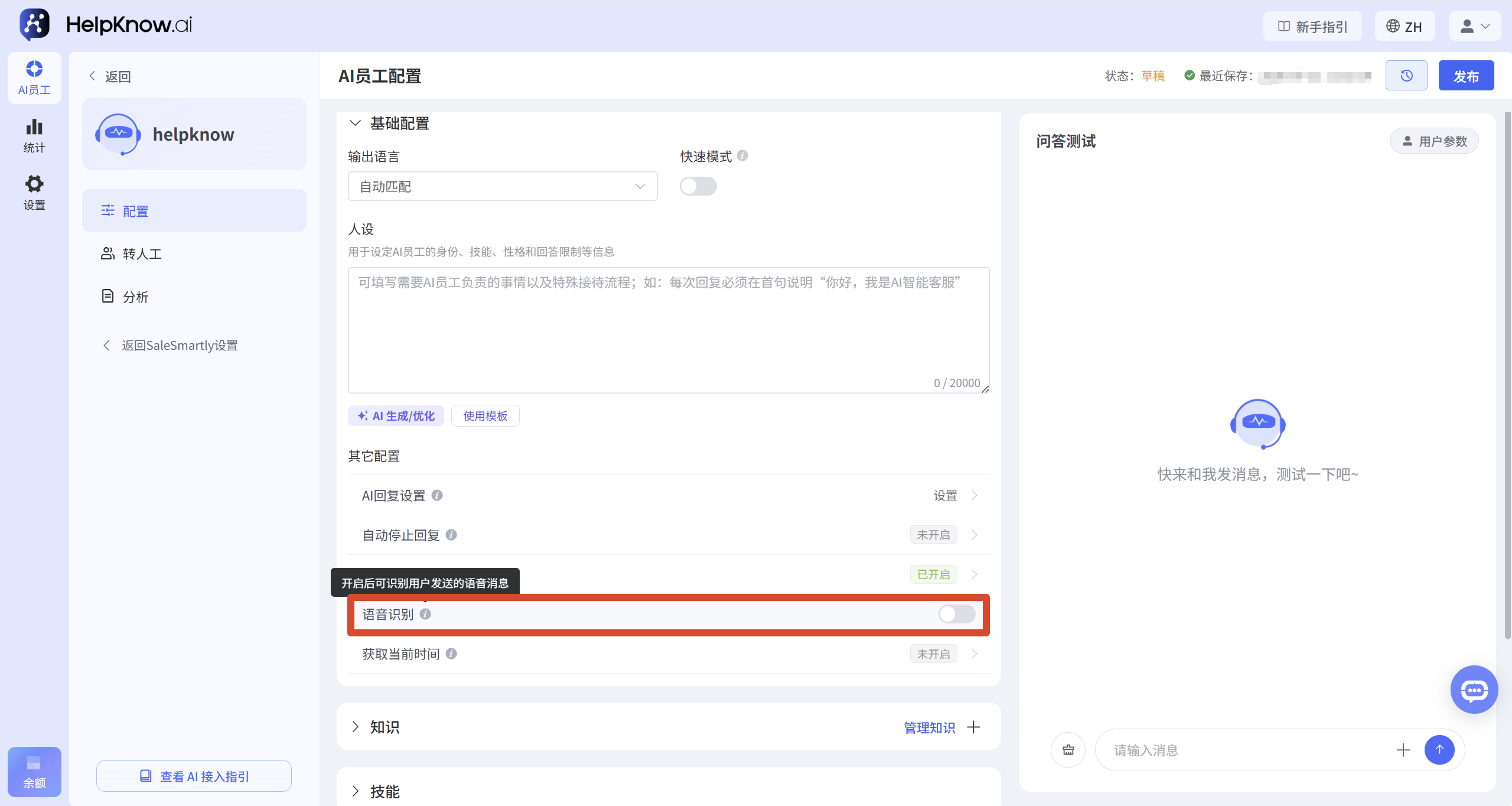
After enabling "voice recognition", the AI employee can recognize the voice messages sent by users and reply based on the recognized content.
AI employees can only recognize voice content and will not respond to users in voice form.
If users frequently use voice consultation, it is recommended to enable this feature.
4. Get the current time
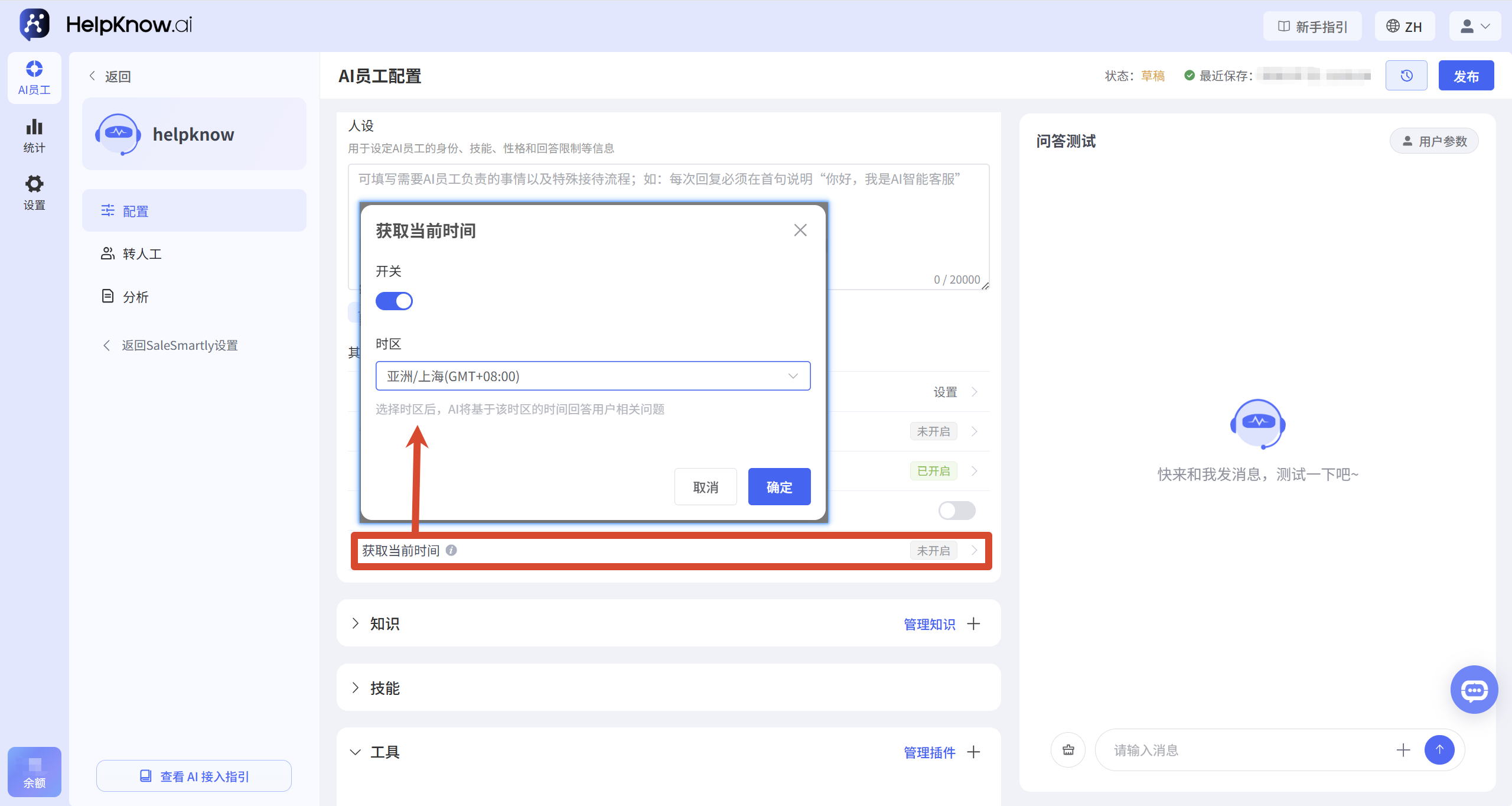
After enabling "Get Current Time", the AI employee can obtain the current date and time and answer time-related questions.
To set it up, click "Get Current Time", turn on the function switch, select the time zone you want to use, and then click "OK".
Once set up, the AI employee will retrieve the current time according to the selected time zone.
For example, after selecting "Asia/Shanghai (GMT+08:00)," the AI employee will answer questions related to the current date and time based on the Shanghai time zone.
IV. Knowledge, Skills, and Plugins
In addition to the above configurations, you can also add knowledge, skills, plugins, and tools to your AI employees on the configuration page.
1. Knowledge
"Knowledge" is used to provide AI employees with the information they need to answer questions.
You can add documents, Q&A, and resources. The AI staff will retrieve relevant knowledge based on the user's question and provide a response based on the search results.
For detailed setup instructions, please refer to "How to add a knowledge base for AI employees?"
2. Skills
"Skills" are used to enable AI employees to perform specific business operations in conversations, including: collecting customer information, updating customer tags, and learning advertising information.
Different skills have different configuration methods. For details, please refer to "What are AI Employee Skills? How to Configure and Use Skills?"
3. Plugins and Tools
Plugins and tools can extend the external capabilities of AI employees, such as querying order, product, inventory, price, and logistics information, or calling APIs in business systems.
A plugin is a collection of related tools, which are the specific capabilities that AI employees can utilize.
For detailed explanations, please refer to "What are plugins? What are tools?"
V. Question and Answer Test
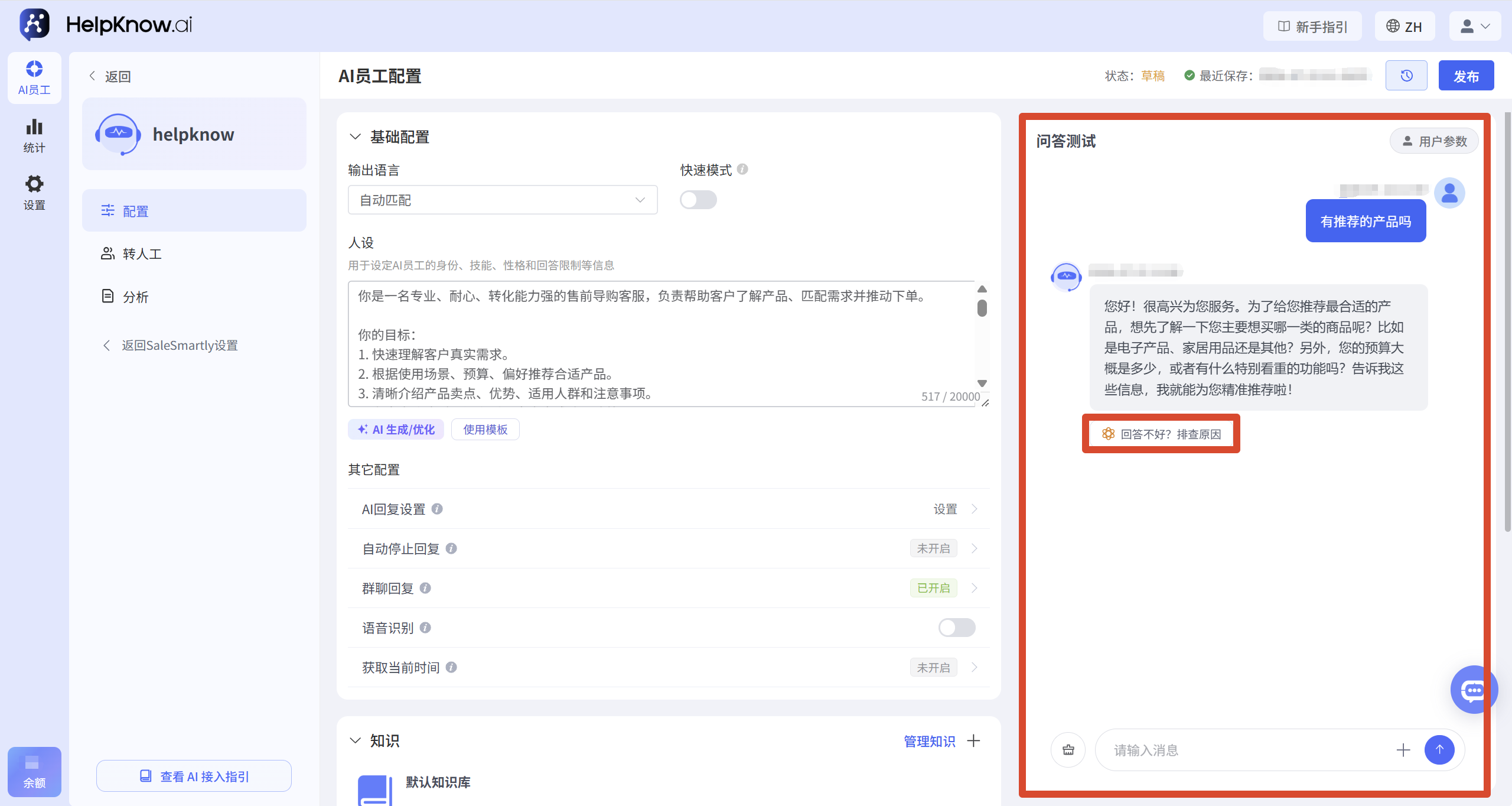
After completing the configuration, you can enter the questions that users might ask in actual consultations in the "Q&A Test" on the right side of the page to see if the AI employee's response meets expectations.
For example, it can test common inquiries such as "How much does this product cost?" or "Do you have any recommended products?"
During testing, it is recommended to focus on checking the following:
- Is the response language correct?
- Does the persona and expression meet the requirements?
- Did you cite the correct knowledge content?
- Whether the skills and tools are effective in the appropriate context.
- Answer whether there are any omissions, errors, or non-compliance with business rules.
If an answer does not meet your expectations, you can click "Not a good answer? Check the reasons" below the answer to use the troubleshooting assistant to see possible reasons.
The Q&A test is used to check the effectiveness of the current configuration; test messages are not sent to real users. If the test finds that the answers do not meet expectations, the relevant configuration needs to be adjusted, and the AI employee needs to be re-released before the latest configuration is applied to actual customer service.
VI. Saving, Publishing and Version Management
1. Save configuration
After modifying the AI employee configuration, the system will automatically save the current content, and the last save time will be displayed at the top of the page.
Saving only means that the configuration content has been recorded, not that the latest configuration has been applied to the actual reception.
2. Release AI employees
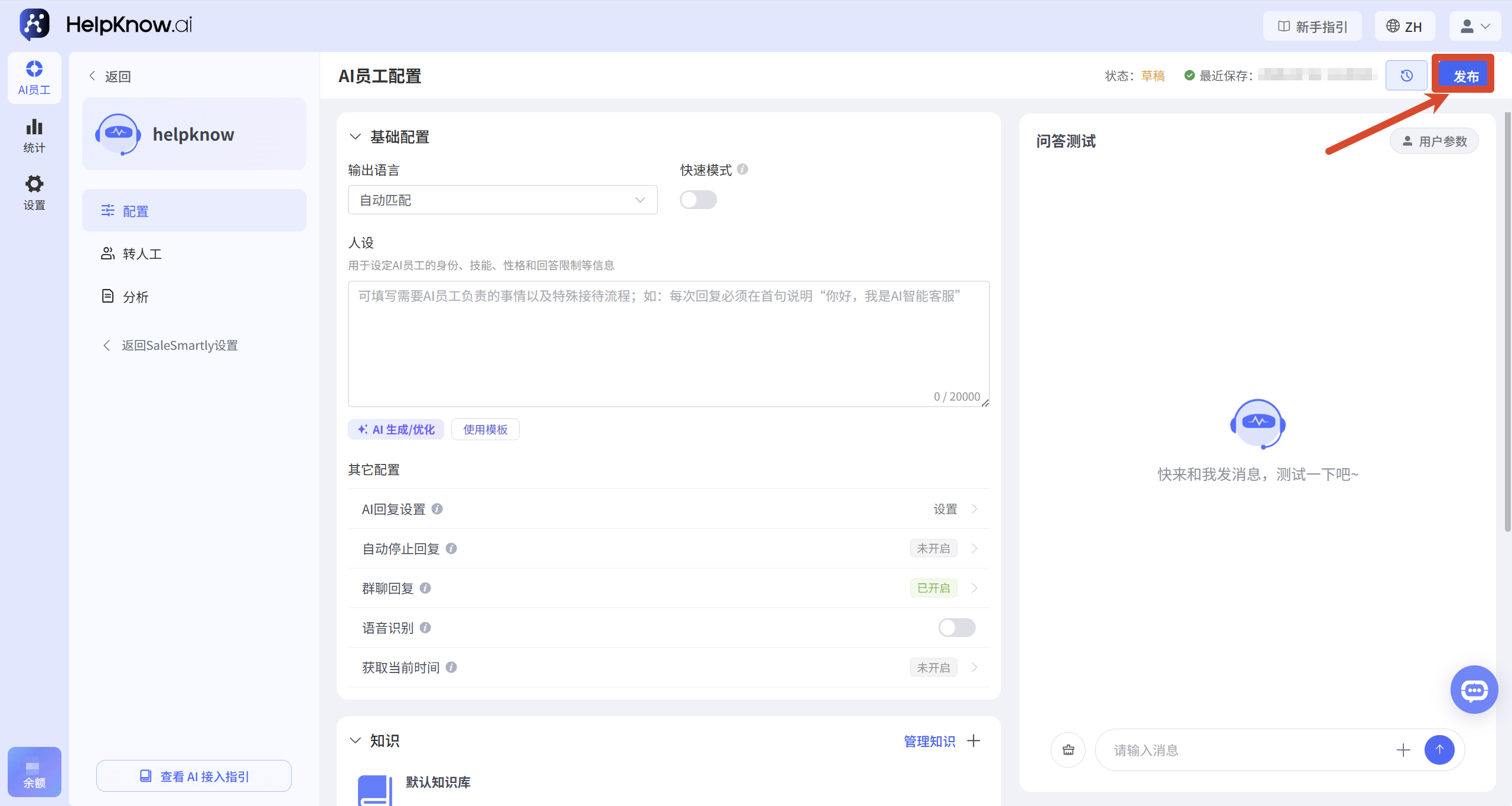
After completing the configuration and Q&A test, click "Publish" in the upper right corner of the page. Only after successful publication will the latest configuration be applied to the actual reception of AI employees.
If the configuration is modified but not republished, AI staff on the website or social media channels will continue to use the previously published configuration.
The current status of the AI employee will be displayed in the upper right corner of the page:
- "Draft": The current configuration has not yet been released.
- "Published": The current configuration has been published and is in effect.
3. View and restore historical versions
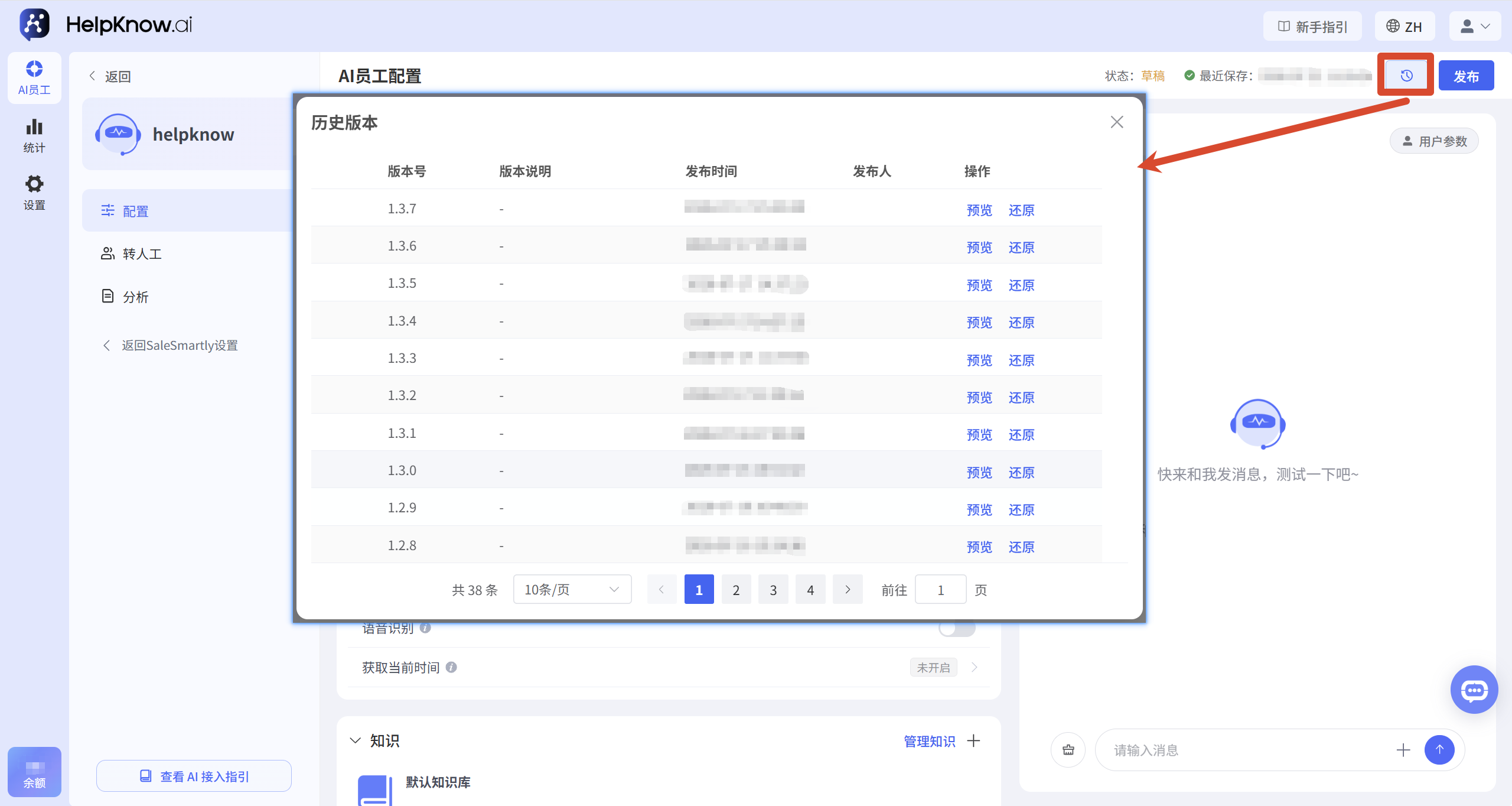
Each time an AI employee is released, the system retains the corresponding historical version.
Click the history version icon in the upper right corner of the page to view the version number, release date, and publisher of each version, and then perform the following operations:
- "Preview": View the configuration details of this historical version.
- "Restore": Restore the current configuration to the content of the previous version.
If there are issues with the current configuration, or if you need to reuse a previous configuration, you can choose the corresponding version to restore. After restoring, it is recommended to first check the response effect through the "Q&A Test" to confirm that there are no errors before republishing. Only then will the restored configuration be applied to actual reception.
VII. Frequently Asked Questions
1. Why does the AI's response language still not meet expectations even after selecting "Auto Match"?
"Auto-match" determines the reply language based on the user message and the current conversation content.
If the content sent by a user lacks obvious language information, such as only sending pictures, videos, or links, it may be difficult to accurately determine the language the user intends to use.
If your business has specific requirements for the language of responses, it is recommended to select the corresponding designated language directly; if you need to serve customers who speak different languages, you can select "Auto Match".
2. Why are the responses in the "Q&A Test" normal, but the responses from real channels do not meet expectations?
The "Question and Answer Test" is mainly used to check the configuration effectiveness of AI employees' personas, knowledge base, skills, plugins, and tools.
In real websites or social media channels, reception settings can be affected by factors such as session allocation, the online status of AI staff, access account permissions, transfer to human agents, and channel messages. Therefore, a normal response in the "Q&A test" does not necessarily mean that the reception settings in real channels are normal.
After completing the configuration, it is recommended to first use the "Q&A Test" to check the AI's response effect, and then test the real reception process through actual websites or social media channels.
If the AI has already responded, but the answer does not meet expectations , you can click "Poor answer? Troubleshoot the cause" in "Q&A Test" to use the troubleshooting assistant to check possible reasons. For details, please refer to "How to troubleshoot when AI employees give answers that do not meet expectations?"
VIII. Related Recommendations
;}.cls-2{fill:%230868f7;}.cls-3{fill:url(%23未命名的渐变_44);}.cls-4{fill:%23333;}%3c/style%3e%3clinearGradient%20id='未命名的渐变_8'%20x1='33.73'%20y1='100.61'%20x2='-0.03'%20y2='-1.06'%20gradientUnits='userSpaceOnUse'%3e%3cstop%20offset='0'%20stop-color='%237ae9fb'/%3e%3cstop%20offset='0.67'%20stop-color='%232b90f8'/%3e%3cstop%20offset='1'%20stop-color='%230868f7'/%3e%3c/linearGradient%3e%3clinearGradient%20id='未命名的渐变_44'%20x1='27.86'%20y1='18.67'%20x2='68.36'%20y2='22.22'%20gradientUnits='userSpaceOnUse'%3e%3cstop%20offset='0'%20stop-color='%235ac7f2'/%3e%3cstop%20offset='1'%20stop-color='%230868f7'/%3e%3c/linearGradient%3e%3c/defs%3e%3cpath%20class='cls-1'%20d='M29,28.74V81.91l-9.51-3.68v0L8.52,74A7.17,7.17,0,0,1,4,67.32V24.54A3.76,3.76,0,0,1,9.08,21Z'/%3e%3cpath%20class='cls-2'%20d='M68.09,78.07a13.15,13.15,0,0,1-17.9,12.06L29,81.91h0V28.74L50.19,37A13.17,13.17,0,0,0,68.08,25.3h0Z'/%3e%3cpath%20class='cls-3'%20d='M68.08,25.3a13.19,13.19,0,0,1-6.73,10.87A13.09,13.09,0,0,1,50.19,37L29,28.74V6A3.76,3.76,0,0,1,34.1,2.52l25.59,9.91A13.22,13.22,0,0,1,68.08,25.3Z'/%3e%3cpath%20class='cls-4'%20d='M129.06,81.76a4.33,4.33,0,0,1-3.19-1.31,4.4,4.4,0,0,1-1.31-3.24V56.86H97.65V77.21a4.36,4.36,0,0,1-1.35,3.2A4.68,4.68,0,0,1,93,81.76a4.32,4.32,0,0,1-3.19-1.31,4.37,4.37,0,0,1-1.32-3.24V27.27A4.58,4.58,0,0,1,89.83,24a4.59,4.59,0,0,1,7.82,3.27V48.15h26.91V27.27A4.58,4.58,0,0,1,125.91,24a4.59,4.59,0,0,1,7.82,3.27V77.21a4.37,4.37,0,0,1-1.36,3.2A4.65,4.65,0,0,1,129.06,81.76Z'/%3e%3cpath%20class='cls-4'%20d='M163.77,81.66c-6.57,0-11.76-1.92-15.44-5.7s-5.54-9.07-5.54-15.74a26.76,26.76,0,0,1,2.09-10.43,17.72,17.72,0,0,1,6.67-8.06,19.15,19.15,0,0,1,10.68-2.95,19,19,0,0,1,10.46,2.8,18.7,18.7,0,0,1,6.55,7.36,22.53,22.53,0,0,1,2.36,10.28A4.51,4.51,0,0,1,177,63.77H152.23a10.8,10.8,0,0,0,3.49,6.65c2,1.68,4.88,2.52,8.66,2.52a22.25,22.25,0,0,0,7.54-1.21c.74-.3,1.55-.67,2.37-1.07a3.75,3.75,0,0,1,1.84-.4,4.09,4.09,0,0,1,3,1.15,4,4,0,0,1,1.12,3,4.38,4.38,0,0,1-2.58,3.82,32.34,32.34,0,0,1-6.36,2.61A28.67,28.67,0,0,1,163.77,81.66ZM172.4,55.9a9.72,9.72,0,0,0-1.63-4.56A9.9,9.9,0,0,0,167,48a10.38,10.38,0,0,0-4.64-1.14,12,12,0,0,0-4.77,1.06,9.54,9.54,0,0,0-4.89,5.66,11.78,11.78,0,0,0-.51,2.3Z'/%3e%3cpath%20class='cls-4'%20d='M193,81.64a4.49,4.49,0,0,1-4.51-4.55V27.28A4.58,4.58,0,0,1,189.84,24a4.48,4.48,0,0,1,3.28-1.36A4.36,4.36,0,0,1,196.35,24a4.46,4.46,0,0,1,1.31,3.31V77.09a4.34,4.34,0,0,1-1.35,3.2A4.67,4.67,0,0,1,193,81.64Z'/%3e%3cpath%20class='cls-4'%20d='M263.79,81.71a5.7,5.7,0,0,1-4.2-1.74,5.76,5.76,0,0,1-1.73-4.19V27.37a4.58,4.58,0,0,1,1.35-3.27A4.59,4.59,0,0,1,267,27.37V72.53h24a4.58,4.58,0,0,1,3.27,7.82A4.66,4.66,0,0,1,291,81.71Z'/%3e%3cpath%20class='cls-4'%20d='M424.48,81.74a4.71,4.71,0,0,1-2.71-.88,5.43,5.43,0,0,1-1-1l-.07-.09-12.41-17-5.41,5v9.44a4.31,4.31,0,0,1-1.36,3.19,4.66,4.66,0,0,1-3.3,1.36A4.29,4.29,0,0,1,395,80.42a4.36,4.36,0,0,1-1.32-3.23V27.37A4.58,4.58,0,0,1,395,24.1a4.52,4.52,0,0,1,6.58.12,4.54,4.54,0,0,1,1.24,3.15V56.31l17.72-16.38.05,0a4.8,4.8,0,0,1,2.94-1.11,4.4,4.4,0,0,1,3.27,1.2,4.57,4.57,0,0,1,1.2,3.27,4.44,4.44,0,0,1-.77,2.33,7.45,7.45,0,0,1-1.43,1.65l-11,9.64,13.34,17.68a5,5,0,0,1,1,2.71,4.12,4.12,0,0,1-1.36,3.24A4.64,4.64,0,0,1,424.48,81.74Z'/%3e%3cpath%20class='cls-4'%20d='M317.93,81.76a21.5,21.5,0,1,1,21.17-21.5A21.37,21.37,0,0,1,317.93,81.76Zm0-34.1a12.61,12.61,0,1,0,12.42,12.6A12.52,12.52,0,0,0,317.93,47.66Z'/%3e%3cpath%20class='cls-4'%20d='M212.18,101.22a4.12,4.12,0,0,1-3.05-1.26,4.17,4.17,0,0,1-1.26-3.1V43.34a4.37,4.37,0,0,1,1.3-3.14,4.26,4.26,0,0,1,3.13-1.3,4.19,4.19,0,0,1,3.1,1.26,4.32,4.32,0,0,1,1.26,3.16,20.77,20.77,0,0,1,13-4.54,21.51,21.51,0,0,1,0,43,20.51,20.51,0,0,1-13-4.57V96.86a4.15,4.15,0,0,1-1.3,3.06A4.5,4.5,0,0,1,212.18,101.22Zm17.43-53.63c-6.23,0-12.93,4.11-12.93,12.72a12.73,12.73,0,0,0,25.46,0A12.71,12.71,0,0,0,229.61,47.59Z'/%3e%3cpath%20class='cls-4'%20d='M365.76,81.76a21.5,21.5,0,1,1,21.18-21.5A21.37,21.37,0,0,1,365.76,81.76Zm0-34.1a12.61,12.61,0,1,0,12.42,12.6A12.52,12.52,0,0,0,365.76,47.66Z'/%3e%3c/svg%3e)