
How to add product descriptions, operating instructions, and other content to a document?
I. Function Introduction
The "Documents" section in the knowledge base is suitable for adding continuous, structured knowledge content such as product introductions, operating instructions, service policies, and user manuals. You can create new documents online, upload local files, or synchronize existing content from HelpLook.
After a document is added, the system will automatically parse the content and break it down into content fragments that AI employees can retrieve. AI employees who have already referenced this knowledge base can directly use the newly added knowledge without needing to republish it.
This article's link: "How to add product introductions, operating instructions, and other content using documents?"
II. Go to the "Document" page
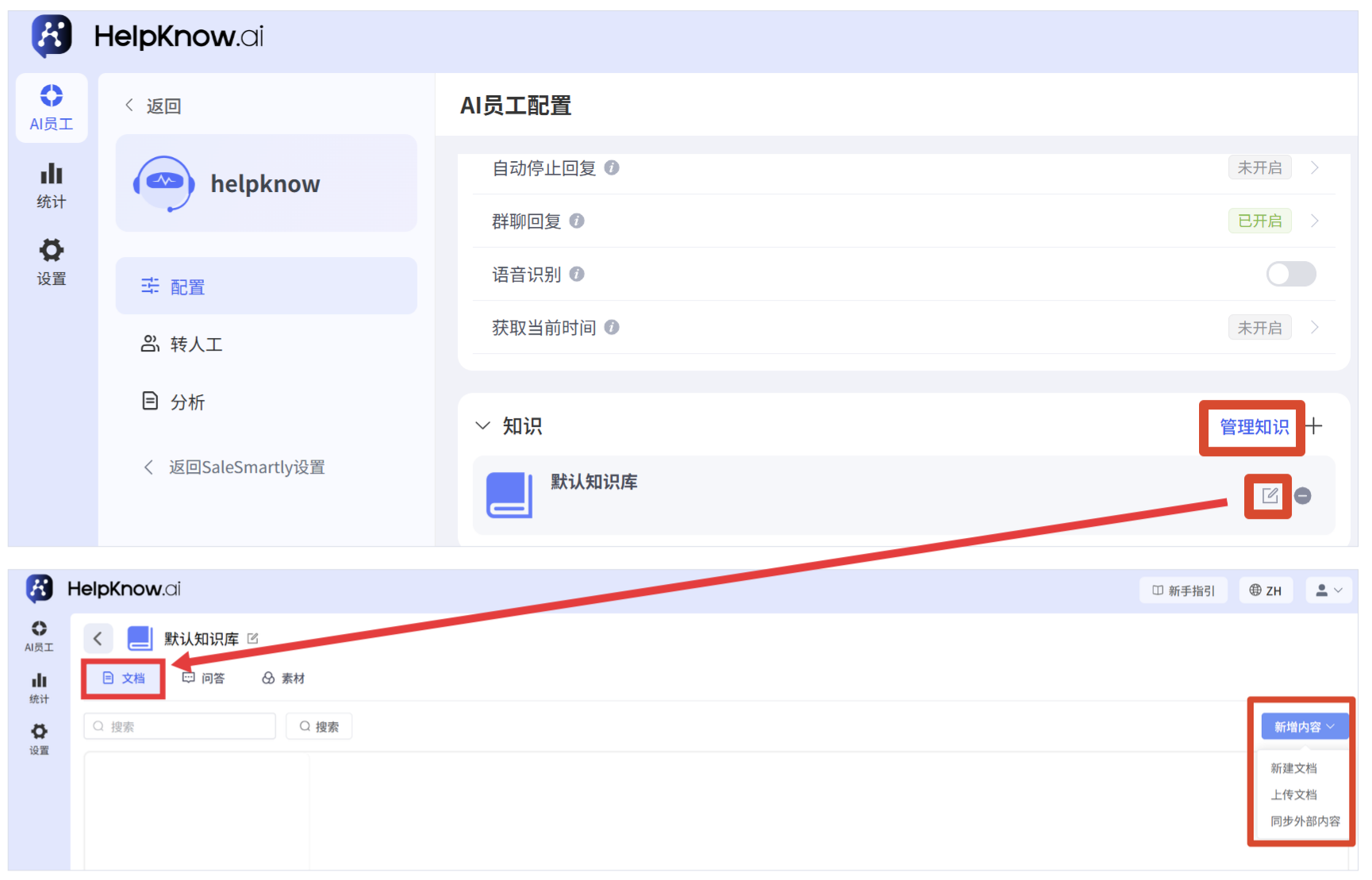
To access the AI employee whose knowledge needs to be supplemented, click "Configure" in the left-hand menu. In the "Knowledge" area, you can access the target knowledge base in two ways:
- Click "Manage Knowledge", and then select the knowledge base to which you want to add documents from the knowledge base list.
- If the target knowledge base has already been added to the current AI employee, you can directly access the knowledge base by clicking the "Edit" icon on the right side of the knowledge base.
After entering the knowledge base, select "Documents" at the top, click "Add Content" in the upper right corner, and then select "New Document," "Upload Document," or "Sync External Content."
III. Adding Documents
1. Create a new document online
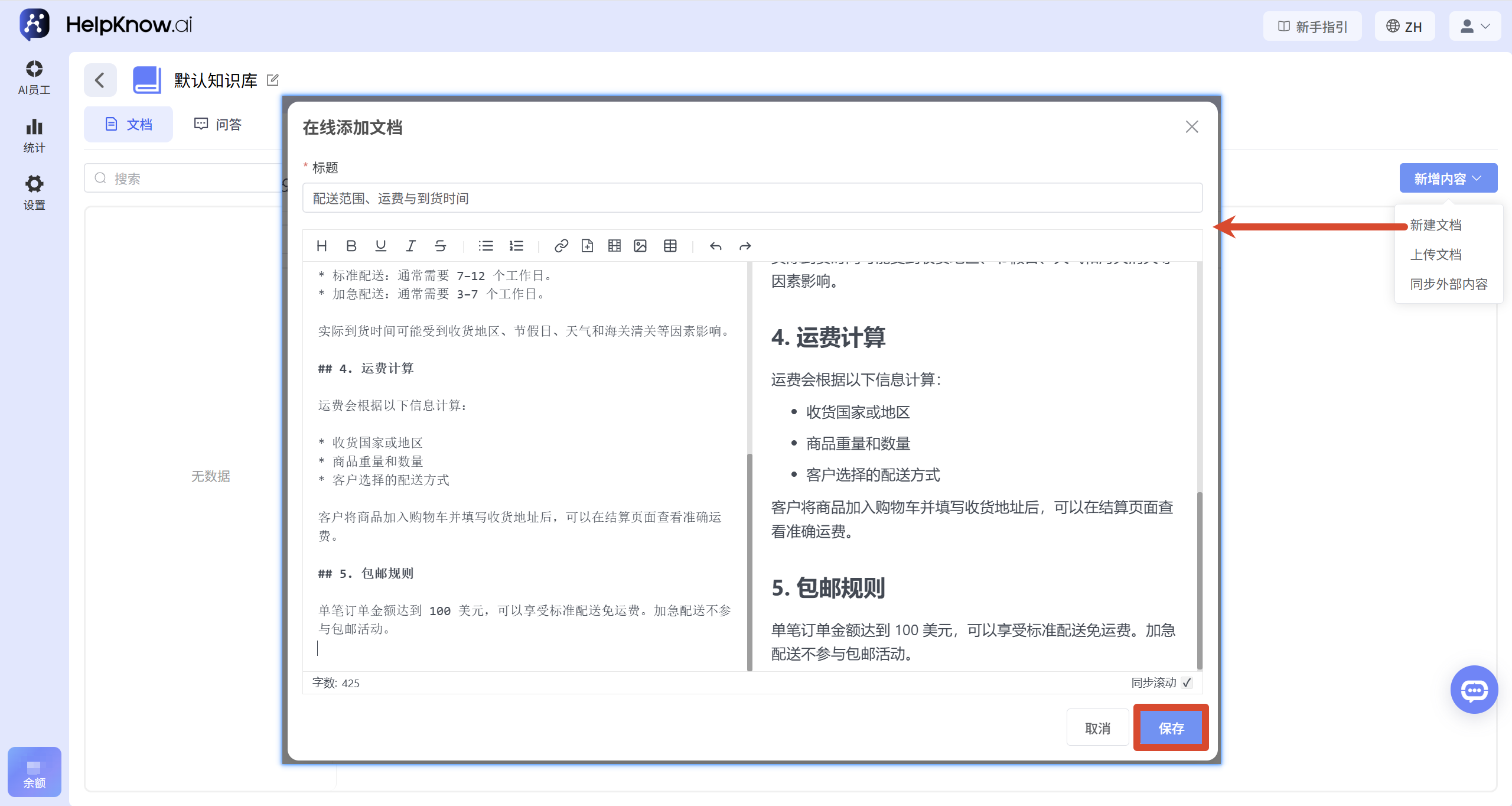
Click "Add Content" and select "New Document". In the "Add Document Online" window that opens, fill in the title, and then enter the content in the left-hand editing area. While editing, you can check the display effect of the content in the right-hand preview area. After confirming that everything is correct, click "Save".
The online editor also supports inserting images and videos. Inserted content will be used by the AI as part of the document's knowledge base; if you need the AI to directly send images, audio, video, or attachments in its replies, it is recommended to use the "Materials" option.
2. Upload local documents
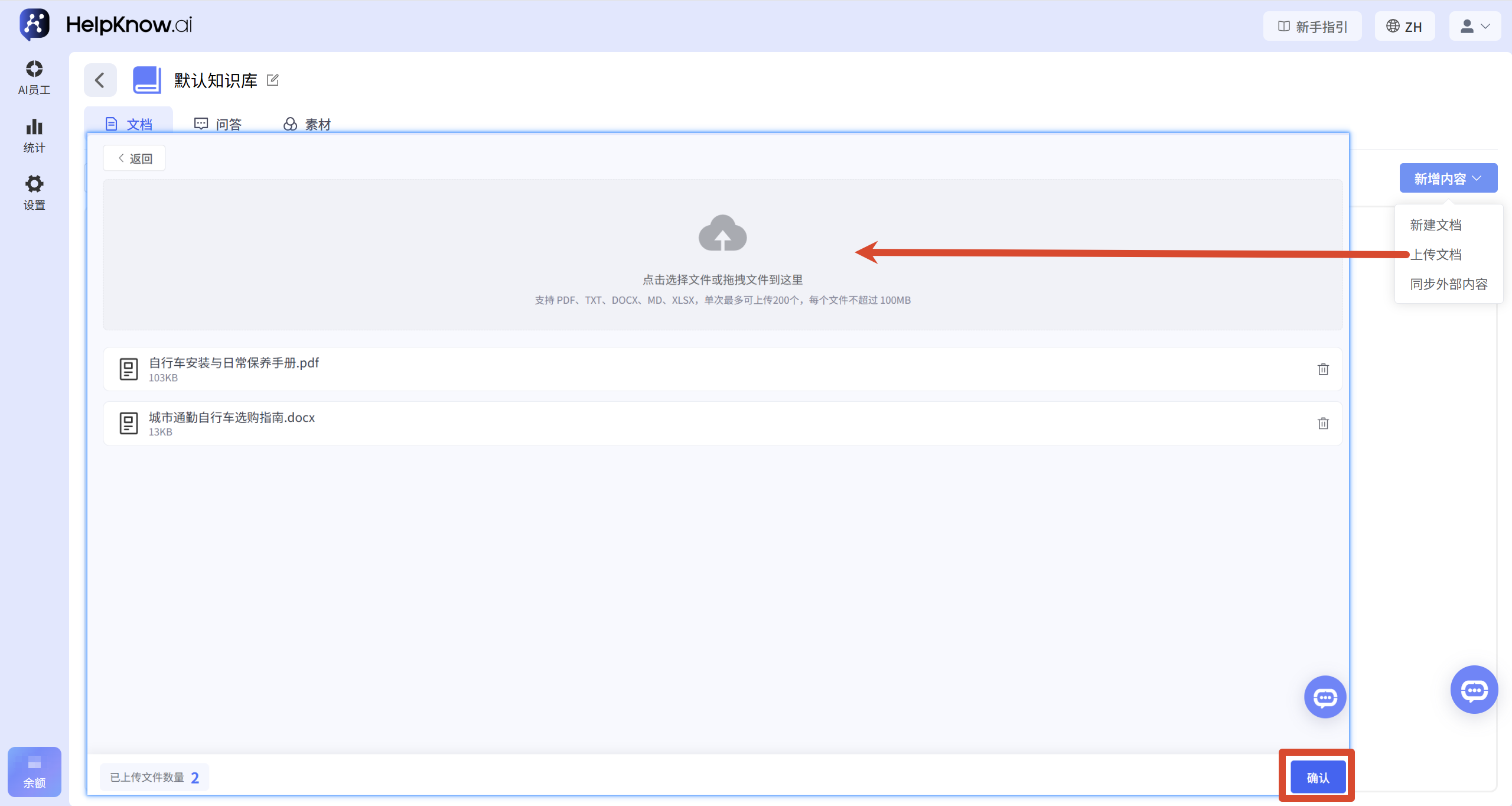
Click "Add Content," then select "Upload Document." You can select a file by clicking the upload area, or drag and drop the file directly into the upload area. After selecting a file, please check the file list below; to remove a file, click the delete icon to the right of the file. Once you are sure everything is correct, click "Confirm."
Currently, we support uploading files in PDF, TXT, DOCX, MD, and XLSX formats. The .doc format (older versions of Word documents) is not currently supported ; this format cannot be parsed correctly. Please save the file as .docx or convert it to PDF before uploading. A maximum of 200 files can be uploaded at a time, and each file cannot exceed 100 MB. Please refer to the information displayed on the upload page for specific requirements.
3. Synchronize HelpLook content
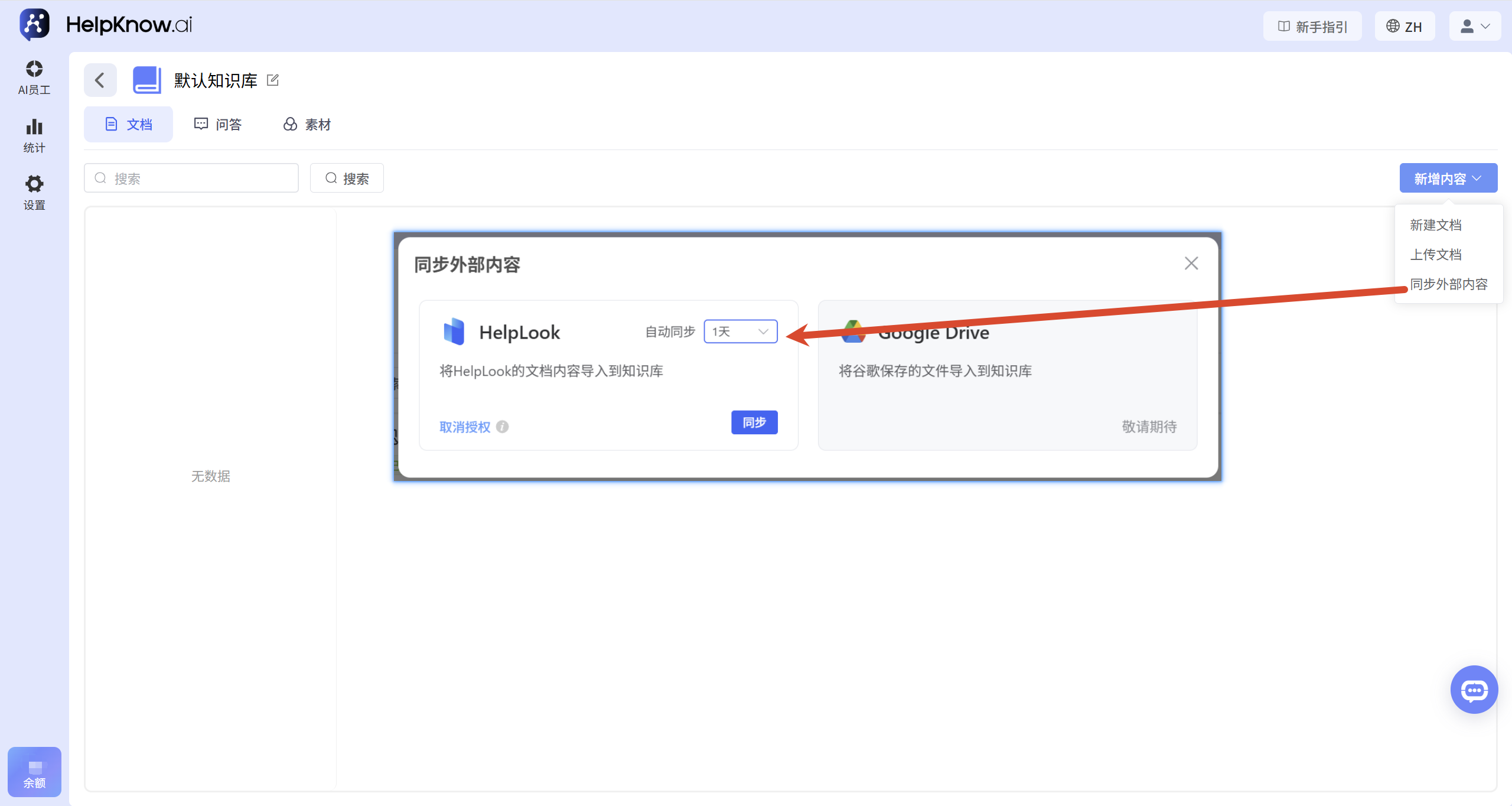
Click "Add Content" and select "Sync External Content". If HelpLook is not yet authorized, the page will display "Unauthorized". Click "Authorize" and follow the on-screen instructions to complete the process.
After entering HelpLook, select the content you want to sync to HelpKnow. The system only syncs content that has been published and has its AI training switch enabled. If the page displays "No sites to sync," please check if the relevant sites have been published and if the content you want to sync has its AI training switch enabled.
After authorization, you can set the automatic synchronization period to "Never", "1 day", "3 days", or "5 days". To get the latest content from HelpLook immediately, click "Sync".
Synchronization rules:
- If the document synced to HelpKnow has not been manually edited, subsequent syncs will update the original document with the latest content and formatting from HelpLook.
- If you modify the title or edit the content of a synchronized document in HelpKnow, subsequent synchronizations will not overwrite the document. To use the latest version in HelpLook, please delete the manually edited document before resynchronizing.
IV. View document content
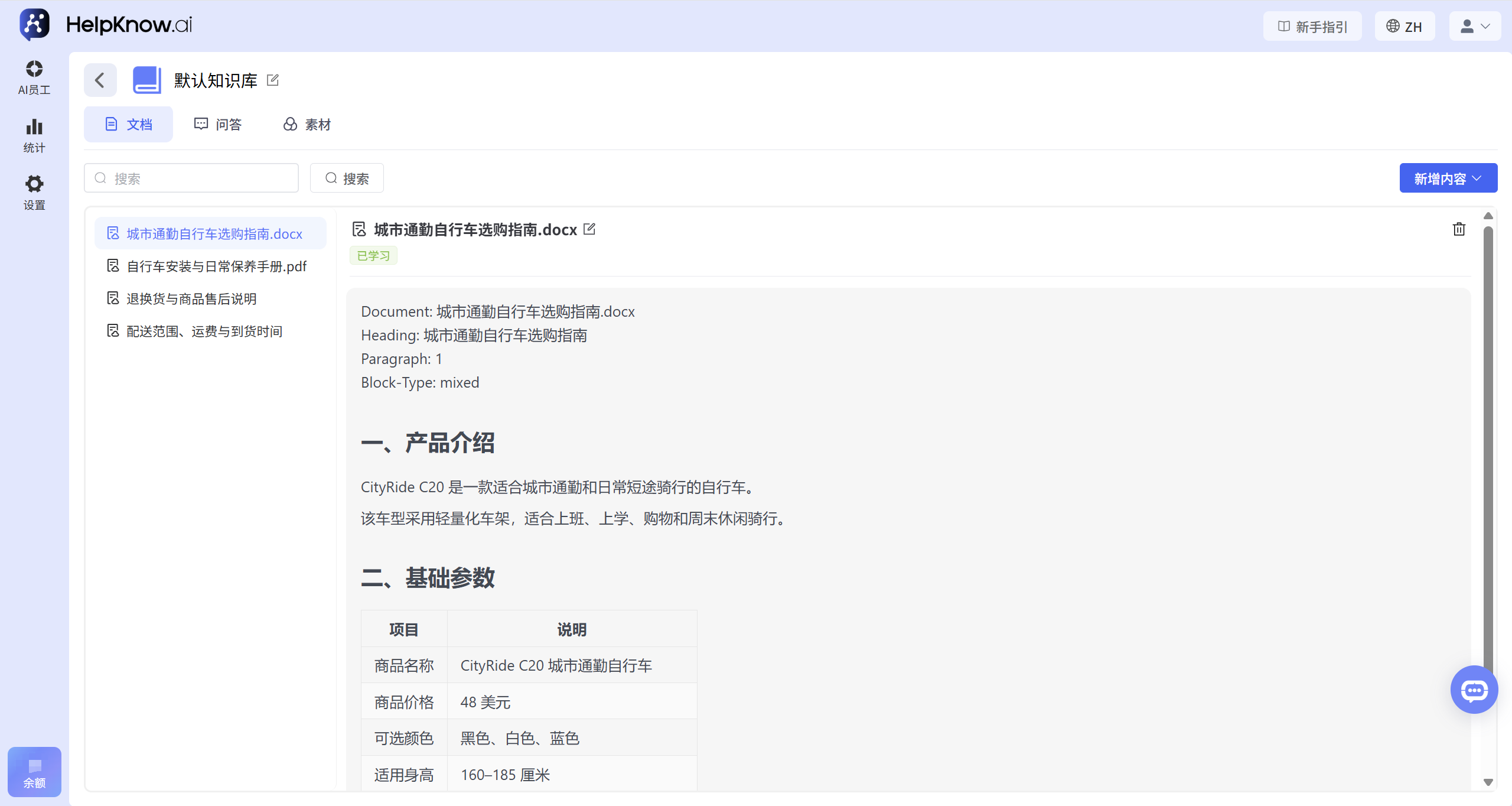
Once added, the document will be displayed in the list on the left. Clicking on the document name will show the system-analyzed segmentation results on the right, including information such as Document, Heading, and the corresponding text.
These snippets will serve as the knowledge corpus used by the AI employee to retrieve and generate responses, and are not the final response style seen by the user. After confirming that the main content has been read correctly, you can return to the AI employee configuration page and verify the response effect through the "Question and Answer Test".
V. Testing the response effect
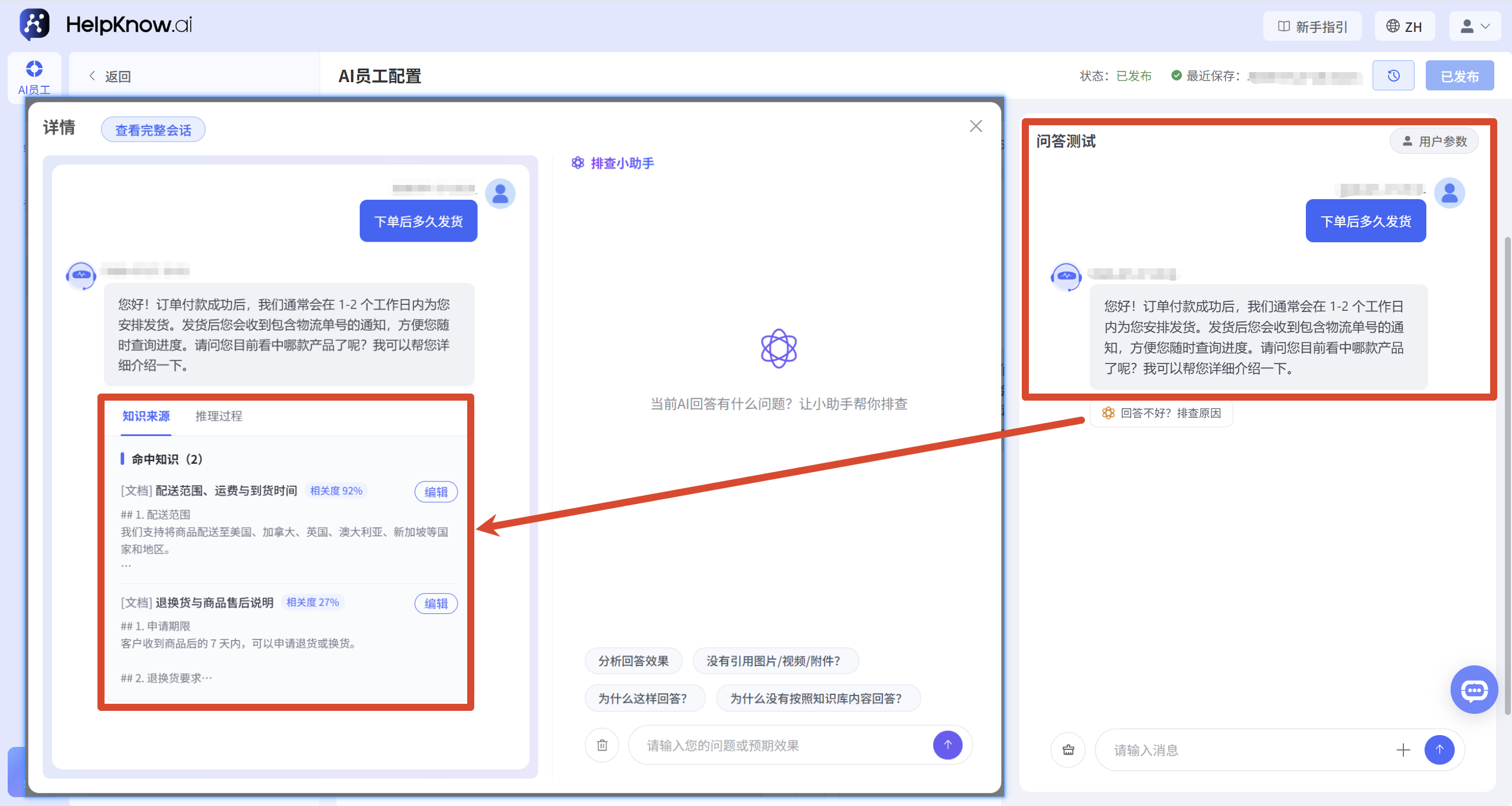
After adding a document, you can return to the AI employee configuration page and send questions related to the document content in the "Question and Answer Test" to check whether the AI employee can correctly retrieve and use the new knowledge.
When testing, it is recommended to use questions that real users might ask and try to use different wording than the original document. For example, if the document states "the goods will be shipped within 2 business days after payment," you can test "how long after placing an order will the goods be shipped."
If the reply is incorrect, incomplete, or does not use the expected document content, you can click "Poor answer? Troubleshoot the reason" below the AI reply to view the knowledge base hit rate and optimization suggestions.
Related tutorial: How to Troubleshoot When AI Employee Responses Do Not Meet Expectations?
VI. Applicable Scenarios
When knowledge needs to be understood in context, rather than when a question corresponds to a fixed answer, it is appropriate to use a "document".
- Product and service consultation : Help AI employees answer questions about product features, specifications, packages, service content, and scope of application.
- Business Rules Explanation : Provide unified answers to questions regarding delivery, refunds, after-sales service, warranty, billing, and service procedures.
- Reuse existing materials : Add product manuals, business policies, local files, or help documents from HelpLook to the knowledge base.
If the knowledge consists of clearly defined questions and standard answers, it is recommended to use "Questions and Answers"; if you need AI employees to send images, audio, video, or attachments, it is recommended to use "Materials".
VII. Precautions
- It is recommended that a document be written around a relatively complete topic and use clear and specific headings to facilitate subsequent searching and maintenance.
- After adding the document, it is recommended to check the slicing results on the right to confirm that the main headings, paragraphs, and body text have been read correctly.
- Please update the documents promptly when product information, service policies, and business rules change. When using HelpLook for synchronization, you should also ensure that the content in the knowledge base has been synchronized to the latest version.
- Avoid adding contradictory or excessively repetitive content to multiple documents, as this could hinder AI staff from retrieving knowledge and generating responses.
VIII. Frequently Asked Questions
1. Do I need to republish the AI employee after adding the document?
No. Once the document is added, AI employees who have already referenced this knowledge base can directly use the new content.
Related tutorials: How to add product descriptions, operating instructions, and other content to a document?
2. What formats and restrictions are supported for uploaded documents?
Currently, PDF, TXT, DOCX, MD, and XLSX formats are supported, but .doc format is not yet supported. If your document is in .doc format, please use Word to save the file as a .docx file, or convert it to PDF and then upload it again. A maximum of 200 files can be uploaded at a time, and each file cannot exceed 100 MB.
Related tutorials: How to add product descriptions, operating instructions, and other content to a document?
3. Why does HelpLook display "Unable to sync sites" after I authorize it?
HelpKnow only syncs content that has been published in HelpLook and has its AI training switch enabled. Please check if the relevant sites have published the content and if the AI training switch for the content to be synced is enabled.
Related tutorials: How to add product descriptions, operating instructions, and other content to a document?
4. How can I immediately update content synced from HelpLook?
Go to "Sync External Content" and click "Sync" in the HelpLook area to immediately get the latest content.
Related tutorials: How to add product descriptions, operating instructions, and other content to a document?
IX. Related Recommendations
;}.cls-2{fill:%230868f7;}.cls-3{fill:url(%23未命名的渐变_44);}.cls-4{fill:%23333;}%3c/style%3e%3clinearGradient%20id='未命名的渐变_8'%20x1='33.73'%20y1='100.61'%20x2='-0.03'%20y2='-1.06'%20gradientUnits='userSpaceOnUse'%3e%3cstop%20offset='0'%20stop-color='%237ae9fb'/%3e%3cstop%20offset='0.67'%20stop-color='%232b90f8'/%3e%3cstop%20offset='1'%20stop-color='%230868f7'/%3e%3c/linearGradient%3e%3clinearGradient%20id='未命名的渐变_44'%20x1='27.86'%20y1='18.67'%20x2='68.36'%20y2='22.22'%20gradientUnits='userSpaceOnUse'%3e%3cstop%20offset='0'%20stop-color='%235ac7f2'/%3e%3cstop%20offset='1'%20stop-color='%230868f7'/%3e%3c/linearGradient%3e%3c/defs%3e%3cpath%20class='cls-1'%20d='M29,28.74V81.91l-9.51-3.68v0L8.52,74A7.17,7.17,0,0,1,4,67.32V24.54A3.76,3.76,0,0,1,9.08,21Z'/%3e%3cpath%20class='cls-2'%20d='M68.09,78.07a13.15,13.15,0,0,1-17.9,12.06L29,81.91h0V28.74L50.19,37A13.17,13.17,0,0,0,68.08,25.3h0Z'/%3e%3cpath%20class='cls-3'%20d='M68.08,25.3a13.19,13.19,0,0,1-6.73,10.87A13.09,13.09,0,0,1,50.19,37L29,28.74V6A3.76,3.76,0,0,1,34.1,2.52l25.59,9.91A13.22,13.22,0,0,1,68.08,25.3Z'/%3e%3cpath%20class='cls-4'%20d='M129.06,81.76a4.33,4.33,0,0,1-3.19-1.31,4.4,4.4,0,0,1-1.31-3.24V56.86H97.65V77.21a4.36,4.36,0,0,1-1.35,3.2A4.68,4.68,0,0,1,93,81.76a4.32,4.32,0,0,1-3.19-1.31,4.37,4.37,0,0,1-1.32-3.24V27.27A4.58,4.58,0,0,1,89.83,24a4.59,4.59,0,0,1,7.82,3.27V48.15h26.91V27.27A4.58,4.58,0,0,1,125.91,24a4.59,4.59,0,0,1,7.82,3.27V77.21a4.37,4.37,0,0,1-1.36,3.2A4.65,4.65,0,0,1,129.06,81.76Z'/%3e%3cpath%20class='cls-4'%20d='M163.77,81.66c-6.57,0-11.76-1.92-15.44-5.7s-5.54-9.07-5.54-15.74a26.76,26.76,0,0,1,2.09-10.43,17.72,17.72,0,0,1,6.67-8.06,19.15,19.15,0,0,1,10.68-2.95,19,19,0,0,1,10.46,2.8,18.7,18.7,0,0,1,6.55,7.36,22.53,22.53,0,0,1,2.36,10.28A4.51,4.51,0,0,1,177,63.77H152.23a10.8,10.8,0,0,0,3.49,6.65c2,1.68,4.88,2.52,8.66,2.52a22.25,22.25,0,0,0,7.54-1.21c.74-.3,1.55-.67,2.37-1.07a3.75,3.75,0,0,1,1.84-.4,4.09,4.09,0,0,1,3,1.15,4,4,0,0,1,1.12,3,4.38,4.38,0,0,1-2.58,3.82,32.34,32.34,0,0,1-6.36,2.61A28.67,28.67,0,0,1,163.77,81.66ZM172.4,55.9a9.72,9.72,0,0,0-1.63-4.56A9.9,9.9,0,0,0,167,48a10.38,10.38,0,0,0-4.64-1.14,12,12,0,0,0-4.77,1.06,9.54,9.54,0,0,0-4.89,5.66,11.78,11.78,0,0,0-.51,2.3Z'/%3e%3cpath%20class='cls-4'%20d='M193,81.64a4.49,4.49,0,0,1-4.51-4.55V27.28A4.58,4.58,0,0,1,189.84,24a4.48,4.48,0,0,1,3.28-1.36A4.36,4.36,0,0,1,196.35,24a4.46,4.46,0,0,1,1.31,3.31V77.09a4.34,4.34,0,0,1-1.35,3.2A4.67,4.67,0,0,1,193,81.64Z'/%3e%3cpath%20class='cls-4'%20d='M263.79,81.71a5.7,5.7,0,0,1-4.2-1.74,5.76,5.76,0,0,1-1.73-4.19V27.37a4.58,4.58,0,0,1,1.35-3.27A4.59,4.59,0,0,1,267,27.37V72.53h24a4.58,4.58,0,0,1,3.27,7.82A4.66,4.66,0,0,1,291,81.71Z'/%3e%3cpath%20class='cls-4'%20d='M424.48,81.74a4.71,4.71,0,0,1-2.71-.88,5.43,5.43,0,0,1-1-1l-.07-.09-12.41-17-5.41,5v9.44a4.31,4.31,0,0,1-1.36,3.19,4.66,4.66,0,0,1-3.3,1.36A4.29,4.29,0,0,1,395,80.42a4.36,4.36,0,0,1-1.32-3.23V27.37A4.58,4.58,0,0,1,395,24.1a4.52,4.52,0,0,1,6.58.12,4.54,4.54,0,0,1,1.24,3.15V56.31l17.72-16.38.05,0a4.8,4.8,0,0,1,2.94-1.11,4.4,4.4,0,0,1,3.27,1.2,4.57,4.57,0,0,1,1.2,3.27,4.44,4.44,0,0,1-.77,2.33,7.45,7.45,0,0,1-1.43,1.65l-11,9.64,13.34,17.68a5,5,0,0,1,1,2.71,4.12,4.12,0,0,1-1.36,3.24A4.64,4.64,0,0,1,424.48,81.74Z'/%3e%3cpath%20class='cls-4'%20d='M317.93,81.76a21.5,21.5,0,1,1,21.17-21.5A21.37,21.37,0,0,1,317.93,81.76Zm0-34.1a12.61,12.61,0,1,0,12.42,12.6A12.52,12.52,0,0,0,317.93,47.66Z'/%3e%3cpath%20class='cls-4'%20d='M212.18,101.22a4.12,4.12,0,0,1-3.05-1.26,4.17,4.17,0,0,1-1.26-3.1V43.34a4.37,4.37,0,0,1,1.3-3.14,4.26,4.26,0,0,1,3.13-1.3,4.19,4.19,0,0,1,3.1,1.26,4.32,4.32,0,0,1,1.26,3.16,20.77,20.77,0,0,1,13-4.54,21.51,21.51,0,0,1,0,43,20.51,20.51,0,0,1-13-4.57V96.86a4.15,4.15,0,0,1-1.3,3.06A4.5,4.5,0,0,1,212.18,101.22Zm17.43-53.63c-6.23,0-12.93,4.11-12.93,12.72a12.73,12.73,0,0,0,25.46,0A12.71,12.71,0,0,0,229.61,47.59Z'/%3e%3cpath%20class='cls-4'%20d='M365.76,81.76a21.5,21.5,0,1,1,21.18-21.5A21.37,21.37,0,0,1,365.76,81.76Zm0-34.1a12.61,12.61,0,1,0,12.42,12.6A12.52,12.52,0,0,0,365.76,47.66Z'/%3e%3c/svg%3e)